
Outlook search missing items after an update is one of the most common complaints right after a Microsoft 365 or Windows update finishes installing. Emails that were there yesterday suddenly vanish from search results, even though they’re still sitting in the mailbox. The fix almost always comes down to rebuilding the search index and confirming a few settings that updates tend to reset.
Key Takeaways
- Updates often reset or corrupt the Windows Search index, which is the real reason items go missing from Outlook search.
- Rebuilding the index resolves the issue in the vast majority of cases, though it can take a few hours to finish for large mailboxes.
- Search scope settings (like ‘All Outlook Items’ versus ‘Current Folder’) sometimes reset after an update and make results look incomplete.
- Cached Exchange Mode and indexing location settings both need to be checked, not just the index itself.
- A short wait after rebuilding is normal – search won’t return everything instantly.
Step-by-Step Guide to Fix Outlook Search Missing Items After an Update
- Step 1: Close Outlook completely, then check Windows Update and the Microsoft 365 update channel for any pending updates. A half-installed update is a frequent trigger for search problems, and finishing it first can resolve the issue without any further steps.
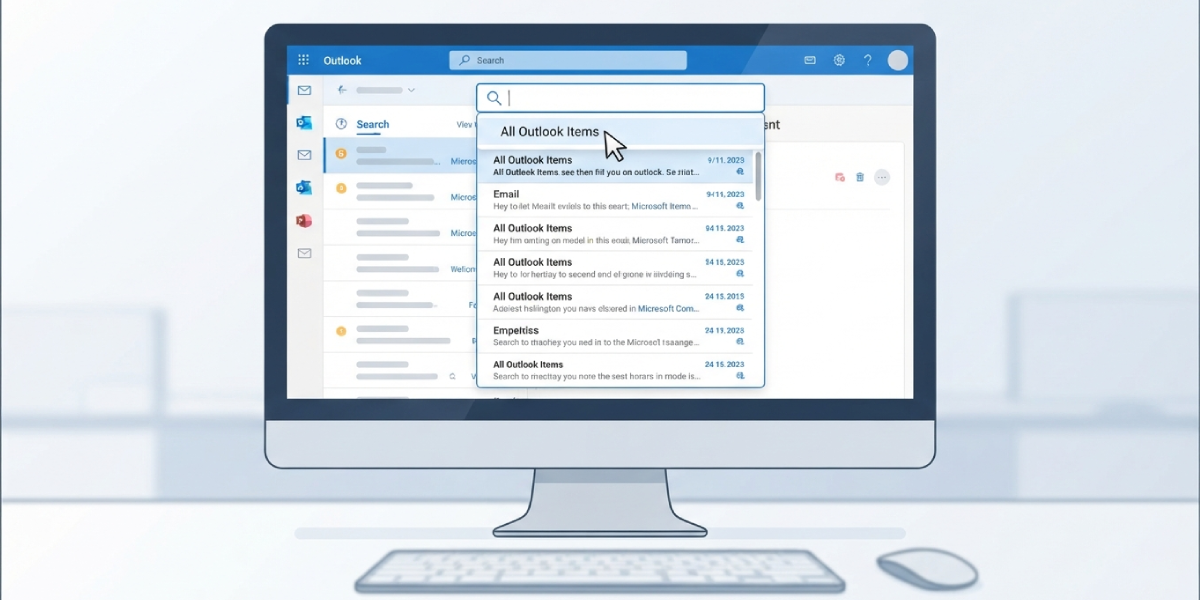
- Step 2: Reopen Outlook and check the search scope dropdown that appears when the search bar is active. Updates sometimes reset this to ‘Current Folder’ or ‘Current Mailbox’ instead of ‘All Outlook Items’, which makes results look incomplete even when nothing is actually missing.
- Step 3: Open the Windows Control Panel and go to Indexing Options. Confirm that Microsoft Outlook is listed under the included locations. If it’s missing, select ‘Modify’, check the box next to Microsoft Outlook, and click ‘OK’.
- Step 4: In the same Indexing Options window, click ‘Advanced’, then select ‘Rebuild’ under the Troubleshooting section. This clears the existing index and forces Windows to scan every Outlook item from scratch.
- Step 5: Leave the computer on and connected to power while the index rebuilds. For mailboxes with tens of thousands of items, this can take anywhere from thirty minutes to several hours, running quietly in the background.
- Step 6: Once rebuilding finishes, open Outlook, run a search for an item known to be older, and confirm it appears. If results still look thin, restart the computer once, since this forces the Windows Search service to fully reload the finished index.
Tip: Search progress can be checked anytime by reopening Indexing Options and looking at the item count next to ‘Indexed’. If that number keeps climbing, the rebuild is still working, not stuck.
Checking Cached Exchange Mode
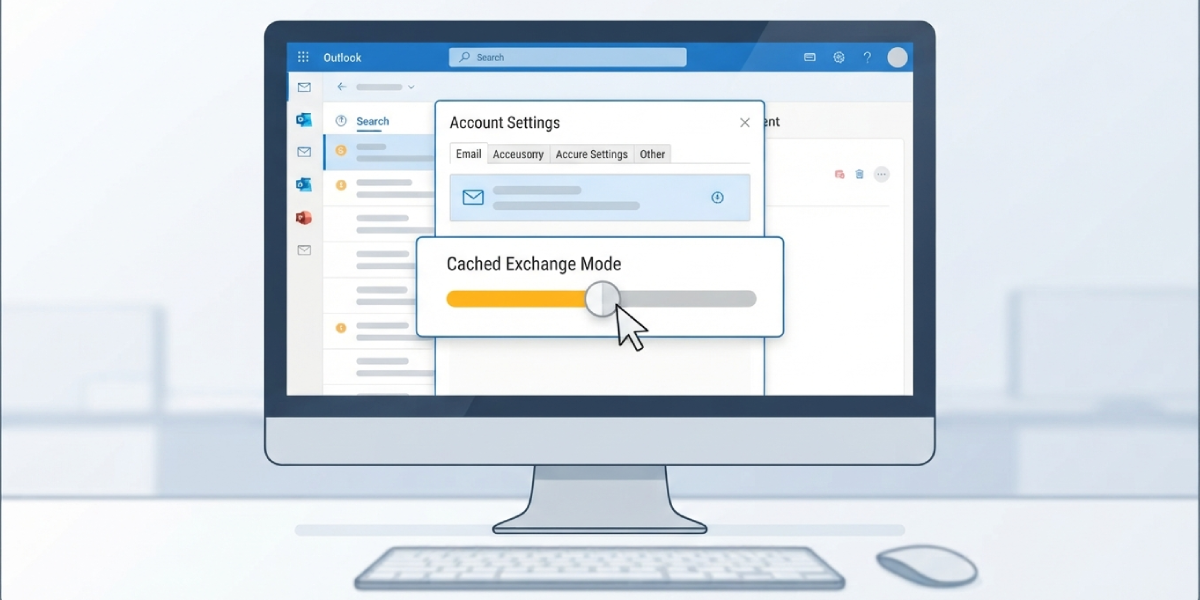
For Exchange or Microsoft 365 accounts, search depends partly on how much mail is stored locally. Go to File, then Account Settings, then Account Settings again, double-click the email account, and check the ‘Mail to keep offline’ slider under Cached Exchange Mode. If it’s set to a short window like one month, older items may not be indexed locally at all, which explains why they don’t show up in search even after a rebuild.
Common Problems and Fixes
- Index rebuild seems stuck at 0 items indexed: Close any heavy background apps like antivirus scans or OneDrive syncs, since these compete for disk access and slow indexing to a crawl.
- Search still limited to current folder after resetting scope: Click directly into the search box first, then change the scope dropdown, since changing it without an active search field sometimes doesn’t save.
- Recently received emails don’t appear but old ones do: This usually means indexing is still catching up. Wait fifteen to twenty minutes and search again before assuming something is broken.
- Outlook shows ‘Something went wrong and your search couldn’t be completed’: Restart the Windows Search service through the Services app (search for ‘services.msc’, find ‘Windows Search’, right-click, and select ‘Restart’).
- Search works for one email account but not another in the same profile: Reopen Indexing Options and confirm each account’s mailbox is checked individually, since updates can deselect one account while leaving others intact.
Frequently Asked Questions
Why did Outlook search stop finding items right after an update?
Updates frequently rebuild or reset parts of the Windows Search index, and if that process is interrupted or incomplete, Outlook loses track of items it could previously find.
How long does rebuilding the Outlook search index take?
It depends on mailbox size, but most rebuilds finish within a few hours. Larger mailboxes with hundreds of thousands of items can take longer, especially on the first pass.
Is it safe to rebuild the search index?
Yes. Rebuilding only affects how items are indexed for search, not the actual emails, attachments, or folders themselves, so there’s no risk to any stored data.
Will rebuilding the index delete any emails?
No. The rebuild process only recreates the searchable catalog of items already stored on the computer or server. Nothing gets deleted during this process.
Why does search only show recent emails and not older ones?
This is often tied to the Cached Exchange Mode setting, which controls how much mail is stored locally. Increasing the ‘Mail to keep offline’ duration usually brings older items back into search results.
Does turning Outlook on and off again help fix search?
Restarting Outlook alone rarely fixes indexing problems, but restarting the Windows Search service or the computer after a rebuild often does, since it forces the finished index to load properly.
Can antivirus software cause Outlook search to miss items?
Yes. Some antivirus programs interfere with indexing by locking files during a scan. Temporarily pausing real-time protection during a rebuild can speed things up considerably.
Why does the search scope keep resetting to the current folder?
Some updates reset default search preferences. Manually selecting ‘All Outlook Items’ from the search scope dropdown after each update usually keeps this from happening again.
Does this issue happen on both Windows and Mac versions of Outlook?
The indexing process described here is specific to Windows, since it relies on the Windows Search service. Mac users experiencing similar issues should look at Spotlight indexing instead.
What should be done if rebuilding the index doesn’t fix the problem?
Double-check that Outlook is listed under Indexing Options, confirm Cached Exchange Mode settings, and make sure Outlook is fully updated. If items are still missing after all of that, a repair of the Outlook profile through the Mail settings in Control Panel is the next step.
