
Knowing how to check HDD health with S.M.A.R.T. is one of the simplest ways to catch a failing drive before it takes important files down with it. S.M.A.R.T. stands for Self-Monitoring, Analysis, and Reporting Technology, and nearly every hard drive built in the last two decades tracks it quietly in the background. Reading those numbers takes a few minutes and can save hours of data recovery headaches later.
Key Takeaways
- S.M.A.R.T. is a built-in monitoring system that tracks wear, errors, and performance trends on hard drives.
- Windows, macOS, and Linux all have free ways to read S.M.A.R.T. data, no extra hardware required.
- A handful of attributes matter most: Reallocated Sectors, Pending Sectors, and Uncorrectable Errors.
- A drive can pass a basic S.M.A.R.T. overall status check and still be showing early warning signs in the raw attribute data.
- Backing up data is always the right move the moment any warning attribute starts climbing.
Before Checking HDD Health
Nothing here requires opening the case or touching hardware, but a couple of quick preparations make the process smoother and safer.
- Run any S.M.A.R.T. tool with administrator (Windows) or root (Linux) privileges, since low-level drive access usually needs it.
- Have an external drive or cloud backup ready. If the check turns up bad attributes, the priority shifts immediately to copying off data, not troubleshooting.
- Close any heavy disk activity, like large file transfers, before running a S.M.A.R.T. self-test, so results are not skewed by load.
How to Check HDD Health With S.M.A.R.T. Step by Step
The exact tool differs by operating system, but the underlying idea stays the same across all of them: pull the drive’s internal attribute table and look for values that signal wear or damage.
Checking S.M.A.R.T. Status on Windows
- Step 1: Open Command Prompt or PowerShell and type wmic diskdrive get status to see a quick pass or fail summary for each connected drive.
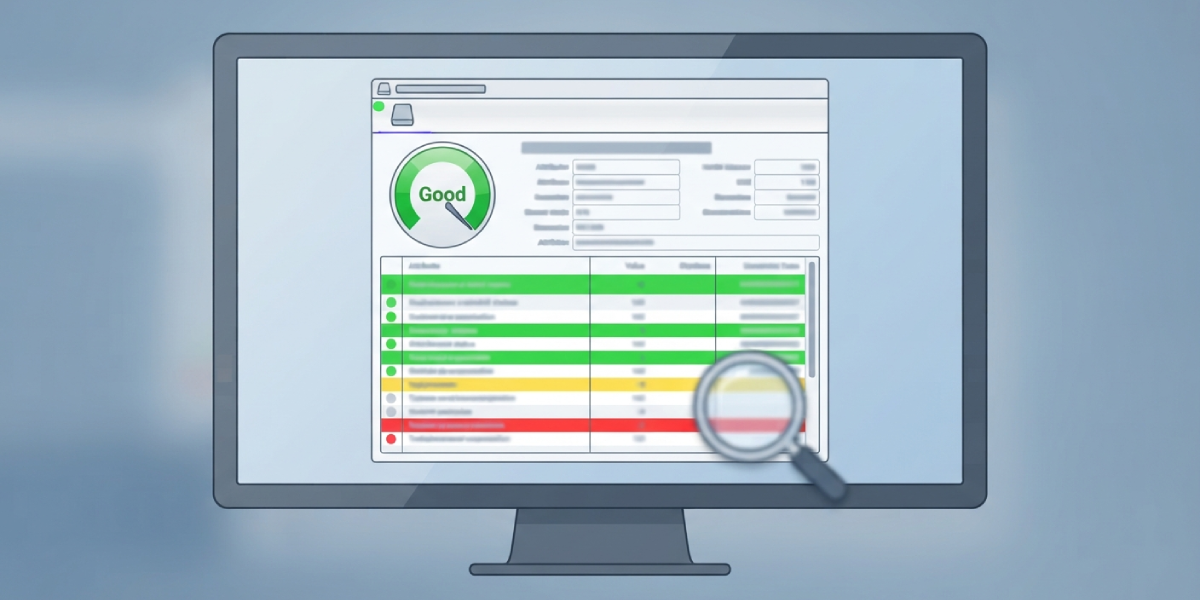
- Step 2: For detailed attribute data, download a trusted free utility such as CrystalDiskInfo, which reads and translates raw S.M.A.R.T. values into readable labels and color-coded health ratings.
- Step 3: Install and launch the tool, then locate the target hard drive in the list. It displays an overall health percentage along with individual attribute rows.
- Step 4: Scroll through the attribute list and note any row highlighted in yellow or red, which flags a value outside the normal range.
- Step 5: Check the manufacturer’s own diagnostic utility as well, since brands like Western Digital, Seagate, and Toshiba often bundle extended tests that go beyond basic S.M.A.R.T. polling.
Checking S.M.A.R.T. Status on Linux
- Step 1: Install smartmontools using the distribution’s package manager, for example sudo apt install smartmontools on Debian-based systems.
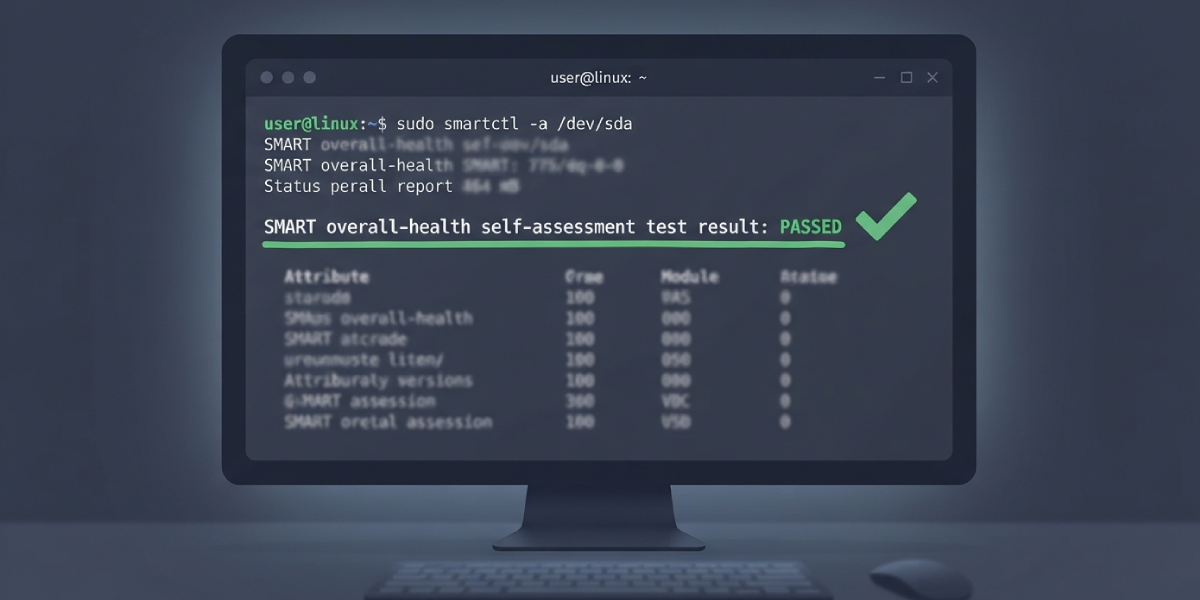
- Step 2: Run sudo smartctl -a /dev/sda, replacing sda with the correct drive identifier, to pull the full attribute report.
- Step 3: Look at the ‘SMART overall-health self-assessment test result’ line near the top for a quick PASSED or FAILED verdict.
- Step 4: Review the attribute table below it, paying close attention to the RAW_VALUE column for the critical attributes covered further down.
- Step 5: Run a deeper scan with sudo smartctl -t long /dev/sda for a full surface self-test, which takes longer but catches issues a quick check might miss.
Checking S.M.A.R.T. Status on macOS
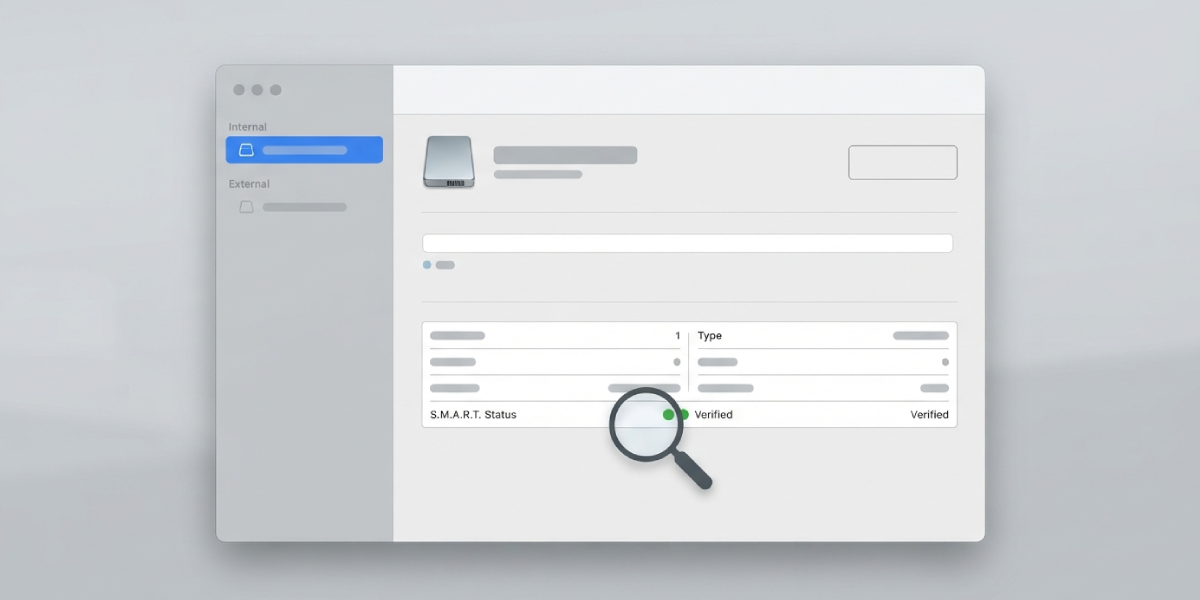
- Step 1: Open Disk Utility, select the drive in the sidebar, and check the S.M.A.R.T. Status line at the bottom of the info panel.
- Step 2: If it reads ‘Verified,’ the drive is passing its basic self-check. ‘About to Fail’ means backup should happen immediately.
- Step 3: For attribute-level detail, install smartmontools through Homebrew and run the same smartctl command used on Linux, since macOS’s built-in tool only shows the overall pass or fail result.
Tip: Do not rely on the overall pass or fail summary alone. A drive can technically pass while individual attributes are quietly trending toward failure, so the raw attribute values tell the fuller story.
Attributes That Matter Most
- Reallocated Sectors Count shows how many damaged sectors have been swapped for spares. Any number above zero, and especially one that keeps growing, points to physical wear on the platters.
- Current Pending Sector Count tracks sectors that are unstable and waiting to be reallocated. A rising number here often precedes a Reallocated Sectors increase.
- Uncorrectable Sector Count counts sectors so damaged the drive could not fix them, which usually means data loss in that spot.
- Spin Retry Count reflects how many times the drive struggled to spin up, a common sign of a failing motor or bearing.
- Power-On Hours is not a failure indicator by itself, but it puts other numbers in context. A drive with 40,000 hours on it and rising error counts is telling a very different story than a brand-new drive with the same errors.
Common Problems and Fixes
- S.M.A.R.T. reports ‘Not Supported’ or shows no data. This usually happens with drives connected through certain USB enclosures or RAID controllers that block direct S.M.A.R.T. commands. Connecting the drive via a direct SATA link, or using the enclosure manufacturer’s own utility, often restores access.
- Overall status says PASSED but attributes look bad. Trust the raw attribute values over the summary verdict. A pass simply means the drive has not crossed the manufacturer’s failure threshold yet, not that everything is healthy.
- Attribute numbers look alarming but the drive was just imaged or cloned. Heavy read and write sessions can temporarily bump numbers like Pending Sectors before they resolve on their own after a reallocation pass. Re-check after a day of normal use before jumping to conclusions.
- A long self-test gets stuck or never finishes. This is itself a warning sign, often tied to bad sectors interrupting the read pattern. Back up any needed data right away and plan for drive replacement.
- Different tools show different health percentages for the same drive. Each utility weighs attributes differently when calculating its summary score. The raw attribute values are the same underlying data, so comparing those directly is more reliable than comparing two tools’ percentage scores.
Frequently Asked Questions
What does S.M.A.R.T. actually measure?
It tracks internal drive metrics like reallocated sectors, read error rates, spin-up time, and temperature, storing them as attribute values that can be read by diagnostic software without opening the drive.
Can a drive fail with no S.M.A.R.T. warning at all?
Yes. Sudden mechanical or electronic failures, such as a controller board dying, can happen without any prior attribute change, which is why regular backups still matter even when S.M.A.R.T. looks clean.
How often should HDD health be checked with S.M.A.R.T.?
A monthly check is reasonable for most home users, while drives in constant use, like NAS units or older machines, benefit from a quick glance every couple of weeks.
Is CrystalDiskInfo safe to use?
Yes, it is a widely used, free tool that only reads data from the drive. It does not write anything or alter drive settings during a standard health check.
What is a normal Power-On Hours count?
There is no universal ‘normal’ figure, since it depends entirely on usage. What matters more is watching how other attributes behave as that hours count climbs.
Does a S.M.A.R.T. self-test slow down the computer?
A short test finishes in a couple of minutes with minimal impact. A long self-test can take a few hours and may briefly slow disk-heavy tasks, so running it overnight is a common approach.
Can S.M.A.R.T. data be reset or cleared?
Most consumer drives do not offer a way to reset historical attribute counters, since they are designed to reflect the drive’s lifetime wear rather than a resettable log.
Does an SSD use S.M.A.R.T. the same way an HDD does?
SSDs report S.M.A.R.T. data too, but the relevant attributes differ, focusing more on wear leveling and total bytes written rather than mechanical indicators like spin retries.
What should happen immediately after spotting bad S.M.A.R.T. attributes?
Back up all important data right away, then plan to replace the drive. Continuing to use a drive with rising reallocated or pending sectors risks losing data before the next backup cycle.
Are S.M.A.R.T. readings accurate across all drive brands?
The general framework is standardized, but attribute numbering and thresholds vary slightly by manufacturer, which is why cross-referencing with the drive maker’s own diagnostic tool adds confidence to the reading.
