
Learning how to recover data from a failing hard drive starts with one rule: stop using the drive the moment something feels wrong. Clicking noises, freezing file transfers, and files that suddenly won’t open are all signs the clock is running out. This guide walks through the safest, most effective way to pull files off a dying drive before it fails completely.
Key Takeaways
- Stop using the failing drive immediately – every extra read or write shortens its lifespan and risks permanent data loss.
- Software recovery tools work well for logical failures, but they are the wrong choice for drives making clicking, grinding, or beeping noises.
- Cloning the drive to a healthy disk first protects the original data if something goes wrong mid-recovery.
- A drive with physical damage or unusual sounds needs a professional data recovery lab, not a DIY attempt.
- The best long-term fix is a regular backup routine, since no recovery method has a 100 percent success rate.
Before You Start
A few precautions make the difference between a successful recovery and a drive that never spins up again.
- Power down the affected computer as soon as file errors or strange noises appear. Do not restart it repeatedly, since each boot attempt stresses a failing drive further.
- If the drive is external, unplug it from its power source and the computer, then let it sit and cool for a few minutes before reconnecting.
- Have a second, healthy storage device ready with enough free space to hold a full copy of the failing drive’s data.
- Ground hands by touching a bare metal surface before handling any internal drive, especially if the case will be opened.
- If the drive makes clicking, grinding, or repeated beeping sounds, skip software tools entirely and go straight to a professional recovery service. Those sounds usually mean a mechanical fault, and DIY attempts can turn a recoverable drive into an unrecoverable one.
Opening a drive’s casing outside of a dust-free environment will almost certainly void any warranty and can introduce debris that damages the platters permanently. That step belongs to a professional lab, not a home workbench.
How to Recover Data From a Failing Hard Drive: Step-by-Step Process
The Recovery Workflow
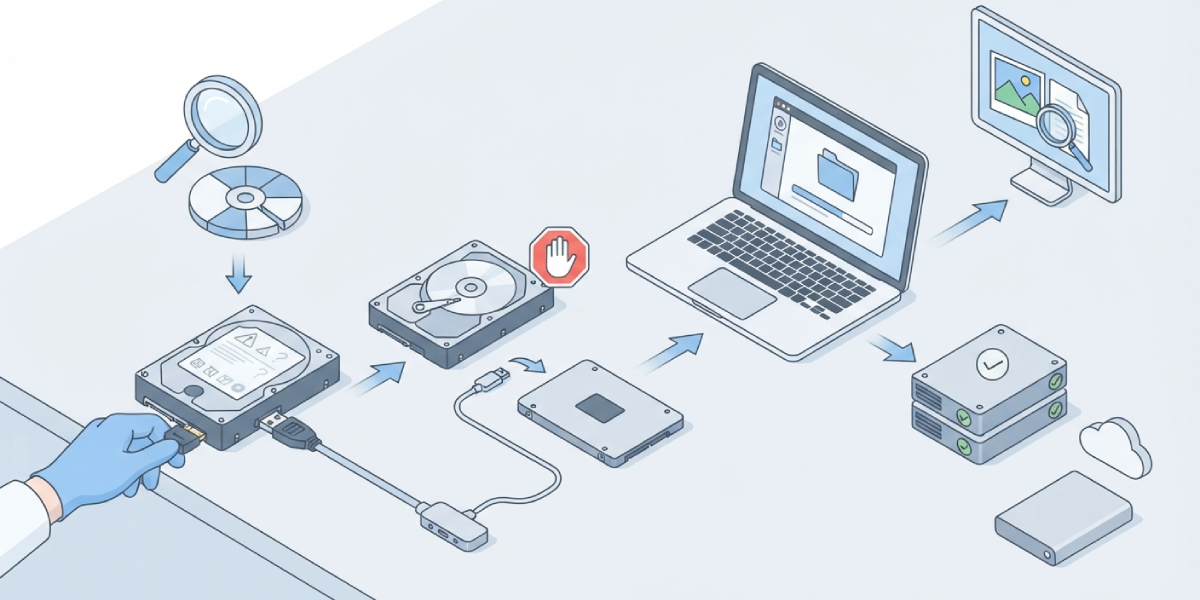
- Step 1: Confirm the type of failure. Open Disk Management on Windows or Disk Utility on macOS to see if the drive is detected at all. If it shows up but with errors, this is likely a logical failure. If it does not show up, or it disconnects and reconnects on its own, treat it as a possible mechanical failure.
- Step 2: Stop writing to the drive. Do not save new files, install software, or run a full disk defragment. Writing new data can overwrite the very sectors holding the files that need recovery.
- Step 3: Create a full disk image before attempting any recovery. Using a healthy secondary drive with enough capacity, run a disk imaging tool to create a sector-by-sector clone of the failing drive. This way, recovery software works on the clone instead of hammering the original drive with repeated read attempts.
- Step 4: Run a reputable data recovery program on the disk image, not the original drive. Well known options include Recuva, EaseUS Data Recovery Wizard, and Disk Drill. Scan for lost partitions, deleted files, and corrupted file systems, then preview recoverable files before restoring them.
- Step 5: Save recovered files to a different physical drive than the one being recovered. Never restore files back onto the failing or imaged drive, since that risks overwriting data that has not been recovered yet.
- Step 6: Verify the recovered files by opening a sample of documents, photos, and videos to confirm they are intact and not corrupted. Once verified, copy the full recovered set to at least one more location as a fresh backup.
Tip: Recovery software works best when a computer has enough free RAM and a stable power source, since interrupted scans can sometimes corrupt the recovery process itself. Plugging a laptop into power before starting a long recovery job is a small step that avoids a frustrating restart.
When Software Recovery Is Not Enough
A drive with physical damage, such as a burnt controller board, a stuck read arm, or scored platters, cannot be fixed with consumer software. These cases call for a professional data recovery lab with a cleanroom environment, since opening the drive outside those conditions exposes the platters to dust particles that cause scratches and permanent data loss.
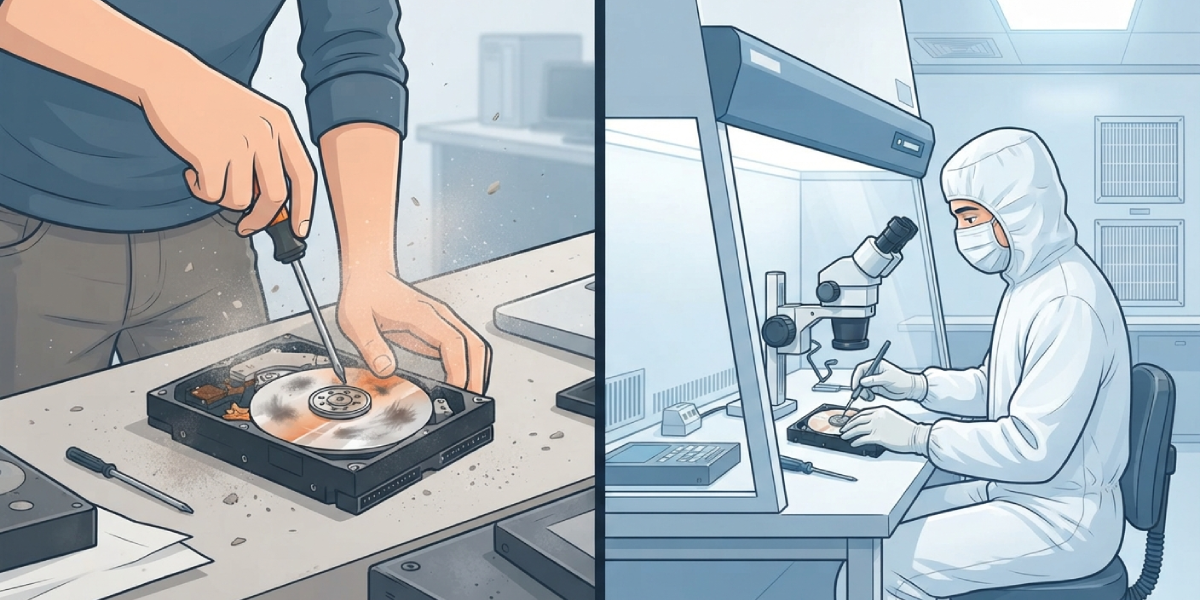
This service costs more than software, and it usually takes longer, but it is the only realistic option once physical damage is confirmed.
Common Problems and Fixes
- The drive is not detected by the computer at all. Try connecting it to a different USB port or a different computer using a SATA-to-USB adapter for internal drives. If it still is not detected anywhere, this points to a hardware fault that software cannot fix, and a professional lab is the next step.
- Recovery software finds files but they will not open. This often means the files were partially overwritten before recovery began. Try a different recovery program, since some tools reconstruct fragmented files more effectively than others, and always work from a disk image rather than the original drive.
- The scan is taking an extremely long time or keeps freezing. Large drives with many bad sectors take longer to scan, and a struggling drive can cause software to hang. Let the disk imaging step run at a slower speed with error skipping enabled rather than forcing a full-speed scan on a failing drive.
- Recovered file names or folder structures are missing. Some recovery tools rebuild file content but not the original folder organization, especially after a formatted or reformatted drive. Sorting recovered files by file type and date modified helps rebuild some order, even without the original folder names.
- The drive worked for the imaging step but has since stopped responding entirely. This is common with mechanically failing drives, since the imaging process itself can be the last workload the drive can handle. If a disk image was successfully created, recovery can continue from that image without needing the original drive again.
Frequently Asked Questions
Can data be recovered from a hard drive that will not turn on?
Sometimes, but not with software alone. A drive that will not power on usually has a hardware fault on the circuit board or the motor, and recovery in that case requires a professional lab with replacement parts and specialized equipment.
Is it safe to keep using a failing hard drive to back up files manually?
It is risky. Every read and write cycle on a failing drive increases the chance of complete failure, so manual copying should be limited and, ideally, replaced with an imaging tool that handles bad sectors more gracefully.
What is the difference between a logical failure and a physical failure?
A logical failure involves corrupted data, a damaged file system, or accidental deletion, while the drive’s hardware still works. A physical failure involves damaged components, such as a bad read head or motor, and usually comes with unusual noises.
How long does data recovery from a failing hard drive usually take?
Software based recovery on a logical failure can take anywhere from a few hours to over a day, depending on drive size and the number of bad sectors. Professional lab recovery for physical damage typically takes several days to a few weeks.
Can a clicking hard drive still be recovered?
Sometimes, but only through a professional recovery lab. Clicking usually indicates a mechanical issue with the read and write heads, and continued use significantly increases the risk of permanent data loss.
Is free data recovery software good enough for important files?
Free tools can work well for straightforward cases like accidental deletion, but they often have limits on the amount of data recoverable or the file types supported. For critical files, a paid tool or professional service offers more thorough recovery options.
Should a failing hard drive be frozen to recover data?
No. Freezing a hard drive is an outdated method that does not reliably work on modern drives and can introduce condensation that causes further damage. It should be avoided entirely.
What is the best way to prevent needing data recovery in the future?
A consistent backup routine is the most reliable prevention. Using the 3-2-1 approach, three copies of important data, on two different types of storage, with one copy stored off site, greatly reduces the risk of permanent data loss.
Can data be recovered after a hard drive has been formatted?
Yes, in most cases. Formatting typically removes the file system’s index rather than the actual data, so recovery software can often locate and restore files as long as the drive has not been heavily written to since the format.
Does data recovery software work on both internal and external hard drives?
Yes, most reputable recovery programs support internal drives, external hard drives, and USB flash drives, as long as the drive is detected by the operating system.
