
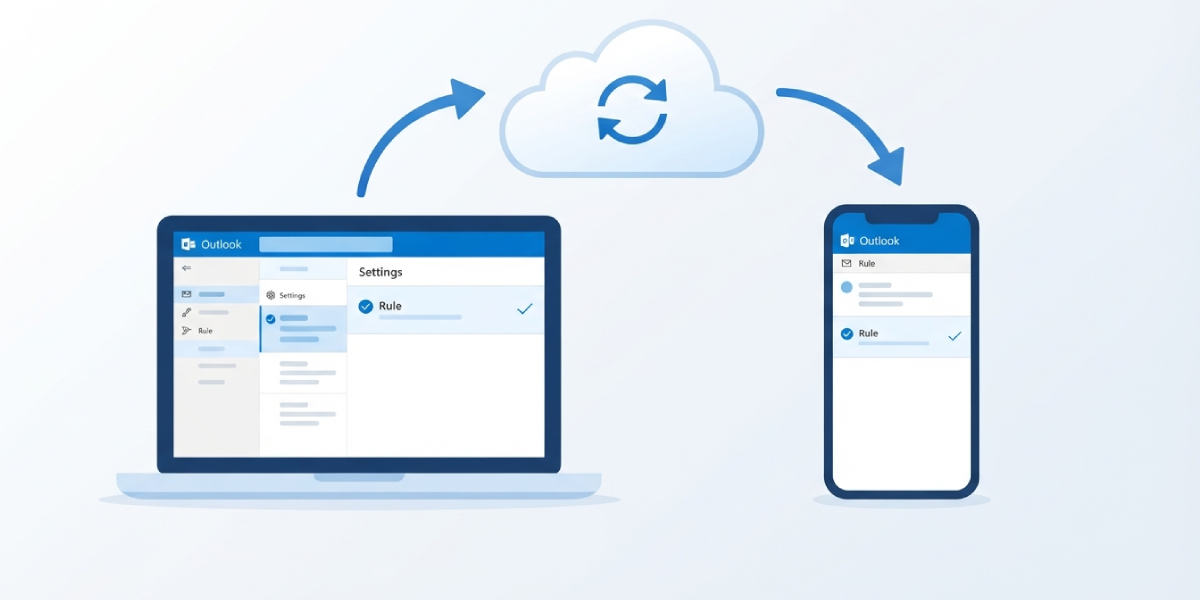
Outlook rules not running on all devices is one of the most common frustrations mailbox owners run into once they start splitting time between a laptop, a phone, and Outlook on the web. A rule that files newsletters into a folder on the office PC but ignores them everywhere else usually points to a rule that never made it to the server. This guide walks through exactly why that happens and how to fix it for good.
Key Takeaways
- Rules only run everywhere when they are saved as server-side rules, not client-only rules.
- Certain conditions and actions, like playing a sound or moving items to a local data file, force a rule to stay client-only.
- Outlook mobile has its own separate rules list that does not sync automatically with desktop or Outlook on the web.
- Rule storage limits on the mailbox can silently block new rules from saving properly.
- Checking Outlook on the web confirms whether a rule actually reached the server.
Step-by-Step Guide to Fixing Outlook Rules Not Running on All Devices
Check and Rebuild the Rule So It Runs on Every Device
- Step 1: Open Outlook on the desktop and go to File, then Manage Rules & Alerts (or Rules, then Manage Rules & Alerts from the Home tab). Look at the list carefully for any rule labeled ‘client-only’ next to its name.
- Step 2: Double-click the rule and review every condition and action inside it. Actions such as playing a specific sound, moving messages to a PST file, displaying a desktop alert, or running a script are not supported by the server, and any one of them will lock the rule to that single computer.
- Step 3: Remove or replace the unsupported action with a server-friendly one, such as moving the message to a folder that lives in the mailbox itself rather than a local data file. Save the rule and check whether the ‘client-only’ tag disappears.
- Step 4: Confirm the account tied to the rule is an Exchange or Microsoft 365 account. Go to File, Account Settings, Account Settings, and check the account type listed next to the email address. Rules on POP or IMAP accounts always stay local to that device, since those account types have no server-side rule engine to sync against.
- Step 5: Sign in to Outlook on the web at outlook.office.com and open Settings, then Mail, then Rules. If the newly saved rule appears there, it is now server-side and should apply across every device connected to that mailbox.
- Step 6: Check the order of the rules and whether ‘Stop processing more rules’ is checked on an earlier rule. A rule sitting further down the list can be skipped entirely if an earlier rule catches the message first and stops processing.
- Step 7: If the mailbox has a long list of rules built up over time, delete any that are no longer needed. Exchange Online enforces a total storage limit for rules per mailbox, and once that limit is reached, new or edited rules may fail to save correctly even though no obvious error appears.
- Step 8: For the phone or tablet, open the Outlook mobile app, tap the account icon, go to Settings, select the account, and look for Rules. This list is completely separate from the desktop and web rules, so the same rule needs to be created here as well if mobile filtering is expected.
- Step 9: Close and reopen Outlook desktop, or trigger a manual Send/Receive, so the updated rule set syncs down to that machine right away instead of waiting for the next automatic sync.
Tip: A quick way to test a rule without waiting on real email is to right-click it in the Rules and Alerts dialog and choose ‘Run Rules Now,’ applying it to an existing folder to confirm the logic actually works before trusting it to run automatically.
Common Problems and Fixes
- Rule works on one PC but not the phone or web: The rule is client-only. Rebuild it using only server-supported conditions and actions, as described in Step 2 and Step 3.
- Rule disappears from Outlook on the web: This confirms it never left the local machine. Recreate it directly in Outlook on the web instead of the desktop app to guarantee it saves server-side.
- Rule stopped working after several new rules were added: The mailbox likely hit its rule storage quota. Remove outdated rules and consolidate similar ones into a single rule with multiple conditions where possible.
- Mobile app never applies the same filtering as desktop: This is expected behavior, not a bug. Outlook mobile requires its own rule to be set up separately under account settings.
- Rule runs inconsistently, sometimes catching a message and sometimes not: Check rule order and the ‘Stop processing more rules’ checkbox on rules above it, since an earlier match can prevent the intended rule from ever firing.
- Newly created rule doesn’t show up on a second computer right away: Give it a few minutes and force a manual Send/Receive on that machine, since rule sync is not always instant.
Frequently Asked Questions
Why do Outlook rules only work on one computer?
This happens when a rule contains a condition or action that Exchange cannot process on the server, which forces Outlook to mark it client-only and run it exclusively on the machine where it was created.
Do Outlook rules sync across devices automatically?
Server-side rules sync automatically across any device connected to an Exchange or Microsoft 365 mailbox. Client-only rules and mobile app rules do not sync and need to be set up individually.
Why don’t Outlook rules run on the mobile app?
Outlook mobile maintains a separate rules list from desktop and Outlook on the web. A rule created on a computer has to be recreated inside the mobile app’s own Rules settings to apply there.
How can it be confirmed whether a rule is client-only?
Open Manage Rules & Alerts in Outlook desktop and check the rule name for a ‘client-only’ label. Signing in to Outlook on the web and checking the Rules list under Mail settings is another reliable way to confirm.
Does Outlook need to stay open for rules to run?
Only client-only rules require Outlook desktop to be open and running on that specific computer. Server-side rules process on the mailbox server regardless of whether any device has Outlook open.
What actions force a rule to become client-only?
Actions like playing a sound, showing a desktop alert, moving items to a local PST or OST data file, or running a custom script are not supported server-side and will make the rule client-only.
Why did a rule stop applying after adding several new ones?
Exchange Online mailboxes have a storage limit for rules. Once that limit is reached, new rules may fail to save properly or existing ones may stop functioning as expected.
Can a POP or IMAP account use rules that run on all devices?
No. POP and IMAP accounts do not have server-side rule processing, so any rule created on them is client-only by default and will only run on that one machine.
Why does a rule work in Outlook on the web but not on the phone?
Outlook on the web and desktop share the same server-side rules list for Exchange and Microsoft 365 accounts, but Outlook mobile keeps its own independent rules that must be configured separately.
What is the fastest way to force a rule to sync to another device?
Save the rule, confirm it appears in Outlook on the web, then perform a manual Send/Receive on the other device to pull the updated rule set immediately instead of waiting for automatic sync.
