
A black screen after installing GPU drivers is one of the most unsettling problems a PC owner can run into, especially right after what should have been a routine update. The good news is that the screen is almost never a sign of a dead graphics card. In most cases, the driver installation left the display output in a bad state, and a handful of proven fixes will bring it back.
Key Takeaways
- A black screen after a GPU driver install usually points to a driver conflict, not failed hardware.
- Forcing a clean driver removal with Display Driver Uninstaller (DDU) resolves the majority of cases.
- Safe Mode gives access to Device Manager even when the normal desktop will not display anything.
- Checking the monitor cable and GPU output port takes seconds and rules out a simple wiring issue first.
- Windows updates and chipset drivers should be current before reinstalling a graphics driver.
Common Causes of a Black Screen After a GPU Driver Update
Several things can trigger this issue, and narrowing down the cause makes the fix faster.
Leftover Files From a Previous Driver
Standard driver installers often do not fully remove old driver files before writing new ones. Those leftover files can conflict with the fresh install and prevent the display from initializing correctly.
A Corrupted or Interrupted Installation
If the driver install was interrupted by a restart, a power blip, or a background process, the files on disk can be incomplete even though Windows reports the install as finished.
Fast Startup Interference
Windows’ Fast Startup feature saves a partial system state between shutdowns. After a driver change, that saved state can be out of sync with the new driver, leading to a black screen on the next boot.
Wrong Display Output in Use
On systems with both integrated graphics and a dedicated GPU, a monitor cable plugged into the motherboard’s video port instead of the graphics card’s port will go black the moment the dedicated GPU driver takes over.
An Incompatible or Beta Driver Version
Newer driver builds occasionally ship with bugs on specific GPU and monitor combinations. This is more common with beta or day-one driver releases than with stable, WHQL-certified versions.
Step-by-Step Fixes for a Black Screen After GPU Driver Install
Work through these steps in order. Most people find the problem resolved well before reaching the final ones.
Rule Out the Simple Causes First
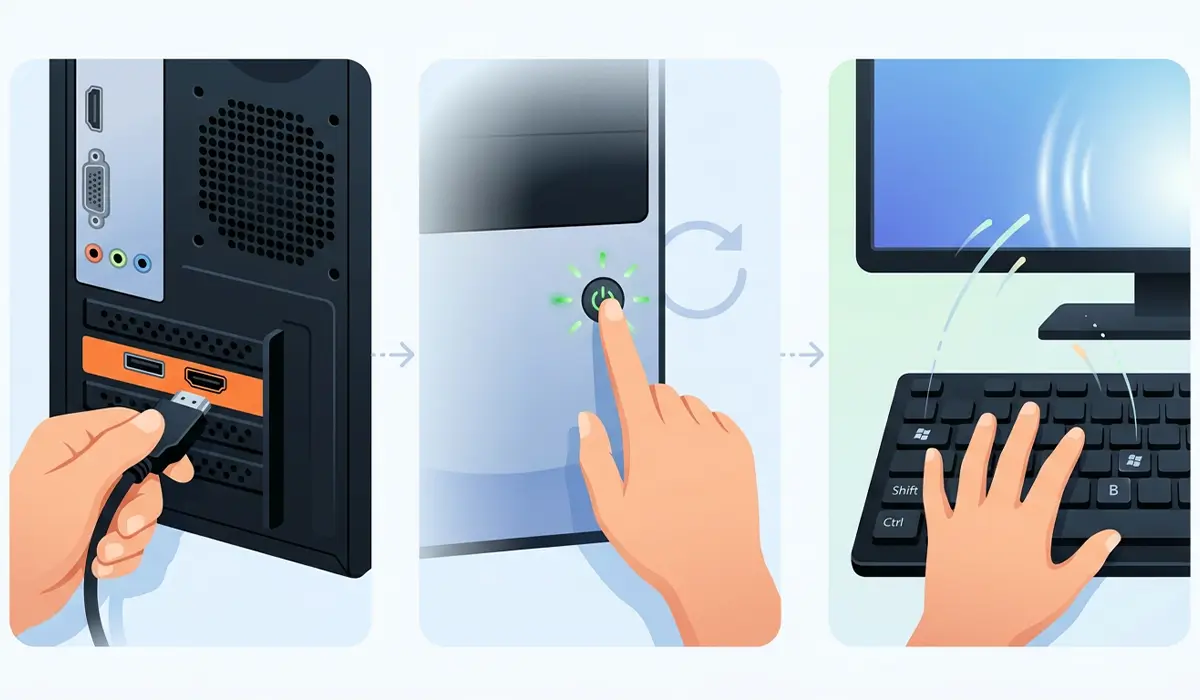
- Step 1: Confirm the monitor cable is connected to the graphics card’s output port, not a port on the motherboard, if a dedicated GPU is installed.
- Step 2: Force a restart by holding the power button for about ten seconds, then power the PC back on to see if the screen returns.
- Step 3: Try pressing Windows key + Ctrl + Shift + B, which resets the graphics driver and refreshes the display without a full restart.
Reinstall the Driver Cleanly
- Step 4: Boot into Safe Mode. If the desktop never loads, force a shutdown three times in a row during startup to trigger the Windows Recovery Environment, then choose Troubleshoot, Advanced Options, Startup Settings, and select Safe Mode.
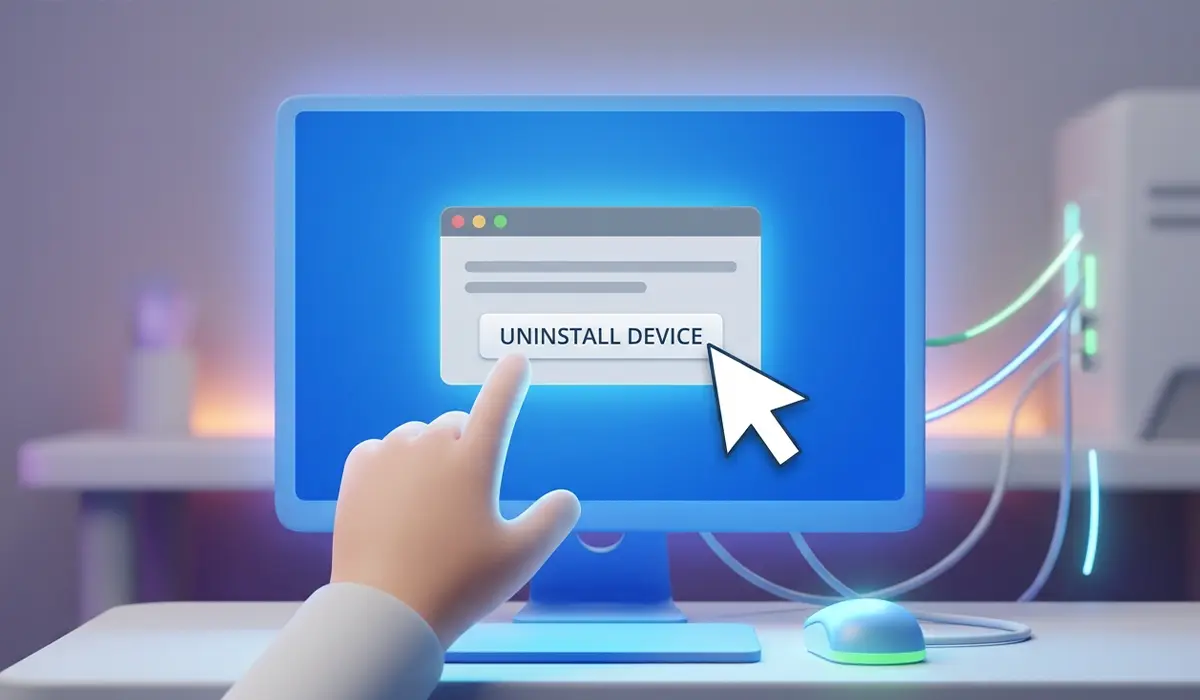
- Step 5: Once in Safe Mode, open Device Manager, expand Display Adapters, right-click the GPU, and choose Uninstall Device. Check the box to remove the driver software if it appears.
- Step 6: For a more thorough removal, run Display Driver Uninstaller (DDU) in Safe Mode. This tool clears leftover driver files and registry entries that a standard uninstall can leave behind.
- Step 7: Restart the PC normally and download the latest stable driver directly from the GPU manufacturer’s website, NVIDIA, AMD, or Intel depending on the hardware, then install it fresh.
Tip: Choose the standard driver install option rather than a custom or minimal install, since the full package includes display initialization components that a stripped-down install sometimes skips.
Address Fast Startup and System Updates
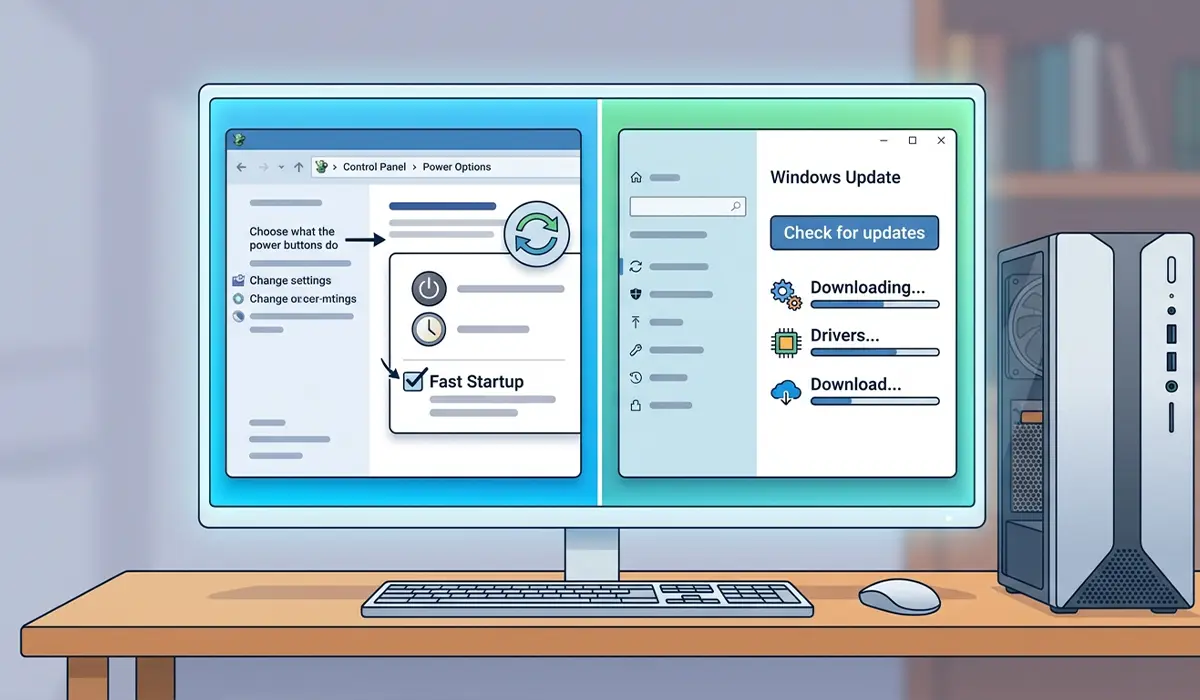
- Step 8: Open Control Panel, go to Power Options, select Choose what the power buttons do, click Change settings that are currently unavailable, and uncheck Turn on fast startup.
- Step 9: Run Windows Update and install any pending updates, including chipset and motherboard driver updates from the manufacturer’s site, since these can affect how the new GPU driver initializes.
Roll Back or Restore if the Screen Still Will Not Return
- Step 10: In Device Manager, right-click the GPU, choose Properties, open the Driver tab, and select Roll Back Driver if that option is available.
- Step 11: If no rollback option exists, use System Restore to return Windows to a restore point created before the driver was installed.
Common Problems and Fixes
The Screen Stays Black Even in Safe Mode
This usually points to a monitor or cable problem rather than the driver itself. Test the monitor with a different cable or on another PC to confirm it is receiving a signal at all.
Device Manager Shows a Yellow Warning Icon on the GPU
A yellow triangle after reinstalling usually means the driver failed to load correctly. Uninstall it again with DDU in Safe Mode, restart, and install the driver package a second time without interruptions.
The PC Boots to a Black Screen With Only a Cursor
This is often a leftover Explorer or driver initialization delay rather than a failed install. Waiting sixty seconds resolves it in many cases. If it persists, opening Task Manager with Ctrl + Shift + Esc and restarting Explorer through the File menu usually brings the desktop back.
DDU Will Not Run in Safe Mode
Confirm Safe Mode was entered correctly and not just a low-resolution version of the normal desktop. DDU is designed specifically to run in true Safe Mode, where background services that lock driver files are not active.
Frequently Asked Questions
Why does the screen go black right after a GPU driver installs?
The driver briefly resets the display output as it loads, and if the install did not complete cleanly or conflicts with leftover files from a previous driver, the display can fail to reinitialize.
Is a black screen after a driver update a sign of a failing graphics card?
Rarely. Most cases trace back to software conflicts rather than hardware failure, especially when the card worked normally before the driver install.
How long should the screen stay black before taking action?
A minute or two is normal while Windows finishes background processes. If the screen stays black beyond that with no disk activity, it is reasonable to force a restart.
What is Display Driver Uninstaller and is it safe to use?
Display Driver Uninstaller, or DDU, is a widely used third-party tool built specifically to remove graphics drivers and their leftover files completely. It is safe when run in Safe Mode following its standard instructions.
Should the driver be installed from Windows Update or the manufacturer’s website?
The manufacturer’s website is generally the more reliable source, since it typically offers the most current stable release along with the full installer package rather than a minimal driver component.
Does disabling Fast Startup permanently affect boot speed?
It can add a few seconds to shutdown and startup time, but the difference is minor on most modern systems with a solid-state drive.
Can outdated Windows updates cause a black screen after a driver install?
Yes, mismatched system files or missing chipset updates can interfere with how a new GPU driver initializes the display, so keeping Windows current helps prevent this.
What if the screen stays black even after a clean driver reinstall?
Testing the monitor and cable on another device helps isolate whether the issue is the display hardware itself rather than the driver, which points toward a different troubleshooting path.
Is it necessary to remove the graphics card physically to fix this?
No, this is a software-level issue in nearly every case. Physical removal is not part of the standard fix and is unnecessary unless a separate hardware problem is confirmed.
When should a professional be consulted instead of troubleshooting further?
If the display stays black across multiple monitors and cables, and driver reinstalls and System Restore do not help, a professional can rule out a genuine hardware fault more efficiently.
