
An external monitor not detected by a Windows PC or laptop usually comes down to a loose cable, a display setting that needs a manual nudge, or a graphics driver that has fallen out of sync with the operating system. The good news is that most cases get resolved in a few minutes without opening the case or touching a single screw.
Key Takeaways
- Loose or mismatched cables are the most common reason an external monitor gets ignored.
- Windows often needs a manual push through Display Settings or the Windows key + P shortcut to notice a second screen.
- Outdated or corrupted graphics drivers frequently cause a monitor to connect physically but never appear in software.
- Docking stations and USB-C hubs add another failure point worth testing separately from the monitor itself.
- A monitor that works during BIOS startup but disappears once Windows loads points to a driver or display setting issue rather than a hardware fault.
Before You Start
None of the fixes below require opening the PC or laptop, but a few habits make troubleshooting faster and safer.
- Power down the PC and the monitor fully before swapping any cable, rather than hot-plugging while everything is running.
- Inspect cable ends for bent pins or debris before reconnecting anything.
- Let a laptop or monitor that has been running hot cool down for a few minutes before handling the ports.
If a monitor still will not detect after every step here, and there are signs of physical port damage, that is a good point to hand the unit to a professional rather than forcing a connection.
Common Causes of an External Monitor Not Detected
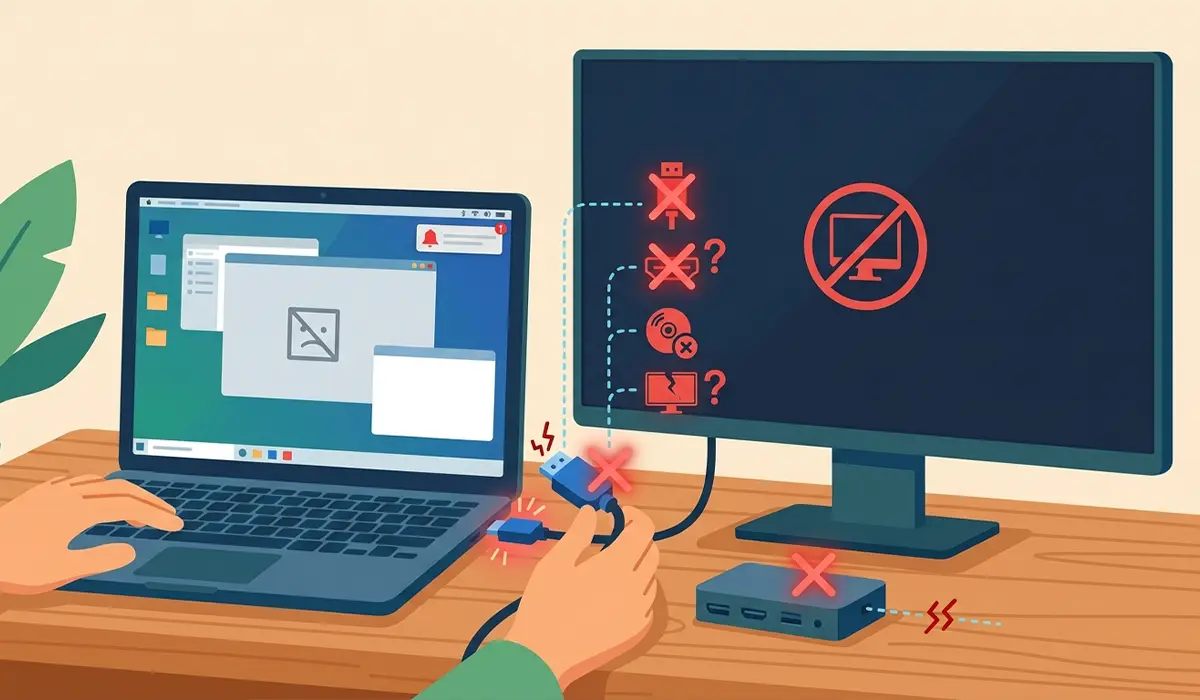
Before jumping into fixes, it helps to know what typically causes this. The most frequent culprits include a cable that is not fully seated, a port sending the wrong video signal type, an outdated or crashed graphics driver, Windows defaulting to the wrong display mode, or a laptop stuck using its internal screen only. Docking stations and adapters can also silently drop the signal even when everything looks connected.
How to Fix an External Monitor Not Detected
Work through these steps in order. Most people find the issue resolves within the first three or four steps.
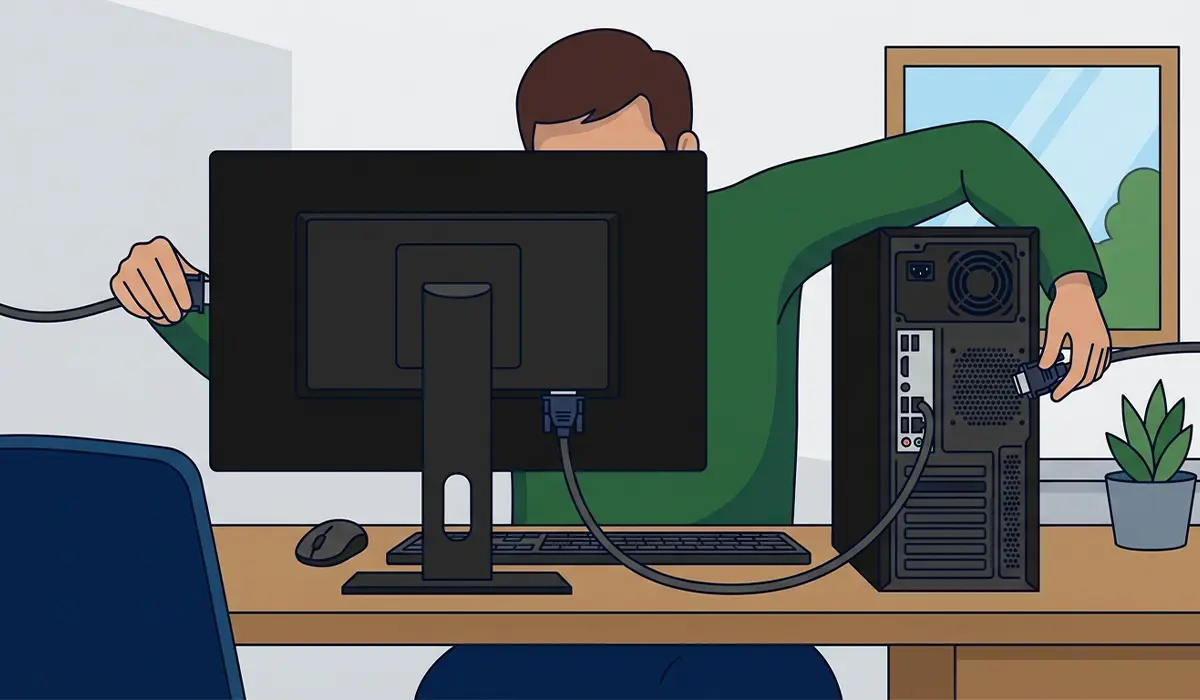
- Step 1: Check the physical connection. Unplug the video cable from both the monitor and the PC, inspect it for damage, and reseat it firmly on both ends. If using an adapter, such as USB-C to HDMI, disconnect and reconnect it as well.
- Step 2: Confirm the monitor is on the correct input. Most monitors have a dedicated input or source button. Cycle through HDMI, DisplayPort, or VGA until the correct source is selected.
- Step 3: Force Windows to detect the display. Press Windows key + P to open the project menu, or go to Settings, then System, then Display, and select ‘Detect’ under Multiple Displays.
- Step 4: Try a different cable or port. A single faulty HDMI or DisplayPort cable is one of the most common reasons a monitor stops being recognized, and swapping to a spare cable or a different port on the graphics card rules this out quickly.
- Step 5: Test the monitor on another device, such as a different laptop, or test a different monitor on the same PC. This step isolates whether the monitor, the cable, or the computer’s video output is at fault.
- Step 6: Update or reinstall the graphics driver. Open Device Manager, expand Display Adapters, right-click the graphics card, and choose ‘Update driver.’ If a recent update caused the issue, rolling back to the previous driver version through the same menu often restores detection.
- Step 7: Rule out a docking station or hub. If the monitor connects through a docking station or USB-C hub, plug the monitor directly into the PC instead. A firmware-outdated or overloaded hub is a common, easy-to-miss cause.
- Step 8: Check for a Windows Update that may resolve driver or display bugs. Go to Settings, then Windows Update, and install any pending updates, then restart and test the monitor again.
Tip: When testing cables, swap only one variable at a time. Changing the cable and the port at the same moment makes it harder to know which change actually fixed the problem.
Common Problems and Fixes
Monitor Detected in BIOS but Not in Windows
This points to a driver or display configuration issue rather than a hardware fault, since BIOS uses a basic video mode that bypasses the graphics driver entirely. Updating or reinstalling the graphics driver, described in Step 6 above, resolves this in most cases.
Second Monitor Detected but Screen Stays Black
The monitor may be receiving a signal but displaying nothing because of an incorrect resolution or refresh rate. In Display Settings, select the second monitor and try a lower resolution, such as 1920×1080 at 60Hz, then adjust upward once the display appears.
Only One Monitor Detected on a Multi-Monitor Setup
This is often caused by a graphics card running out of available outputs of a certain type, or a docking station that only supports one external display at a time. Checking the specifications of the dock or graphics card confirms how many simultaneous displays it actually supports.
Monitor Flickers or Disconnects Repeatedly After Being Detected
An intermittent connection like this usually traces back to a loose cable or a cable that is too long or low quality for the resolution being pushed through it. Swapping to a shorter, higher-spec cable typically clears this up.
Laptop Refuses to Recognize a Monitor Through a Docking Station
Tip: Update the docking station’s own firmware and driver software, not just the graphics driver on the laptop, since many docks rely on separate software to manage external displays.
Frequently Asked Questions
Why does Windows say no other displays detected even though the monitor is on?
This usually means the video signal is not reaching the graphics card properly. Reseating the cable, trying a different port, and clicking ‘Detect’ in Display Settings resolve this in the majority of cases.
Can a bad HDMI cable cause a monitor to not be detected at all?
Yes. A damaged or low-quality HDMI or DisplayPort cable is one of the most common reasons a monitor fails to show up, even when the monitor itself is completely fine.
Why does the external monitor work with one laptop but not another?
This points to a driver, port, or settings difference between the two machines rather than a monitor problem, since the monitor and cable are proven working with the first device.
Does updating the graphics driver really fix detection issues?
Often, yes. An outdated or corrupted graphics driver can prevent Windows from properly communicating with an external display, and updating or rolling back the driver resolves detection in many cases.
Why does a monitor connected through a USB-C hub not get detected?
Many USB-C hubs and docking stations have limited video bandwidth or require their own driver and firmware updates. Connecting the monitor directly to the PC helps confirm whether the hub is the problem.
Is it safe to swap monitor cables while the PC is running?
It is generally safer to power down the PC and monitor before swapping cables, since hot-plugging can occasionally cause a display to fail to reinitialize properly, even though it rarely causes actual damage.
Why does the monitor show up in Device Manager but not on the desktop?
This typically means Windows recognizes the hardware but has not activated it as an active display. Using Windows key + P or the Display Settings ‘Detect’ option usually brings it online.
Can a graphics card have too many monitors connected for it to handle?
Yes. Most graphics cards support a limited number of simultaneous outputs, and some output types share bandwidth. Checking the graphics card’s documented maximum display count explains cases where only some monitors get detected.
Why did the monitor stop being detected after a Windows update?
A Windows update can sometimes install a driver that is not fully compatible with the current graphics card. Rolling back the driver through Device Manager often restores the previous working behavior.
