
Knowing how to check USB port version takes the guesswork out of slow file transfers and devices that never seem to reach their advertised speed. A port that looks fine can still be limited to USB 2.0, and the label on the case is not always reliable. This guide covers quick visual checks, Windows tools, a real-world speed test, and a Mac method.
Key Takeaways
- USB 3.x ports usually carry an SS logo, and many have a blue or teal inner tongue, but color alone is not proof.
- Device Manager shows whether the system has USB 3.x controllers, though it does not identify each individual port.
- A large file copy test with a known USB 3 drive is the most reliable way to confirm what a specific port delivers.
- The slowest part in the chain (port, cable, or device) sets the final speed.
How to Check USB Port Version on Windows
These methods run from quickest to most accurate. Most people find that combining two of them settles the question for good.
Method 1: Read the Port Markings and Color
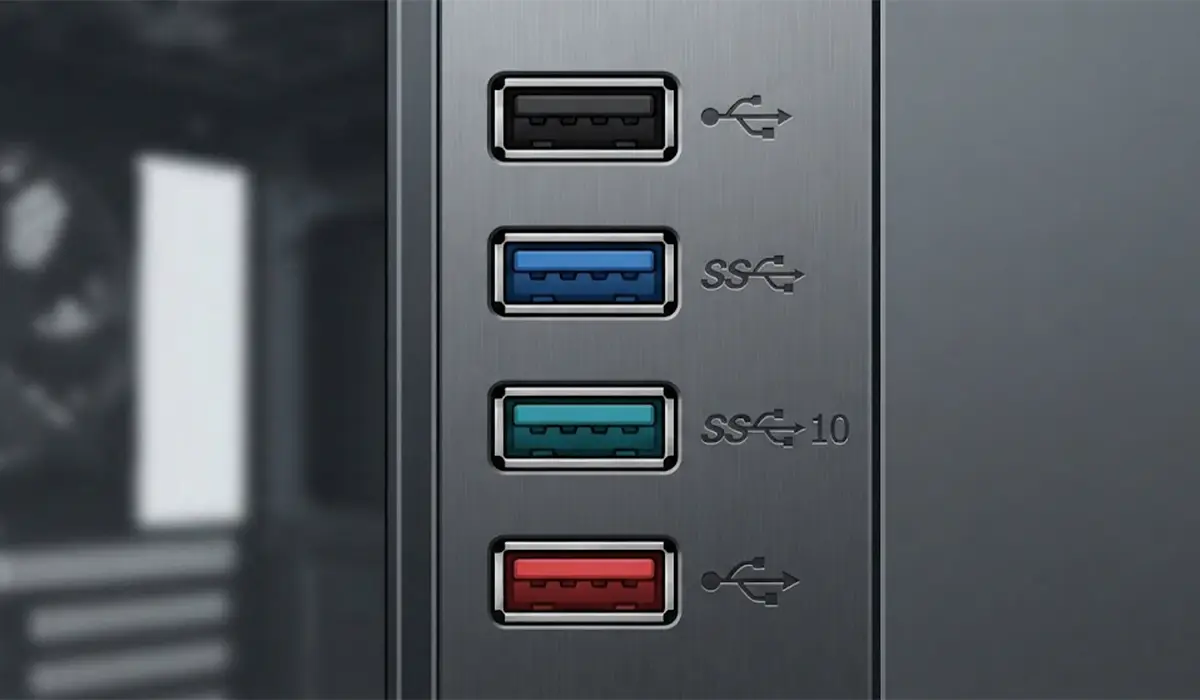
- Step 1: Look closely at the symbol beside each port. A USB trident on its own usually means USB 2.0, while the same symbol with SS (SuperSpeed) points to USB 3.x.
- Step 2: Check for numbers next to the SS mark, such as 5, 10, or 20. These show the speed in Gbps and separate USB 3.2 Gen 1, Gen 2, and Gen 2×2 ports.
- Step 3: Look inside the port. A blue tongue is a common sign of USB 3.0, and teal is often used for faster USB 3.x ports. Black or white tongues are typical on USB 2.0 ports.
- Step 4: Treat color as a hint only. Some manufacturers use black for every port regardless of speed, and red or yellow often marks an always-on charging port.
Method 2: Check the USB Controllers in Device Manager
- Step 1: Right-click the Start button and choose Device Manager.
- Step 2: Expand the Universal Serial Bus controllers section.
- Step 3: Look for an entry containing xHCI or eXtensible Host Controller, such as USB xHCI Compliant Host Controller. This is the controller type that handles USB 3.x, so its presence means the system supports USB 3.x.
- Step 4: If the only host controller entries say Enhanced Host Controller (EHCI), the system is limited to USB 2.0.

Tip: Modern PCs often run every port, including USB 2.0 ones, through the same xHCI controller. Device Manager therefore confirms what the system is capable of, but it cannot say which physical port is which.
Method 3: Confirm the Real Speed with a Copy Test
- Step 1: Plug in a flash drive or external SSD that is known to be USB 3.0 or faster.
- Step 2: Copy one large file, several gigabytes in size, from the internal drive to the USB drive. A single large file gives a cleaner reading than a folder of small files.
- Step 3: Watch the transfer speed in the copy dialog. A speed that stays at a few dozen megabytes per second points to USB 2.0 behavior, while a USB 3.x port lets a fast drive run far higher.
- Step 4: Repeat the test in every other port and compare the results. The ports that run noticeably faster are the USB 3.x ones.
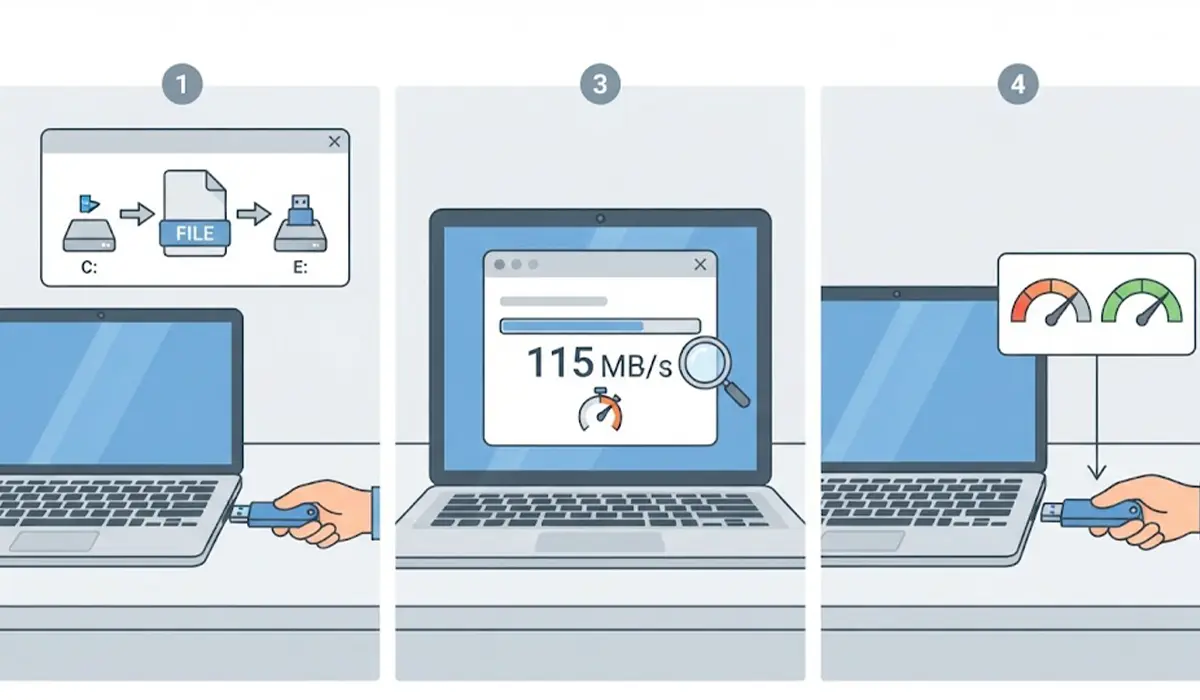
Tip: Use the same drive and the same cable for every port. Changing either one makes the comparison meaningless.
Method 4: Use a USB Tree Viewer Utility
- Step 1: Download a free USB tree viewer utility such as UsbTreeView from its official source.
- Step 2: Plug a device into the port being tested and open the tool.
- Step 3: Select the connected device in the tree. The connection speed is reported as High Speed for USB 2.0, SuperSpeed for 5 Gbps, or SuperSpeed Plus for 10 Gbps and above.
Method 5: Look Up the Device Specifications
- Step 1: Open Settings, choose System, then About, and note the device name and model.
- Step 2: Search the manufacturer’s official specification page or manual for that exact model.
- Step 3: Find the I/O or ports section. It lists each port type and its USB generation, including which USB-C ports support faster data speeds.
How to Check USB Port Version on a Mac
- Step 1: Plug a USB device into the port being tested.
- Step 2: Open System Information from the Apple menu (About This Mac, then More Info and System Report on recent macOS versions).
- Step 3: Select USB under the Hardware section in the sidebar.
- Step 4: Click the connected device and read the Speed line. A value such as Up to 480 Mb/s means USB 2.0, and Up to 5 Gb/s means USB 3.0.
USB 2.0 vs 3.0 vs 3.2 Explained
USB naming changed over the years, which is why the same port can carry several different labels. The 3.2 specification absorbed the earlier 3.0 and 3.1 names, so older and newer labels often describe identical speeds.
- USB 2.0 (High Speed): up to 480 Mbps.
- USB 3.0, also called USB 3.1 Gen 1 or USB 3.2 Gen 1 (SuperSpeed): up to 5 Gbps.
- USB 3.1 Gen 2, also called USB 3.2 Gen 2 (SuperSpeed 10Gbps): up to 10 Gbps.
- USB 3.2 Gen 2×2 (SuperSpeed 20Gbps): up to 20 Gbps.
One more point trips up plenty of buyers. USB-C is only a connector shape, not a speed rating. A USB-C port can be USB 2.0, USB 3.2, or something faster, so the markings or specifications still need to be checked.
Common Problems and Fixes
A Blue Port Still Gives Slow Speeds
The port may be fine while another link in the chain is the bottleneck. Try a different cable, plug the device straight into the computer instead of through a hub, and test with a second drive. Speed is always set by the slowest component.
Front Ports on a Desktop Run at USB 2.0 Speed
The front-panel cable inside the case may be connected to a USB 2.0 header on the motherboard instead of a USB 3.x header. Rear ports connect directly to the motherboard and are a quick way to compare. Checking the motherboard manual for the correct header is the safe next step, and an unfamiliar internal connection is worth leaving to a professional.
Device Manager Shows Only Enhanced Host Controllers
The system has no USB 3.x support built in. Desktop owners can add a PCIe USB 3 expansion card, while most laptops are limited to their original ports.
USB Controllers Look Missing or Show a Warning
Install the latest chipset and USB drivers from the PC or motherboard manufacturer, then restart. In Device Manager, choose View and Show hidden devices to see any leftover or disabled entries.
A USB-C Port Only Reaches USB 2.0 Speeds
Some USB-C ports are built mainly for charging or basic data. Check the device specifications and try a cable that is rated for data transfer at the speed being tested.
Frequently Asked Questions
What is the easiest way to tell if a USB port is 2.0 or 3.0?
Check the port itself first. USB 3.x ports usually carry an SS logo (SuperSpeed) next to the USB symbol, and many have a blue or teal tongue inside. For a definite answer, plug in a known USB 3.0 drive, copy a large file, and see how fast the transfer runs, or use a USB tree viewer utility that reports the connection speed.
Are blue USB ports always USB 3.0?
No. Blue is a common convention for USB 3.0, but it is not a strict rule. Some manufacturers use black ports for USB 3.x, and others use teal or red for faster or always-on charging ports. Treat color as a clue and confirm with the SS marking or a speed test.
Is USB 3.2 the same as USB 3.0?
Not exactly. USB 3.2 is the newest umbrella specification and it absorbed the older ones, so USB 3.0 is now labeled USB 3.2 Gen 1 at 5 Gbps. USB 3.2 Gen 2 runs at 10 Gbps, and USB 3.2 Gen 2×2 runs at 20 Gbps.
Can a USB 3.0 device work in a USB 2.0 port?
Yes. USB is backward compatible, so the device works but only at USB 2.0 speed, which tops out at 480 Mbps. The same applies in reverse when a USB 2.0 device is plugged into a USB 3.0 port.
Does a USB-C port always support USB 3.2?
No. USB-C describes the connector shape, not the speed. A USB-C port can run at USB 2.0, USB 3.2, or higher, depending on the device, so the specifications or port markings are needed for confirmation.
Can Device Manager show the USB port version?
Only partly. Device Manager lists the USB host controllers, and an xHCI or eXtensible Host Controller entry means the system supports USB 3.x. It does not point out which physical port is which, so a speed test or tree viewer is needed for individual ports.
Why is a USB 3.0 drive transferring slowly?
Common causes include a USB 2.0 port or cable, a low-quality hub, a drive that is limited by its own internal storage, or many small files being copied instead of one large file. Test the drive in another port with a different cable to narrow down the cause.
Does the USB cable affect the port speed?
Yes. The connection runs at the speed of the slowest part in the chain. A USB 2.0 cable, often a charge-oriented one, limits a USB 3.x port and drive to USB 2.0 speed.
How can the USB version be checked on a Mac?
Open System Information, choose USB under Hardware, then select the connected device. The Speed line shows the connection rate, such as Up to 5 Gb/s for USB 3.0.
