
A slow laptop rarely has just one cause, which is why learning how to speed up a slow laptop usually means working through a short list of fixes rather than a single trick. Most machines slow down gradually as storage fills up, background programs pile up, and dust builds up inside the case. The good news is that most of these fixes take only a few minutes and do not require any special technical background.
Key Takeaways
- Startup programs and background apps are the most common cause of a sluggish laptop, and disabling the unnecessary ones often brings an instant improvement.
- A nearly full hard drive or SSD slows down the entire system, so freeing up storage space matters as much as anything else on this list.
- Dust buildup inside the vents causes heat to accumulate, which triggers thermal throttling and makes everything feel slower.
- Upgrading from a traditional hard drive to a solid state drive, or adding more RAM, delivers the biggest performance jump for older laptops.
- Keeping Windows, drivers, and antivirus software updated closes the gap between a laptop that feels tired and one that runs the way it did on day one.
Before You Start
Most of the steps below are software adjustments that need no preparation beyond saving open work. A few steps involve opening the laptop case to clean out dust or add hardware, and those need a short setup first.
- Power off the laptop completely and unplug the charger.
- Remove the battery if it is a removable type; for laptops with an internal battery, simply make sure the unit has been unplugged for a few minutes before opening the case.
- Touch a bare metal part of the chassis or use an anti-static wrist strap to discharge static before touching any internal components.
- Let the laptop cool down fully if it has been running recently, since internal components can stay warm for a while after shutdown.
- Have a small Phillips screwdriver, a can of compressed air, and a soft-bristled brush on hand for the dust-cleaning step.
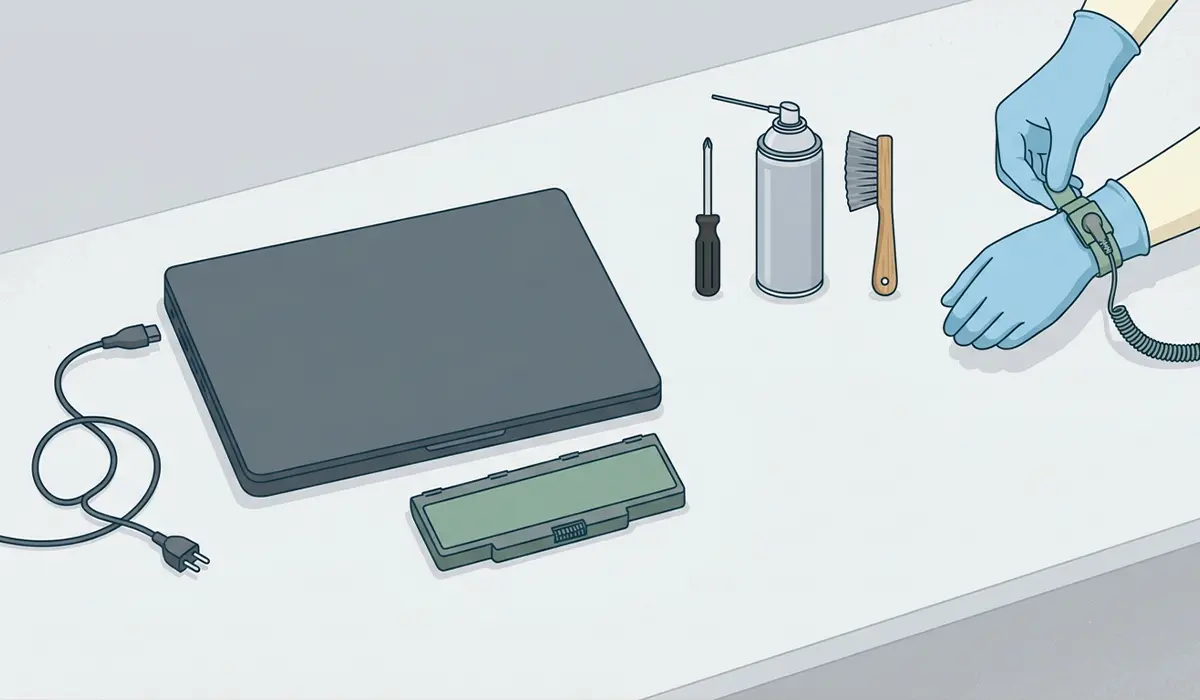
Opening the base panel on some laptops can affect the manufacturer’s warranty, so it is worth checking the warranty terms first. If a laptop is still under warranty or the internal layout looks unusually cramped or fragile, it is reasonable to stop and let a qualified repair technician handle the hardware steps instead.
Steps to Speed Up a Slow Laptop
- Step 1: Restart the laptop before doing anything else. A simple restart clears out memory that has been consumed by processes that never released it properly, and it is a habit worth building into a weekly routine rather than only reaching for it when things get bad.
- Step 2: Open Task Manager by right-clicking the taskbar and selecting Task Manager, then check the Startup tab. Disable any program set to launch automatically that is not needed the moment Windows boots, such as chat apps, cloud backup tools, or software updaters. This one change is often the single biggest fix for a laptop that takes forever to become usable after powering on.
- Step 3: Check available storage space by opening File Explorer and looking at the drive listed under This PC. A drive that is more than about 85 to 90 percent full slows down file access and virtual memory performance noticeably. Use Disk Cleanup or Storage Sense to remove temporary files, empty the recycle bin, and clear old Windows Update files.
- Step 4: Uninstall programs that are no longer used. Go to Settings, then Apps, and sort the list by size or install date to spot software that has been sitting untouched for months. Old trial software and bundled utilities from the laptop’s original setup are common culprits.
- Step 5: Run a full scan with Windows Defender or a trusted antivirus program. Malware and adware are a frequent, often overlooked reason a laptop crawls, since they quietly consume CPU cycles and network bandwidth in the background.
- Step 6: Update Windows, graphics drivers, and chipset drivers through Windows Update and the laptop manufacturer’s support page. Outdated drivers can cause inefficient power and resource management that shows up as general sluggishness rather than an obvious error.
- Step 7: Clean the internal vents and fans using compressed air, following the preparation steps above. Hold the fan blades steady with a finger or a cotton swab while spraying air through the exhaust vent so the fan does not spin faster than it is rated for. Dust-clogged vents trap heat, and a hot laptop throttles its own processor speed to protect itself.
- Step 8: Check the Power Mode setting under Settings, then System, then Power. Switching from Power Saver or Balanced to Best Performance (on plugged-in laptops) can noticeably improve responsiveness, especially on machines that default to a conservative power profile.
- Step 9: Consider a hardware upgrade if the laptop is still slow after all software fixes. Replacing a traditional hard drive with a solid state drive is typically the single most noticeable upgrade available, and adding RAM helps laptops that struggle when several browser tabs or programs run at once. Both upgrades are worth doing together when the laptop’s design allows it.
Tip: Work through the software steps first and test how the laptop feels before jumping to a hardware upgrade. Many laptops that seem to need new parts are actually just weighed down by startup clutter and a nearly full drive.
Common Problems and Fixes
The laptop is still slow after clearing storage and disabling startup apps
This usually points to a hardware bottleneck rather than a software issue, most often an aging hard drive or insufficient RAM. Checking Task Manager’s Performance tab during normal use shows which resource, CPU, memory, or disk, is maxing out, which points directly to the upgrade that will help most.
The fans run loudly even after cleaning the vents
Loud fans after a cleaning usually mean the thermal paste on the CPU has dried out and lost its effectiveness, which is a separate task from basic dust removal and involves opening the cooling assembly itself. It can also mean a background process is still pushing the CPU hard, which is worth checking in Task Manager first.
Performance improved but then slowed down again after a few weeks
New software installs and browser extensions tend to creep back into the startup list over time. Revisiting the Startup tab in Task Manager every month or so keeps this from building up again.
The laptop feels slow only when running on battery power
This is expected behavior in most cases, since battery-saving power modes deliberately reduce processor speed to extend battery life. Switching to Balanced or Best Performance mode while on battery restores full speed at the cost of shorter battery runtime.
Frequently Asked Questions
What is the fastest way to speed up a slow laptop?
Disabling unnecessary startup programs through Task Manager usually delivers the fastest, most noticeable improvement, especially on laptops that take a long time to become responsive after powering on.
Does clearing browser cache speed up a laptop?
Clearing browser cache can help a browser run more smoothly and free up some storage space, but it has little effect on overall system speed compared to fixes like managing startup programs or freeing up drive space.
How much RAM does a laptop need to run smoothly?
8GB is a reasonable minimum for general use in 2026, while 16GB is more comfortable for multitasking, multiple browser tabs, or lightweight creative work.
Will upgrading to an SSD really make a noticeable difference?
Yes, replacing a traditional hard drive with a solid state drive is one of the most noticeable upgrades available, since it dramatically improves boot times, file access, and general responsiveness.
Is it safe to clean a laptop’s internal fans with compressed air?
Yes, as long as the laptop is powered off and the fan blades are held steady while spraying, since letting them spin freely from the air pressure can damage the fan bearings over time.
Why does a laptop slow down over time even without adding new software?
Background updates, temporary files, browser extensions, and gradually filling storage all accumulate quietly over months of normal use, even without deliberately installing anything new.
Does reinstalling Windows speed up a slow laptop?
A clean reinstall can help by removing accumulated clutter and misconfigured settings, but it is a more drastic step best reserved for laptops that remain slow after trying the fixes above.
Can too many browser tabs slow down an entire laptop?
Yes, each open tab consumes memory and some CPU resources, and a browser with dozens of tabs open can noticeably slow down the rest of the system, not just the browser itself.
How often should a laptop be cleaned internally for dust?
Once or twice a year is reasonable for most home environments, though laptops used in dusty spaces or around pets may benefit from cleaning every few months.
Does closing the lid instead of shutting down slow a laptop over time?
Relying only on sleep mode without ever fully restarting can lead to memory not being cleared properly, which is why a full restart every so often helps keep performance consistent.
