
Learning how to fix multiple GPU conflicts in Device Manager starts with knowing which entries are real problems. Two display adapters are often perfectly normal, but a yellow warning icon, a duplicate card, or a Microsoft Basic Display Adapter entry points to a genuine conflict. The steps below separate the harmless from the harmful and clear the errors safely.
Key Takeaways
- Two entries under Display adapters are normal on most laptops and on desktops that use both processor graphics and a graphics card.
- A real conflict shows up as a warning icon, an error code, a duplicate or greyed-out adapter, or a Microsoft Basic Display Adapter entry.
- Removing ghost adapters and doing a clean driver reinstall fixes most conflicts.
- BIOS or UEFI graphics settings and per-app graphics preferences decide which GPU is actually used.
Common Causes of GPU Conflicts
Most conflicts trace back to a short list of causes. Knowing which one applies saves a lot of guesswork.
- Leftover driver files from a previous graphics card that was removed or replaced.
- Ghost adapters, which are hidden entries for hardware that is no longer connected.
- A driver installed over an older, mismatched driver instead of a clean install.
- Windows falling back to the generic Microsoft Basic Display Adapter because the proper driver failed to load.
- BIOS or UEFI settings that point the primary display at the wrong graphics source.
- A loose graphics card or a cable plugged into the motherboard port instead of the graphics card port.
Before You Start
Most of this fix is software, so the prep is light. Create a restore point first (search for ‘Create a restore point’ in the Start menu), so any change can be undone. Download the latest graphics drivers from the GPU maker or the laptop manufacturer before removing anything, and save them to a folder. Keep a second way to get online, such as a phone hotspot, in case the display or network driver drops out mid-process.
Reseating a graphics card is the only physical step. For that, shut the PC down, switch off the power supply, unplug the power cable, and touch bare metal on the case to discharge static. Opening a desktop is usually fine for warranty, but opening a laptop may affect it. If the card is soldered in or the laptop needs to be taken apart, stop and let a professional handle it.
How to Fix Multiple GPU Conflicts in Device Manager Step by Step
- Step 1: Open Device Manager (right-click the Start button and choose Device Manager) and expand ‘Display adapters’. Note how many entries appear and whether any carry a yellow triangle. Double-click each one and read the ‘Device status’ box on the General tab. If both adapters say the device is working properly, there is no conflict, and the setup is simply two GPUs sharing the work.
- Step 2: Reveal hidden entries. Click ‘View’ at the top of Device Manager and choose ‘Show hidden devices’. Faded or greyed-out adapters are ghosts left behind by old hardware. Right-click each ghost adapter, choose ‘Uninstall device’, and confirm. Never remove an entry that is not greyed out at this stage.
- Step 3: Try a driver rollback if the problem started right after an update. Double-click the affected adapter, open the ‘Driver’ tab, and click ‘Roll Back Driver’ if the button is available. Restart the PC and check Device Manager again.
- Step 4: Remove the display drivers completely. Uninstall the graphics software from Settings, then Apps, then Installed apps. For stubborn leftovers, the free Display Driver Uninstaller (DDU) utility is widely used by technicians. It is best run in Windows Safe Mode, and the option to clean and restart is the one that clears old driver files.
- Step 5: Install the drivers in the right order. On a laptop, install the chipset and integrated graphics drivers from the laptop manufacturer first, then the dedicated GPU driver. On a desktop, install the chipset drivers, then the driver for the graphics card. Restart after each installer finishes.
- Step 6: Check the BIOS or UEFI graphics settings. On a desktop with a graphics card, look for a primary display or initial display option and set it to the PCIe or discrete graphics card. On some laptops, a graphics mode option lets the system switch between hybrid and discrete graphics. Menu wording varies by manufacturer, so check the motherboard or laptop manual for the exact name.
- Step 7: Confirm the monitor cable is plugged into the graphics card ports and not the motherboard video ports on a desktop. A cable in the wrong port makes Windows use the wrong adapter and often looks like a conflict.
- Step 8: Reseat the graphics card on a desktop if an error code such as Code 43 stays after a clean driver install. With the PC off and unplugged, release the PCIe latch, pull the card straight out, check that the power connectors are fully seated, and push it firmly back in until the latch clicks.
- Step 9: Set a graphics preference for apps. Open Settings, then System, then Display, then Graphics, pick the app, choose ‘Options’, and select either power saving or high performance. This tells Windows which GPU should handle each program without any need to disable hardware.

Tip: Restart after every major step and recheck Device Manager before moving on. Changing several things at once makes it impossible to tell which change actually fixed the problem.
When Disabling the Integrated GPU Makes Sense
On a desktop where the monitor is connected to a dedicated graphics card, right-clicking the unused integrated adapter and choosing ‘Disable device’ is a valid last step. On a laptop, this is usually a bad idea, because the built-in screen is often wired through the integrated GPU, which can lead to a black screen or poor battery life. If the screen goes dark, boot into Safe Mode and re-enable the adapter.

How to Check Which GPU an App Is Using
Open Task Manager and switch to the Performance tab. Each GPU appears as GPU 0, GPU 1, and so on, with a live usage graph. On the Details tab, right-click a column header, choose ‘Select columns’, and add ‘GPU’ to see which adapter each process is using. This proves whether the fix actually worked.
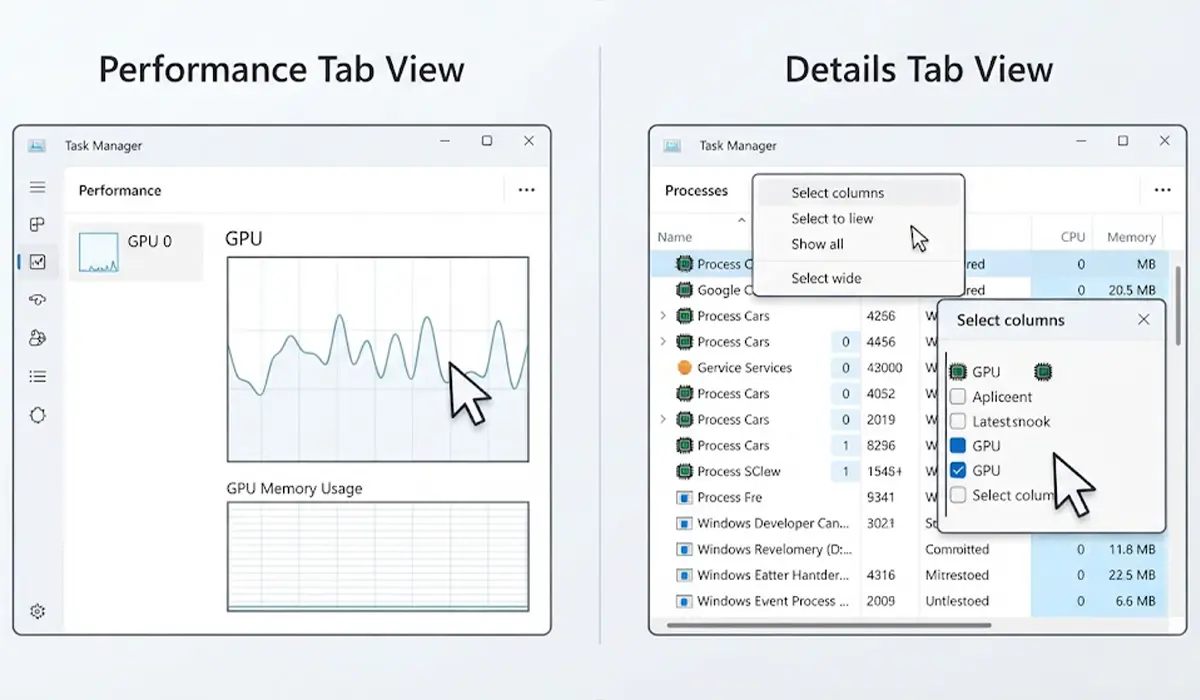
Tip: A dedicated GPU sitting at near-zero usage while a demanding game runs is a sign the app is being routed to the integrated GPU. Recheck the graphics preference in Settings.
Common Problems and Fixes
Microsoft Basic Display Adapter Appears After Reinstalling
This means Windows could not load the proper driver. Reinstall the driver package from the GPU maker or laptop manufacturer, then run Windows Update to pull any missing chipset drivers. A clean removal with DDU followed by a fresh install usually clears it.
Code 43 Error on the Dedicated GPU
Windows reports this when the device has reported problems. Start with a clean driver install, then check that the power cables are fully connected and that the card is seated correctly. If the error survives all of that, the card may be faulty, and a professional diagnosis is the safe next move.
The Second GPU Disappears After Disabling It
Disabled adapters can vanish from normal use. Open Device Manager, find the greyed or disabled entry, right-click it, and choose ‘Enable device’. Restart afterward.
Duplicate Adapters Keep Coming Back
If ghost entries return after every restart, the old driver package is still stored in Windows. Run a full DDU clean, remove the hidden entries again, and install a single fresh driver set.
Black Screen After a Driver Change
Restart into Safe Mode by holding Shift while choosing Restart from the sign-in screen, then choose Troubleshoot, Advanced options, Startup Settings. Roll back the driver or use the restore point created earlier.
Frequently Asked Questions
Is it normal to see two GPUs in Device Manager?
Yes. Most laptops with a dedicated graphics chip also have integrated graphics, so two display adapters is standard. Desktops with a processor that has built-in graphics and a separate graphics card can show two entries as well.
What causes GPU conflicts in Device Manager?
The usual causes are leftover drivers from a previous card, ghost adapters, mismatched driver versions, wrong BIOS display settings, or a monitor cable plugged into the wrong port.
How do I remove a ghost GPU from Device Manager?
Open Device Manager, click View, choose Show hidden devices, then right-click the greyed-out display adapter and select Uninstall device.
What does Microsoft Basic Display Adapter mean?
It is the generic driver Windows uses when the proper graphics driver is missing or failed to load. Installing the correct driver from the GPU maker or laptop manufacturer replaces it.
Is it safe to disable integrated graphics?
On a desktop with the monitor plugged into the graphics card, it is generally safe. On a laptop, it can cause a black screen or worse battery life, so it is not recommended unless the manufacturer says otherwise.
Does Display Driver Uninstaller delete personal files?
No. It targets display driver files and related settings, not documents, photos, or other personal data. Creating a restore point beforehand is still a smart precaution.
How can I tell which GPU an app is using?
Open Task Manager, go to the Details tab, right-click a column header, choose Select columns, and add GPU. Each process then shows which adapter it is using.
Can an Intel or AMD integrated GPU work alongside an NVIDIA graphics card?
Yes. Windows allows different brands to coexist, and each app can be assigned to a specific GPU in the Graphics settings page.
Why does the dedicated GPU show a Code 43 error?
Code 43 means Windows stopped the device after it reported problems. Common triggers include a bad driver install, loose power connectors, or a poorly seated card. A clean driver install and reseating the card are the first fixes to try.
