
Outlook error 0x80070057 usually shows up as ‘The parameter is incorrect’ when opening, importing, or repairing a data file. It often stops Outlook from loading a PST or OST file altogether, and it tends to appear right when an inbox is needed the most. This guide walks through the exact steps that resolve it, in the order most likely to work first.
Key Takeaways
- Error 0x80070057 in Outlook almost always points to a damaged, oversized, or inaccessible PST or OST file.
- The built-in Inbox Repair Tool (scanpst.exe) fixes most cases within a few minutes.
- File path length and file location can trigger this error even when the data file itself is healthy.
- Creating a fresh Outlook profile resolves the issue when the data file checks out fine.
- Keeping Outlook updated prevents this error from recurring after a fix.
Step-by-Step Guide to Fix Outlook Error 0x80070057
Work through these steps in order. Most people find the problem resolved by step three, but each step below addresses a different possible cause.
Repair the Outlook Data File with scanpst.exe
- Step 1: Close Outlook completely, including any background process still running in Task Manager.
- Step 2: Open File Explorer and search for ‘SCANPST.EXE’. On most Windows 10 and 11 installs with Microsoft 365, it sits inside a path similar to ‘C:\Program Files\Microsoft Office\root\Office16’.
- Step 3: Double-click SCANPST.EXE, then select ‘Browse’ to locate the PST or OST file. The default location is usually ‘C:\Users\[username]\AppData\Local\Microsoft\Outlook’.
- Step 4: Click ‘Start’ to begin scanning. This can take a few minutes depending on the size of the file.
- Step 5: If the tool finds errors, check the box to back up the file before repairing, then click ‘Repair’.
- Step 6: Once the repair finishes, restart Outlook and confirm the mailbox opens without triggering error 0x80070057 again.
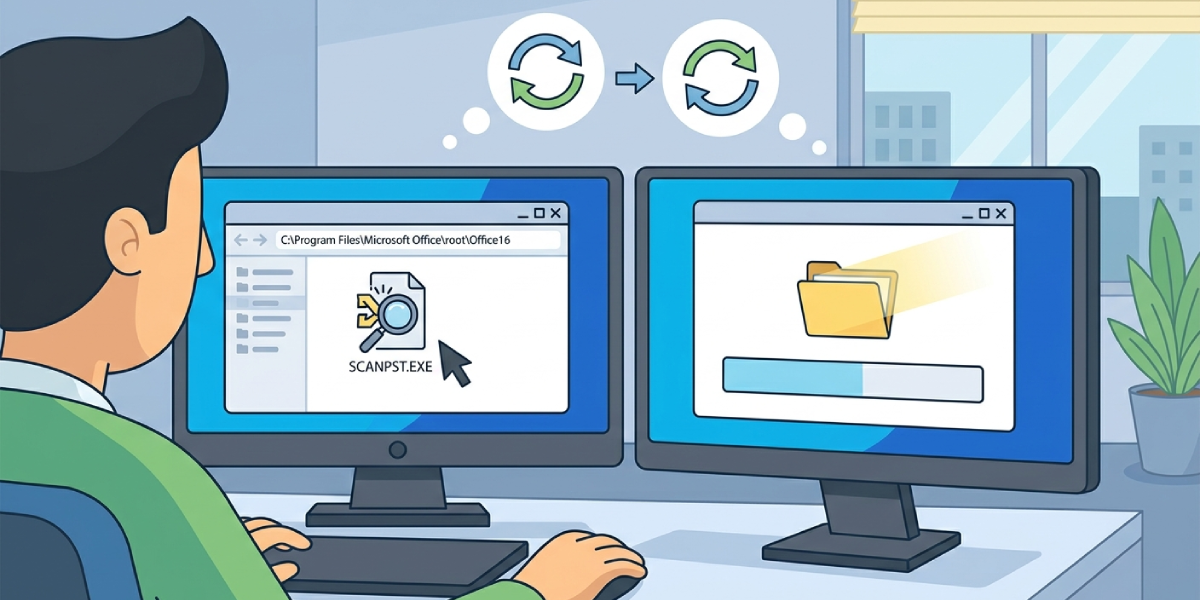
Tip: Run the scan twice if the first pass reports errors. A single run sometimes only clears part of the corruption, and a second pass catches what’s left behind.
Shorten the File Path or Rename the Data File
- Step 1: Navigate to the folder holding the PST or OST file.
- Step 2: Check the full path length from drive letter to file name. Anything close to or beyond 260 characters can trigger error 0x80070057 on some Windows configurations.
- Step 3: Move the file to a shorter path, such as directly under ‘C:\Outlook Data’, if the current path is deeply nested.
- Step 4: Rename the file to remove special characters like brackets, ampersands, or unusual symbols, since these occasionally interfere with how Outlook reads the file name.
- Step 5: Reopen Outlook and reattach the data file through File > Open & Export > Open Outlook Data File, browsing to the new location.
Create a New Outlook Profile
- Step 1: Close Outlook, then open Control Panel and select ‘Mail (Microsoft Outlook)’.
- Step 2: Click ‘Show Profiles’, then ‘Add’ to create a new profile with a distinct name.
- Step 3: Follow the prompts to add the email account and let Outlook rebuild the connection from scratch.
- Step 4: Set the new profile to ‘Always use this profile’ under the same Mail settings window.
- Step 5: Launch Outlook and check whether the mailbox opens cleanly without the parameter error.

Tip: Keep the old profile intact until the new one has been used successfully for a day or two, in case any settings or rules need to be copied over manually.
Update Outlook and Repair the Office Installation
- Step 1: Open Outlook, go to File > Office Account, and click ‘Update Options’ followed by ‘Update Now’.
- Step 2: Once updates finish, restart the computer to apply them fully.
- Step 3: If the error persists, open Control Panel > Programs and Features, right-click the Microsoft Office entry, and choose ‘Change’.
- Step 4: Select ‘Quick Repair’ first. If that does not resolve it, run the process again and choose ‘Online Repair’ instead.
- Step 5: Restart the machine after the repair completes and reopen Outlook to confirm the error is gone.
Common Problems and Fixes
- scanpst.exe cannot find the data file: Confirm hidden files are visible in File Explorer, since the AppData folder is hidden by default on most systems.
- Repair tool finishes but Outlook still throws the error on launch: The OST file may need to be deleted so Outlook rebuilds it from the mail server; this is safe for accounts using Exchange or Microsoft 365.
- PST file is at or near 2GB and won’t open: Older ANSI-format PST files have a 2GB cap. Splitting the file into smaller archives usually clears the error.
- Error returns after a new profile is created: The underlying PST file is likely still damaged. Run scanpst.exe again before attaching it to the new profile.
- Antivirus software blocks access to the data file: Temporarily disable real-time scanning, reopen Outlook, and check if the error clears. If it does, add the Outlook data folder as an exclusion.
Frequently Asked Questions
What does Outlook error 0x80070057 mean?
It translates to ‘The parameter is incorrect,’ a generic Windows error that in Outlook usually points to a corrupted or inaccessible PST or OST file, or an oversized data file that Outlook cannot process correctly.
Can this error cause data loss?
The error itself does not delete data, but running repairs without a backup carries some risk. Always let scanpst.exe create a backup copy before repairing.
Is scanpst.exe safe to use?
Yes. It is Microsoft’s official Inbox Repair Tool, included with every Outlook installation, and is designed specifically to fix PST and OST corruption issues like this one.
Why does moving the PST file to a shorter path help?
Windows has file path length limitations in certain configurations. A path that is too long or too deeply nested can cause Outlook to misread the file location, producing error 0x80070057.
Does deleting an OST file delete emails?
No, as long as the account is connected to Exchange or Microsoft 365. The OST file is a local cache, and Outlook rebuilds it automatically by re-downloading mail from the server.
How long does an Office Online Repair take?
It typically takes between 10 and 20 minutes, depending on internet speed and the number of Office applications installed.
What if scanpst.exe finds no errors but the problem continues?
Move on to creating a new Outlook profile, since the issue may involve profile settings rather than the data file itself.
Does this error only affect PST files, or OST files too?
Both file types can trigger it. PST issues are more common with manually imported or archived mail, while OST issues typically show up with Exchange or Microsoft 365 accounts.
Can outdated Windows updates cause this error?
Outdated Windows components can occasionally contribute to file access errors. Keeping Windows Update current alongside Office updates reduces the chance of this error appearing.
