
Learning how to free up RAM on a Windows PC is one of the fastest ways to fix a sluggish computer without spending a dime on new hardware. When memory usage climbs too high, programs stutter, browser tabs freeze, and even simple tasks like opening File Explorer start to lag. This guide walks through the exact steps that bring memory usage back under control.
Key Takeaways
- High RAM usage usually comes from too many startup apps, background processes, and browser tabs running at once.
- Task Manager is the quickest way to spot exactly which programs are consuming the most memory.
- Disabling unnecessary startup programs and background apps frees up RAM every time the PC boots, not just once.
- Virtual memory (the page file) acts as a safety net, but it should never be treated as a permanent fix for low RAM.
- If usage stays maxed out even after cleanup, the PC may genuinely need a RAM upgrade.
How to Free Up RAM on a Windows PC: Step-by-Step
Most memory problems trace back to a handful of common culprits, and clearing them out follows a predictable order. Working through these steps in sequence usually brings noticeable improvement before finishing the list.
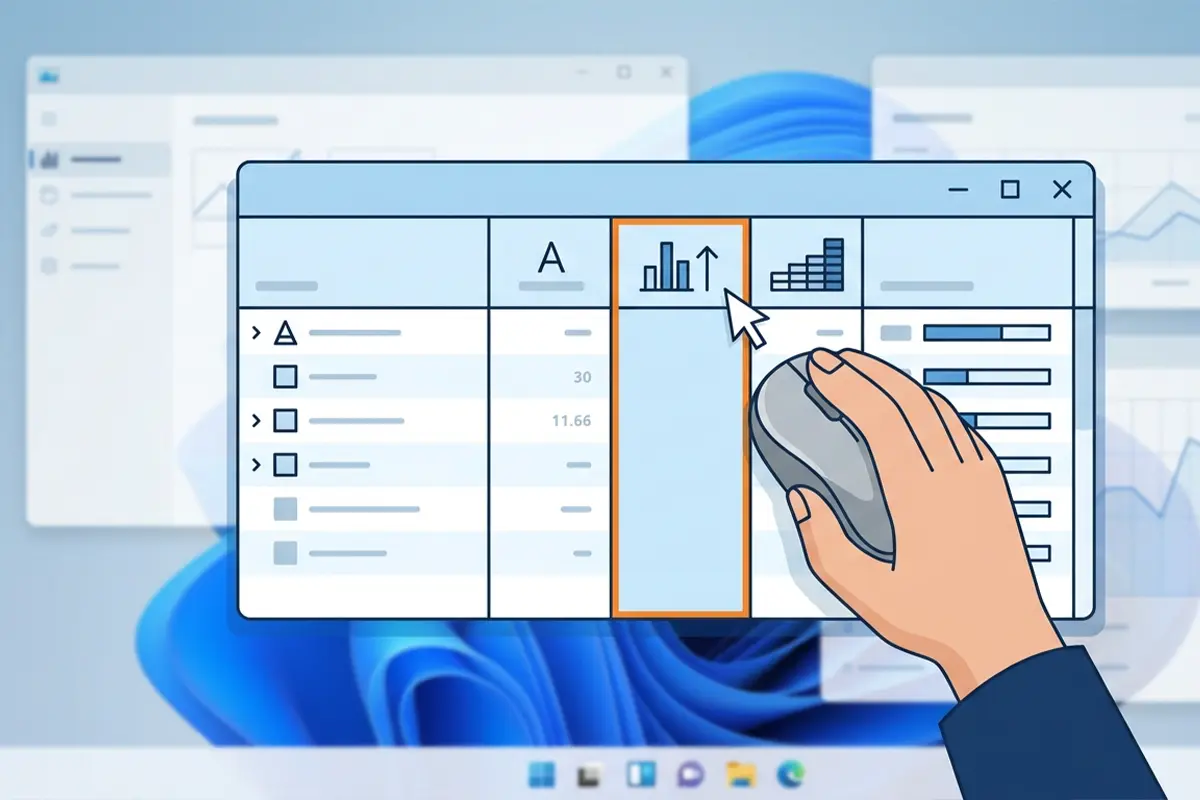
- Step 1: Open Task Manager by pressing Ctrl+Shift+Esc, then click the Memory column header to sort processes from highest to lowest usage. This shows immediately which apps are the biggest drain.
- Step 2: Right-click any process consuming an unreasonable amount of memory relative to what it is actually doing, and select ‘End Task’. Browsers with dozens of tabs open and leftover background apps are frequent offenders here.
- Step 3: Switch to the Startup tab in Task Manager and disable any application marked with a ‘High’ startup impact that does not need to launch automatically. Cloud storage clients, chat apps, and update checkers are common examples that quietly eat memory from the moment Windows boots.
- Step 4: Open Settings, then go to Apps, then Installed Apps, and look for programs that are rarely or never used. Uninstalling dead weight software reduces the number of background services running at any given time.
- Step 5: Go to Settings, then Privacy & Security, then Background Apps (or Apps running in background, depending on the Windows build), and turn off permissions for apps that do not need to refresh data while unused.
- Step 6: Reduce visual effects by searching ‘adjust the appearance and performance of Windows’ in the Start menu, opening it, and selecting ‘Adjust for best performance’. Animations and shadow effects consume more memory than most people realize.
- Step 7: Restart the PC. A reboot clears out memory leaks that accumulate in long-running sessions, something that simply closing programs does not always fully resolve.
Tip: Browser tabs are one of the most underestimated memory hogs on any Windows PC. A dozen open tabs, especially ones running video or social media feeds, can easily consume more RAM than several desktop applications combined.
Checking Memory Usage After Cleanup
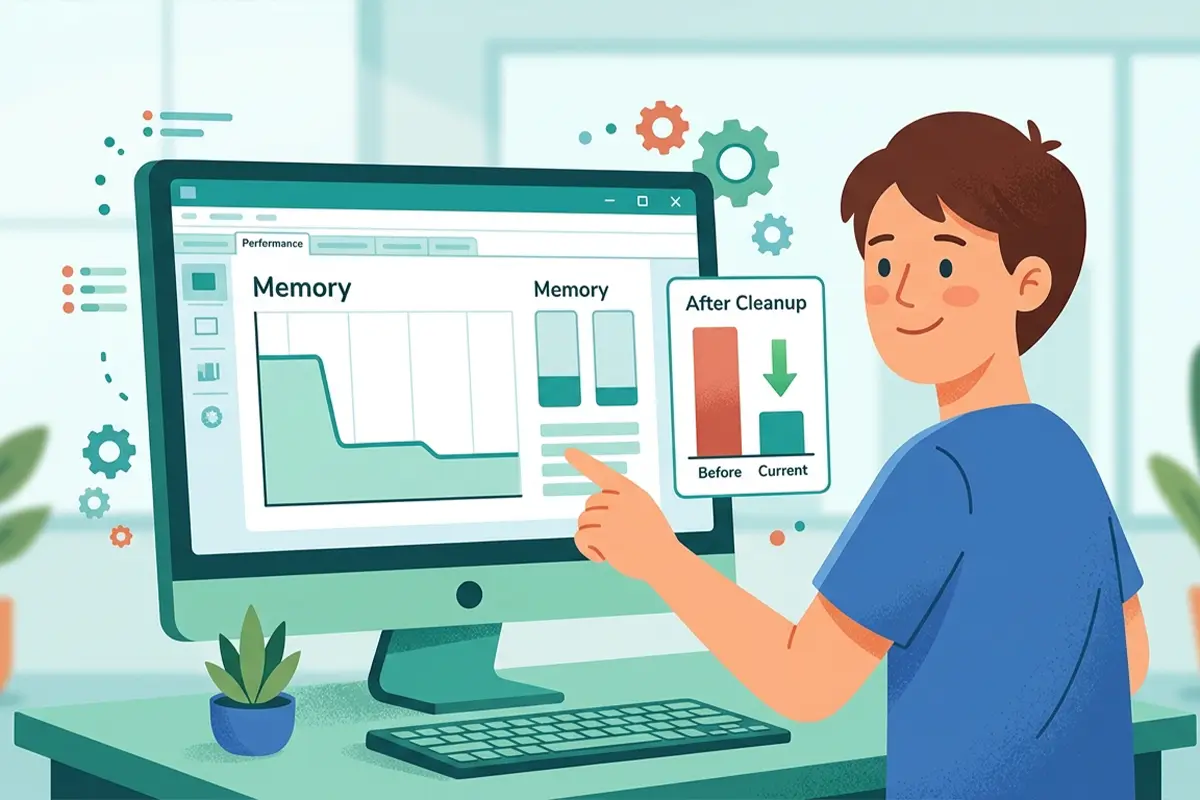
Once the steps above are complete, reopen Task Manager and check the Performance tab to see the new memory usage baseline. This works best when comparing the number against what usage looked like before starting, since that comparison shows whether the changes actually made a difference.
Using Virtual Memory as a Backup, Not a Fix
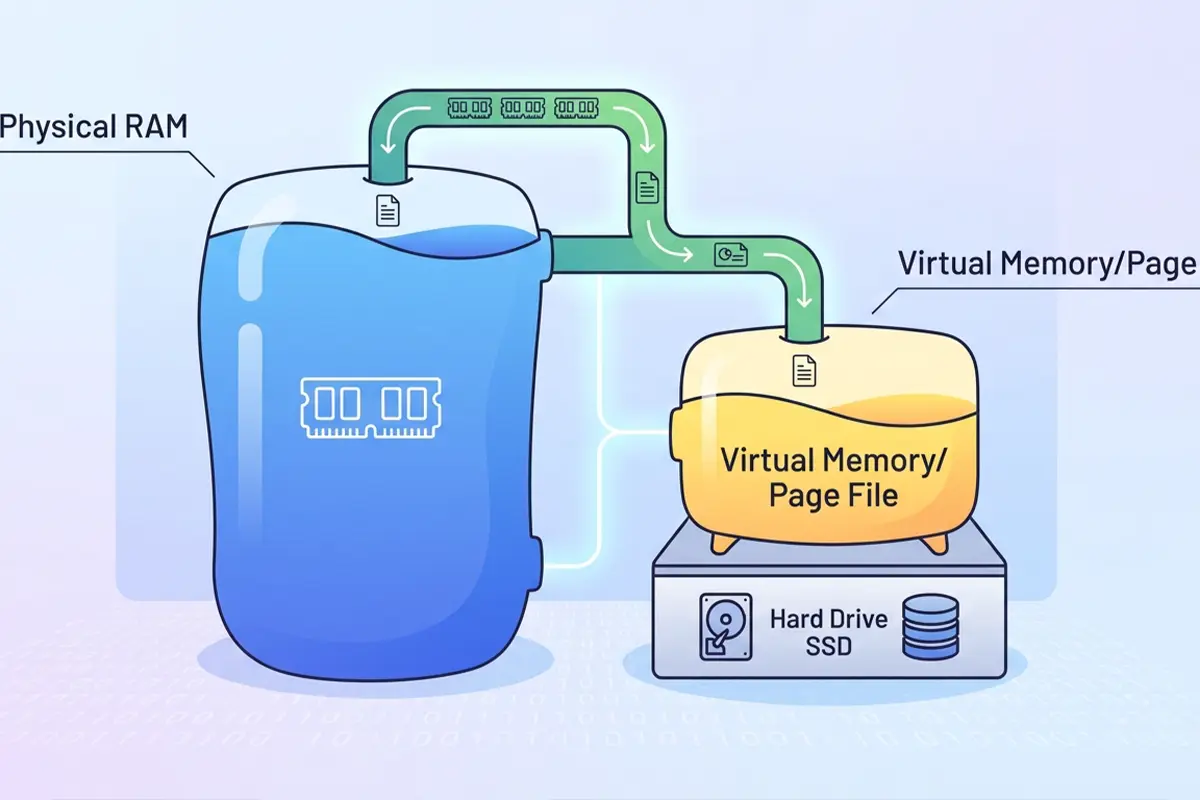
Windows automatically manages a page file on the system drive, which acts as overflow space when physical RAM runs low. Increasing the page file size through System Properties can help in a pinch, but it relies on drive speed rather than actual memory speed, so it should be treated as a temporary cushion rather than a real solution to chronic memory shortages.
Common Problems and Fixes
Memory Usage Climbs Right Back Up After a Restart
This usually means a startup app that was missed in Step 3 is relaunching automatically, or a browser is set to reopen the previous session’s tabs. Revisit the Startup tab and check browser settings for ‘continue where you left off’ options.
A Specific App Keeps Using Excessive Memory
Some applications have memory leaks, meaning they consume more RAM the longer they stay open without releasing it. Closing and reopening the app periodically helps, and checking for a software update often resolves the underlying bug.
Task Manager Shows High Memory Usage But the PC Still Feels Fast
Windows deliberately caches frequently used data in RAM to speed up performance, since unused memory does not provide any benefit sitting idle. A high percentage is not automatically a problem as long as the PC is responsive and not swapping heavily to the page file.
Freeing Up RAM Does Not Help Because the PC Simply Does Not Have Enough
Systems with 4GB or 8GB of RAM running modern multitasking workloads will hit ceilings no amount of cleanup can fix. At that point, a physical RAM upgrade becomes the realistic solution rather than continuing to chase software tweaks.
Frequently Asked Questions
What is considered high RAM usage on Windows?
Consistently running above 80 to 90 percent of total memory during normal use is generally considered high, especially if the page file is being used heavily alongside it.
Does closing browser tabs actually free up RAM?
Yes. Each tab often runs as its own process, particularly in Chromium-based browsers, so closing tabs releases the memory those processes were holding.
Will restarting the PC free up RAM?
Restarting clears the entire memory state and closes every running process, which resolves temporary memory leaks that build up over long uptime periods.
Can too many browser extensions increase RAM usage?
Yes. Extensions run in the background even when not actively used, and having many installed can noticeably add to overall memory consumption.
Is it safe to end any process in Task Manager to free RAM?
No. System processes and anything listed under Windows Processes should generally be left alone, since ending the wrong one can cause instability or a crash.
Does more RAM always mean better performance?
Not necessarily. Once a system has enough RAM to comfortably handle its typical workload, adding more provides diminishing returns unless multitasking demands increase.
How much RAM does Windows itself use?
Windows and its core background services typically use a few gigabytes on their own, which is why systems with only 4GB often feel cramped even before opening any applications.
Can a virus or malware cause high RAM usage?
Yes. Malicious software sometimes runs hidden processes that consume memory and CPU resources, so an unexplained spike in usage is worth checking with a security scan.
Does upgrading from a hard drive to an SSD help with RAM issues?
An SSD speeds up how quickly the page file responds when RAM overflows, which can mask the symptoms of low memory, but it does not increase the actual amount of RAM available.
How often should startup apps be reviewed?
Checking every few months, or right after installing new software, keeps unnecessary programs from quietly accumulating and slowing down boot times and memory availability.
