
Wi-Fi dropping connection frequently is one of the most frustrating problems a laptop or desktop user can run into, especially in the middle of a video call or a large file download. The good news is that most cases trace back to a handful of common culprits, and nearly all of them can be fixed without buying new hardware.
Key Takeaways
- Outdated or corrupted network adapter drivers are the single most common cause of frequent disconnects.
- Windows power-saving settings can quietly turn the Wi-Fi adapter off to save battery, causing random drops.
- Router firmware, channel congestion, and DNS issues cause many disconnects that look like a PC problem but are not.
- A short sequence of driver, adapter, and router checks resolves the majority of cases without professional help.
- Physical distance, interference from other devices, and an aging router are common hardware-side causes worth ruling out.
Common Causes of Wi-Fi Dropping Connection Frequently
Before jumping into fixes, it helps to understand where the problem usually starts. Most people find that the issue sits in one of these areas.
Driver and Software Issues
An outdated, corrupted, or mismatched Wi-Fi adapter driver is behind a large share of disconnect complaints. This is especially common right after a Windows update, since the update can install a generic driver that does not fully match the adapter.
Power Management Settings
Windows includes a power-saving feature that can reduce power to the wireless adapter during periods of low activity. On a laptop running on battery, this setting can cause the adapter to disconnect and reconnect repeatedly, which feels exactly like a flaky connection.
Router and Network-Side Problems
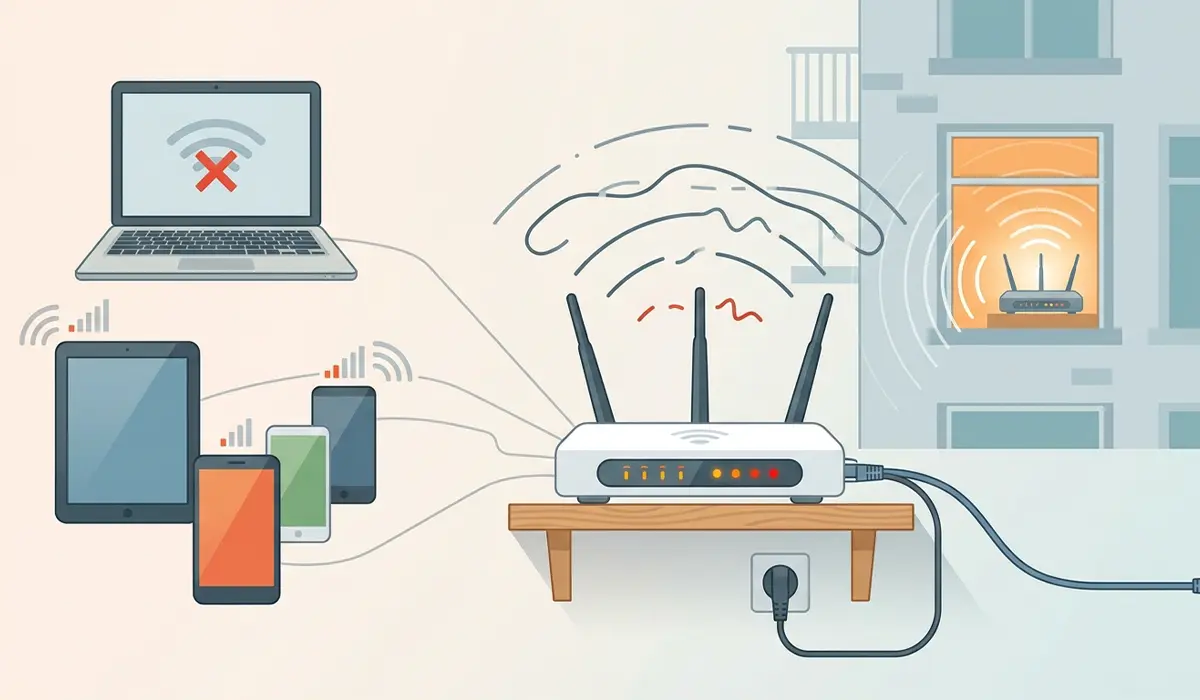
Outdated router firmware, an overcrowded Wi-Fi channel in an apartment building, or too many connected devices can all cause intermittent drops that have nothing to do with the PC itself.
Signal Interference and Distance
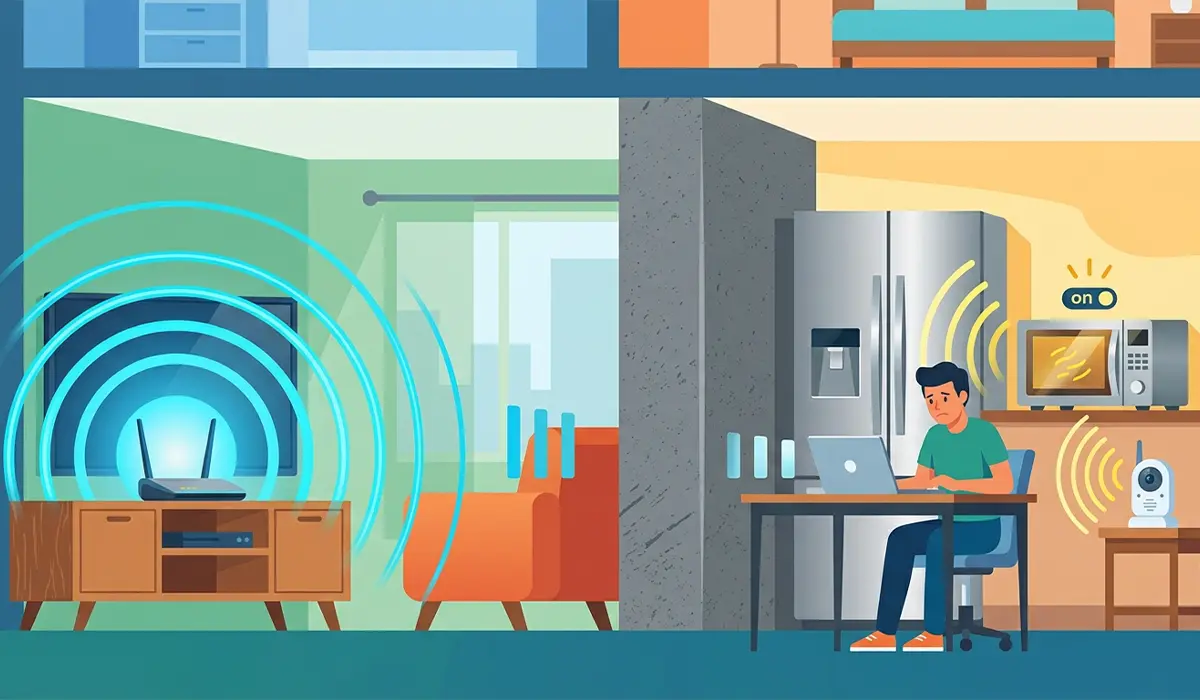
Thick walls, metal appliances, microwaves, and even baby monitors operating on the same frequency can interrupt a signal that otherwise looks strong on paper. This is a common scenario for anyone working from a bedroom or garage that sits far from the router.
Step-by-Step Fixes for Wi-Fi Dropping Connection Frequently
Work through these steps in order. Most connections stabilize within the first three or four steps.
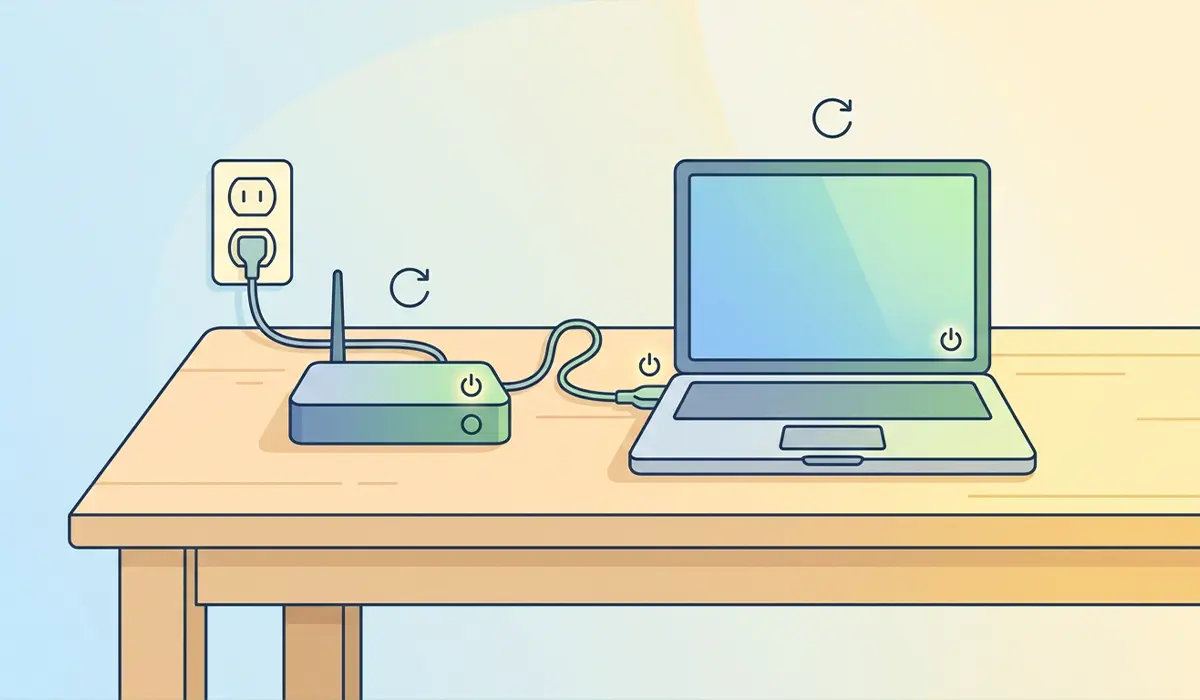
- Step 1: Restart the router and the PC. This clears temporary glitches in both the network stack and the router’s memory, and it should always be the first move before anything else.
- Step 2: Update the Wi-Fi adapter driver. Open Device Manager, expand Network adapters, right-click the wireless adapter, and choose Update driver. Selecting the option to search automatically works for most people, though checking the laptop manufacturer’s support page for a dedicated driver package often gives better results than the generic Windows driver.
- Step 3: Disable power management for the Wi-Fi adapter. In Device Manager, open the adapter’s properties, go to the Power Management tab, and uncheck the option that allows Windows to turn off the device to save power.
- Step 4: Run the built-in network troubleshooter. Go to Settings, then Network and internet, then Network troubleshooter, and let it scan for and fix common connection problems automatically.
- Step 5: Forget and reconnect to the network. Under Settings, Network and internet, Wi-Fi, select Manage known networks, forget the affected network, and reconnect using the password. This clears out a corrupted saved profile, which is a surprisingly common cause of repeated drops on a network that used to work fine.
- Step 6: Reset the network adapter and TCP/IP stack. Open Command Prompt as an administrator and run netsh winsock reset followed by netsh int ip reset, then restart the PC. This clears out corrupted network configuration files that build up over time.
- Step 7: Update the router firmware. Log into the router’s admin page, usually through a browser at its local IP address, and check for a firmware update section. Manufacturers regularly patch stability bugs that cause exactly this kind of intermittent dropping.
- Step 8: Change the Wi-Fi channel or switch frequency bands. If the router supports both 2.4GHz and 5GHz, connecting to 5GHz in a crowded area often eliminates interference-based drops, since fewer neighboring networks compete on that band.
Tip: If the connection only drops on battery power but stays stable when plugged in, that is a strong sign the issue is Windows power management rather than the driver or router.
Common Problems and Fixes
Connection Drops Only When the Laptop Is on Battery
This points directly to power management settings rather than a driver or router problem. Revisiting Step 3 and also checking the battery power plan under Settings, System, Power, usually resolves it.
Wi-Fi Reconnects Automatically But Takes 10 to 30 Seconds
This pattern is typical of an outdated driver or a saved network profile that no longer matches the router’s settings. Repeating Step 2 and Step 5 together usually clears it.
Connection Is Fine on Other Devices But Not on This PC
When phones and other laptops stay connected without issue, the problem sits with that specific adapter or its driver rather than the router. A full driver reinstall, uninstalling the adapter in Device Manager and letting Windows detect it fresh on restart, often fixes this.
Drops Happen Only in One Room of the House
This usually points to distance or interference rather than software. A mesh Wi-Fi system or a simple Wi-Fi extender placed roughly halfway between the router and that room typically solves it.
Wi-Fi Still Drops After Trying Every Software Fix
If every driver, power, and router step has been tried and the adapter still misbehaves, the wireless card itself may be failing or the antenna connection inside the laptop may be loose. At that point, having a technician inspect or replace the internal Wi-Fi card is a reasonable next step rather than continuing to chase software settings.
Frequently Asked Questions
Why does Wi-Fi keep dropping only on one specific device?
This usually means the problem is local to that device’s driver, adapter settings, or saved network profile, since other devices on the same network stay connected without trouble.
Does restarting the router actually help with frequent disconnects?
Yes. A restart clears the router’s temporary memory and often resolves minor glitches that build up after days or weeks of continuous uptime.
Can an old router cause Wi-Fi to drop frequently?
Yes. Older routers can struggle with newer devices, higher household device counts, and outdated firmware, all of which increase the chance of intermittent drops.
Is it better to use 2.4GHz or 5GHz to avoid Wi-Fi dropping?
5GHz generally offers a more stable connection in crowded areas since fewer neighboring networks use that band, though it has a shorter range than 2.4GHz.
Should the Wi-Fi driver be updated automatically or downloaded manually?
Checking the laptop or adapter manufacturer’s support page for a dedicated driver often produces better results than relying solely on Windows Update, which sometimes installs a generic driver.
Can too many connected devices cause Wi-Fi to drop?
Yes. A router handling many simultaneous connections, especially older or budget models, can become overloaded and start dropping individual devices.
Does turning off power management really stop random disconnects?
For many laptops, yes. Windows power management can shut the wireless adapter down briefly to conserve battery, which shows up as an unexpected disconnect.
How often should router firmware be updated?
Checking for updates every few months is a reasonable habit, since manufacturers release patches for stability and security issues that can directly affect connection reliability.
When does a Wi-Fi dropping problem mean the hardware itself is failing?
If every driver, power, and router fix has been tried without success, and the issue is isolated to one device, a failing internal Wi-Fi card or a loose antenna connection becomes the likely explanation.
Can interference from other electronics cause frequent Wi-Fi drops?
Yes. Microwaves, cordless phones, baby monitors, and even some Bluetooth devices can interfere with 2.4GHz Wi-Fi signals, causing intermittent disconnects that come and go with use.
