
Knowing how to adjust microphone volume in Windows 11 fixes the two most common call complaints: a voice that is too quiet to hear and one that crackles because the level is too high. The change takes under a minute and works on every edition of Windows 11, with no administrator rights needed. A built-in microphone, a USB headset, and a webcam mic all use the same controls.
Key Takeaways
- The quickest route is Settings > System > Sound, where the microphone’s Input volume slider sets the level.
- The built-in Test your microphone feature shows whether the new level is picked up properly.
- The classic Sound window (Recording tab > Properties > Levels) offers an extra Microphone Boost option on some devices.
- Pick the correct microphone first, since a laptop with a headset attached often has several inputs listed.
Step-by-Step Guide to Adjust Microphone Volume in Windows 11
Method 1: Use the Settings App
This is the easiest way for most people, and it also lets the level be tested straight away.
- Press Windows + I to open Settings.
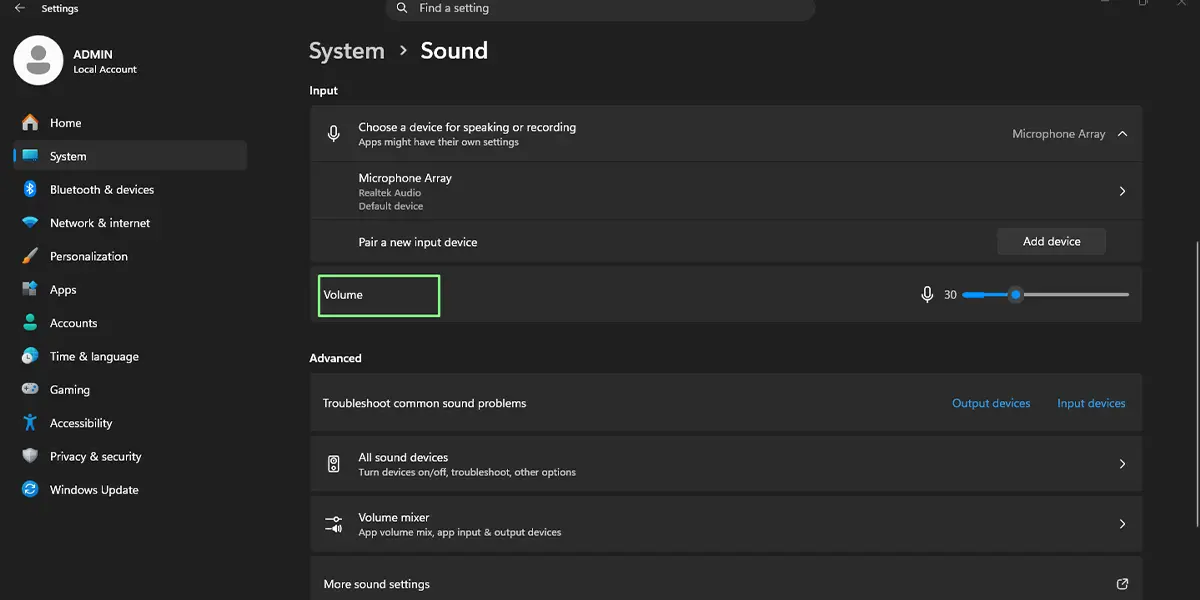
- Select System in the left pane, then click Sound.
- Scroll down to the Input section, which lists every microphone Windows can see.
- Click the microphone that is actually being used, such as the headset mic or the built-in laptop mic. This opens its properties page.
- Find the Input volume slider and drag it to the right to make the voice louder, or to the left to make it quieter.
- Click Start test under Test your microphone and speak in a normal voice.
- Watch the level bar while talking, then click Stop test.
The bar moves as soon as there is sound, and a result appears once the test ends. A bar that barely moves means the slider needs to go higher. A bar that stays at the very end of the scale means the level is too high and the voice may sound distorted.
Tip: A good starting point for most headsets is a level somewhere around the middle to three quarters of the slider. Adjust from there based on the test result instead of pushing straight to 100.
Method 2: Use the Classic Sound Window
This older window is still part of Windows 11 and is handy when a microphone offers a boost control that does not show in Settings.
- Press Windows + I to open Settings, then go to System > Sound.
- Scroll down to the Advanced section and click More sound settings.
- In the Sound window, open the Recording tab.
- Click the microphone in the list, then click Properties.
- Open the Levels tab.
- Drag the Microphone slider to the volume that works best.
- If a Microphone Boost slider is shown, raise it only when the voice is still too quiet at a high microphone level.
- Click Apply, then OK.
The new level takes effect right away, so a quick test in a call or voice recorder confirms the result.
Tip: Microphone Boost adds extra gain and background hiss along with the voice. Raise it in small steps and keep it as low as possible.
How to Undo or Reverse This Change
Windows 11 has no reset button for microphone volume. To go back, repeat the same steps in either method and drag the slider back to its earlier position. Noting the original value before making changes makes this easier, and a Microphone Boost slider can simply be set back to its lowest value.
Common Problems and Fixes
The Microphone Is Not Listed in the Input Section
First check that the device is plugged in firmly or paired, then look at Settings > Privacy & security > Microphone and make sure Microphone access is turned on. A microphone that was disabled can also be hidden in the classic Sound window, so right-click an empty area of the Recording tab and choose Show Disabled Devices.
The Volume Slider Is Missing or Greyed Out
This usually points to a missing or faulty audio driver, a microphone that controls its own level through a physical dial or button, or a PC managed by work or school that limits sound settings. Reconnecting the device or restarting the PC often brings the slider back.
The Volume Keeps Changing by Itself
Some calling and recording apps adjust the microphone level automatically while a call is running. Look in the audio settings of that app for an option to adjust the microphone level automatically and turn it off. In the classic Sound window, the Advanced tab of the microphone’s properties also has an option that lets applications take exclusive control of the device, which can be unticked.
The Voice Is Still Too Quiet at the Highest Level
Raise the Microphone Boost slider if it is available, and move the microphone closer to the mouth. A laptop mic on a desk across the room will always sound faint, no matter how high the slider goes.
The Voice Sounds Distorted or Crackly
The level is probably too high. Lower the Input volume slider, reduce the Microphone Boost if it was raised, and run the microphone test again until the level bar stays comfortably below the end of the scale.
Frequently Asked Questions
Does this work on Windows 11 Home and Pro?
Yes. The Input volume slider and the classic Sound window are available on every edition of Windows 11, including Home and Pro.
Do administrator rights or a restart apply?
No. A standard user account can change the microphone level, and the change applies immediately without restarting the PC.
Where is the microphone volume slider in Windows 11?
Open Settings > System > Sound, click the microphone under Input, and use the Input volume slider on its properties page.
Is there a keyboard shortcut to change microphone volume?
Windows 11 has no built-in shortcut for microphone volume. Windows + I opens Settings quickly, and some laptops have a dedicated microphone mute key, which only switches the mic on or off.
Why is my microphone so quiet even at 100 percent?
The microphone may be too far from the mouth, the wrong input device may be selected, or the device may need Microphone Boost. Checking the selected device and raising the boost slightly usually solves it.
Will a higher microphone volume use more battery or slow down the PC?
No noticeable effect. The microphone level changes how strong the signal is, not how hard the laptop works, so battery life and performance stay the same.
Why does the microphone volume reset after a call?
Some apps adjust the microphone level automatically while a call is running. Turning off automatic level adjustment in that app’s audio settings keeps the Windows level steady.
Does changing the level in Windows affect every app?
Yes. The level set in Windows applies to that microphone in every app that uses it, although some apps add their own volume control on top.
Why is the Microphone Boost option missing?
Microphone Boost depends on the audio driver and the microphone hardware. Many USB and Bluetooth headsets do not offer it, so only the main Microphone slider appears.
