
Learning how to replace a laptop Wi-Fi card is one of the more approachable internal upgrades a laptop owner can tackle, since most modern laptops use a small, socketed M.2 module rather than a soldered chip. This guide walks through the entire process, from picking a compatible card to reconnecting the antenna leads without snapping their fragile connectors.
Key Takeaways
- Most laptops built in the last decade use a removable M.2 Wi-Fi card, held in place by a single screw.
- Matching the connector type (M.2 A/E-key or M.2 M-key) and the number of antenna leads is more important than matching brand.
- Antenna cables are the most fragile part of the job – they connect with a small clip, not a screw, and should never be pulled by the wire itself.
- Some laptops, particularly older business models from Dell, HP, and Lenovo, use a BIOS whitelist that blocks unapproved wireless cards from booting.
- The whole swap typically takes 15 to 30 minutes once the bottom panel is off.
Before You Start
A little prep work prevents most of the problems people run into during this repair. Power the laptop off completely, unplug the charger, and disconnect the internal battery if it uses a connector rather than being glued in place. Discharging static by touching a bare metal surface, or wearing an anti-static wrist strap, protects the new card and the motherboard from an accidental shock. Letting the laptop sit for a few minutes after use also gives internal components time to cool before hands go near them.
Tools needed for this job are minimal: a small Phillips #00 or #0 screwdriver, a plastic pry tool or spudger for the bottom panel, tweezers for the antenna clips, and a container or magnetic mat to keep track of tiny screws. A replacement M.2 Wi-Fi card that matches the laptop’s connector type and antenna count rounds out the list.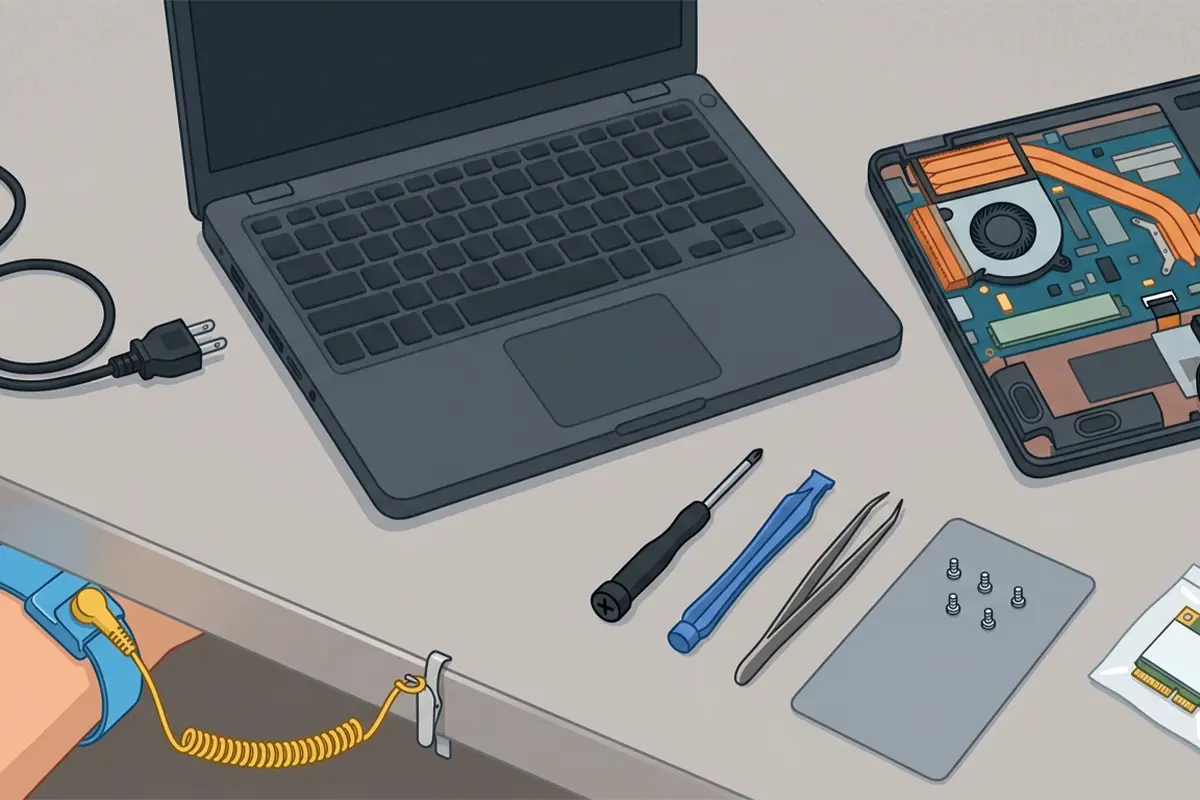
Tip: Take a photo of the antenna cable routing before disconnecting anything. It removes any guesswork when reconnecting the new card later.
How to Replace a Laptop Wi-Fi Card
The steps below apply to the vast majority of consumer and business laptops with a socketed wireless card. A few ultra-thin models solder the Wi-Fi chip directly to the motherboard, in which case this upgrade is not possible without board-level rework, so it is worth checking a teardown video or the manufacturer’s service manual first if the laptop is unusually thin.
- Step 1: Shut the laptop down fully, unplug it, and remove the bottom panel screws. Some panels also need a pry tool worked gently around the seam to release plastic clips.
- Step 2: Disconnect the battery connector if one is present, or flip the physical battery disconnect switch on models that have one.
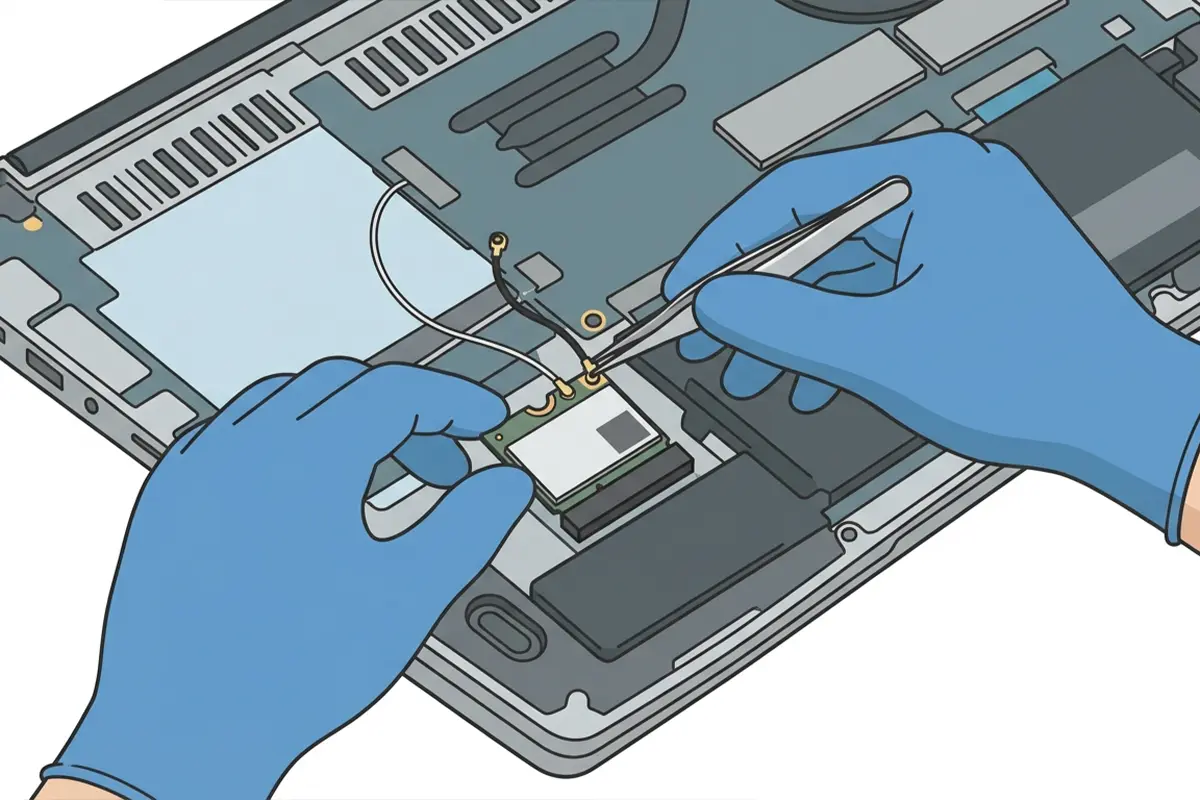
- Step 3: Locate the Wi-Fi card. It sits in a small M.2 slot, usually near the RAM or storage drive, and is recognizable by the one or two thin coaxial cables running from it toward the display hinge.
- Step 4: Note which antenna cable connects to which port on the card, then use tweezers or a fingernail to gently pry each connector straight up and off its post. Pulling on the cable itself risks tearing the lead from the antenna.
- Step 5: Remove the single retention screw holding the card down. The card will pop up at a slight angle once the screw is out.
- Step 6: Slide the old card out of its slot and set it aside.
- Step 7: Align the new card’s notch with the slot’s key, insert it at the same angle, and press it flat before replacing the retention screw.
- Step 8: Reconnect the antenna cables to the matching ports, pressing each connector straight down until it clicks into place. Matching cable color to port color, when the manufacturer uses one, avoids mismatched connections.
- Step 9: Reconnect the battery, replace the bottom panel, and power the laptop on to confirm the new card is detected in Device Manager.
Tip: If the operating system does not automatically install a driver for the new card, download the correct driver package from the manufacturer’s support page rather than relying solely on Windows Update, since that route often installs a generic driver instead of the full-featured one.
Common Problems and Fixes
The laptop shows a wireless hardware error at boot
This almost always points to a BIOS whitelist, a security feature some business laptops use to block unapproved wireless modules. Checking the laptop’s support page for a list of approved cards before purchasing avoids this entirely. On models that support it, a BIOS setting can sometimes be adjusted to disable the whitelist check.
Wi-Fi works but the signal is noticeably weaker than before
This usually traces back to an antenna cable that did not seat fully or was swapped to the wrong port. Reopening the panel and reseating both connectors, matching the color coding, typically resolves it.
The card is not detected by Windows at all
Reseat the card fully in its slot and confirm the retention screw is snug, since a card sitting at an angle will not make proper contact. If it still is not detected, confirm the card uses the same key type (A/E-key versus M-key) as the original.
Bluetooth stopped working after the swap
Many combo Wi-Fi and Bluetooth cards share a single module, so a replacement card also swaps the Bluetooth radio. If Bluetooth issues appear, reinstalling the Bluetooth driver from the manufacturer’s site usually clears it up.
Frequently Asked Questions
What tools are needed to replace a laptop Wi-Fi card?
A small Phillips screwdriver, a plastic pry tool for the bottom panel, tweezers for the antenna connectors, and an anti-static strap or grounding method cover nearly every laptop.
Is a laptop Wi-Fi card the same as a desktop Wi-Fi card?
No. Laptops use compact M.2 modules with attached antenna leads, while desktops typically use larger PCIe cards or USB adapters with their own antennas.
How long does it take to replace a laptop Wi-Fi card?
Once the bottom panel is off, the actual card swap takes about 10 to 15 minutes. Total time, including opening and closing the laptop, usually lands between 15 and 30 minutes.
Does replacing a Wi-Fi card void the warranty?
Opening the laptop can affect the warranty on some models, particularly ultra-thin or sealed designs. Checking the manufacturer’s warranty terms first is worth the few minutes it takes.
Can any M.2 Wi-Fi card be used as a replacement?
Only if it matches the connector key type and antenna count of the original. An A/E-key card will not fit an M-key slot, and a card with more antenna leads than the laptop has connectors cannot be fully hooked up.
Why does the new card show a wireless hardware error?
Some business laptops enforce a BIOS whitelist that only allows manufacturer-approved cards to boot. Checking the support documentation for approved part numbers before buying avoids this issue.
Does a laptop need a driver after installing a new Wi-Fi card?
Yes. Windows may install a basic driver automatically, but downloading the full driver from the manufacturer’s support page typically restores features like advanced power settings and diagnostics.
Can the Wi-Fi card be swapped without removing the battery?
It is safer to disconnect the battery first, since it removes power from the motherboard and reduces the risk of a short circuit while working near exposed contacts.
Will a new Wi-Fi card improve internet speed?
It can, particularly when upgrading from an older Wi-Fi standard to a newer one that supports faster speeds and better range, provided the router also supports that standard.
What should be done if the antenna connector breaks during removal?
A snapped antenna connector is a sign to stop and consult a professional repair technician, since forcing a damaged connector can strip the port on the card or the pad on the antenna cable itself.
