
An HDMI port not working on a laptop is one of the most frustrating display problems, especially when a presentation, movie night, or external monitor setup depends on it. The good news is that most cases come down to a handful of common culprits, and nearly all of them can be diagnosed and fixed without a trip to a repair shop.
Key Takeaways
- Most HDMI port failures are caused by software or driver issues, not physical damage.
- Cables, adapters, and the external display itself should be tested before blaming the laptop.
- Updating or reinstalling the graphics driver resolves a large share of ‘no signal’ problems.
- A loose or bent HDMI port usually needs professional repair rather than a DIY fix.
- Windows and macOS both have display detection settings that can silently block HDMI output.
Common Causes of an HDMI Port Not Working on a Laptop
Before pulling out any tools, it helps to understand why this happens in the first place. Most of the time, the port itself is fine and something else in the chain is the actual problem.
- Outdated or corrupted graphics drivers – this is by far the most common cause, especially after a Windows update.
- Faulty or low-quality HDMI cable – cables get bent, pinched, or worn out from repeated plugging and unplugging.
- Incorrect display input source – the monitor or TV is set to the wrong HDMI channel.
- Display detection settings – the laptop has not been told to extend or duplicate the screen.
- Physical port damage – bent pins or a loose port connection from a cable being yanked out at an angle.
- Adapter or dongle issues – for laptops using USB-C to HDMI adapters, the adapter itself can fail.
How to Fix HDMI Port Not Working on a Laptop
Before You Start
Most of the fixes below are software-based and require no disassembly. Only the final physical-damage step involves opening the laptop, and that step should be approached carefully.
- Power off and unplug the laptop before inspecting the port itself.
- Let the laptop cool down fully if it has been running for a while.
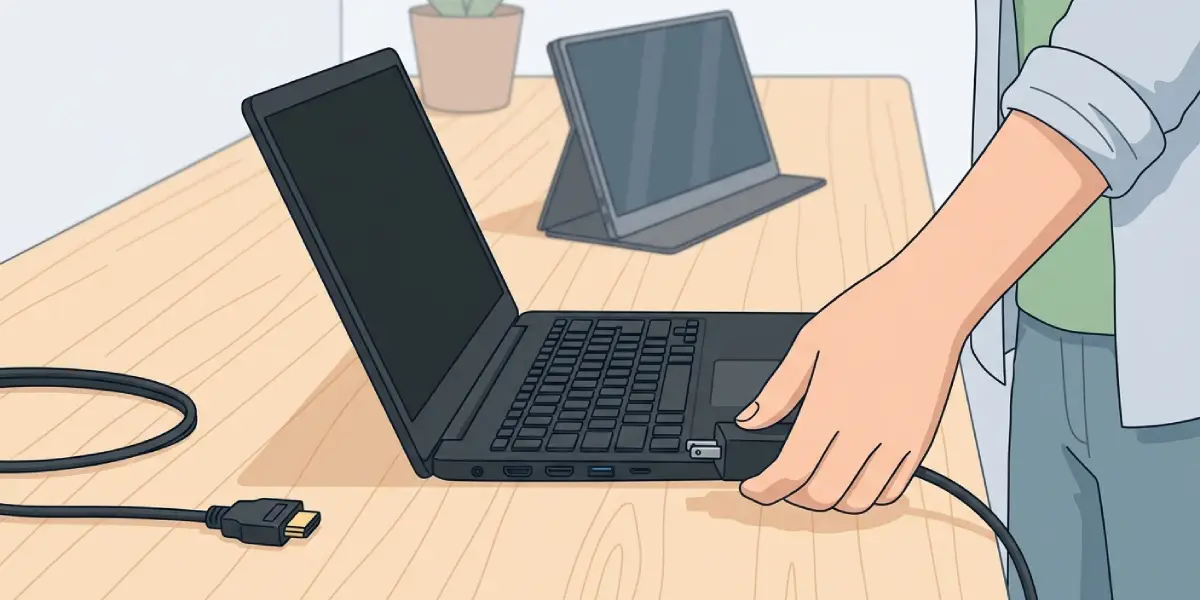
- Have a different HDMI cable and, if possible, a second external display on hand for testing.
- If disassembly becomes necessary, discharge static electricity first by touching a bare metal surface.
Step-by-Step Fixes
- Step 1: Test with a different HDMI cable and a different display. This rules out a bad cable or a display-side problem in under a minute and saves a lot of guesswork later.
- Step 2: Check the input source on the external monitor or TV. Most displays have several HDMI inputs, and it is easy to be plugged into HDMI 2 while the display is showing HDMI 1.
- Step 3: Force display detection on the laptop. On Windows, press the Windows key plus P and select ‘Duplicate’ or ‘Extend’. On macOS, open System Settings, go to Displays, and select ‘Detect Displays’ while holding the Option key if the display does not appear automatically.
- Step 4: Update the graphics driver. Open Device Manager on Windows, expand Display Adapters, right-click the graphics card, and choose ‘Update driver’. On macOS, graphics drivers update through standard system software updates.
- Step 5: Roll back the driver if the problem started right after an update. In Device Manager, open the graphics card properties, go to the Driver tab, and select ‘Roll Back Driver’ if that option is available.
- Step 6: Reseat the cable firmly at both ends. A cable that looks fully plugged in can sometimes sit at a slight angle that breaks the connection.
- Step 7: Test the adapter separately, if a USB-C to HDMI adapter is in use. Try the same adapter on another laptop or another cable on the same adapter to isolate the faulty component.
- Step 8: Restart the laptop with the HDMI cable already connected. Some laptops only detect an external display properly during boot rather than after the cable is plugged in mid-session.
- Step 9: Inspect the port visually with a flashlight. Look for bent pins, dust buildup, or visible debris inside the port itself.
- Step 10: Clean the port carefully using compressed air in short bursts, holding the can upright to avoid moisture discharge. A soft brush can also loosen dust without touching the delicate pins.
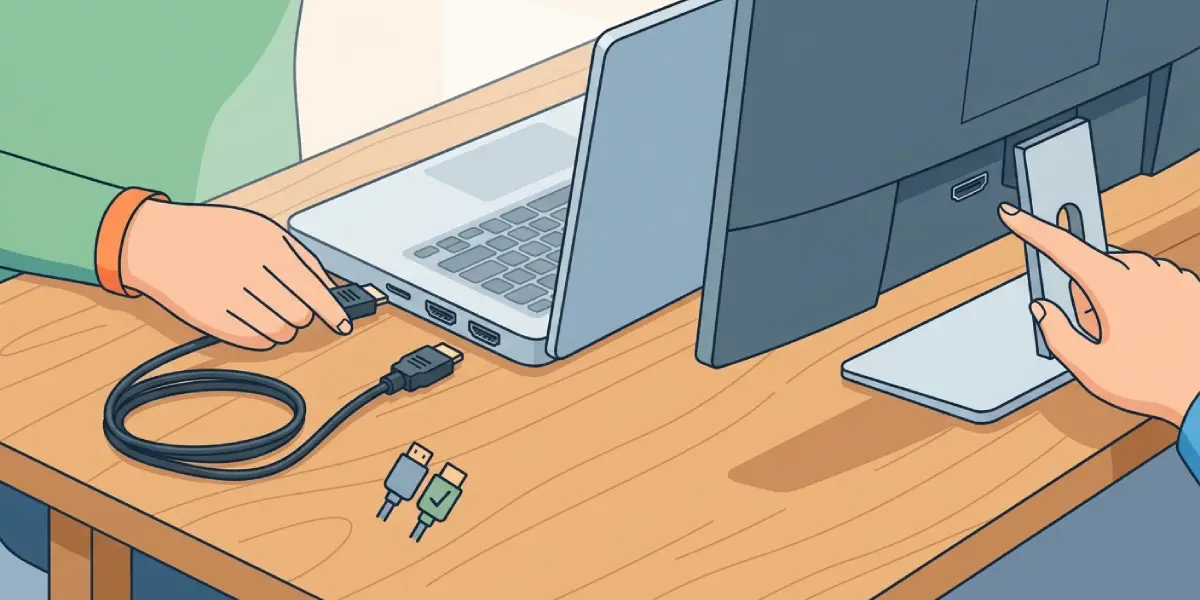
Tip: When testing cables and displays, change only one variable at a time. Swapping the cable and the display together at once makes it much harder to tell which one actually solved the problem.
Common Problems and Fixes
Laptop detects the external display but shows no image
This usually points to a resolution or refresh rate mismatch. Lower the resolution temporarily through display settings and see if an image appears, then adjust it back up gradually.
HDMI works with one cable but not another
Not all HDMI cables support the same bandwidth. An older or budget cable may not carry a signal at higher resolutions or refresh rates, so trying a newer, higher-spec cable often solves this.
Port feels loose or wiggly
A loose HDMI port usually means the internal connector has come away from the motherboard, often from a cable being pulled out at an angle. This is a physical repair issue and typically requires a professional to resolder or replace the port.
Audio plays but no video appears, or video appears but no audio plays
This points to the audio and video being routed separately in system settings. On Windows, right-click the speaker icon in the taskbar, open sound settings, and confirm the HDMI display is selected as the output device.
HDMI worked yesterday but stopped today with no changes made
A background Windows update is the most frequent cause here. Checking the update history and rolling back a recent graphics driver update resolves this in most cases.
Frequently Asked Questions
Why is the HDMI port on the laptop not working after a Windows update?
Windows updates sometimes install a generic graphics driver that is not fully compatible with the laptop’s hardware. Rolling back to the previous driver or installing the latest driver directly from the manufacturer’s website usually fixes this.
Can a bent pin inside the HDMI port be fixed at home?
A slightly bent pin can sometimes be straightened with a fine, non-metal tool such as a plastic spudger, but this carries real risk of snapping the pin. If the bend is significant, professional repair is the safer route.
Why does the laptop show ‘no signal’ on the external monitor?
A ‘no signal’ message usually means the display is not receiving any data, which points to the input source being wrong, the cable being faulty, or the laptop not having detected the display yet.
Does dust inside the HDMI port actually cause connection problems?
Yes. Dust and lint can prevent the pins from making full contact with the cable connector, which can cause an intermittent or completely absent signal.
Is it safe to use compressed air on an HDMI port?
Yes, as long as the can is held upright and used in short bursts. Tilting the can can release liquid propellant into the port, which should be avoided.
Why does the HDMI port work with some devices but not others?
This often comes down to resolution or HDCP compatibility differences between devices. A monitor might accept the signal fine while a TV with different HDCP requirements rejects it.
Should the laptop battery be removed before checking the HDMI port?
For a visual inspection or cleaning, this is not necessary. Battery removal only matters if internal disassembly is required to access or replace the port itself.
How much does it typically cost to repair a physically damaged HDMI port?
Cost varies widely by laptop model and repair shop, so it is best to get a direct quote from a local technician rather than relying on a general estimate.
Can a USB-C to HDMI adapter be used as a permanent workaround?
Yes, a quality adapter or dock is a reliable long-term solution if the internal HDMI port is physically damaged and professional repair is not an option.
When should the laptop be taken to a professional instead of troubleshooting further?
If the port is visibly loose, bent, or damaged, or if none of the software fixes restore a signal across multiple cables and displays, professional repair is the appropriate next step. Note that opening the laptop to inspect internal connections may affect its warranty.
