
Learning how to manage startup programs to speed up a PC is one of the fastest, safest fixes for a computer that takes forever to become usable after a fresh boot. Every extra app that loads at sign-in eats a slice of CPU, disk, and memory before anyone even opens a browser tab. Trimming that list back to essentials often shaves real time off boot and gets the desktop responsive much sooner.
Key Takeaways
- Task Manager’s Startup Apps tab is the quickest, built-in way to see and disable what launches at sign-in.
- Windows now shows a ‘Startup impact’ rating (Low, Medium, High) next to each app, which makes it easy to spot the real offenders.
- Disabling a startup entry does not uninstall the program; it only stops it from launching automatically.
- Not every entry lives in Task Manager. Some load through the Startup folder, Task Scheduler, or their own built-in settings.
- Antivirus software, drivers, and core Windows components should stay enabled even if they show a higher impact score.
How to Disable Startup Programs in Windows Using Task Manager
Task Manager is the first stop for anyone managing startup programs, and it works the same way across Windows 10 and Windows 11 with only minor layout differences.
- Step 1: Right-click an empty area of the taskbar and choose ‘Task Manager’, or press Ctrl+Shift+Esc.
- Step 2: Click the ‘Startup apps’ tab on the left in Windows 11, or the ‘Startup’ tab in Windows 10.
- Step 3: Review the ‘Status’ column to see which apps are currently enabled, and check the ‘Startup impact’ column for how much each one slows down sign-in.
- Step 4: Right-click any app that is not needed at every boot and select ‘Disable’.
- Step 5: Repeat for each unnecessary entry, then close Task Manager and restart the PC to confirm the faster boot.
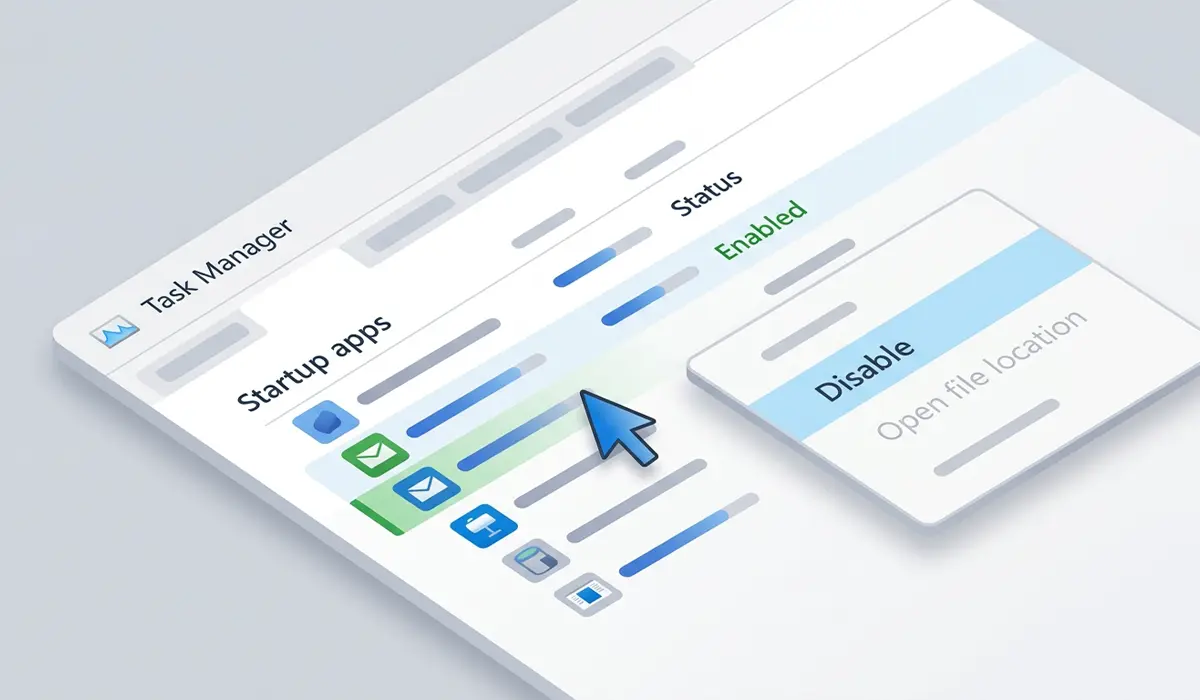
Tip: Sort the list by clicking the ‘Startup impact’ column header. This pushes the heaviest apps to the top, so the biggest wins show up first instead of hunting through a long alphabetical list.
Managing Startup Apps From Windows Settings
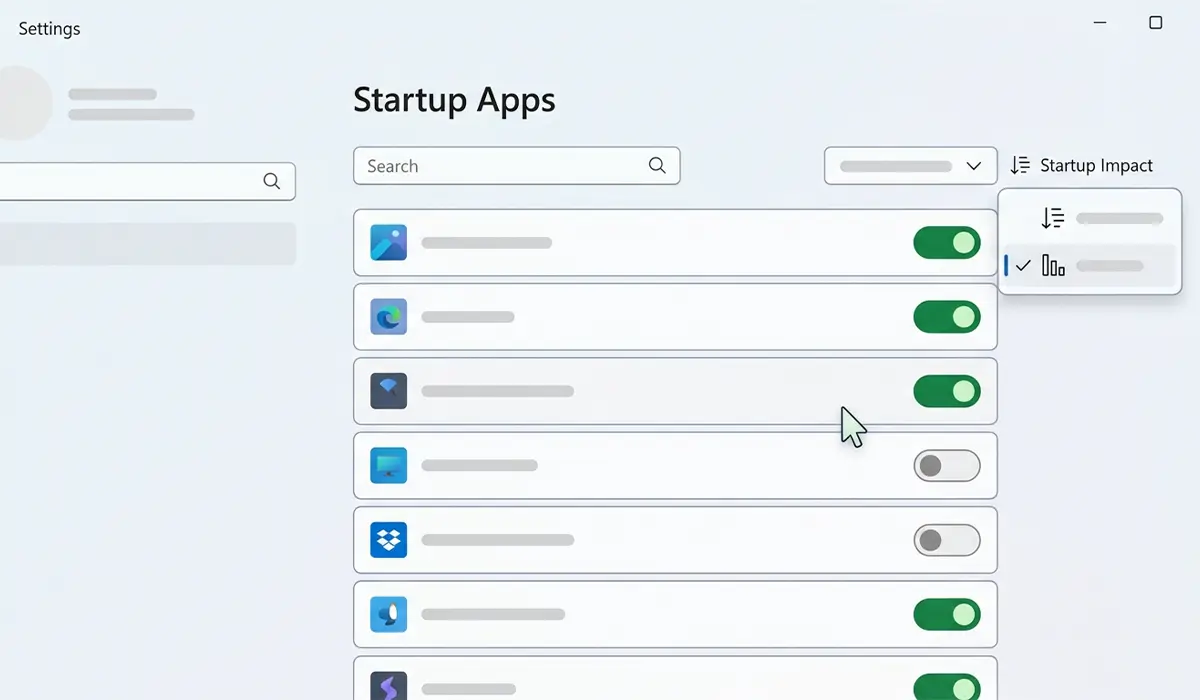
Windows 11 also exposes the same list inside the Settings app, which some people find easier to navigate than Task Manager.
- Step 1: Open Settings and go to ‘Apps’, then select ‘Startup’.
- Step 2: Use the toggle switch next to each app to turn it on or off.
- Step 3: Sort by ‘Startup impact’ using the dropdown near the top of the page to spot heavy apps quickly.
Handling Startup Items That Do Not Appear in Task Manager
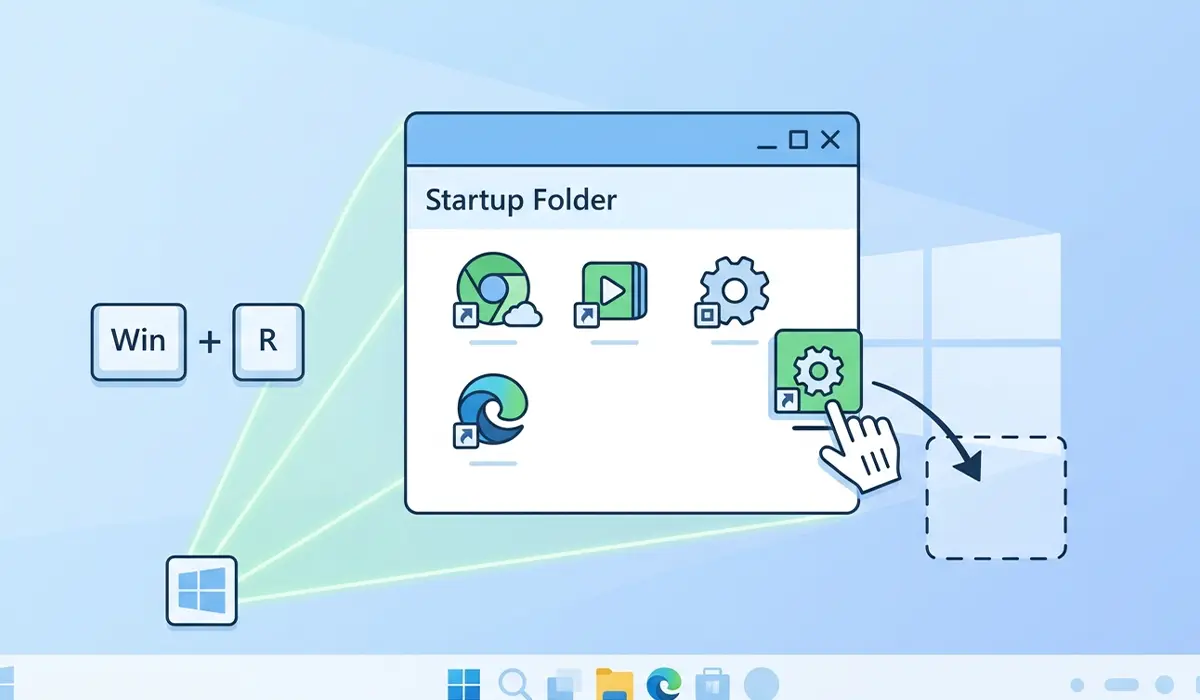
Some programs bypass the standard startup list entirely, especially older desktop software and certain background utilities. A few extra places are worth checking when a known program is still launching after being disabled elsewhere.
- Step 1: Press Windows key + R, type shell:startup, and press Enter to open the personal Startup folder. Delete or move any shortcut for a program that should not auto-launch.
- Step 2: Repeat with shell:common startup to check the Startup folder shared by all user accounts on the PC.
- Step 3: Open Task Scheduler, expand the Task Scheduler Library, and look for tasks set to trigger ‘At log on’. Disable any that belong to software no longer needed at boot.
- Step 4: Check the program itself. Many apps, including chat clients and cloud storage tools, have their own ‘Launch at startup’ option buried in their settings menu.
Choosing Which Startup Programs to Disable
The goal is not to empty the startup list completely; some background processes genuinely need to run from boot. The key is telling the difference between something essential and something that just installed itself into the startup sequence without asking.
Safe to Disable
Update checkers, chat and messaging apps, media players, printer helper utilities, cloud backup clients that are not needed immediately, and third-party ‘quick launch’ tools for software rarely opened right after boot are almost always safe to turn off. These reload in a couple of seconds whenever they are actually needed.
Usually Best Left Alone
Antivirus and security software, audio and graphics drivers, touchpad or trackpad utilities, and Windows system processes should stay enabled even when Task Manager flags them as ‘High’ impact. Their job is to be running before anything else needs them, and disabling them can cause more problems than the seconds they cost at boot.
Tip: Unsure what an unfamiliar entry does? Right-click it in Task Manager and choose ‘Search online’, or note the publisher name shown in the list before making a decision.
Common Problems and Fixes
A Disabled Program Still Launches at Startup
This usually means the app is loading from a location outside Task Manager, such as the Startup folder, Task Scheduler, or its own internal settings. Work through the checks in the ‘Startup items that do not appear in Task Manager’ section above until the source is found.
Boot Time Did Not Improve After Disabling Several Apps
A slow boot is not always caused by startup software. Aging storage, a nearly full system drive, too little RAM for the installed workload, or a drive that has not been checked for errors can all produce similar symptoms. Running a disk check and confirming there is still healthy free space on the system drive is a reasonable next step.
A Program Stopped Working Correctly After Being Disabled
Some software relies on a small background helper to function properly, such as a printer utility that manages ink levels or a sync client that needs to stay running to keep files updated. Re-enable that specific entry through Task Manager or Settings and leave it running if the program depends on it.
An Entry Cannot Be Disabled or Reappears After Every Restart
This can point to malware mimicking a legitimate startup entry, or a policy set by IT management on a work PC. Running a full scan with Windows Security, or checking with an IT administrator on a managed device, will usually explain why the entry keeps coming back.
Frequently Asked Questions
Does disabling a startup program delete it from the PC?
No. Disabling a startup entry only stops it from launching automatically at sign-in. The program remains installed and can still be opened manually anytime.
How many startup programs is too many?
There is no fixed number. What matters more is the combined startup impact shown in Task Manager. A handful of ‘Low’ impact apps matters far less than two or three ‘High’ impact ones.
Is it safe to disable everything in the Startup apps list?
Not entirely. Security software, drivers, and core system components sometimes appear in this list and should stay enabled. Focus on disabling recognizable, non-essential apps rather than clearing the list entirely.
Will managing startup programs speed up an old, slow PC?
It helps, especially on machines with a traditional hard drive or limited RAM, since fewer programs are competing for resources at once. It will not fix a bottleneck caused by aging hardware, but it is a genuinely useful first step before considering an upgrade.
What is the difference between Startup apps and background apps?
Startup apps launch automatically the moment sign-in happens. Background apps are already-running programs consuming resources while minimized or closed to the system tray, which is a separate setting under Windows privacy and background app permissions.
Why does an app keep re-enabling itself after being turned off?
Some installers reset their own startup preference after an update. Checking the app’s own settings menu for a ‘launch at startup’ toggle, in addition to disabling it in Task Manager, usually prevents it from turning itself back on.
Does msconfig still work for managing startup programs?
The System Configuration tool (msconfig) still exists in Windows 10 and 11, but its Startup tab now simply links to Task Manager, which has been the primary tool for this task for several years.
Can third-party startup managers do more than Task Manager?
Some offer more detailed views, including scheduled tasks and services in one place, but Task Manager and Settings cover what most people need without installing extra software.
Should startup programs be managed on a laptop differently than a desktop?
The steps are identical, though laptop users may want to be more aggressive about disabling non-essential apps, since a lighter startup load also reduces the burst of CPU and disk activity that drains battery right after waking or booting.
