
Knowing how to flush DNS cache on Windows is one of the fastest fixes for websites that refuse to load, show the wrong page, or throw DNS errors while other sites work fine. The process takes under a minute and needs only a built-in command. This guide covers three reliable methods, how to confirm the flush worked, and what to do if the problem remains.
Key Takeaways
- The standard command to flush the DNS cache on Windows is ipconfig /flushdns, run from an administrator Command Prompt.
- PowerShell offers the same result with the Clear-DnsClientCache cmdlet.
- A successful flush shows the message ‘Successfully flushed the DNS Resolver Cache.’
- Browsers keep their own DNS cache, so clearing it there may be needed as well.
- Flushing is safe and does not delete browsing history, passwords, or saved files.
What Flushing the DNS Cache Does
Windows stores recent domain-to-IP-address lookups so pages load faster. Think of it as a phone book kept on the desk instead of looked up each time. When a website moves to a new server, or a bad entry gets saved, that local copy goes stale and Windows keeps sending traffic to the wrong address. Flushing clears the saved entries so Windows asks for fresh answers on the next visit.
How to Flush DNS Cache on Windows Using Command Prompt
This is the most widely used method and works on Windows 10 and Windows 11.
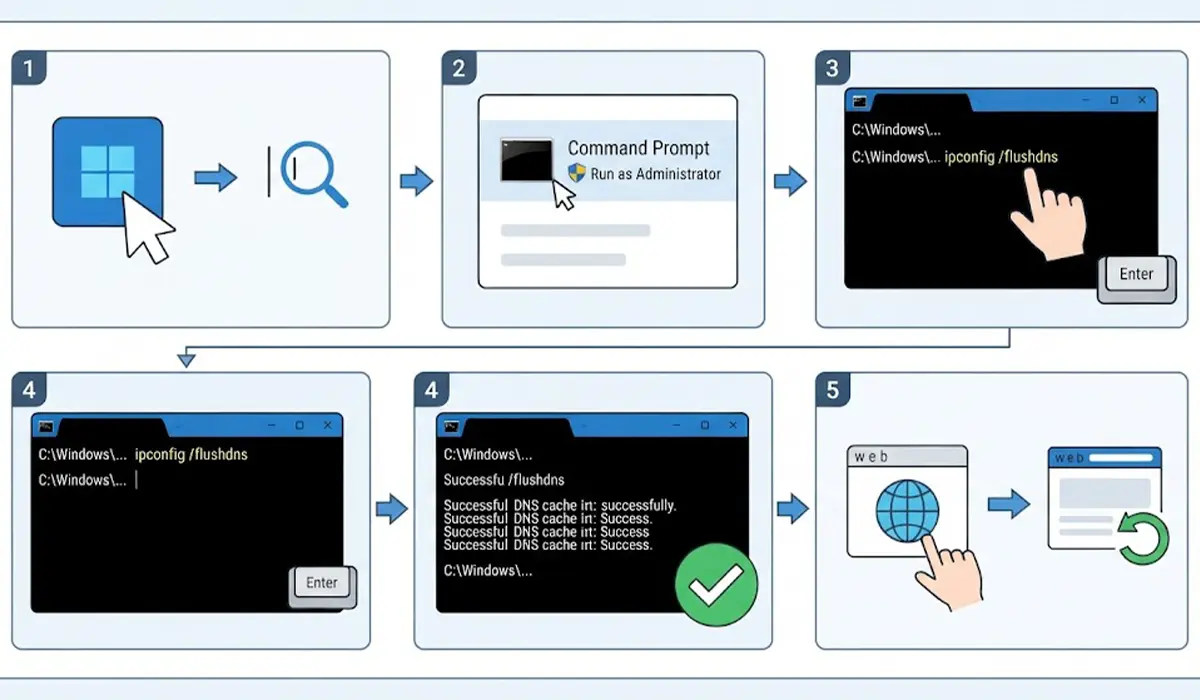
- Step 1: Click the Start button and type cmd into the search box.
- Step 2: Right-click Command Prompt in the results and choose Run as administrator. Approve the User Account Control prompt if it appears.
- Step 3: Type ipconfig /flushdns and press Enter.
- Step 4: Wait for the confirmation message ‘Successfully flushed the DNS Resolver Cache.’
- Step 5: Reopen the browser and reload the website that was causing trouble.
Tip: Running the window as administrator matters. Without elevation, the command can fail with a message saying the DNS Resolver Cache could not be flushed.
How to Check the Cache Before and After
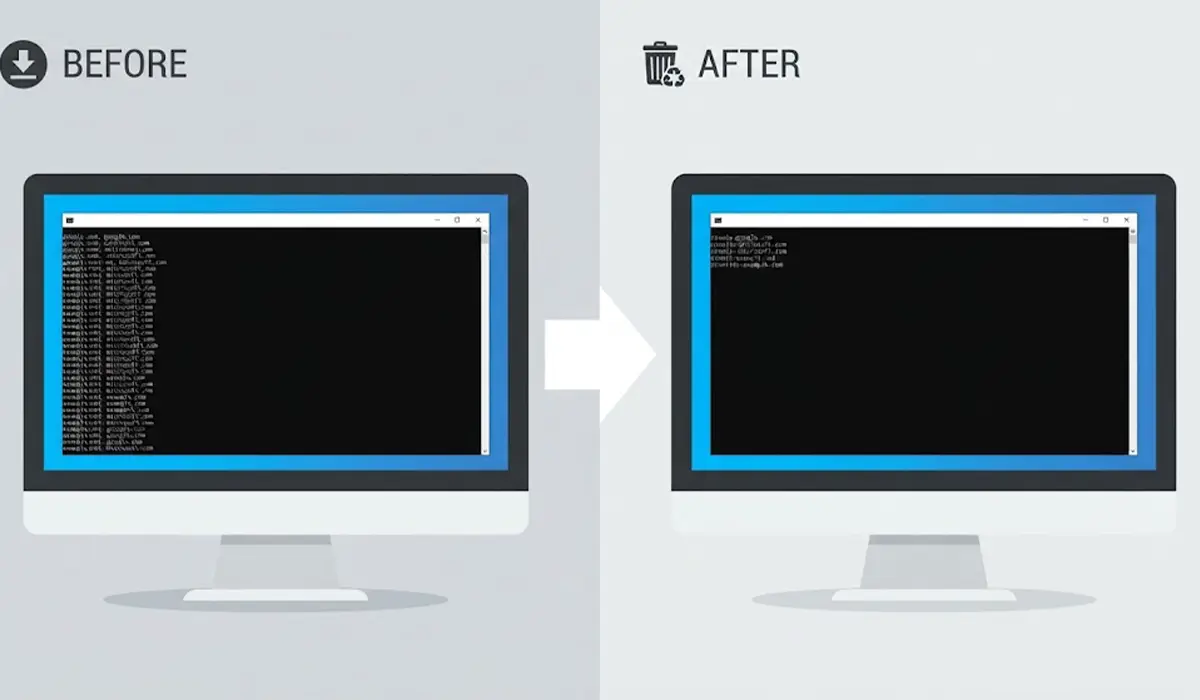
To see what is stored, type ipconfig /displaydns in the same window and press Enter. The list can be long, so a quick scroll is enough to spot the domain in question. After flushing, running the command again shows a much shorter list, since only new lookups appear.
How to Flush the DNS Cache in Windows PowerShell
PowerShell is a good alternative, especially on systems where Windows Terminal opens PowerShell by default.
- Step 1: Right-click the Start button and select Terminal (Admin) or Windows PowerShell (Admin).
- Step 2: Type Clear-DnsClientCache and press Enter.
- Step 3: Type Get-DnsClientCache and press Enter to review what remains. A near-empty list confirms the flush worked.
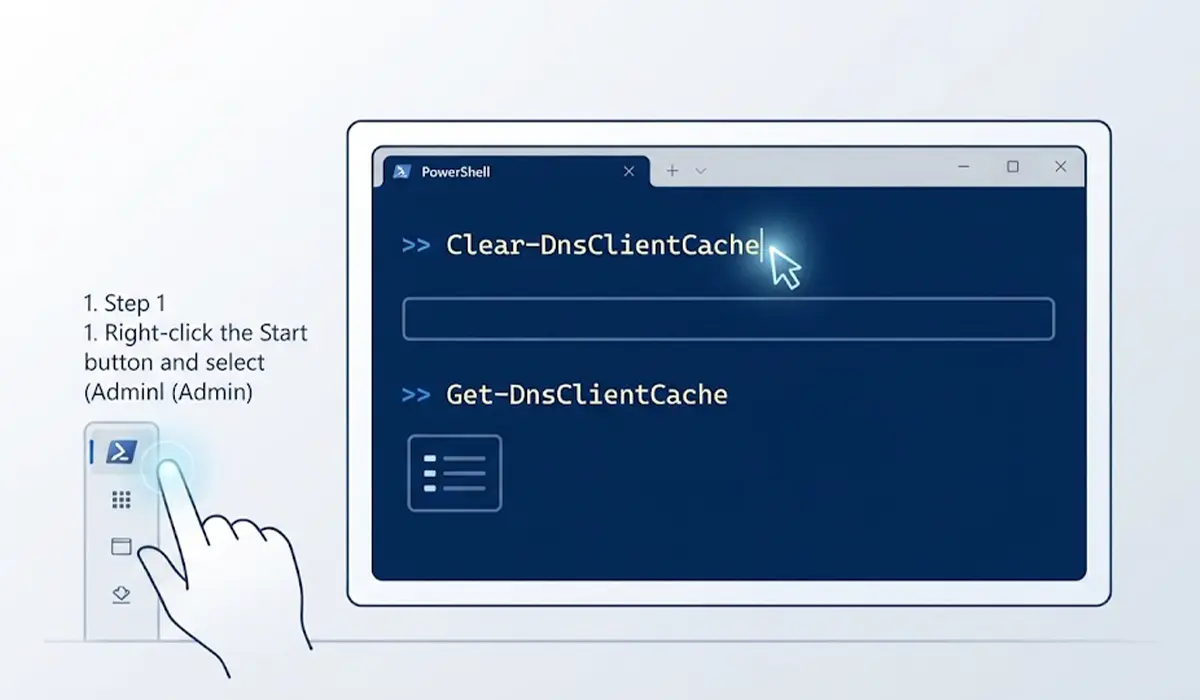
This cmdlet gives no confirmation message when it succeeds. Silence is normal, so the follow-up check in Step 3 is the reliable way to confirm.
How to Flush DNS Cache From the Run Dialog
When opening a full command window feels like overkill, the Run box handles it in seconds.
- Step 1: Press the Windows key and R together to open Run.
- Step 2: Type cmd /c ipconfig /flushdns and press Enter.
- Step 3: A black window flashes briefly and closes on its own. The flush has completed, though no message stays on screen.
Most people find that the Command Prompt method is better when a visible confirmation is wanted, while the Run method suits quick repeat use.
Clear the Browser DNS Cache Too
Chromium-based browsers such as Chrome and Edge keep a separate DNS cache. If a site still misbehaves after the Windows flush, clear that one as well.
- Step 1: Open a new tab in Chrome and go to chrome://net-internals/#dns. In Edge, use edge://net-internals/#dns.
- Step 2: Click the Clear host cache button.
- Step 3: Close and reopen the browser, then test the site again.
When to Flush the DNS Cache
- A website shows a DNS_PROBE_FINISHED_NXDOMAIN or similar DNS error while the internet otherwise works.
- A site was recently moved to a new host and still opens the old version.
- The network changed, such as switching to a different DNS provider or router.
- Suspicious redirects appear and a corrupted or poisoned cache is a possible cause.
For broader connection trouble beyond DNS, see this Windows network troubleshooting guide.
Common Problems and Fixes
The Command Says the Cache Could Not Be Flushed
This almost always means the window is not running as administrator. Close it, reopen Command Prompt with the Run as administrator option, and enter the command again.
The Website Still Does Not Load After Flushing
Clear the browser DNS cache using the steps above, then restart the browser. If the issue continues, a custom entry in the hosts file may be overriding DNS. That file sits at C:\Windows\System32\drivers\etc\hosts and can be opened in Notepad as administrator to check for lines naming the affected site.
The Same DNS Error Keeps Returning
A repeating error points to the DNS server itself rather than the cache. Switching the network adapter to a different public DNS server in Network and Internet settings often resolves it. Restarting the router is also worth trying.
The Connection Is Still Unstable
Run ipconfig /release followed by ipconfig /renew in an administrator Command Prompt to request a fresh IP address from the router. For deeper issues, this guide to resetting Windows network settings covers the next step.
Frequently Asked Questions
What does flushing the DNS cache do?
It deletes the saved domain-to-IP-address lookups stored by Windows, so the system requests fresh information from the DNS server the next time a website is visited.
Is it safe to flush the DNS cache on Windows?
Yes. Flushing only removes temporary lookup records. Browsing history, passwords, cookies, and personal files are not affected.
What is the command to flush DNS cache on Windows?
The command is ipconfig /flushdns, entered in Command Prompt run as administrator. In PowerShell, the equivalent is Clear-DnsClientCache.
How often should the DNS cache be flushed?
There is no need to flush it on a schedule. Windows manages the cache automatically, so a manual flush is only useful when a DNS-related problem appears.
Does flushing DNS speed up the internet?
Not in general. It can fix slow or failed page loads caused by outdated or corrupted entries, but it does not increase connection speed.
Do I need administrator rights to flush DNS on Windows?
Running as administrator is strongly recommended. Without it, the command can fail and report that the cache could not be flushed.
How can I tell if the DNS flush worked?
Command Prompt shows the message ‘Successfully flushed the DNS Resolver Cache.’ In PowerShell, running Get-DnsClientCache afterward should show few or no entries.
Why does a website still not load after flushing DNS?
The browser may hold its own cached DNS records, the hosts file may contain an override, or the DNS server itself may be the problem. Clearing the browser cache and trying a different DNS server are the next steps.
Will flushing DNS log me out of websites?
No. DNS records are separate from cookies and saved sessions, so logins stay intact.
