
When the Microsoft Store not working issue shows up, it usually means the app freezes on launch, downloads stall at zero percent, or an error code appears the moment it opens. This guide walks through the causes and the fixes in the order most likely to solve the problem quickly, starting with the simplest checks first.
Key Takeaways
- Most Store failures trace back to a shaky internet connection, a corrupted cache, or a Windows Update that got stuck partway through.
- Resetting the Store cache with the built-in wsreset tool solves the issue in a large share of cases without any other changes.
- Running the Windows Store Apps troubleshooter and re-registering the app both target deeper, app-specific corruption.
- Date, time, and region settings that are off by even a little can block the Store from connecting to Microsoft’s servers.
- A full reinstall through PowerShell is the last resort, and it works when everything else has failed.
Common Causes of Microsoft Store Problems
The Store depends on a working internet connection, an accurate system clock, a healthy local cache, and background services that stay running quietly without much notice. When any one of those pieces breaks, the Store tends to show the same handful of symptoms: it won’t open, it opens but freezes, downloads sit at zero percent, or an error code pops up such as 0x80131500 or 0x803F8001. Outdated Windows builds, a corrupted app cache, interference from a VPN or proxy, and a Microsoft account that needs re-authentication all show up as repeat offenders. Most people find that the fix is simpler than the symptom suggests, and the steps below move from quick checks to deeper repairs.
How to Fix Microsoft Store Not Working
Step 1: Check the Internet Connection
- Step 1: Open a web browser and load a couple of different websites to confirm the connection is stable.
- Step 2: If a VPN or proxy is active, disconnect it temporarily since these can block the Store’s connection to Microsoft’s servers.
- Step 3: Restart the router or switch from Wi-Fi to an Ethernet cable if the connection seems unreliable.

Tip: A connection that loads regular websites fine can still trip up the Store, since it uses a different set of Microsoft endpoints than a typical browser session.
Step 2: Check for Windows Updates
- Step 1: Open Settings and go to Windows Update.
- Step 2: Select Check for updates and install anything pending, including optional updates.
- Step 3: Restart the PC once the updates finish installing.
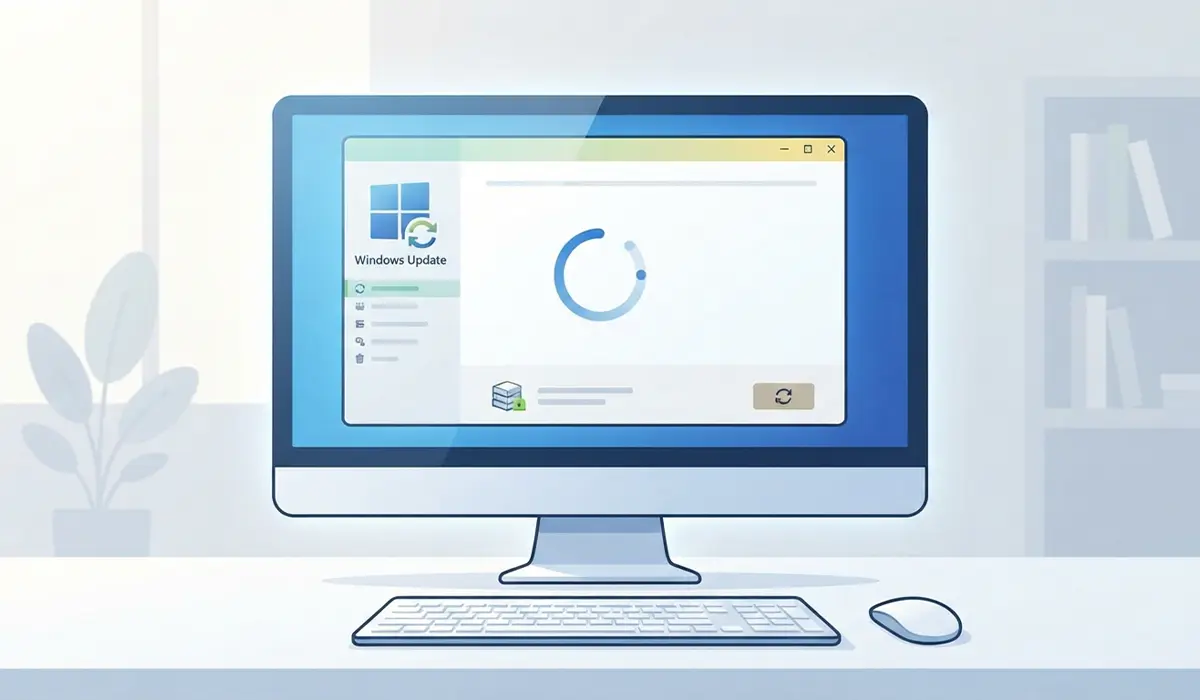
A Store that misbehaves right after a major Windows feature update often just needs the remaining update pieces to finish installing before it settles down.
Step 3: Reset the Microsoft Store Cache
- Step 1: Press the Windows key and R together to open the Run box.
- Step 2: Type wsreset and press Enter.
- Step 3: Wait for a blank command window to open and close on its own; the Store will then launch automatically once the cache clears.
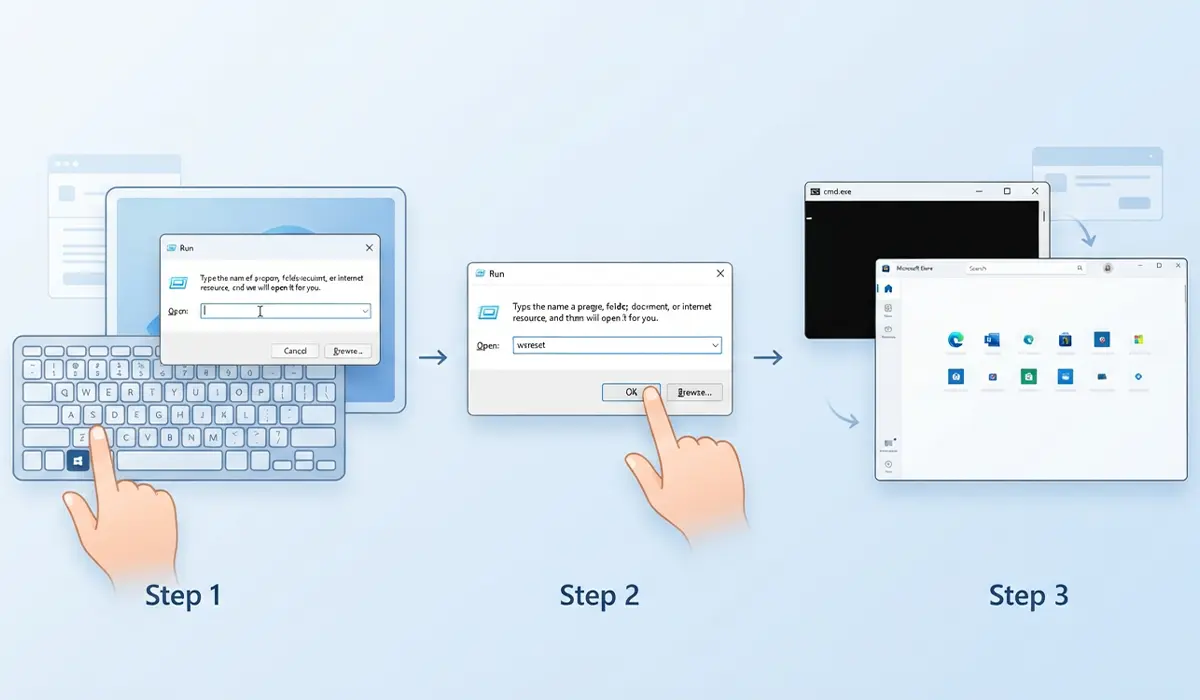
This single tool clears out corrupted temporary files without touching any installed apps, and it resolves a large share of Store complaints on the first try.
Step 4: Run the Windows Store Apps Troubleshooter
- Step 1: Open Settings, then go to System, then Troubleshoot, then Other troubleshooters.
- Step 2: Find Windows Store Apps in the list and select Run.
- Step 3: Follow any prompts and apply the fixes it suggests.
Step 5: Check Date, Time, and Region Settings
- Step 1: Open Settings, then Time & Language, then Date & time.
- Step 2: Turn on Set time automatically and Set time zone automatically.
- Step 3: Confirm the region under Language & region matches the actual location.
A clock that drifts even a couple of minutes off can break the secure connection the Store needs to authenticate with Microsoft’s servers, which is an easy detail to overlook.
Step 6: Re-register the Microsoft Store App
- Step 1: Open the Start menu, type PowerShell, right-click it, and select Run as administrator.
- Step 2: Paste this command and press Enter: Get-AppxPackage -allusers Microsoft.WindowsStore | Foreach {Add-AppxPackage -DisableDevelopmentMode -Register “$($_.InstallLocation)\AppXManifest.xml”}
- Step 3: Restart the PC once the command finishes running and check whether the Store opens normally.
Tip: This step reinstalls the Store’s registration in Windows without deleting the app itself, which makes it a safe move before trying a full uninstall.
Step 7: Sign Out and Back Into the Microsoft Account
- Step 1: Open the Microsoft Store and select the account icon in the top right corner.
- Step 2: Choose the account and select Sign out.
- Step 3: Close the Store, reopen it, and sign back in with the same Microsoft account.
Step 8: Reinstall the Microsoft Store via PowerShell
- Step 1: Open PowerShell as administrator.
- Step 2: Run: Get-AppxPackage -AllUsers Microsoft.WindowsStore | Remove-AppxPackage
- Step 3: Restart the PC, then run the same registration command from Step 6 to bring the Store back.
This is the most thorough fix on the list, and it clears out deep corruption that survives a simple cache reset. Save it for when every earlier step has been tried without success.
Common Problems and Fixes
The Store opens but shows a blank white screen. This usually points to a rendering issue tied to the local cache. Running wsreset again, or restarting the PC after Step 6’s re-registration command, generally clears it.
Downloads stay stuck at zero percent. Pause the download, cancel it, and restart it. If it stalls again, check Settings, then Apps, then Advanced app settings, then App execution aliases to confirm the Store isn’t blocked from running in the background.
An error code appears every time the Store opens. Note the exact code, since Microsoft maintains specific guidance for individual codes like 0x80073CF9 or 0x8000FFFF, and the troubleshooter in Step 4 often resolves these automatically.
The Store works but won’t install anything. This often comes down to insufficient storage space or a corrupted download cache. Confirm there is free space on the drive and try clearing temporary files through Storage Sense before attempting the download again.
The Store disappeared from the Start menu entirely. Run the PowerShell registration command from Step 6, which restores the shortcut and app tile without requiring a full reinstall.
Frequently Asked Questions
Why does the Microsoft Store keep crashing on Windows 11?
Crashing is most often tied to a corrupted app cache or an incomplete Windows Update. Running wsreset and checking for pending updates resolves the majority of these crashes.
Can antivirus software block the Microsoft Store?
Yes, some third-party antivirus or firewall programs block the Store’s background connections. Temporarily disabling the program to test is a reasonable way to confirm whether it’s the cause, though it should be re-enabled right afterward.
Is it safe to reinstall the Microsoft Store using PowerShell?
Yes, it’s a standard Microsoft-supported method that doesn’t affect personal files or other installed apps. It only removes and re-registers the Store app itself.
Does resetting the Microsoft Store delete installed apps?
No, resetting the cache with wsreset or re-registering the app through PowerShell does not remove apps that were installed through the Store.
Why does the Microsoft Store say ‘we couldn’t connect’?
This message almost always points to a network problem, an incorrect system clock, or interference from a VPN or proxy. Working through Steps 1 and 5 resolves this message in most cases.
What does error code 0x80131500 mean in the Microsoft Store?
This code typically points to a connectivity or cache issue rather than a deeper system problem. Resetting the Store cache with wsreset is the most effective first response.
How long does it take to fix the Microsoft Store not working issue?
Most fixes, like the cache reset or troubleshooter, take only a few minutes. The full PowerShell reinstall takes a bit longer since it requires a restart, but it still usually finishes within ten to fifteen minutes.
Should personal files be backed up before fixing the Microsoft Store?
No backup is needed for this particular fix, since none of the steps touch personal files, documents, or photos. They only affect the Store app and its cache.
Why does the Microsoft Store work on one Windows account but not another?
This points to a profile-specific issue rather than a system-wide one. Signing out and back into the affected account, or re-registering the Store while signed into that specific profile, generally fixes it.
