
Knowing how to clean thermal pads on a GPU properly can bring dropping VRAM and power stage temperatures back under control without a full card teardown. Old, dried, or crumbled pads lose their ability to transfer heat, and a careless cleanup can leave residue that causes new pads to sit unevenly. This guide walks through the safe way to remove old pad material and prep the surfaces for fresh pads.
Key Takeaways
- Thermal pads on a GPU sit between the PCB components (VRAM, VRMs, backplate) and the heatsink, not directly on the GPU die itself.
- Residue and dried pad material should be removed with 90 percent or higher isopropyl alcohol and a plastic tool, never metal.
- Surfaces need to be completely dry and residue-free before new pads go on, or the fit and contact will suffer.
- Pad thickness matters. The wrong thickness can create too much or too little pressure on the components underneath.
- This is a straightforward task for most desktop users, but a card under warranty or a laptop with a fused heatsink may be better left to a repair professional.
Before You Start
A little prep goes a long way here, and skipping it is how components get scratched or shorted. Before touching anything inside the card:
- Power down the PC completely and unplug it from the wall, not just from sleep mode.
- Press and hold the power button for a few seconds after unplugging to drain any residual charge from the board.
- Discharge static electricity by touching a bare metal part of the case, or better yet, wear an anti-static wrist strap while working.
- Let the GPU cool fully if it was recently in use. Working on a warm heatsink makes the pad residue smear rather than lift cleanly.
- Work on a flat, well-lit surface with a non-static mat if available.
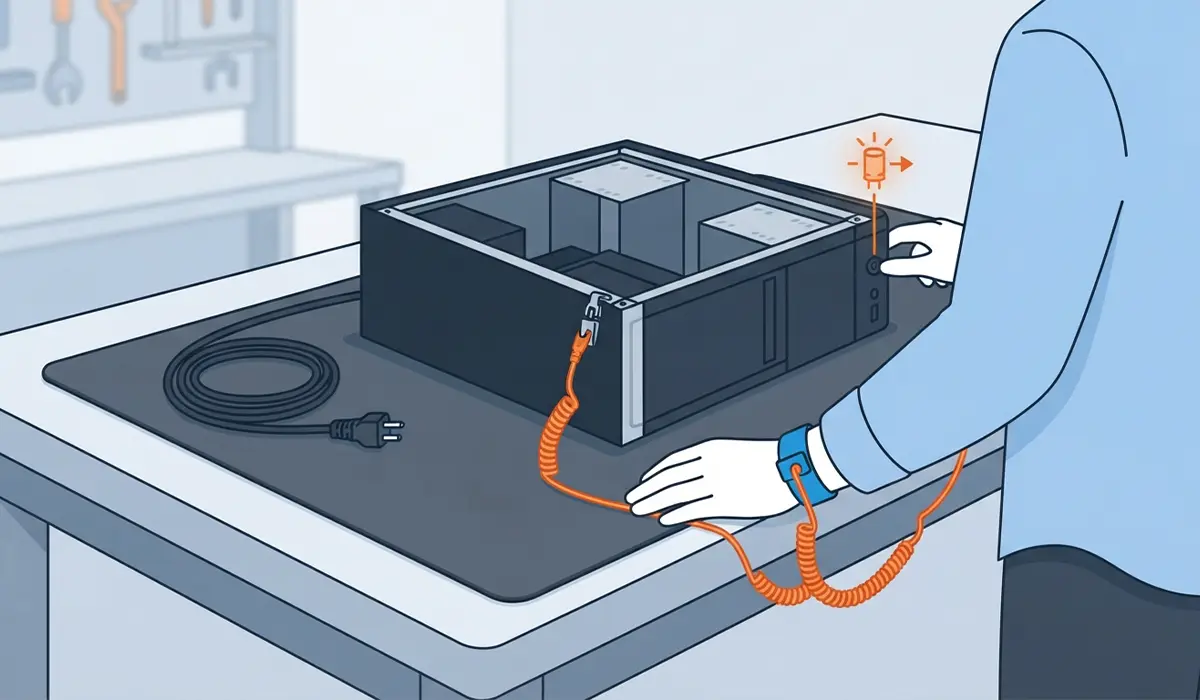
Opening a graphics card almost always voids the manufacturer warranty, so check the card’s warranty status first. If the card is still covered, or if it uses a vapor chamber cooler that is riveted or glued shut, sending it to a professional is the safer route.
Tools and Materials Needed
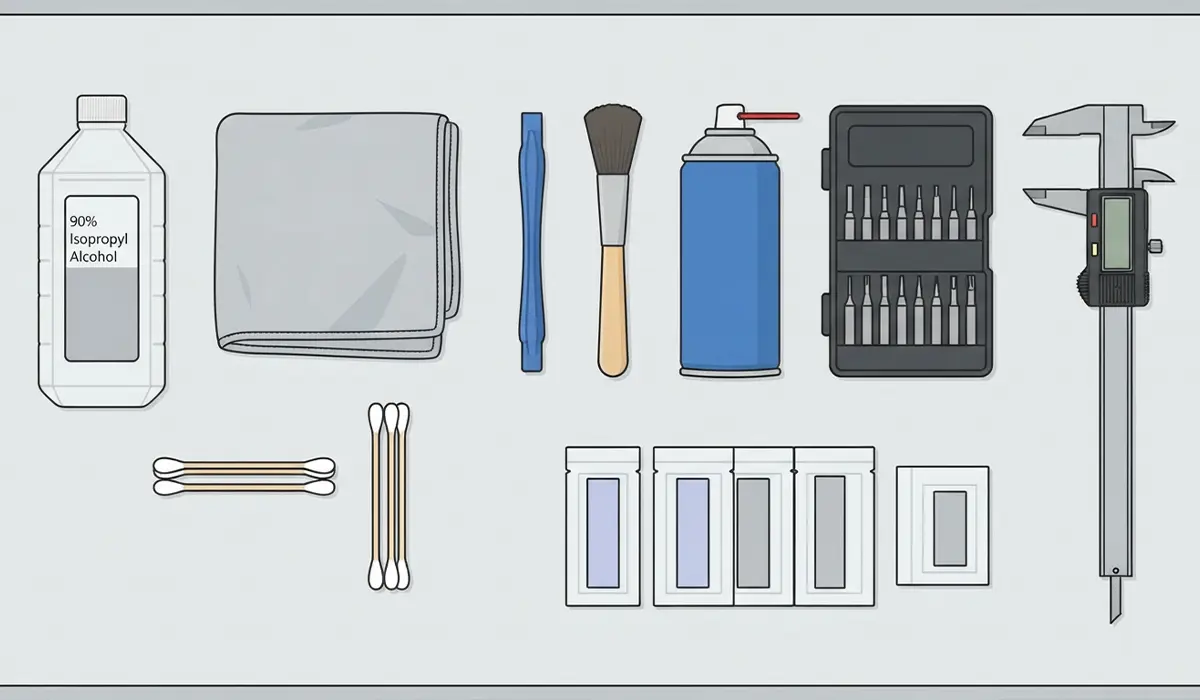
- Isopropyl alcohol, 90 percent concentration or higher
- Lint-free or microfiber cloths, plus a few cotton swabs for tight corners
- A plastic spudger or plastic pry tool, never a metal scraper or screwdriver blade
- A soft-bristle brush for loose dust
- Compressed air
- Precision screwdrivers matching the GPU’s screw heads
- New thermal pads in the correct thickness for each contact point
- Digital calipers, useful for measuring old pad thickness before ordering replacements
How to Clean Thermal Pads on a GPU: Step-by-Step
This process assumes the GPU has already been removed from the PC and the shroud and heatsink have been separated from the PCB. Working through it slowly, rather than rushing to reassembly, is what keeps the board safe.
- Step 1: Take a photo of the heatsink and PCB before removing anything. This makes it much easier to match new pads to the correct locations and thicknesses later.
- Step 2: Clear away loose dust and debris with compressed air and a soft brush before introducing any liquid. Cleaning dusty surfaces with alcohol first just turns dust into paste.
- Step 3: Peel off the old thermal pads by hand or with a plastic spudger, working from one edge. Pads that have dried out often come away in flakes rather than one piece, and that is normal.
- Step 4: Dampen a lint-free cloth with isopropyl alcohol and wipe down the heatsink contact surfaces, removing all pad residue until the metal looks clean and uniform.
- Step 5: Repeat the same wipe-down on the PCB side, over the VRAM chips, VRM components, and any other spots that previously had a pad. Use cotton swabs dipped in alcohol for narrow gaps between components.
- Step 6: Inspect both surfaces under good lighting. Any dull or gummy patches usually mean a second wipe is needed.
- Step 7: Let all surfaces air dry fully. Isopropyl alcohol evaporates quickly, but giving it a minute or two ensures no moisture is trapped under the new pads.
- Step 8: Measure the gap at each contact point with digital calipers if reusing the reference photo is not enough, then cut new thermal pads to match those thicknesses and dimensions.
- Step 9: Place the new pads onto the PCB components, pressing gently so they sit flat without stretching or folding at the edges.
- Step 10: Reassemble the heatsink onto the PCB, tightening screws in a diagonal or crisscross pattern rather than one corner at a time, which helps even pressure settle across the board.
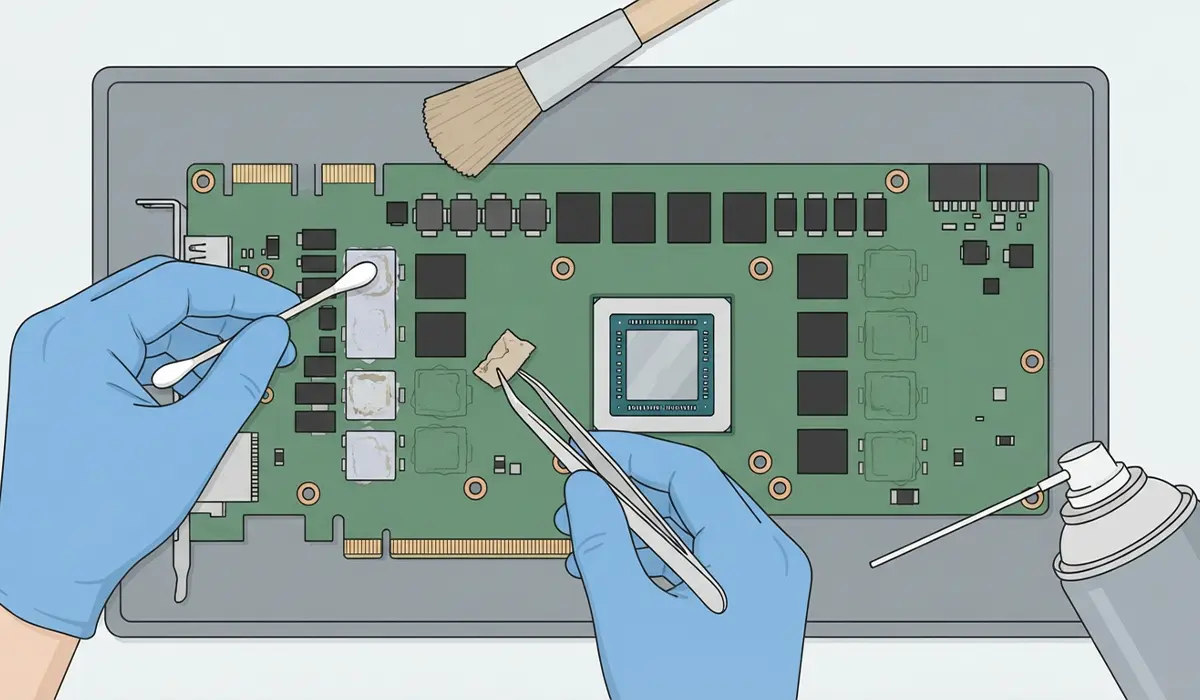
Tip: Keep the old pads set aside until the new ones are installed. Measuring a slightly compressed old pad with calipers is often the most reliable way to get replacement thickness right, since printed specs are not always available for every card model.
Common Problems and Fixes
Temperatures did not improve after replacing the pads
This usually points to the wrong pad thickness. A pad that is too thin will not make firm contact, while one that is too thick can lift the heatsink slightly and reduce contact pressure elsewhere on the board. Double-check thickness against the pre-disassembly photo and reseat if needed.
The card will not power on after reassembly
This is almost always a mechanical issue rather than an electrical one. Check that no thermal pad material is pinched between the PCB and heatsink where a screw needs to sit flush, and confirm the display outputs and power connectors are seated all the way.
Alcohol residue or a hazy film remains after cleaning
A single wipe is not always enough on heavily degraded pads. Go over the surface again with a fresh section of cloth and more alcohol until the cloth comes away clean, then let it dry completely before moving on.
New pads feel loose or shift out of place during reassembly
Pads that were cut slightly oversized can bunch up at the edges. Trim them closer to the original size and confirm the surface underneath was fully dry, since leftover alcohol can affect how well the adhesive backing grips.
Coil whine or new noise after the fix
This is unrelated to the thermal pads themselves and is more often tied to load changes or the power delivery components. If it appeared right after this fix, confirm every screw is torqued evenly and nothing is rubbing against the fan blades.
Frequently Asked Questions
How often should GPU thermal pads be cleaned or replaced?
Most graphics cards go three to five years before pads need attention, though heavy daily use or a card that runs hot can shorten that window. Rising VRAM or hotspot temperatures over time are usually the first sign.
Can thermal paste be used instead of thermal pads?
Paste and pads are not interchangeable. Pads are designed to fill a gap and stay in place over uneven components like VRAM chips, while paste is meant for the tight, flat contact between the GPU die and the heatsink base.
What isopropyl alcohol concentration works best for this?
90 percent or higher is recommended. Lower concentrations contain more water, which evaporates more slowly and increases the risk of moisture being trapped near sensitive components.
Is it safe to clean thermal pads on a GPU that is still under warranty?
Opening the cooler on most cards breaks the manufacturer’s warranty seal. Checking the warranty terms first, or contacting the manufacturer, is worth doing before disassembly on a newer card.
How is the correct replacement pad thickness determined?
Measuring the old pad with digital calipers right after removal gives the most accurate number, since it accounts for any compression that happened over time. A reference photo of the original layout helps match each pad to its correct spot.
What happens if the wrong thermal pad thickness is installed?
Too thin and the pad will not bridge the gap, leaving an air pocket that traps heat. Too thick and it can push the heatsink away from other contact points, which can affect cooling across the entire board, not just at that one spot.
Can thermal pads be reused after removal?
Once a pad has been removed and has lost its shape or adhesive quality, reusing it is not recommended. Fresh pads are inexpensive compared to the risk of poor contact from a compressed or damaged pad.
Is it necessary to clean pads on both the heatsink and the PCB sides?
Yes. Residue left on either surface can prevent the new pad from sitting flush, so both the heatsink contact points and the PCB components need to be wiped clean.
Does the GPU need to be fully disassembled to access the thermal pads?
The heatsink and shroud need to come off the PCB, but a full teardown of every component is not usually necessary. Following the card’s specific screw layout and disconnecting fan cables carefully is normally enough to separate the two halves.
What is the safest tool for scraping off old, hardened thermal pad material?
A plastic spudger or plastic pry tool is the safest option. Metal tools like screwdrivers or utility knives can scratch the PCB traces or gouge the heatsink surface, which creates new problems beyond the original cleaning task.
