
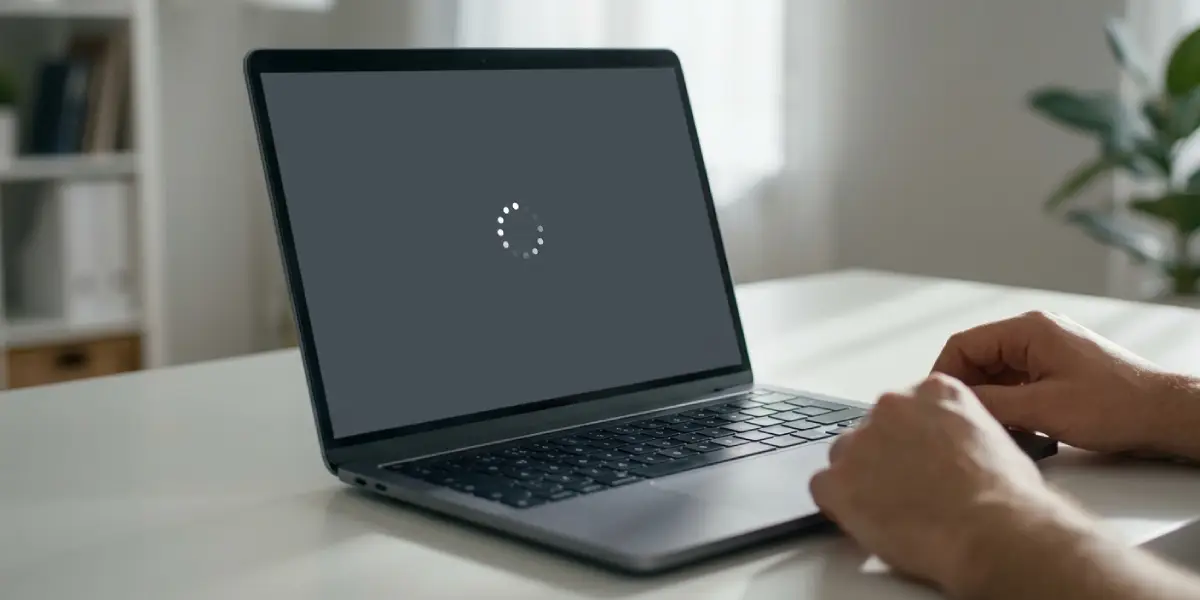
Windows stuck on spinning dots is one of the most common boot problems on both desktops and laptops, and it usually points to a stalled update, a corrupted system file, or a failing storage drive rather than a dead machine. This guide walks through exactly why it happens and how to get past it without losing data.
Key Takeaways
- Spinning dots on a black or blue screen almost always mean Windows is stuck loading a driver, finishing an update, or struggling to read the boot drive.
- A hard shutdown followed by Automatic Repair is the safest first move.
- Startup Repair, System Restore, and a driver rollback fix the majority of cases without reinstalling Windows.
- Failing storage hardware or a corrupted update are the two most serious causes and need different fixes.
- Backing up files from a USB boot environment should happen before any deeper repair if the drive shows warning signs.
Common Causes of Windows Stuck on Spinning Dots
Before jumping into fixes, it helps to understand what is actually happening behind that spinning animation. The dots appear during the Windows loading screen, and a machine that never moves past them is telling a technician something specific.
Interrupted or Corrupted Windows Update
This is the single most frequent cause. A power outage, a forced restart, or a driver conflict during an update can leave system files half-written, so Windows keeps trying to finish a task it cannot complete.
Corrupted or Misconfigured Boot Files
The Boot Configuration Data (BCD) or master boot record can become damaged after a sudden power loss, a botched dual-boot setup, or a failed disk cleanup tool. Windows loads far enough to show the spinner but cannot locate the files it needs next.
Failing or Disconnected Storage Drive
A hard drive with bad sectors or an SSD nearing the end of its life will often hang at this exact stage, since read errors slow the boot process to a crawl or stop it entirely. A loose SATA or NVMe connection produces the same symptom.
Faulty or Outdated Driver
A recently updated graphics, storage, or chipset driver can conflict with Windows during the loading sequence, especially right after a driver update or a fresh Windows installation.
Third-Party Software Conflicts
Antivirus tools, disk encryption software, and some overclocking utilities occasionally interfere with the boot sequence, particularly after an update changes how they load.
How to Fix Windows Stuck on Spinning Dots
Before You Start
None of the fixes below require opening the case, but a few basics still matter. Make sure the machine is plugged into reliable power so another interruption does not make things worse, and have a USB flash drive of at least 8GB on hand in case a bootable Windows recovery drive needs to be created on a second computer.
- Step 1: Give it time first. If the dots have been spinning for less than 20 to 30 minutes, especially after an update, let it continue since Windows may still be finishing a legitimate installation task.
- Step 2: If nothing changes after that window, hold the power button for 10 seconds to force a shutdown, then power the machine back on. Windows often detects the failed boot and automatically launches Automatic Repair.
- Step 3: When Automatic Repair appears, select ‘Advanced options’ to reach the Windows Recovery Environment (WinRE) instead of letting the automated tool run blind, since this gives more control over the next steps.
- Step 4: From ‘Troubleshoot’, choose ‘Advanced options’ then ‘Startup Repair’ and let it scan and fix boot-related issues. This resolves BCD corruption and many driver-loading failures.
- Step 5: If Startup Repair does not resolve it, go to ‘Advanced options’ then ‘System Restore’ and roll back to a restore point created before the problem started. This is especially effective when the issue followed a recent update or driver install.
- Step 6: Still stuck? Open ‘Advanced options’ then ‘Command Prompt’ and run chkdsk C: /f /r to scan the drive for bad sectors and repair file system errors. This step can take a while on larger or older drives.
- Step 7: If chkdsk reports serious read errors, run sfc /scannow from the same Command Prompt window after the drive check completes, which repairs corrupted system files that a partial update may have left behind.
- Step 8: For a suspected bad driver, boot into ‘Startup Settings’ from Advanced options and select ‘Safe Mode’. Reaching Safe Mode confirms the core system loads fine, and the problem driver can then be rolled back or uninstalled from Device Manager.
- Step 9: If none of the above gets Windows past the spinning dots, back up personal files using the Command Prompt or a Linux-based USB tool, then consider an in-place upgrade repair install or a clean installation as a last resort.
Tip: Creating a Windows installation USB on a working second computer ahead of time saves significant frustration, since most of the tools above are only accessible from that recovery environment.
When to Suspect Failing Hardware
If chkdsk reports a growing number of bad sectors, or the drive makes clicking or grinding noises, that is a mechanical hard drive on its way out rather than a software problem. An SSD that suddenly disappears from BIOS after repeated boot attempts is showing the same kind of warning sign. In either case, the priority shifts from repairing Windows to recovering data before the drive fails completely.
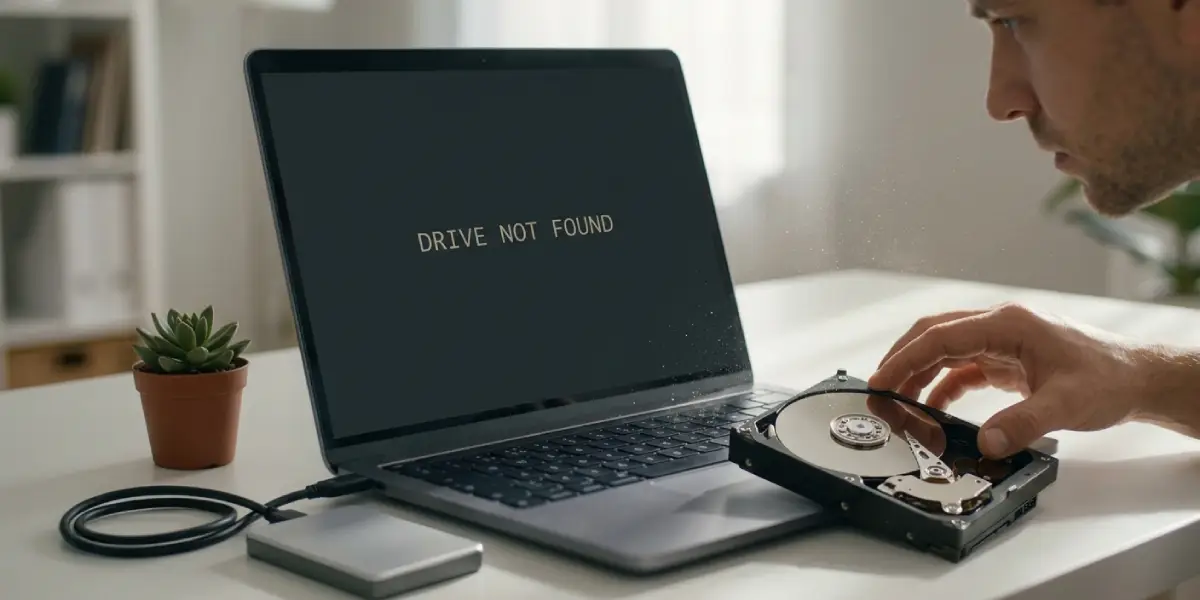
Tip: A drive health check with a manufacturer’s diagnostic tool, run from a USB boot environment, gives a clear answer on whether the drive itself is the root cause before more time gets spent on software fixes.
Common Problems and Fixes
Startup Repair says ‘Automatic Repair couldn’t repair your PC’: this points to deeper corruption or a hardware fault. Move on to System Restore, then chkdsk, before considering a repair install.
The PC boots into Safe Mode fine but hangs on a normal boot: a third-party driver or startup program is almost always responsible. Use Device Manager or the System Configuration tool (msconfig) to disable recently added drivers or startup items one at a time.
Spinning dots return after a successful repair: this usually means the underlying cause, such as a failing drive or a pending update, was never fully resolved. Re-run chkdsk and check Windows Update history for repeated failed installs.
Command Prompt tools are greyed out or unavailable in recovery: this can happen on machines with BitLocker enabled. The recovery key, usually tied to a Microsoft account, needs to be entered before advanced tools unlock.
chkdsk gets stuck partway through: on an aging mechanical drive this can indicate severe sector damage. Let it run as long as reasonably possible, but treat this as a strong signal to back up data immediately once any access is regained.
Frequently Asked Questions
Is Windows stuck on spinning dots the same as the Blue Screen of Death?
No. A blue screen shows an error code and restarts on its own, while spinning dots simply mean Windows is loading and has stalled somewhere in that process without producing a specific error.
How long should Windows be left on the spinning dots screen before taking action?
Around 20 to 30 minutes is a reasonable window, especially right after installing an update, since some updates genuinely take that long to finish applying.
Will a forced shutdown during spinning dots damage the computer?
It carries some risk of file corruption if Windows was mid-write, but it will not damage the physical hardware. It is the standard first step technicians use when a boot is clearly hung.
Can a failing power supply cause this issue?
It is less common but possible, particularly if the system also shows random shutdowns or restarts elsewhere. A drive or driver issue is a far more likely cause of a boot that hangs at this specific stage.
Does System Restore delete personal files?
No. System Restore only reverts system files, installed programs, and settings to an earlier point. Personal documents, photos, and other files are not affected.
What if there is no recovery environment or Advanced options menu available?
A Windows installation USB created on another computer can boot the affected machine into the same Windows Recovery Environment, giving access to Startup Repair, Command Prompt, and System Restore.
Is it possible to recover files if Windows never boots successfully again?
Yes, in most cases. Booting from a USB recovery drive or a Linux-based live USB allows access to the file system to copy data off, even when Windows itself will not start.
Should a laptop battery be removed before troubleshooting this issue?
Removing the battery is unnecessary for this kind of software or boot issue. It is a step reserved for physical hardware repairs, not boot troubleshooting.
When does this problem require a professional technician?
If chkdsk reports serious drive damage, the drive is not recognized in BIOS, or repeated repair attempts fail to get past the spinning dots, a professional can assess whether the drive needs replacing or data recovery is needed before reinstalling Windows.
