
Learning how to boot from a USB drive is one of the most useful skills for installing an operating system, running diagnostic tools, or recovering a PC that will not start normally. The process only takes a few minutes once the correct boot menu or BIOS setting is found. This guide walks through every stage, from preparing the drive to troubleshooting a laptop or desktop that refuses to cooperate.
Key Takeaways
- Most computers use a dedicated boot menu key (commonly F12, F11, F10, Esc, or Delete) pressed right after powering on.
- The USB drive needs to be properly formatted and made bootable before a computer can start from it.
- Secure Boot and Fast Boot settings in the BIOS or UEFI firmware often need to be adjusted temporarily.
- Boot order can be changed either through a one-time boot menu or permanently inside BIOS setup.
- If the USB drive does not appear as an option, the drive format or firmware mode is usually the cause.
Before You Start
A little preparation avoids most of the frustration people run into with this process. None of it takes long, and skipping it is the most common reason a USB drive fails to show up as a boot option.
- Back up any important files on the computer, especially if the USB drive will be used to install or reinstall an operating system.
- Prepare the USB drive in advance using tools such as Rufus, balenaEtcher, or the built-in Media Creation Tool, depending on what is being installed.
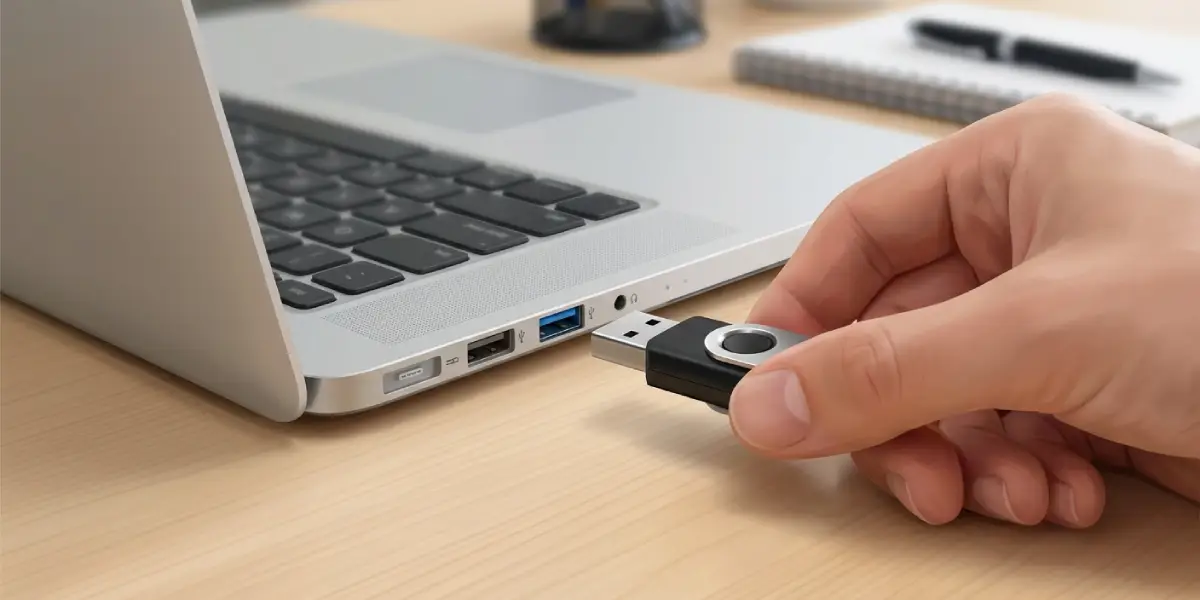
- Confirm the USB drive is inserted directly into the computer rather than through a hub, since some boot firmware ignores hubs during startup.
- Have the computer plugged into power, particularly on laptops, since an interrupted boot process during a BIOS change can occasionally cause confusion on restart.
Tip: Label or note which USB port was used. Some motherboards only recognize a bootable drive in specific USB ports, especially older desktop boards.
How to Boot From a USB Drive
This section covers the standard method that works across the large majority of desktops and laptops. Wording on screen may vary slightly between manufacturers, but the underlying steps stay the same.
- Step 1: Insert the prepared bootable USB drive into an available USB port on the computer before powering it on.
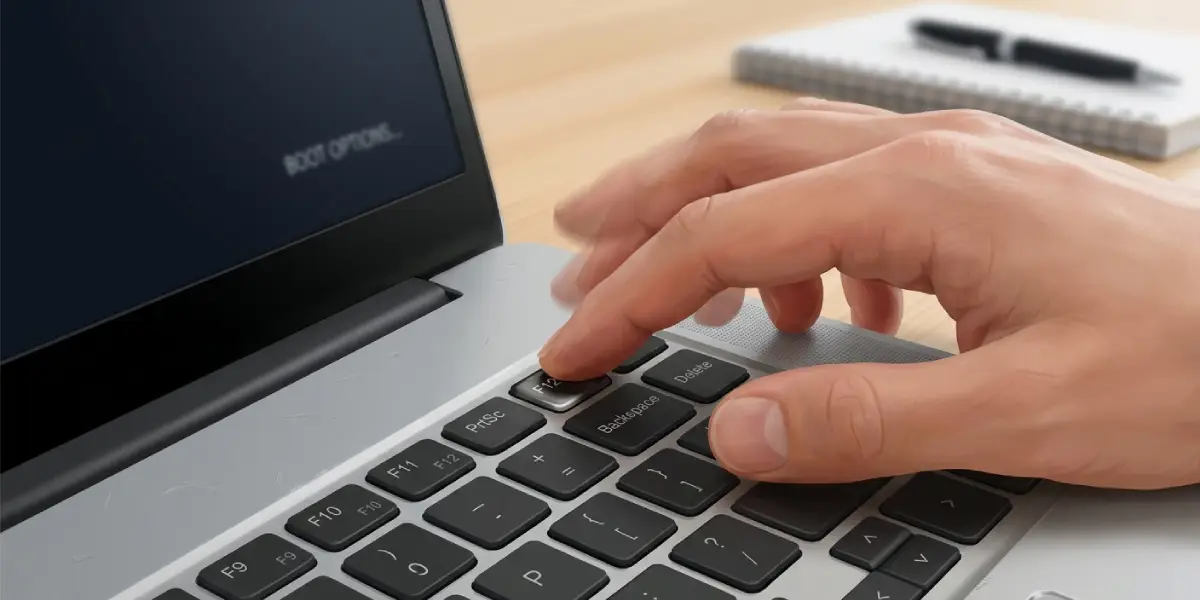
- Step 2: Power on the computer and immediately begin pressing the boot menu key repeatedly. This is commonly F12, F11, F10, F9, or Esc, though some systems use Delete instead.
- Step 3: When the boot menu appears, use the arrow keys to select the USB drive from the list. It may show up as the drive’s brand name or as a generic ‘USB Storage Device’ or ‘UEFI: [drive name]’ entry.
- Step 4: Press Enter to confirm the selection and allow the computer to load from the USB drive.
- Step 5: If nothing happens or the boot menu key does not respond, restart the computer and enter the BIOS or UEFI setup instead, usually with the Delete or F2 key.
- Step 6: Inside BIOS setup, locate the Boot tab or Boot Order section and move the USB drive to the top of the priority list, or select it directly if a one-time boot option is offered there.
- Step 7: Save the changes and exit, typically with F10, then allow the computer to restart and boot from the USB drive automatically.
Finding the Right Boot Menu Key by Brand
Manufacturers vary in which key triggers the boot menu, and the correct key usually appears briefly on screen during the very first moment of startup. Dell and HP systems commonly use F12. Lenovo laptops often use F12 or a dedicated Novo button. ASUS and Acer motherboards frequently use F8 or Esc. When in doubt, tapping Esc repeatedly at startup on most systems brings up either the boot menu directly or a prompt showing which key to press next.
Adjusting Secure Boot and Fast Boot
Some systems will not show a USB drive at all if Secure Boot is enabled and the drive was created for legacy or non-signed booting, or if Fast Boot is skipping the hardware check entirely. Inside BIOS setup, look for a Security or Boot tab, disable Secure Boot temporarily, and disable Fast Boot or Fast Startup if present. These can be switched back on after the USB task is finished, once compatibility is no longer a concern.
Common Problems and Fixes
USB Drive Does Not Appear in the Boot Menu
This usually points to the drive not being properly formatted as bootable, or the firmware mode mismatching the drive’s partition style. Recreating the drive with a current tool such as Rufus, selecting the correct partition scheme for the target system’s firmware, generally resolves this.
Computer Boots Straight to Windows or the Existing OS
This happens when the internal drive still holds priority in the boot order, or when the boot menu key was not pressed early enough. Restarting and pressing the boot menu key faster and more consistently right at power-on, or setting the USB drive as first priority inside BIOS, fixes this in most cases.
A Black Screen Appears After Selecting the USB Drive
A black screen for a few seconds is often normal while the installer or tool loads. If it persists for several minutes, the USB drive may have a corrupted image file, or the wrong firmware mode was used during creation. Recreating the USB drive and trying again is the most reliable fix.
BIOS Does Not Show a Boot Order Option
Older or simplified BIOS interfaces sometimes hide the boot order under an ‘Advanced’ or ‘Startup’ tab rather than a dedicated Boot tab. Checking each tab, or looking for a one-time boot key at the very first startup screen, usually reveals the missing setting.
Frequently Asked Questions
What is the most common key to boot from a USB drive?
F12 is the most widely used boot menu key across major brands like Dell, HP, and Lenovo, though F11, F10, F9, Esc, and Delete are also common depending on the manufacturer.
Why does the computer not detect the USB drive at boot?
The drive is often not formatted as bootable, plugged into an unsupported port, or the BIOS firmware mode does not match how the drive was created. Recreating the drive with current software usually solves this.
Does the USB drive need to be formatted a certain way?
Yes. Bootable USB creation tools handle this automatically, formatting the drive with the correct file system and partition structure needed for the target operating system and firmware type.
Should Secure Boot be turned off to boot from a USB drive?
Not always, but it is sometimes necessary if the USB drive is not digitally signed for Secure Boot. Turning it off temporarily inside BIOS setup resolves most detection issues, and it can be re-enabled afterward.
Can a USB drive be booted without entering BIOS at all?
Yes, most computers support a one-time boot menu triggered by a key press at startup, which skips the need to enter full BIOS setup or change permanent boot order.
Why does the boot menu key not work on some laptops?
Fast Startup or a very short firmware initialization window can cause this. Restarting rather than shutting down, and pressing the key immediately and repeatedly after the power button, usually helps it register.
What is the difference between UEFI and Legacy boot when using a USB drive?
UEFI is the modern firmware standard and generally required for larger drives and newer operating systems, while Legacy, also called BIOS mode, is an older standard some systems still support. The USB drive’s partition style needs to match whichever mode the target system uses.
Is it safe to change BIOS boot order settings?
Yes, boot order settings are safe to adjust and do not affect hardware. They only control which device the computer checks first when starting up, and changes can always be reverted.
Why does the computer restart into Windows instead of the USB installer?
This typically means the internal drive still has higher boot priority, or the boot menu key was pressed too late. Setting the USB drive to first priority in BIOS avoids this on future attempts.
Can this process damage the computer?
No, booting from a USB drive and adjusting boot order settings carries no risk to the hardware. The only caution needed is making sure important files are backed up before installing or reinstalling an operating system.
