
RAM running at wrong speed is one of the most common performance complaints after a new memory upgrade or system build, and it almost always traces back to a setting rather than a defective stick. This guide walks through why it happens and how to get memory running at its rated frequency safely.
Key Takeaways
- Most RAM ships defaulting to a slower JEDEC speed until a faster profile is manually enabled in the BIOS.
- XMP, DOCP, and EXPO are the profile names to look for, depending on the motherboard brand and memory type.
- Mismatched kits, outdated BIOS versions, and CPU memory controller limits can all cap the achievable speed.
- Confirming actual speed with a monitoring tool matters just as much as changing the setting.
- Manual timing and voltage adjustments are only needed when an automatic profile does not hold.
Common Causes of RAM Running at the Wrong Speed
Before jumping into fixes, it helps to understand why this happens in the first place. A few root causes explain nearly every case.
The Speed Profile Was Never Enabled
By default, most motherboards run memory at a conservative baseline speed defined by JEDEC standards, not the higher rated speed printed on the RAM’s box or heat spreader. That faster number only kicks in once a profile like XMP (Intel systems) or EXPO/DOCP (AMD systems) is turned on manually.

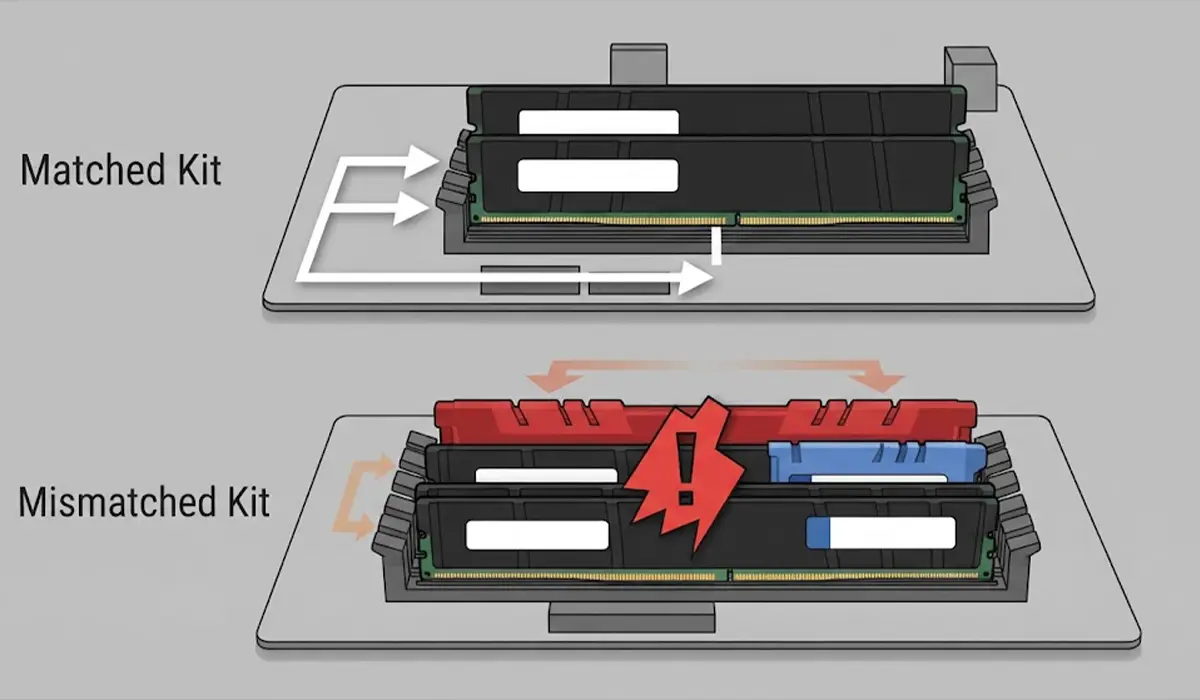
Mismatched or Mixed RAM Kits
Combining sticks from different kits, or even different production batches of the same kit, often forces the system to run everything at the speed of the slowest module, or refuses to apply a profile at all.
Outdated BIOS or Firmware
Motherboard manufacturers regularly release BIOS updates that improve memory compatibility. An older BIOS may simply not recognize a newer, faster memory kit correctly.

CPU or Platform Memory Controller Limits
Every processor has a practical ceiling for how fast it can reliably drive memory, especially as more RAM slots are populated or higher-density modules are used. Running four sticks instead of two, for example, sometimes forces a lower stable speed than the kit is rated for.
Incorrect Slot Population
Installing RAM in the wrong slots can prevent dual-channel mode from working correctly, and on some boards it can also interfere with the system correctly reading the module’s speed rating.
How to Fix RAM Running at Wrong Speed
Work through these steps in order. Most people solve the issue in the first two or three steps.
Before You Start
If reseating memory modules is needed, power the system down completely and unplug it from the wall. Touch a bare metal part of the case or use an anti-static wrist strap before handling any components to avoid static damage. Let the system cool for a few minutes if it was just running under load.
- Step 1: Restart the computer and enter the BIOS or UEFI setup screen, usually by pressing Delete or F2 repeatedly during startup.
- Step 2: Locate the memory or overclocking section and look for a profile setting labeled XMP, DOCP, or EXPO, depending on the motherboard brand.
- Step 3: Enable the profile that matches the RAM kit’s rated speed, then save changes and restart. If more than one profile option appears, choose the one matching the advertised speed on the module’s label.
- Step 4: Boot into the operating system and confirm the new speed using Task Manager’s Performance tab or a dedicated monitoring utility. The reported speed should now match the rated speed on the RAM.
- Step 5: If the profile fails to apply or the system becomes unstable, reboot into the BIOS and check whether the motherboard has a newer firmware version available, then update it following the manufacturer’s instructions.
- Step 6: If instability continues after updating the BIOS, power down, unplug the system, and reseat each memory module firmly into its slot, making sure the retention clips click fully into place.
- Step 7: Check the motherboard manual for the correct dual-channel slot pairing, since installing sticks in adjacent slots instead of the correct paired slots can prevent full-speed dual-channel operation.
- Step 8: If mismatched kits are in use, test with only one matched pair installed at a time to identify whether a specific module is limiting the speed for the whole system.
- Step 9: As a last step, check the motherboard’s Qualified Vendor List for the specific RAM kit to confirm the speed is actually supported at the current memory configuration.
Tip: Write down the rated speed and timings printed on the RAM label before making any BIOS changes, so there is a clear reference point to compare against after enabling a profile.
When to Manually Adjust Timings and Voltage
Occasionally, an XMP or EXPO profile applies the correct speed but the system still won’t boot reliably, particularly with four sticks installed or on certain AMD platforms. In that case, a small manual adjustment, such as slightly loosening the memory timings or nudging the DRAM voltage within the range specified for that memory type, can restore stability while keeping the intended speed. This is best treated as a fallback rather than a first move, and anyone unfamiliar with manual voltage adjustments should stop here and consult the motherboard manual or a qualified technician rather than guessing at values.
Common Problems and Fixes
Speed Still Shows as Wrong After Enabling the Profile
This usually means the profile didn’t actually save. Re-enter the BIOS, confirm the setting shows as enabled, and make sure changes were saved with the correct exit option rather than a simple reset.
System Won’t Boot After Enabling XMP or EXPO
Most modern boards will automatically reset to default settings after a few failed boot attempts. Once back in the BIOS, try a lower rated speed option if the board offers a menu of speed presets, or check for a BIOS update before retrying the full rated speed.
Only One Channel or Half the RAM Is Recognized
This points to a slot population issue rather than a speed problem. Move the modules to the slots specified for dual-channel operation in the motherboard manual.
Speed Reads Correctly But Performance Still Feels Off
Confirm the timings shown in a monitoring tool match the kit’s rated timings, not just the frequency. A profile can sometimes apply the correct speed with looser default timings, which affects performance even though the frequency looks right.
Frequently Asked Questions
Why does new RAM default to a slower speed?
Motherboards default to a safe JEDEC standard speed for guaranteed compatibility at first boot. The faster rated speed requires manually enabling a profile like XMP, DOCP, or EXPO.
What is the difference between XMP, DOCP, and EXPO?
They all serve the same purpose of applying a memory manufacturer’s tested speed and timing profile. XMP is Intel’s standard, DOCP is an AMD-specific label used by some motherboard brands, and EXPO is AMD’s newer standard built for its more recent platforms.
Is it safe to enable XMP or EXPO?
Yes, these profiles are tested and provided by the memory manufacturer specifically for that kit, and using them is considered standard practice rather than an aggressive overclock.
Can mixing two different RAM kits cause a wrong speed?
Yes, mixed kits often run at the speed of the slower or less compatible module, and in some cases the system will refuse to apply any profile at all until matching modules are used.
Does updating the BIOS actually help with RAM speed issues?
In many cases, yes. Manufacturers frequently update memory compatibility tables and controller behavior in BIOS updates, which can resolve speeds that previously would not apply correctly.
Why does RAM run slower with four sticks than with two?
Populating all four slots places more electrical load on the memory controller, which sometimes requires a lower stable speed compared to running just two sticks in a dual-channel pair.
How can the actual RAM speed be checked in Windows?
Task Manager’s Performance tab under Memory displays the current speed, or a dedicated monitoring utility can be used for a more detailed breakdown including timings.
Will enabling XMP or EXPO void a warranty?
Generally no, since these are manufacturer-provided profiles designed for that specific kit, though checking the motherboard and memory warranty terms is a reasonable precaution.
What should be done if the correct speed still won’t apply after all these steps?
At that point, testing the RAM kit in a different system, or testing a known-good kit in the current system, helps narrow down whether the issue lies with the memory, the motherboard, or a specific slot.
