
A USB-C to HDMI adapter not working is one of the most common display headaches, and it almost always comes down to a handful of predictable causes. Sometimes the port itself does not support video output, and other times the fix is as simple as switching the input on the monitor or TV. This guide walks through why the connection fails and how to get a picture back on screen without guesswork.
Key Takeaways
- Not every USB-C port carries video, so the failure may be a hardware limitation rather than a broken adapter.
- Cheap or damaged cables are one of the most frequent causes of a dropped or missing signal.
- Outdated graphics drivers and incorrect display settings in Windows or macOS can block detection even when the hardware works fine.
- Testing the adapter on a second device quickly narrows down whether the problem is the adapter, the cable, the port, or the display.
- Most fixes take less than ten minutes and do not require any tools or disassembly.
Common Causes of a USB-C to HDMI Adapter Not Working
Before jumping into fixes, it helps to understand what typically causes this problem. The issue usually falls into one of these categories.
- The USB-C port does not support video (DisplayPort Alt Mode). Many USB-C ports are built only for charging or data transfer and were never designed to carry a video signal, regardless of how good the adapter is.
- A faulty or low-quality cable or adapter. Bargain adapters, especially ones bought purely on price, are a frequent point of failure. Internal wiring can be marginal even when the connector looks fine.
- The monitor or TV is on the wrong input. This sounds obvious, but it is one of the most overlooked reasons for a blank screen after plugging everything in correctly.
- Outdated or corrupted graphics drivers. The operating system relies on the graphics driver to recognize and configure an external display, and an outdated driver can silently fail that handshake.
- Display settings set to detect automatically failing to trigger. Some laptops need a manual nudge to notice a newly connected screen, particularly after waking from sleep.
- Resolution or refresh rate mismatch. An adapter or cable rated for a lower resolution can produce no signal at all when the source is pushing something higher, like 4K at a high refresh rate.
How to Fix a USB-C to HDMI Adapter Not Working
Work through these steps in order. Most people find that the issue is resolved within the first three or four checks.
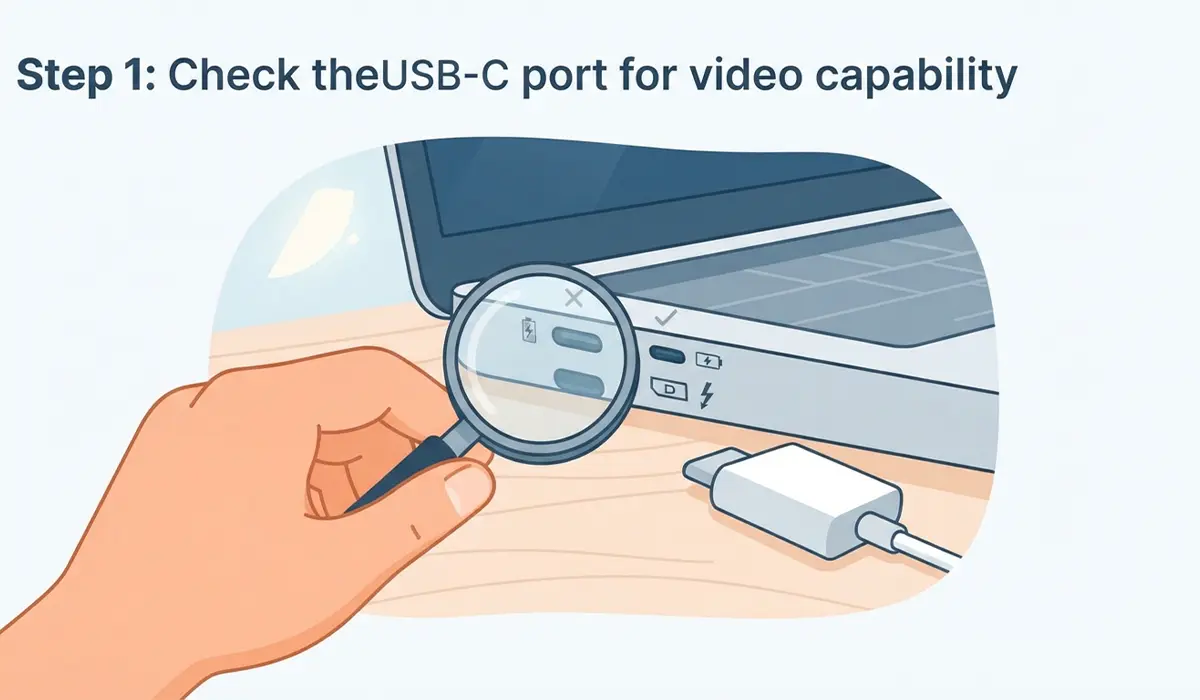
- Step 1: Confirm the USB-C port supports video output. Check the laptop or device manual, or look for a small HDMI, DisplayPort, or Thunderbolt icon next to the port. If the port only supports charging and data, no adapter will make it output video.
- Step 2: Switch the monitor or TV to the correct HDMI input. Cycle through the available inputs using the remote or the input button on the display itself to rule out a simple selection issue.
- Step 3: Reseat every connection. Unplug the adapter from the USB-C port and the HDMI cable from the adapter, then plug both back in firmly. A loose connection at either end is a common and easy-to-miss cause.
- Step 4: Test the adapter and cable on a different device and display. If it works elsewhere, the original port or display is the likely culprit. If it fails everywhere, the adapter or cable itself is probably the problem.
- Step 5: Update the graphics driver. On Windows, open Device Manager, expand Display adapters, right-click the graphics card, and select Update driver. On a Mac, check for the latest macOS update, since graphics drivers are bundled with the system.
- Step 6: Force display detection manually. On Windows, use the keyboard shortcut Windows key plus P to open the display projection menu and select an option like Duplicate or Extend. On a Mac, open System Settings, go to Displays, and hold Option while clicking Detect Displays.
- Step 7: Lower the resolution or refresh rate temporarily. If the display is set to a very high resolution or refresh rate, drop it to a standard setting like 1080p at 60Hz to see if a signal appears, then raise it gradually.
- Step 8: Restart both the source device and the display. This clears out any temporary glitch in the video handshake and is often enough to resolve an intermittent failure on its own.

Tip: Keep the HDMI cable and the USB-C adapter as separate variables when testing. Swapping one at a time, rather than replacing both together, makes it much easier to pinpoint which part actually failed.
Common Problems and Fixes
- The adapter charges the laptop but still shows no video. This points to a port or adapter that only passes through power and data, not a full DisplayPort Alt Mode signal. Look for a USB-C port and adapter that are both explicitly labeled for video output.
- The screen flickers or drops the signal intermittently. This is a classic sign of a marginal cable connection or an adapter running hot. Try a shorter, well-shielded HDMI cable and make sure the adapter has room to breathe rather than being pinched against other cables.
- The adapter works on a different laptop but not the original one. This usually means the original USB-C port itself is limited to charging and data, or the graphics driver on that specific machine needs updating.
- Audio does not pass through HDMI even though the picture works. Check the sound settings on the device and manually select the HDMI display or TV as the audio output, since Windows and macOS do not always switch automatically.
- The display shows ‘No Signal’ only when waking from sleep. Unplug and reconnect the adapter after the device wakes, since some systems fail to re-initialize the video output automatically after a sleep cycle.
Frequently Asked Questions
Why does my USB-C to HDMI adapter charge my laptop but not show video?
This happens when the USB-C port only supports charging and data transfer, not DisplayPort Alt Mode. The adapter needs a port that is specifically capable of carrying a video signal to work.
How do I know if my USB-C port supports video output?
Check the device specifications or look for a small display, HDMI, or Thunderbolt icon printed near the port. If no such icon is present, the port is likely limited to charging and data only.
Can a bad HDMI cable cause a USB-C adapter to stop working?
Yes. A damaged or low-quality HDMI cable is one of the most common reasons for no signal, flickering, or intermittent connections, even when the adapter itself is functioning correctly.
Does updating graphics drivers really fix external display issues?
It often does. Graphics drivers manage how the operating system detects and configures external displays, and an outdated driver can prevent that process from completing correctly.
Why does my external monitor say ‘No Signal’ after my laptop wakes from sleep?
Some systems do not automatically re-initialize the video output after waking. Unplugging and reconnecting the adapter usually restores the connection.
Should I try a different USB-C port on the same laptop?
Yes, especially on laptops with multiple USB-C ports. Not every port on the same device is guaranteed to support video output.
Why does the adapter work on one laptop but not another?
This typically points to a port limitation or outdated driver on the laptop that fails, rather than a problem with the adapter itself, since the same adapter is producing a signal elsewhere.
Can resolution settings cause a USB-C to HDMI adapter to show no picture at all?
Yes. If the resolution or refresh rate exceeds what the adapter or cable can handle, some displays will show nothing rather than a degraded image. Lowering the resolution temporarily can confirm this.
Do I need a certified USB-C adapter, or does any adapter work?
A properly certified adapter is more reliable, since it is tested to correctly handle the DisplayPort Alt Mode signal. Uncertified or very low-cost adapters are more prone to compatibility issues.
Why is there no sound through HDMI even though the video works?
The audio output has to be manually selected in the operating system’s sound settings. The system does not always switch the default output automatically when a new display is connected.
