
It is possible to move Windows to a new SSD without reinstalling the operating system, drivers, or any installed programs. The process relies on disk cloning software that copies the entire drive, including the boot files, so the new SSD works exactly like the old one, just faster. This guide walks through the whole process from start to finish, using free tools and standard hardware.
Key Takeaways
- Cloning software copies Windows, programs, and files to the new SSD without a fresh install.
- The destination SSD needs enough capacity to hold all used space on the current drive.
- A SATA-to-USB adapter or external enclosure lets the new drive connect for cloning before it is installed.
- After cloning, the boot order in BIOS or UEFI has to point to the new SSD.
- Most home users can complete this task in under an hour, not counting the clone itself.
Before You Start
This task involves connecting a second drive and, in most cases, opening the computer case to swap it in. A few minutes of preparation prevents lost data and wasted time.
- Back up important documents and photos to an external drive or cloud storage as a safety net, even though cloning should preserve everything.
- Confirm the new SSD’s connection type: 2.5-inch SATA, or M.2 in either SATA or NVMe form. This determines which adapter or enclosure is needed.
- Gather a SATA-to-USB cable or an external USB enclosure that matches the new drive, plus a small Phillips screwdriver if the drive needs to be installed internally afterward.
- Power the computer down completely and unplug it before opening the case. Touch a bare metal part of the case first to discharge any static buildup.
- Check available space: the total used space on the current drive must be smaller than the total capacity of the new SSD.
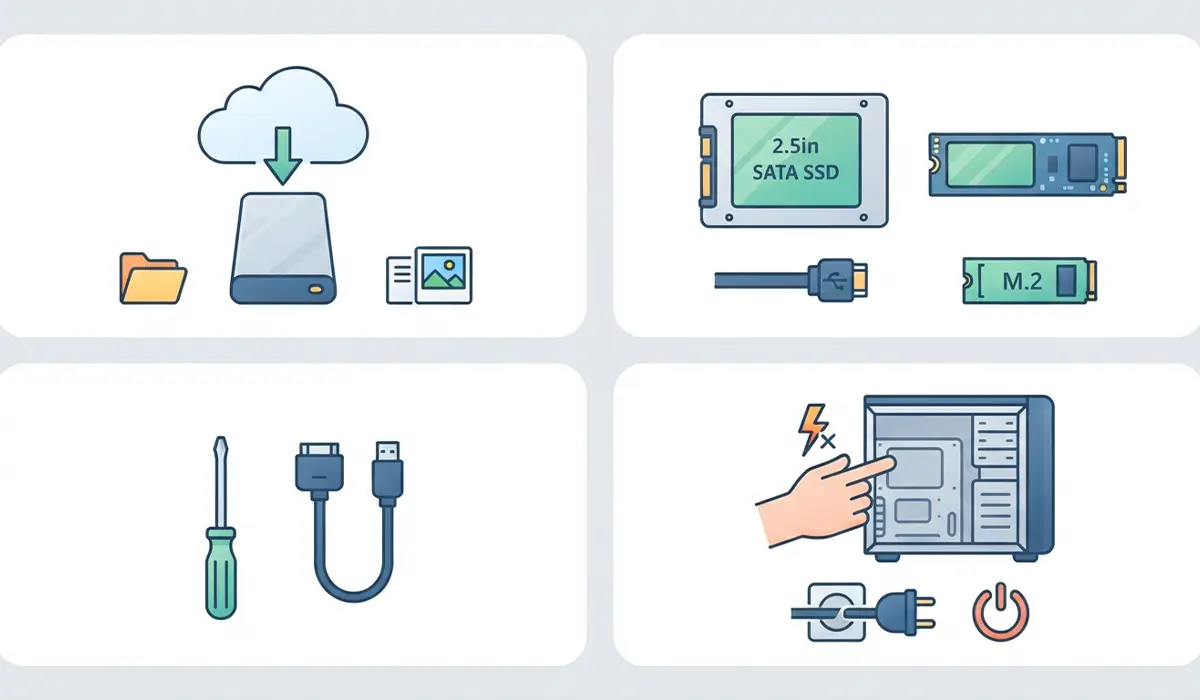
Tip: If the laptop or desktop only has one internal drive bay, cloning to an externally connected SSD first and swapping it in afterward is the standard workaround.
How to Move Windows to a New SSD
Step-by-Step Instructions
- Step 1: Connect the new SSD to the computer using a SATA-to-USB cable or a USB enclosure. Windows should recognize it as a new, unformatted drive.
- Step 2: Download a reputable cloning tool. Several SSD manufacturers offer their own free cloning software, and general-purpose disk cloning programs are also widely available. Install the software on the current Windows drive.
- Step 3: Open the cloning software and select the current drive, the one with Windows installed, as the source.
- Step 4: Select the newly connected SSD as the destination drive. Double-check this selection carefully, since the destination drive gets fully overwritten.
- Step 5: Start the clone process. Depending on how much data is being copied, this can take anywhere from a few minutes to over an hour. Avoid using the computer for other heavy tasks while it runs.
- Step 6: Once cloning finishes, shut the computer down, unplug it, and disconnect the external cable or enclosure from the new SSD.
- Step 7: For a desktop, open the case and either replace the old drive with the new SSD in the same bay or add it as a second drive if there is room. For a laptop with only one drive slot, remove the old drive and install the new SSD in its place, following the same static precautions covered earlier.
- Step 8: Power the computer on and enter the BIOS or UEFI setup, usually by pressing Delete, F2, or a similar key right after startup. Check the boot order and make sure the new SSD is listed as the primary boot drive.
- Step 9: Save the BIOS settings and restart. Windows should boot normally from the new SSD, with all programs, settings, and files intact.
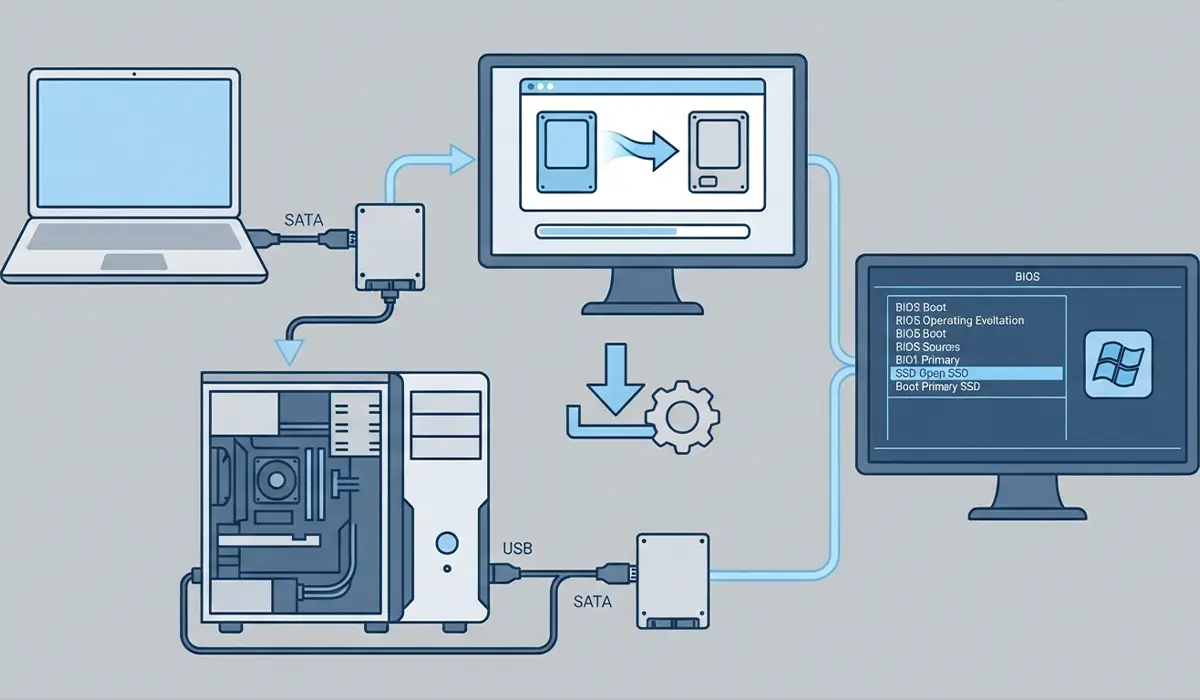
Tip: After confirming everything works correctly on the new SSD, keep the old drive disconnected for a week or two before wiping or reusing it, just in case something needs to be recovered.
Common Problems and Fixes
The Clone Fails or Won’t Start
This usually happens when the destination SSD is smaller than the total used space on the source drive. Free up space on the current drive first, or choose a larger destination SSD.
The PC Won’t Boot After Cloning
This is often caused by the BIOS or UEFI still pointing to the old drive, or a mismatch between Legacy and UEFI boot modes. Re-enter the boot menu and manually select the new SSD, and confirm the boot mode matches what the cloning software created.
The New SSD Isn’t Detected During Cloning
Try a different USB port, preferably directly on the motherboard rather than through a front panel or hub. A different cable or enclosure can also rule out a faulty connection.
The Cloned Drive Shows the Wrong Size in Windows
This can happen when the cloning software only copies the used partitions and leaves unallocated space. Use the built-in Windows Disk Management tool to extend the main partition into any unallocated space on the new SSD.
Windows Asks to Reactivate After the Swap
Since the operating system installation itself has not changed, reactivation is rare, but it can occasionally happen with major hardware changes. Signing in with the Microsoft account originally used to activate Windows typically resolves this automatically.
Frequently Asked Questions
Can Windows be moved to a new SSD without losing any programs?
Yes. Cloning copies the entire drive, including installed programs, settings, and files, so nothing needs to be reinstalled or reconfigured afterward.
Does the new SSD need to be the same size as the old drive?
No, but it does need enough free capacity to hold all the data currently in use on the old drive. It can be larger or smaller, as long as there is room for everything.
Is cloning software free to use?
Many drive manufacturers offer free cloning tools for their own SSDs, and several general-purpose cloning programs are also available at no cost for personal use.
How long does cloning a drive to a new SSD take?
This depends on how much data is being copied and the connection speed. Smaller drives with a modest amount of data can finish in minutes, while larger drives can take an hour or more.
Can this be done on a laptop with only one drive slot?
Yes. Connect the new SSD externally with a USB adapter or enclosure to clone it first, then power down, swap the old drive out, and install the new SSD in the same slot.
What happens to the old drive after cloning?
It can be kept as a backup, reformatted for extra storage, or repurposed in an external enclosure. It is a good idea to hold onto it for a short period before erasing anything.
Why won’t the computer boot from the new SSD after installation?
This is almost always a boot order setting in the BIOS or UEFI. Entering the boot menu and manually selecting the new SSD as the startup drive usually fixes it.
Does moving to an SSD this way actually improve performance?
Yes, especially when upgrading from a hard drive or an older SSD. Faster read and write speeds typically mean quicker boot times and snappier program loading, since Windows and its files are simply running on faster storage.
Is it necessary to update Windows before cloning?
It is not strictly required, but installing pending Windows updates beforehand can prevent driver or boot-related issues after the switch to new hardware.
