
Learning how to use a USB Wi-Fi adapter as a fix can save a PC or laptop with a dead, weak, or outdated wireless card. The adapter works around the built-in hardware and gives Windows a fresh connection to the router. Setup takes only a few minutes and needs no screwdriver.
Key Takeaways
- A USB Wi-Fi adapter bypasses a failing or weak built-in wireless card without opening the device.
- Confirm the router and internet service are healthy first, so the adapter solves the right problem.
- Plug the adapter directly into the computer, not into an unpowered hub.
- Turn off USB power saving for the adapter to prevent random disconnects.
Before You Start
This is a plug-in fix, so nothing needs to be opened, and the warranty is not affected. A little preparation still avoids frustration, especially if the built-in Wi-Fi is completely dead.
What You Need
- A USB Wi-Fi adapter that supports the same Wi-Fi standard and band as the router, or a newer one
- A free USB port, preferably directly on the computer
- A second device, a phone with tethering, or an Ethernet cable to download a driver if Windows cannot find one
- A USB flash drive, in case the driver has to be moved over from another device
- The Wi-Fi network name and password
- Optional: a short USB extension cable or cradle for better reception
How to Use a USB Wi-Fi Adapter as a Fix: Full Steps
- Step 1: Rule out the router first. If other phones or laptops connect and browse normally on the same network, the router and internet service are fine and the problem sits with the computer’s wireless hardware or driver. If every device struggles, restart the router instead, because an adapter will not fix that.
- Step 2: Pick the right adapter. Match it to the router. A dual-band adapter that supports 2.4 GHz and 5 GHz is the safest choice for most homes. Check that the box or product page lists support for the installed Windows version.
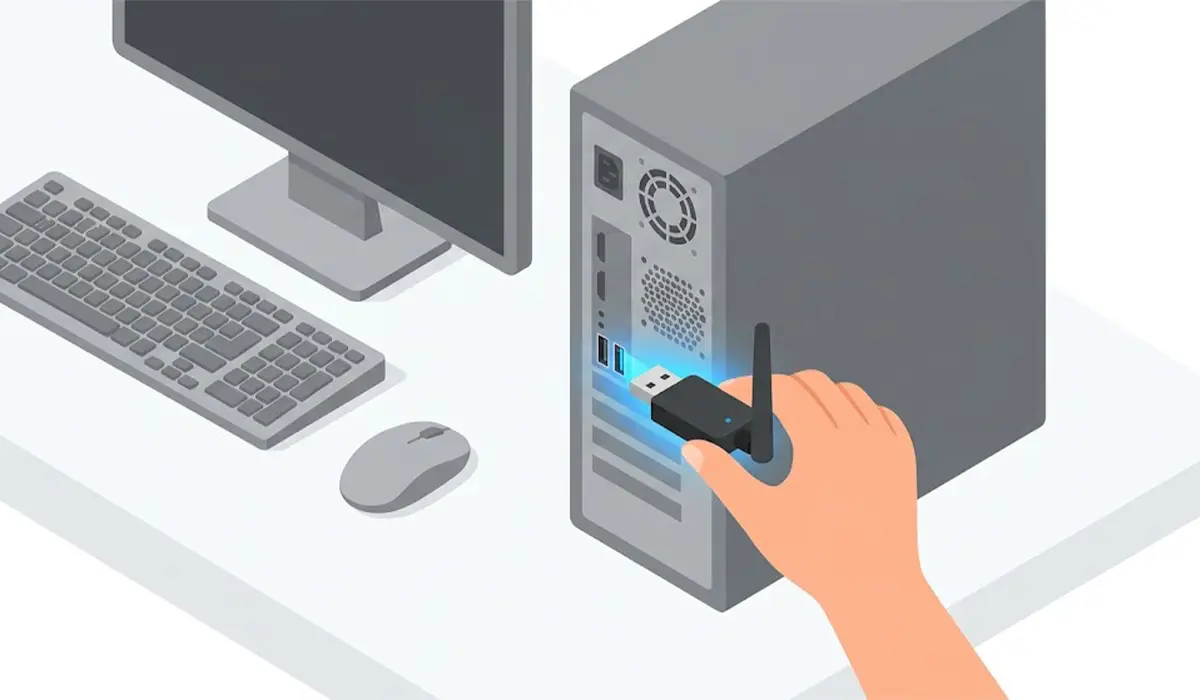
- Step 3: Plug the adapter into a USB port directly on the computer. On a desktop, a rear motherboard port is usually the most reliable. Avoid unpowered hubs, since they can starve the adapter of stable power.
- Step 4: Wait for Windows to detect the adapter. Many adapters install automatically within a minute. Some present a small virtual drive that holds the installer, and that installer should be run if it appears.
- Step 5: Install the driver manually if needed. Download the driver for the exact adapter model and Windows version from the manufacturer website using another device, tethering, or Ethernet, then run the installer and restart if prompted.
- Step 6: Disable the old built-in adapter. Right-click the Start button, open Device Manager, expand ‘Network adapters’, right-click the built-in wireless card, and choose ‘Disable device’. This stops Windows from juggling two wireless connections and keeps troubleshooting clean.
- Step 7: Connect to the network. Click the network icon in the taskbar, choose the Wi-Fi network, enter the password, and confirm that pages load.
- Step 8: Turn off adapter power saving. In Device Manager, open the USB adapter’s properties, go to the ‘Power Management’ tab if it is present, and uncheck ‘Allow the computer to turn off this device to save power’.
Tip: Keep the old driver and the new adapter driver installers saved on a flash drive. If Windows ever resets its network stack, reinstalling takes seconds instead of a scramble to find a connection.
Choosing the Right Adapter
Match the Wi-Fi Standard and Band
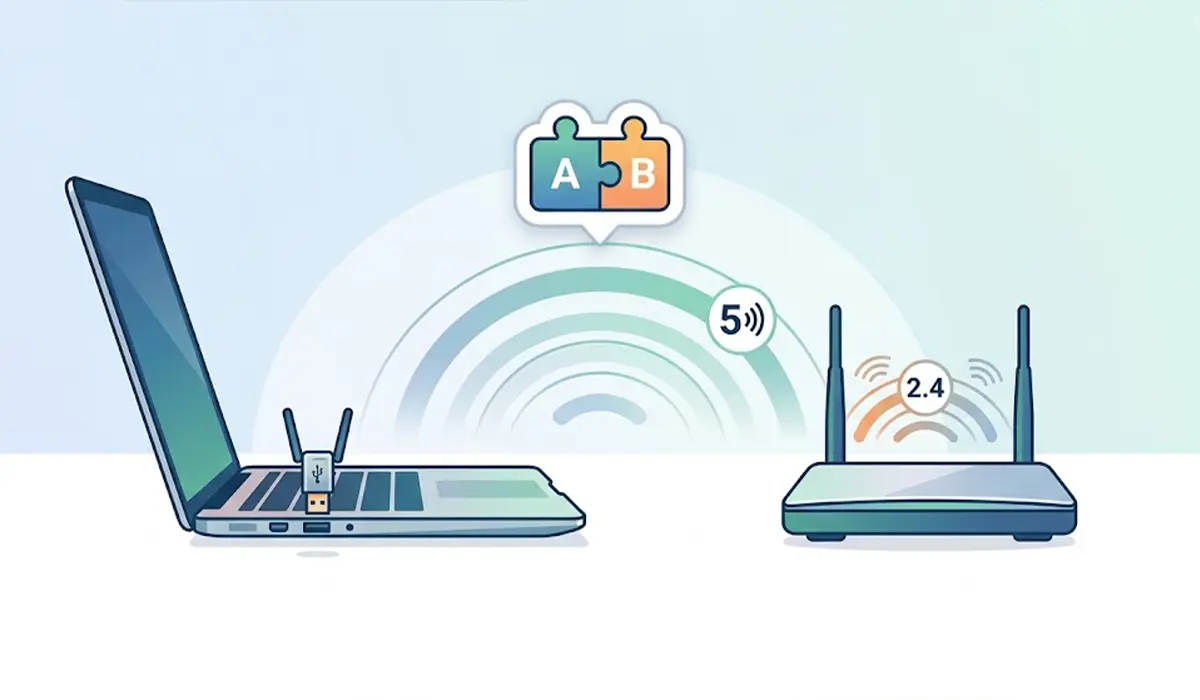
An adapter can only connect at the speeds both ends support. A modern adapter paired with an older router still works, but it will run at the router’s limit. For a router that offers 5 GHz, pick an adapter that supports that band for less congestion and better speeds at close range.
Pick a Style That Suits the Setup
Compact nano adapters sit almost flush with the port and suit laptops. Adapters with an external antenna or a cradle suit desktops, because the antenna can be placed above the case and away from metal that blocks the signal.

Placement and Port Tips for a Stronger Signal
Most people find that placement matters as much as the adapter itself. A tower case tucked under a desk can block much of the signal, so a short extension cable that lifts the adapter into open air often makes a noticeable difference.
USB 3.0 ports can create radio interference on the 2.4 GHz band. If the signal drops when the adapter sits in a blue USB 3.0 port next to a busy device, try a different port, add an extension cable, or connect to the 5 GHz network instead.
Tip: Test the connection while standing in the spot where the device is normally used. A signal that looks fine next to the router may drop sharply across the room.
Common Problems and Fixes
The Adapter Is Not Detected
Try a different USB port, then a different cable if an extension is used. If the adapter still does not appear in Device Manager after testing a couple of ports, test it on another computer. If it fails there too, the adapter itself is faulty and should be exchanged.
Connected but No Internet
Forget the network in Windows Wi-Fi settings and reconnect with the password. If the problem continues, restart the router and the computer, then check that the old built-in adapter is disabled so it is not competing for the connection.
The 5 GHz Network Does Not Appear
The adapter may support only 2.4 GHz, or the router may have 5 GHz switched off. Check the adapter’s listed bands and the router’s wireless settings.
The Connection Keeps Dropping
Turn off the power saving option in the adapter properties, move it to another port, and install the latest driver from the manufacturer. A short extension cable also helps when the adapter is crowded by other USB devices.
Speeds Are Slower Than Expected
Move closer to the router, switch to 5 GHz if available, and avoid plugging the adapter into a hub. Remember that the router, the internet plan, and the adapter all set the final speed.
If the adapter works on other computers but never on this one, and drivers and ports have been ruled out, a technician should check the USB controller or Windows installation instead of repeating the same steps.
Frequently Asked Questions
Can a USB Wi-Fi adapter fix a broken built-in Wi-Fi card?
Yes, in most cases. If the built-in card has failed or its antenna connection is damaged, a USB adapter bypasses it completely and gives the system a fresh wireless connection. It will not fix a problem caused by the router or the internet provider.
Do I need to disable the built-in Wi-Fi adapter first?
It is not always required, but disabling the built-in adapter in Device Manager prevents Windows from switching between two wireless connections and makes troubleshooting easier.
Will a USB Wi-Fi adapter work without installing drivers?
Many modern adapters are detected automatically by Windows, but some need a driver from the manufacturer. If the adapter is not recognized after plugging in, download the correct driver for the exact model and Windows version from the manufacturer website.
Is a USB Wi-Fi adapter faster than built-in Wi-Fi?
It depends on the adapter. A newer adapter that supports a more recent Wi-Fi standard than the old built-in card can improve speed and stability, but the router and the USB port also set the limit.
Which USB port should be used for a Wi-Fi adapter?
A port directly on the computer is best. Avoid unpowered hubs. A USB 3.0 port suits high-speed adapters, though a short extension cable helps keep the adapter away from USB 3.0 interference on the 2.4 GHz band.
Can a USB Wi-Fi adapter add 5 GHz or newer Wi-Fi to an older computer?
Yes, as long as the adapter supports the band and standard needed and the operating system has a compatible driver. The router must support the same band for it to appear in the network list.
Why does a USB Wi-Fi adapter keep disconnecting?
The most common cause is Windows power management turning the device off to save power. Unchecking the power saving option in the adapter properties, moving to a different port, and updating the driver usually resolve it.
Does a USB Wi-Fi adapter work on both desktops and laptops?
Yes. Desktops often benefit most because a short cable or cradle can lift the adapter above the case for better reception, while laptops use the adapter as a replacement for a failing internal card.
Is a USB Wi-Fi adapter a permanent fix?
It can be. Many users keep a USB adapter long term, particularly when replacing an internal card is not practical. It is also a handy way to confirm whether the internal card is the real problem.
