
Audio not working after sleep or hibernate is one of the most common playback complaints on Windows laptops and desktops, and it almost always comes down to a driver or power setting that fails to restart cleanly with the rest of the system. The good news is that this issue rarely means a failed sound card or speaker. Most cases clear up with a handful of software fixes that take only a few minutes to try.
Key Takeaways
- Audio dropping out after sleep or hibernate is usually caused by the audio driver or the Windows Audio service failing to reinitialize properly.
- Restarting the Windows Audio service is the fastest first fix and solves the problem for many users.
- Power management settings that let Windows shut down the audio device or USB controller to save power are a frequent hidden culprit.
- Updating or reinstalling the audio driver resolves most cases that a simple restart does not fix.
- A pattern that repeats every time the PC wakes usually points to a driver-power conflict rather than damaged hardware.
Common Causes of Audio Not Working After Sleep or Hibernate
Several things can go wrong in the handoff between a low-power state and a fully active desktop. Knowing the usual suspects makes it easier to pick the right fix instead of guessing.
- The Windows Audio service does not restart correctly when the system wakes up.
- The audio driver fails to reload, especially after a recent Windows update.
- Power management settings allow Windows to turn off the audio device or its USB controller to save energy.
- Audio enhancements or spatial sound effects get stuck in a bad state after waking.
- A Bluetooth or USB headset does not reconnect automatically after resume.
- An outdated or corrupted driver is only partially compatible with modern sleep states like Modern Standby.
How to Fix Audio Not Working After Sleep or Hibernate
Work through these fixes in order. Each one addresses a specific cause, and most people find the problem clears up well before reaching the last step.
Restart the Windows Audio Service
- Step 1: Press the Windows key and R together, type ‘services.msc’, and press Enter.
- Step 2: Scroll down to ‘Windows Audio’ in the list of services.
- Step 3: Right-click ‘Windows Audio’ and select ‘Restart’. If the option is greyed out, select ‘Start’ instead.
- Step 4: Also restart ‘Windows Audio Endpoint Builder’ the same way, since it works closely with the audio service.
- Step 5: Play any sound to confirm audio has returned before moving on.
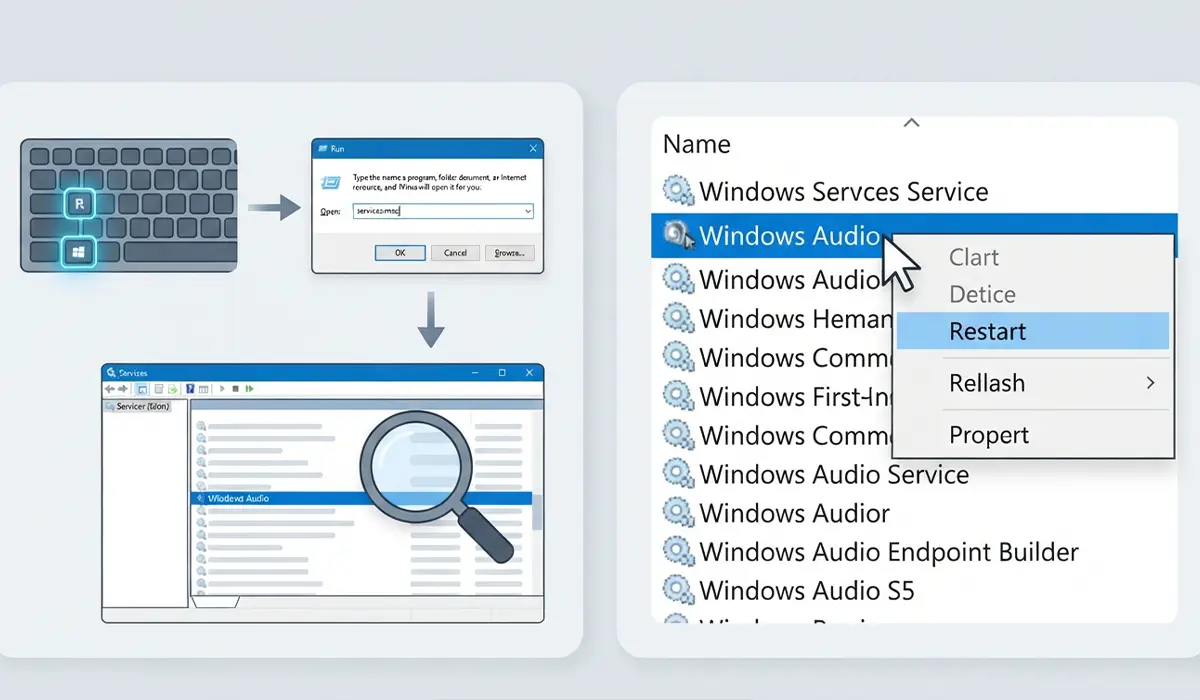
Tip: This service restart can be turned into a one-click fix by saving it as a desktop shortcut using a simple net stop and net start command, which saves time for anyone who runs into this often.
Update or Reinstall the Audio Driver
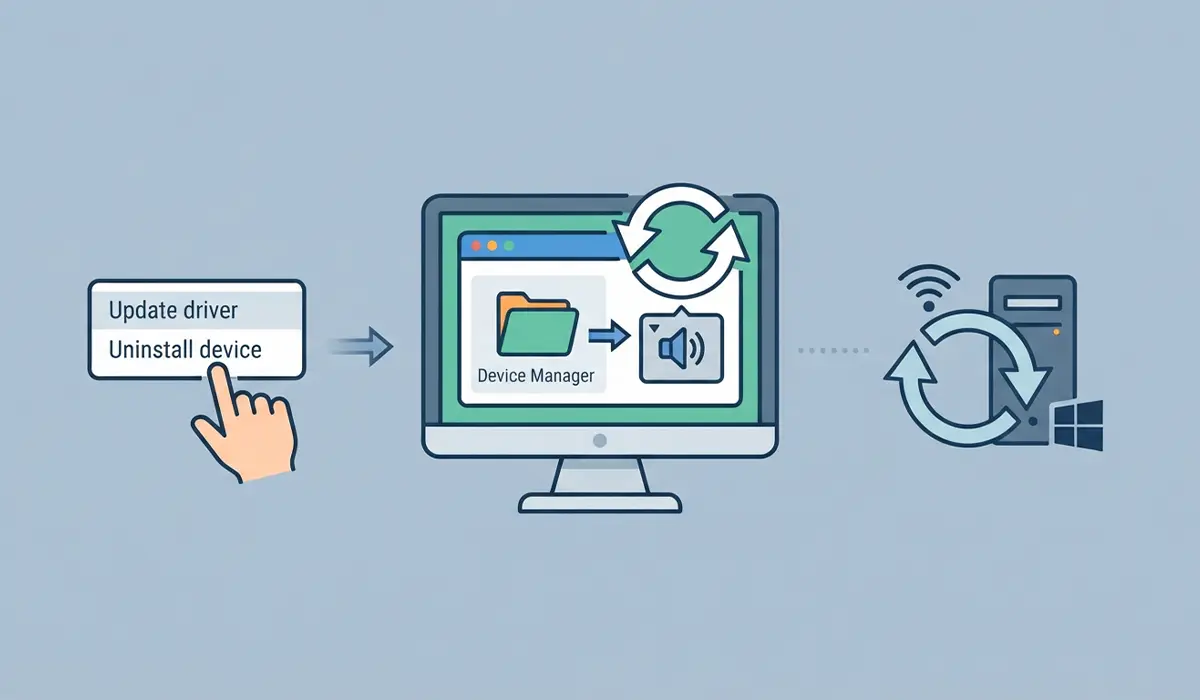
- Step 1: Right-click the Start button and open ‘Device Manager’.
- Step 2: Expand ‘Sound, video and game controllers’ and right-click the active audio device.
- Step 3: Select ‘Update driver’, then choose ‘Search automatically for drivers’.
- Step 4: If no update is found, right-click the same device again and choose ‘Uninstall device’, then check the box to remove the driver software if offered.
- Step 5: Restart the computer. Windows reinstalls a fresh copy of the driver automatically on startup.
Disable Audio Enhancements
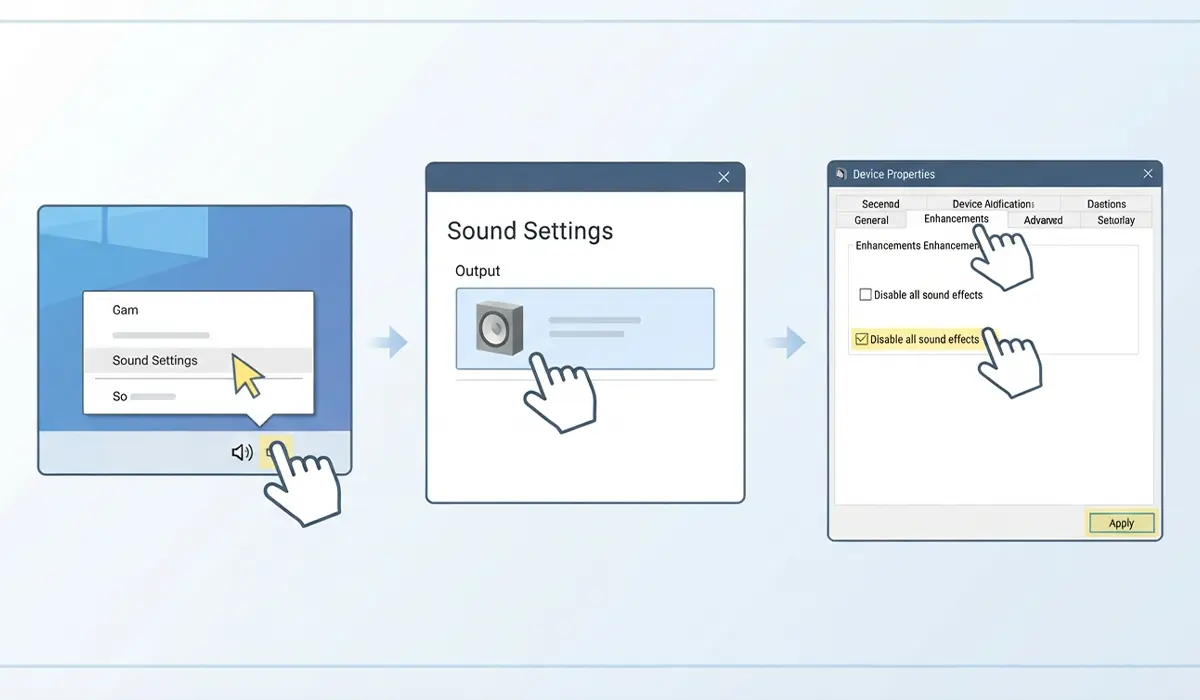
- Step 1: Right-click the speaker icon in the taskbar and select ‘Sound settings’.
- Step 2: Under ‘Output’, select the active playback device and open its properties.
- Step 3: Open the ‘Enhancements’ tab, if present, and check ‘Disable all sound effects’.
- Step 4: Apply the change, then put the PC to sleep and wake it again to test.
Adjust Power Management for the Audio Device
- Step 1: Open Device Manager and expand ‘Sound, video and game controllers’.
- Step 2: Right-click the audio device, select ‘Properties’, then open the ‘Power Management’ tab.
- Step 3: Uncheck ‘Allow the computer to turn off this device to save power’.
- Step 4: Select ‘OK’ and restart the computer to apply the change.
Tip: If the audio device does not show a Power Management tab, the same setting can often be found under the audio controller listed in ‘Sound, video and game controllers’ rather than the individual speaker or headset entry.
Disable USB Selective Suspend for USB Audio Devices
- Step 1: Open Control Panel and go to ‘Power Options’.
- Step 2: Select ‘Change plan settings’ next to the active power plan, then ‘Change advanced power settings’.
- Step 3: Expand ‘USB settings’ and then ‘USB selective suspend setting’.
- Step 4: Set both ‘On battery’ and ‘Plugged in’ to ‘Disabled’.
- Step 5: Select ‘Apply’, close the window, and test with the USB headset or speaker after a sleep cycle.
Run the Windows Audio Troubleshooter
- Step 1: Open ‘Settings’ and go to ‘System’, then ‘Troubleshoot’.
- Step 2: Select ‘Other troubleshooters’ and find ‘Playing Audio’.
- Step 3: Select ‘Run’ and follow the prompts, letting Windows detect and apply any fix it finds.
- Step 4: Restart the PC once the troubleshooter finishes, even if it reports no issue found.
Common Problems and Fixes
These are the follow-up issues that tend to show up after trying the main fixes above.
- Audio works after a manual service restart but breaks again on the next sleep cycle: This points to power management rather than the service itself. Revisit the ‘Power Management’ tab fix and confirm the setting held after the last driver update, since some driver updates reset it.
- Sound icon shows no playback devices at all after waking: Open Device Manager, right-click the audio controller, and select ‘Scan for hardware changes’. This often forces Windows to redetect the device without a full restart.
- Bluetooth headset connects but plays no sound after resume: Remove the device from ‘Bluetooth & other devices’ and pair it again. A stale Bluetooth audio profile is a common cause after sleep, separate from the wired audio issue.
- Audio returns only after a full shutdown and restart, not after waking from sleep: This usually means the audio driver does not fully support the sleep state in use. Switching the sleep setting from ‘Hibernate’ to ‘Sleep’, or the reverse, in Power Options can sometimes avoid the specific handoff that fails.
- Volume mixer shows sound playing but no audio is heard: Set the affected device as the default playback device again under ‘Sound settings’, since Windows occasionally reverts to a different default output after waking.
Frequently Asked Questions
Why does audio stop working every time the PC wakes from sleep?
This almost always happens because the audio driver or the Windows Audio service does not reinitialize properly during the wake process. Power settings that turn the device off to save energy make this more likely.
Is this a hardware problem or a software problem?
It is a software issue in the overwhelming majority of cases. Speakers and sound cards rarely fail specifically in connection with sleep or hibernate, so drivers and power settings should be checked first.
Does hibernate cause more audio issues than sleep mode?
Hibernate writes the full system state to disk and reloads it on startup, which can be harder on some audio drivers than a lighter sleep state. Devices that struggle after hibernate sometimes behave normally with standard sleep instead.
Will reinstalling the audio driver delete any settings?
Custom volume levels and enhancement toggles may reset to default after a driver reinstall, but no personal files or unrelated system settings are affected.
Why does a USB headset lose sound after sleep but built-in speakers do not?
USB devices are affected by a separate power-saving setting called USB selective suspend, which can shut down the USB controller during sleep and fail to restore it properly on wake.
Can a Windows update cause this issue to start suddenly?
Yes. Windows updates sometimes replace an audio driver with a generic version or reset power management settings, which can introduce this problem on a PC that previously worked fine.
Should the audio driver be rolled back if a recent update caused this?
Rolling back to the previous driver version through Device Manager is a reasonable step if the issue began right after an update, and it often restores normal behavior while a permanent fix is investigated.
Does disabling fast startup help with this issue?
For some systems, yes. Fast startup blends aspects of shutdown and hibernate, and disabling it under ‘Choose what the power buttons do’ in Control Panel can prevent driver states from carrying over incorrectly between sessions.
Is it normal to need these fixes after every major Windows update?
It is a common enough pattern that checking power management and driver settings after a major update is a reasonable habit, especially on laptops that rely on Modern Standby.
When should a professional be consulted instead of troubleshooting further?
If audio also fails outside of sleep or hibernate, or if Device Manager shows a hardware error code on the audio device itself, that points toward an actual hardware fault that a qualified technician should inspect.
