
A laptop touchpad not working is one of the most common hardware complaints, and it usually has a software cause rather than a broken part. Before assuming the worst, a short round of checks can pinpoint the real problem and get the cursor moving again in minutes.
Key Takeaways
- Most touchpad failures come from a disabled setting, an accidental key press, or an outdated driver, not physical damage.
- Windows has a dedicated touchpad toggle, and many laptops share that function with an Fn key combination.
- Reinstalling or rolling back the touchpad driver in Device Manager solves the majority of stubborn cases.
- A touchpad that fails only after opening the laptop for cleaning or an upgrade usually points to a loose ribbon cable.
- Testing in Safe Mode quickly separates a software conflict from an actual hardware fault.
Common Causes of a Laptop Touchpad Not Working
A handful of triggers account for nearly every touchpad problem reported. Knowing which one applies narrows down the fix before any real troubleshooting starts.
Touchpad Disabled by a Key or Setting
Many laptops include a dedicated touchpad key, often paired with the Fn row, that toggles the touchpad on and off. A stray tap during typing is enough to switch it off without anyone noticing.
External Mouse Connected
Some laptop models, and some driver packages, automatically disable the touchpad the moment an external mouse is plugged in or paired over Bluetooth. This is a setting, not a fault, but it looks identical to a dead touchpad.
Outdated or Corrupted Driver
A Windows update can overwrite a manufacturer’s touchpad driver with a generic one, and a generic driver sometimes drops advanced gestures or stops responding altogether.
Windows Update Conflict
Occasionally a recent Windows update introduces a bug that affects precision touchpad drivers specifically, leaving the pointer frozen even though the rest of the system runs normally.
Loose or Damaged Ribbon Cable
Inside the laptop, the touchpad connects to the motherboard through a thin ribbon cable. Dropping the laptop, or reseating it after cleaning or a component upgrade, can knock that cable loose.
How to Fix a Laptop Touchpad That’s Not Working
Work through these steps in order. Each one rules out a specific cause, and most people find the fix somewhere in the first four or five steps.
- Step 1: Check for an accidentally disabled touchpad key. Look along the top row of the keyboard for an icon that looks like a touchpad, often on F5, F6, F7, or F9, and press it together with the Fn key. On some laptops, tapping the touchpad’s top-left corner twice also toggles it.
- Step 2: Disconnect any external mouse. Unplug a wired mouse or turn off a wireless one, then wait a few seconds and try the touchpad again. If it responds, the setting that disables the touchpad when a mouse is present is the cause, and it can be turned off in the touchpad settings menu.
- Step 3: Open Windows touchpad settings. Go to Settings, then Bluetooth and devices, then Touchpad, and confirm the toggle at the top is switched on. If the whole page appears grayed out, the driver is likely the problem rather than the setting itself.
- Step 4: Restart the laptop fully. A simple restart clears temporary driver glitches and lets Windows reload the touchpad hardware from scratch, which resolves a surprising number of cases on its own.
- Step 5: Update the touchpad driver through Device Manager. Right-click the Start button, choose Device Manager, expand Mice and other pointing devices, right-click the touchpad entry, and select Update driver, then Search automatically for drivers.
- Step 6: Uninstall and reinstall the driver if updating does not help. In the same Device Manager entry, choose Uninstall device, restart the laptop, and let Windows reinstall the driver automatically on startup.
- Step 7: Roll back the driver if the problem started right after an update. In Device Manager, open the touchpad’s Properties, go to the Driver tab, and select Roll Back Driver if that option is available.
- Step 8: Run the Windows hardware troubleshooter. Open Settings, then System, then Troubleshoot, then Other troubleshooters, and run the one related to hardware and devices to let Windows scan for and fix common driver conflicts automatically.
- Step 9: Test the touchpad in Safe Mode. Restart into Safe Mode from the Windows recovery options and check whether the touchpad works there. A working touchpad in Safe Mode points to a background app or driver conflict rather than a hardware fault.
- Step 10: Check the ribbon cable connection if nothing else works. This step involves opening the laptop, so it should only be attempted after the safety preparation below, or left to a qualified technician if there is any doubt.

Tip: Before assuming a driver reinstall failed, check the manufacturer’s support page for a dedicated touchpad or precision touchpad driver package instead of relying only on the generic one Windows installs automatically.
Before You Start (Physical Check)
Step 10 above involves opening the laptop, and it is the only part of this guide that requires any preparation. Skip this section entirely if the touchpad started working again during an earlier step.
- Power off the laptop completely and unplug the charger.
- Remove the battery if it is user-removable, or disconnect the internal battery connector once the back panel is off.
- Discharge static electricity by touching a bare metal surface, or wear an anti-static wrist strap.
- Use a small Phillips screwdriver, a plastic pry tool, and a flashlight to access and inspect the touchpad ribbon cable without scratching surrounding components.
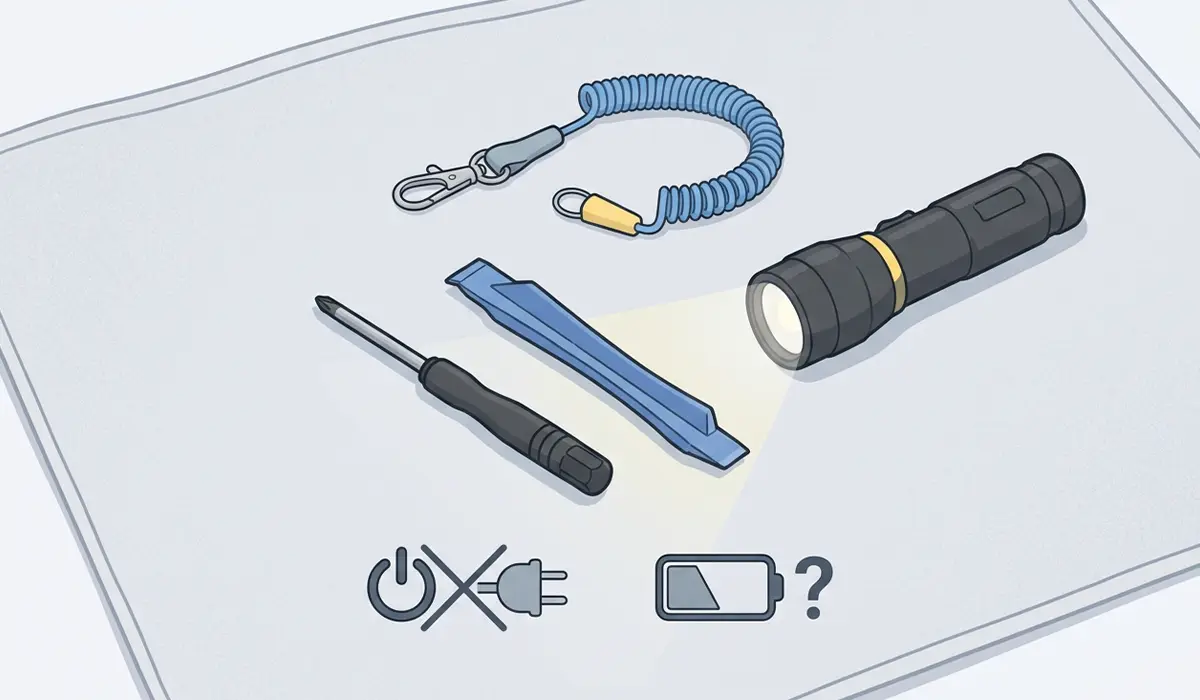
Opening the laptop’s chassis may affect the manufacturer’s warranty, so it is worth checking warranty status first. If the ribbon cable looks fine but the touchpad still fails, or the laptop is under warranty, a certified repair technician is the safer route from that point on.
Common Problems and Fixes
Touchpad Works Intermittently or Freezes
This pattern usually points to a driver conflict rather than a full failure. Reinstalling the touchpad driver from Device Manager, and checking that no third-party mouse utility is running in the background, typically clears it up.
Cursor Jumps or Moves Erratically After a Driver Update
A mismatched or beta driver is the common culprit here. Rolling back to the previous driver version through Device Manager’s Driver tab usually restores normal, predictable pointer movement.
Right-Click or Two-Finger Scroll Stopped Working, But the Touchpad Still Moves the Cursor
Basic movement working while gestures fail points to a settings or driver limitation rather than a hardware fault. Revisiting the Touchpad settings page and enabling gestures individually, or reinstalling the manufacturer’s precision touchpad software, generally restores them.
Touchpad Stopped Responding Right After a Windows Update
This is a known pattern when an update pushes a generic driver over a manufacturer-specific one. Rolling back the driver, or manually installing the latest touchpad driver from the laptop maker’s support page, resolves most of these cases.
Touchpad Still Dead After Reseating the Ribbon Cable
If the cable connection looks secure and the touchpad remains unresponsive, the touchpad module itself, or the connector on the motherboard, may have failed. At that point, a professional diagnosis is the more reliable next step rather than continued disassembly.
Frequently Asked Questions
Why did my laptop touchpad suddenly stop working?
Sudden touchpad failure is most often caused by an accidental key press that disabled it, a driver that was overwritten by a Windows update, or an external mouse being connected while the auto-disable setting is turned on.
How do I turn my touchpad back on with the keyboard?
Look for a touchpad icon on the function key row, usually between F5 and F9, and press it while holding the Fn key. The exact key varies by laptop brand and model.
Why does my touchpad stop working when a mouse is plugged in?
Many laptops include a setting that automatically disables the touchpad whenever an external mouse is detected, to prevent the palm from accidentally moving the cursor while typing. This setting can be turned off in the Touchpad settings page.
Can a Windows update break the touchpad?
Yes. Windows updates occasionally replace a manufacturer’s touchpad driver with a generic Microsoft driver, which can disable certain gestures or, in rarer cases, stop the touchpad from responding at all.
How can I tell if the touchpad problem is hardware or software?
Restarting into Safe Mode is the quickest test. If the touchpad works normally in Safe Mode, the issue is a driver or software conflict rather than a physical fault.
Is it safe to open a laptop to check the touchpad cable?
It is safe with the right precautions, including powering down fully, disconnecting the battery, and discharging static electricity first, but it may affect the warranty on newer laptops, so checking warranty status beforehand is worth the extra minute.
Will reinstalling the touchpad driver delete any settings?
Reinstalling the driver can reset custom gesture settings back to their defaults, so it is worth noting any personalized touchpad settings before starting the reinstall.
Why does the touchpad work in Safe Mode but not normally?
This points to a background application or a corrupted driver installation interfering with the touchpad during normal startup. Uninstalling and reinstalling the driver, or checking for conflicting mouse utility software, usually fixes it.
Should an external mouse be used permanently if the touchpad cannot be fixed?
An external mouse is a reasonable temporary workaround, but a touchpad that fails to respond even in Safe Mode and after a driver reinstall usually indicates a hardware issue that a technician should inspect.
