
When Outlook won’t open in Safe Mode, the usual troubleshooting trick stops working before it even starts. This guide walks through the exact steps needed to get Outlook launching in Safe Mode again, so the real diagnosis – like checking for a bad add-in – can actually begin.
Key Takeaways
- Outlook not opening in Safe Mode is almost always caused by a stuck background process, a damaged Office installation, or a corrupted profile.
- The correct Safe Mode command is outlook.exe /safe, typed exactly, with a space before the slash.
- Ending all Outlook-related tasks in Task Manager before retrying solves this in a large share of cases.
- A Quick Repair from the Control Panel fixes most stubborn launch failures without removing any data.
- If nothing else works, creating a new Outlook profile or scanning the data file usually clears the last of it.
Step-by-Step Guide to Fix Outlook Won’t Open in Safe Mode
Work through these steps in order. Most people find the issue resolves within the first three or four steps, so there is rarely a need to go further than that.
- Step 1: Open Task Manager by pressing Ctrl+Shift+Esc, go to the Processes tab, and look for any instance of Outlook or OUTLOOK.EXE. Select it and click End Task. Outlook sometimes keeps running silently in the background even after the window has been closed, and that alone can block Safe Mode from starting.
- Step 2: Press the Windows key and R together to open the Run dialog. Type outlook.exe /safe exactly as written, including the space before the slash, and press Enter. Typing this incorrectly is one of the most common reasons the command appears to do nothing.
- Step 3: If nothing happens, right-click the Run dialog result or the Outlook shortcut and choose Run as administrator. Some permission settings quietly prevent Outlook from launching in any mode, including Safe Mode, until it is given administrator rights.
- Step 4: Restart the computer. This clears out any lingering processes, temporary file locks, or memory conflicts that Task Manager might have missed, and it gives Windows a clean slate before the next attempt.
- Step 5: Open Control Panel, select Programs, then Programs and Features. Find Microsoft Office or Microsoft 365 in the list, click Change, and choose Quick Repair. This checks the installation for missing or damaged files without touching mailbox data.
- Step 6: If Quick Repair does not resolve it, repeat Step 5 and choose Online Repair instead. This is a more thorough process that reinstalls the Office components, and it usually takes several minutes to complete.
- Step 7: Try launching Safe Mode again using the Step 2 command. At this point, a large share of cases will already be fixed.
Tip: If Outlook flashes on screen for a split second and then disappears, that is a strong sign the installation itself needs repairing rather than the profile.
When Safe Mode Still Won’t Launch
A smaller number of cases need a bit more digging. These steps target the profile and data file directly, since those are the next most likely causes once the installation has already been ruled out.
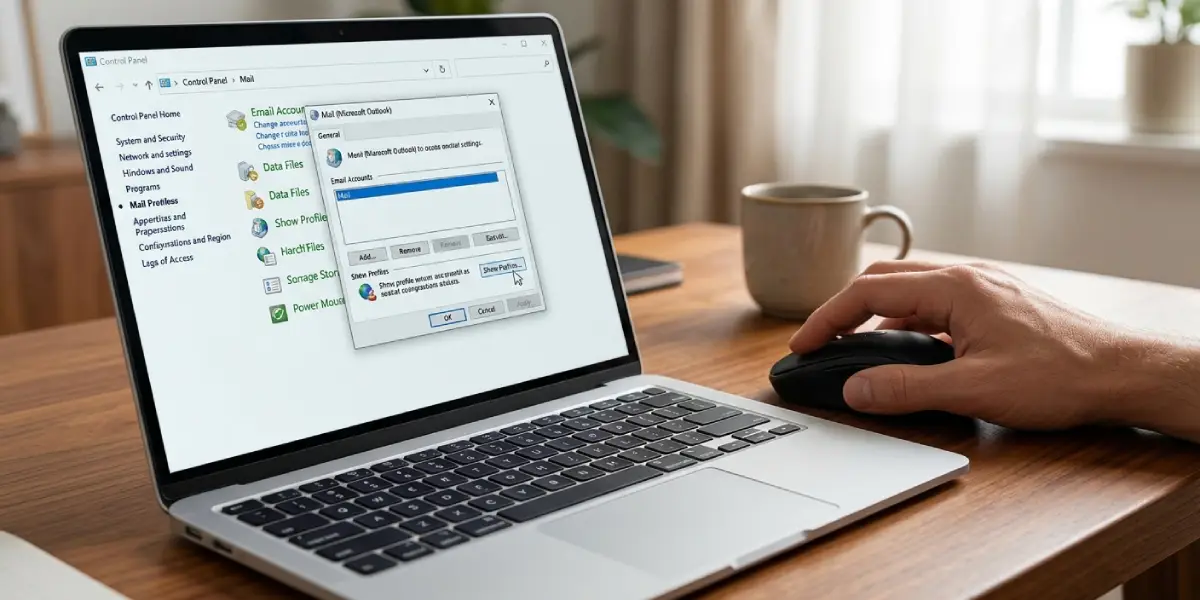
- Step 8: Open Control Panel and search for Mail. Click Show Profiles, then Add, and create a brand new profile with a different name. Set it as the default and try opening Outlook normally, then in Safe Mode.
- Step 9: Locate the SCANPST.EXE tool, usually found under the Office installation folder in Program Files, and run it against the main Outlook data file (.pst or .ost). Let the scan finish and repair any errors it finds.
- Step 10: Temporarily disable third-party antivirus software and attempt the Safe Mode launch once more. Some security tools flag outlook.exe /safe as suspicious behavior and quietly block it.
Tip: Keep track of which step actually fixes the issue. That detail saves time if the same problem shows up again after a future Windows or Office update.
Common Problems and Fixes
- The command window flashes and closes immediately: This usually means Outlook is still running somewhere in the background. Return to Task Manager, check the Background Processes section as well as the main Processes list, and end every related task before retrying.
- An error reads ‘Cannot start Microsoft Outlook. Cannot open the Outlook window’: This points to a damaged profile rather than a Safe Mode issue specifically. Creating a new profile, as described in Step 8, resolves this in most cases.
- Nothing happens at all after pressing Enter in the Run dialog: Double-check the spelling and spacing of outlook.exe /safe. A missing space or an extra character is a surprisingly common culprit.
- Outlook opens normally but never opens in Safe Mode: This is often a sign that the Office installation has a deeper fault. Move to the Online Repair step even if Quick Repair already ran, since Online Repair replaces more of the underlying files.
- Safe Mode works once, then fails again the next day: A background sync add-in or a scheduled antivirus scan may be relaunching a conflicting process. Confirm nothing is set to auto-start with Windows and reboot before each attempt.
Frequently Asked Questions
What does opening Outlook in Safe Mode actually do?
Safe Mode starts Outlook with add-ins, custom toolbar settings, and some extra features disabled, which helps determine whether an add-in or a customization is causing a separate problem.
Why does outlook.exe /safe not work even after Task Manager is checked?
This is typically caused by a damaged Office installation rather than a running process. A Quick Repair from Control Panel usually clears it.
Is it safe to end the Outlook process in Task Manager?
Yes. Ending the task simply closes the application. Any unsent emails should be saved as drafts first, but no mailbox data is lost by ending the process.
Does creating a new Outlook profile delete existing emails?
No. Existing data files remain untouched, and the original profile can still be reconnected to the same mailbox later if needed.
How long does an Online Repair take?
Online Repair typically takes ten to twenty minutes depending on internet speed, since it downloads and reinstalls the full Office program files.
Can antivirus software really block Safe Mode from opening?
Yes. Some security tools treat command-line switches like /safe as unusual behavior and quarantine or block the process, which prevents Safe Mode from launching.
What is SCANPST.EXE used for in this situation?
SCANPST.EXE, also called the Inbox Repair Tool, scans the Outlook data file for corruption. A damaged data file can prevent Outlook from launching in any mode, Safe Mode included.
Does restarting the computer actually make a difference?
Often, yes. A restart clears memory locks and background processes that Task Manager sometimes cannot fully terminate on its own.
What should be tried first if none of the steps work?
Repeating the Quick Repair and Online Repair steps after a full restart resolves the vast majority of remaining cases before a full Office reinstall becomes necessary.
