
Knowing how to fix Windows 11 stuck at 100% after update starts with patience, then moves to a few safe recovery tools if the screen never changes. The 100% mark often means the visible download or install is done, while Windows is still finishing heavy work in the background. This guide covers the causes and the fixes in the order that carries the least risk to files and settings.
Key Takeaways
- A long wait at 100% is often normal, especially on older hard drives, so give the update time before forcing anything.
- If the drive light and fan show no activity for a long stretch, a forced shutdown and restart is the next safe move.
- Startup Repair, Safe Mode, and uninstalling the latest update are done from the Windows Recovery Environment and keep personal files.
- Resetting the PC is the last resort and should come only after backups are secured.
Common Causes
An update that hangs at 100% almost always comes down to one of a few things. Knowing which one is likely makes the right fix easier to pick.
- The update is still finalizing. Windows applies many changes during the restart phase, and a slow drive or a large feature update can stretch this out far longer than the percentage suggests.
- Corrupted or incomplete update files in the SoftwareDistribution folder can stall the final stage.
- A driver or third-party security program conflicts with the new files being applied.
- Low free space on the system drive leaves Windows without room to finish the job.
- External devices such as USB drives, docks, or printers interrupt the restart process.
- A failing drive can slow or freeze the final stage. This is less common, but worth keeping in mind if the problem repeats.
Before You Start
This is a software problem, so no tools or disassembly are needed. A few quick precautions are still worth taking.
- Keep a laptop plugged into mains power for the whole process so the battery does not run out mid-update.
- Have a second device ready to look up the manufacturer’s support page if needed.
- If the drive is encrypted with BitLocker, locate the recovery key first, since the recovery environment may ask for it. It is usually saved in the Microsoft account used on the PC.
- If important files exist only on this PC, plan to back them up before attempting a reset. Startup Repair, Safe Mode, and uninstalling updates do not remove personal files.
How to Fix Windows 11 Stuck at 100% After Update Step by Step
Safe First Moves
- Step 1: Wait and watch for activity. Leave the PC alone for at least an hour or two while checking the drive activity light, listening for fan changes, and watching for any screen movement. Think of it like a slow elevator: the display may sit on one floor while the machinery is still working behind the doors. Tip: if the PC has a hard drive instead of an SSD, extend that wait, because spinning drives finish update cleanup far more slowly.
- Step 2: Disconnect everything that is not essential. Unplug USB flash drives, external hard drives, docks, printers, and memory card readers. Only the power cable, keyboard, and mouse should stay connected. A stuck device can hold up the restart phase, and removing it sometimes lets the screen move on within a few minutes.
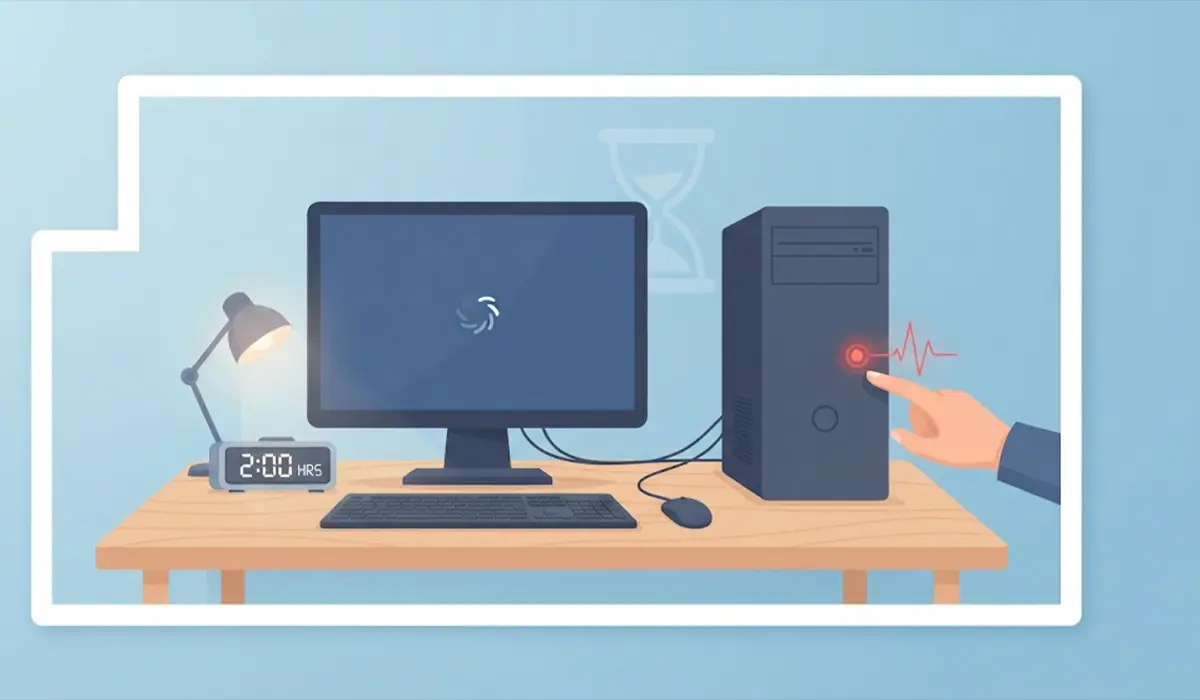
- Step 3: Force a restart if nothing changes. When the drive light stays off and the screen has not changed for a long stretch, hold the power button for about 10 seconds until the PC shuts off. Wait about 30 seconds, then press power again. Windows is designed to resume or roll back an interrupted update, so many PCs reach the sign-in screen after this step. Waiting first matters because cutting power mid-write carries a small risk of file corruption.
Recovery Environment Fixes
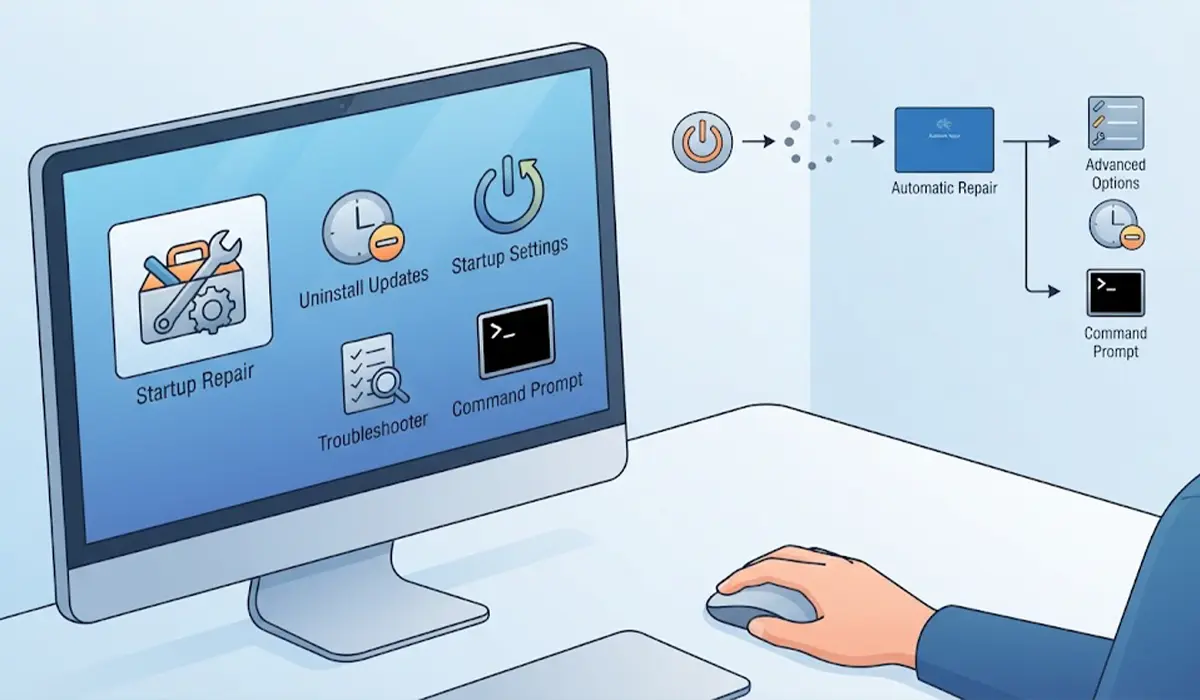
If the PC returns to the same screen, the next fixes use the Windows Recovery Environment. To open it, power the PC on and switch it off again during the manufacturer logo or spinning dots, two or three times in a row. Windows then loads the Automatic Repair screen. Choose Advanced options, then Troubleshoot, then Advanced options again.
- Step 4: Run Startup Repair. From the Advanced options screen, select Startup Repair and choose the account to continue. Windows scans for boot and startup problems and tries to correct them without touching personal files. The process can take a while and may restart the PC once or twice.
- Step 5: Uninstall the latest update. Back in Advanced options, select Uninstall Updates. Choose Uninstall latest quality update first, since monthly cumulative updates are the most common trigger. If the problem followed a major version upgrade, choose Uninstall latest feature update instead. Personal files stay in place. Tip: after the PC boots normally again, pause updates for a short time and free up disk space before trying the update once more.
- Step 6: Start in Safe Mode. From Advanced options, select Startup Settings, then Restart. When the list appears, press 4 or F4 for Safe Mode, or 5 or F5 for Safe Mode with Networking. Safe Mode loads only core drivers and services, which helps bypass a conflicting driver or security program.
- Step 7: Run the Windows Update troubleshooter. Once in Safe Mode with Networking, open Settings, go to System, select Troubleshoot, then Other troubleshooters, and run the Windows Update troubleshooter. It resets several update components and clears common blocks automatically.
- Step 8: Clear the SoftwareDistribution folder. Open Command Prompt as administrator and stop the update services by entering net stop wuauserv and then net stop bits. Rename the folder by entering ren C:\Windows\SoftwareDistribution SoftwareDistribution.old. Restart the services with net start wuauserv and net start bits, then restart the PC. Windows creates a fresh folder on its own and downloads clean update files. Renaming instead of deleting keeps a fallback copy.
- Step 9: Repair system files. In an administrator Command Prompt, enter sfc /scannow and let it finish. Then enter DISM /Online /Cleanup-Image /RestoreHealth and let that finish as well. These tools check Windows system files and repair damaged ones, which can remove the hidden corruption behind a stalled update.
Last Resorts
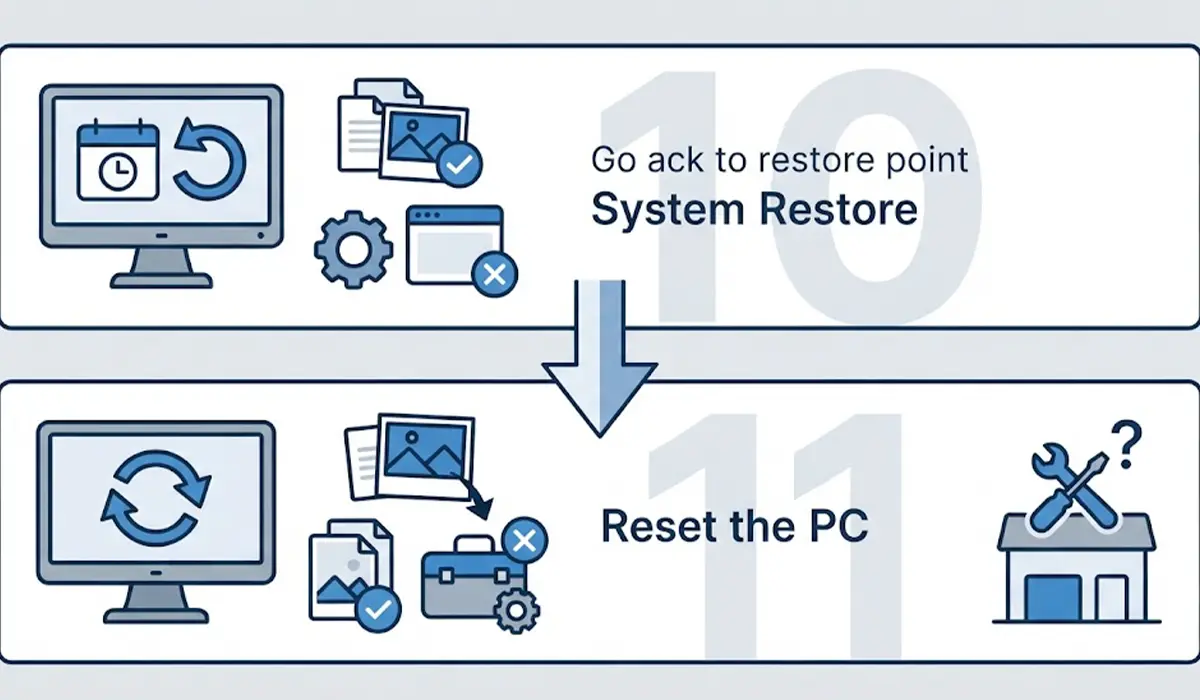
- Step 10: Use System Restore. If a restore point exists from before the update, open Advanced options in the recovery environment and select System Restore. Windows rolls system files, drivers, and settings back to that point. Personal files are not removed, though recently installed apps may disappear.
- Step 11: Reset the PC. Under Troubleshoot, select Reset this PC and choose Keep my files. Windows reinstalls itself and removes apps and settings but keeps personal files. Back up anything critical first, since no reset is completely risk free. If the reset fails or the PC still hangs afterward, the drive or another hardware component may be the problem, and a professional repair shop is the safest next stop.
Common Problems and Fixes
The PC Restarts Into the Same 100% Screen
This usually points to a stuck pending update. Open the recovery environment and use Uninstall Updates, then clear the SoftwareDistribution folder from Safe Mode before trying the update again.
Startup Repair Fails or Loops
If Startup Repair reports that it could not repair the PC, try System Restore or Safe Mode next. If those fail too, Reset this PC with Keep my files is the remaining software option.
A BitLocker Recovery Key Is Requested
Some PCs ask for the BitLocker key when entering the recovery environment. The key is typically stored in the Microsoft account linked to the PC, which can be checked from another device.
Windows Says It Is Undoing Changes
This message means the update failed and Windows is rolling back. Let it finish without interruption. Once the desktop returns, free up storage, disconnect extra devices, and check for updated drivers from the PC manufacturer before retrying.
The Same Update Fails Repeatedly
Run the System File Checker and DISM commands, then reset the update cache. If the update still stalls at the same point, check the drive’s health, since a failing drive can cause repeated hangs.
The Screen Is Black With a Moving Cursor
This is a different symptom from a frozen 100% screen. Waiting a few minutes often brings the desktop back. If it does not, a forced restart followed by Startup Repair is the right next move.
Frequently Asked Questions
Why is Windows 11 stuck at 100% after an update?
Most often the update has finished its visible stage but is still finalizing in the background. Corrupted update files, a driver conflict, low disk space, or a slow drive can also hold up the last stage.
How long should Windows 11 be left at 100% before taking action?
Leave it for at least an hour or two as long as there is any drive or fan activity. If the screen has not changed and the drive light stays off for a long stretch, a forced restart becomes reasonable.
Is it safe to force shut down Windows 11 stuck at 100%?
It is generally safe as a last step after a long wait with no activity. Windows is designed to resume or roll back interrupted updates, but cutting power mid-write carries a small risk of file corruption, so waiting first is wise.
Will files be lost if an update gets stuck?
Personal files are normally untouched. Startup Repair, uninstalling updates, Safe Mode, and System Restore keep them, and Reset this PC with the Keep my files option does too. Backing up important data before any reset is still a good habit.
Can Safe Mode help fix an update stuck at 100%?
Yes. Safe Mode loads only essential drivers and services, which helps bypass conflicting software. From there, the Windows Update troubleshooter, SFC, and DISM can be run to repair the problem.
How can the update that caused the problem be removed?
Open the Windows Recovery Environment, go to Troubleshoot, then Advanced options, and select Uninstall Updates. Choose the latest quality update for monthly patches or the latest feature update for major version upgrades.
Can low disk space cause Windows 11 to hang during an update?
Yes. Windows needs working room on the system drive to finish installing an update. Freeing up storage before retrying greatly improves the odds of a clean install.
How can this problem be avoided in future updates?
Keep the PC plugged in, free up storage beforehand, disconnect unneeded USB devices, and install pending driver updates from the manufacturer. Let the update finish without interruption.
