
A laptop that won’t turn on can feel like a dead end, but most cases trace back to a handful of predictable causes involving power delivery, battery health, or a loose internal connection. Before assuming the worst, work through a structured set of checks that rule out the simple problems first and only move toward advanced fixes when needed.
Key Takeaways
- Most ‘won’t turn on’ cases are caused by a faulty outlet, charger, or battery, not a dead motherboard.
- A hard reset that drains residual power fixes a surprising number of these cases in minutes.
- No lights, no fan noise, and no sound at all usually points to a power delivery issue rather than a software crash.
- A laptop that spins up fans but shows a black screen is often a display problem, not a dead unit.
- Loose RAM or storage connections after travel or cleaning can also block startup entirely.
Common Causes Behind a Laptop That Won’t Turn On
Several distinct issues produce the same frustrating symptom, so narrowing down the cause matters before reaching for a screwdriver.
Power Delivery Problems
A dead or damaged charger, a worn charging cable, or a faulty wall outlet is one of the most common reasons a laptop shows no signs of life at all.
Battery Failure or Deep Discharge
Batteries that have sat unused for a long time can drop into a deep discharge state where the laptop refuses to power on even when plugged in, at least until it charges for a while.
Residual Power Buildup
Static charge can accumulate in the motherboard and components over time, especially after a battery swap or a period of heavy use, and this buildup sometimes blocks the power-on sequence entirely.
Loose Internal Connections
A RAM stick, storage drive, or battery connector that has shifted slightly out of its slot, often after a drop, a trip, or recent internal cleaning, can prevent the system from booting.
Display-Only Failure
Sometimes the laptop actually powers on, but a failed backlight, damaged display cable, or graphics fault makes the screen stay black, giving the false impression that the unit is completely dead.
Before You Start
A few basic precautions keep the troubleshooting process safe and prevent accidental damage.
- Unplug the charger and, on laptops with a removable battery, take the battery out before opening any panel.
- Touch a bare metal surface or use an anti-static wrist strap before handling internal components to discharge static electricity.
- Let the laptop cool down fully if it was recently running hot or showing signs of overheating before it shut off.
- Keep a small Phillips screwdriver, a plastic pry tool, and a flashlight nearby for inspecting ports and connections.
If the laptop has visible fire or water damage, a swollen battery, or a burning smell, stop and take it to a qualified repair technician instead of continuing at home. Opening the case may also affect an active warranty, so check the warranty status first if the laptop is still relatively new.
Fix 1: Check the Power Source and Charging Connection
- Step 1: Confirm the wall outlet actually works by plugging in another device, like a phone charger or lamp.
- Step 2: Inspect the charging cable and adapter brick for frayed sections, bent pins, or a loose connection at either end.
- Step 3: Try a different outlet, and if a spare charger of the correct wattage and connector type is available, test with that as well.
- Step 4: Check for a small LED light near the charging port or on the adapter itself, since this often confirms whether power is actually reaching the laptop.
- Step 5: Leave the laptop plugged in and charging for at least 30 minutes before trying to power it on, since a fully drained battery sometimes needs time before it responds.
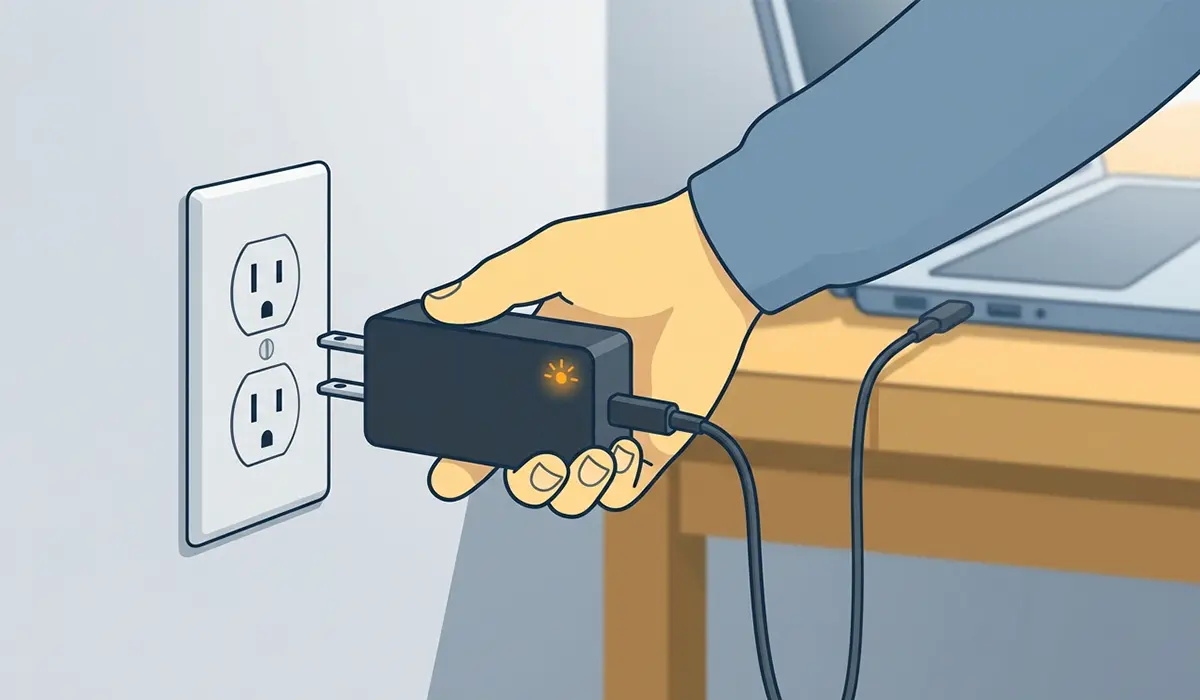
Tip: A charger that feels unusually hot or a cable that has a visible kink near the connector is a common failure point that gets overlooked because the adapter still lights up.
Fix 2: Perform a Hard Reset (Drain Residual Power)
- Step 1: Unplug the charger and, if the battery is removable, take it out of the laptop.
- Step 2: Press and hold the power button for around 15 to 30 seconds to discharge any residual electricity sitting in the components.
- Step 3: Reinsert the battery if it was removed, then plug the charger back in.
- Step 4: Press the power button once and wait a few seconds to see if the laptop responds.
- Step 5: If nothing happens, repeat the process once more, since some units need two attempts before the reset clears properly.
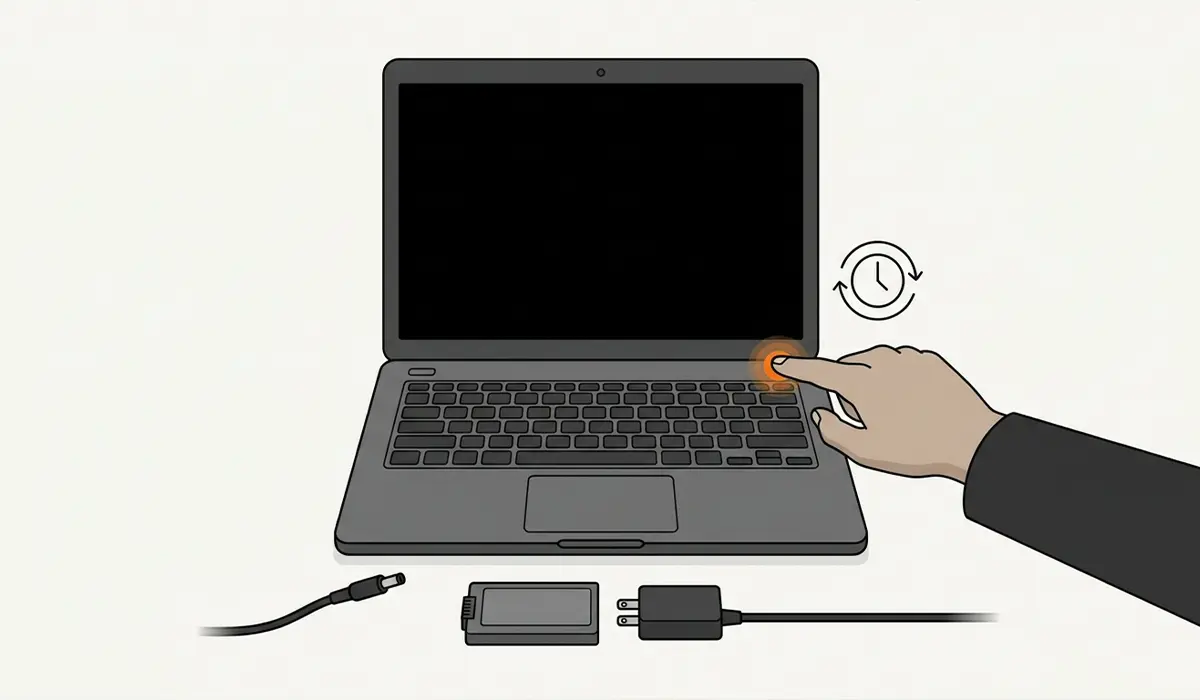
This step resolves more dead-laptop cases than people expect, mainly because it clears a stuck power state rather than an actual hardware fault.
Fix 3: Test and Reseat the Battery
- Step 1: Power the laptop down completely and disconnect the charger.
- Step 2: On models with a removable battery, release the latch and take the battery out, checking for swelling, discoloration, or a burnt smell.
- Step 3: Clean the battery contacts gently with a dry microfiber cloth if any dust or residue is visible.
- Step 4: Reinsert the battery firmly until it clicks or seats fully into place.
- Step 5: On laptops with an internal, non-removable battery, disconnect it from the motherboard briefly if comfortable opening the case, then reconnect it and attempt to power on.
A swollen or visibly damaged battery should be replaced rather than reused, since a compromised battery can prevent startup and poses a safety risk.
Fix 4: Inspect for Charging Port or Cable Damage
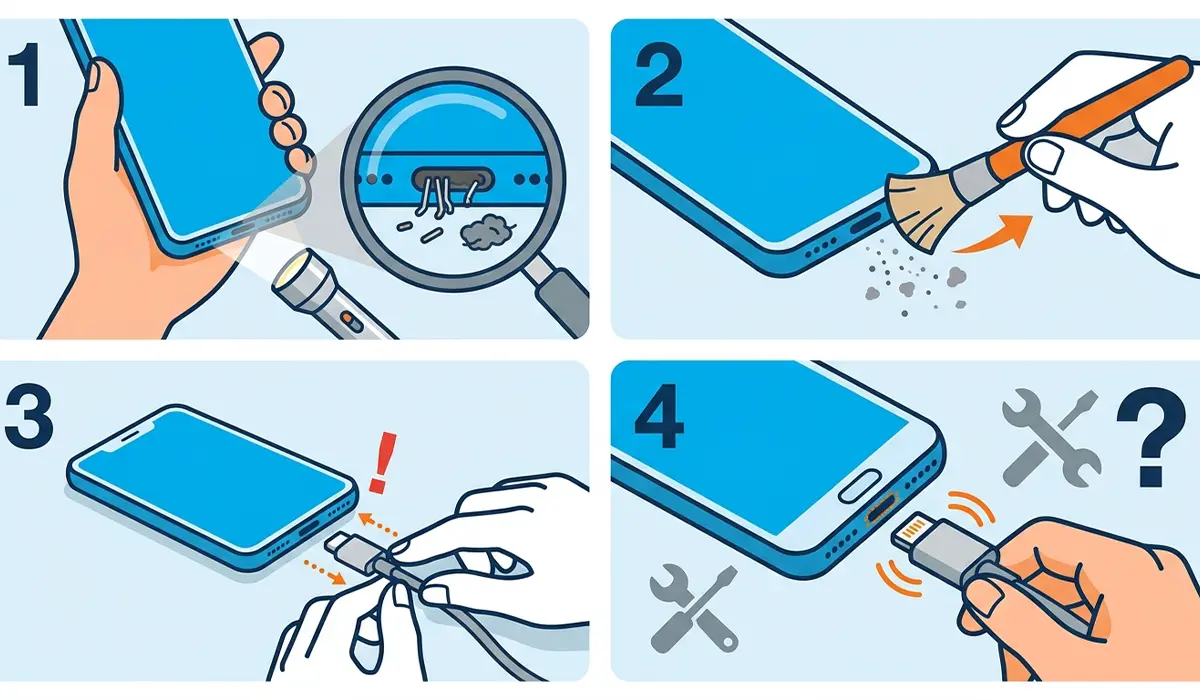
- Step 1: Look inside the charging port with a flashlight for bent pins, lint buildup, or a loose internal connector.
- Step 2: Use a soft brush or a burst of compressed air to clear any debris from the port.
- Step 3: Gently wiggle the charging cable while it is plugged in to check for a loose internal port connection that might interrupt charging.
- Step 4: If the port feels loose or the connector does not sit snugly, the port itself may need professional repair or resoldering.
Fix 5: Rule Out a Display-Only Failure
- Step 1: Power the laptop on and listen closely for fan noise, hard drive activity, or startup chimes even if the screen stays black.
- Step 2: Shine a flashlight directly at the screen at an angle to check for a very faint, dim image, which points to a failed backlight rather than a dead system.
- Step 3: Connect the laptop to an external monitor using its HDMI or USB-C port to see if an image appears there instead.
- Step 4: If the external display shows an image, the laptop is powering on normally and the problem is isolated to the internal screen or its cable.
Tip: A laptop that boots fine on an external monitor almost always has a display or cable issue, not a motherboard failure, which usually means a far cheaper and simpler repair.
Fix 6: Check RAM and Storage Connections
- Step 1: With the laptop powered off and unplugged, remove the back access panel using the correct screwdriver.
- Step 2: Locate the RAM modules and gently press down on both ends to confirm they are fully seated in their slots.
- Step 3: If comfortable doing so, remove and reinsert each RAM stick to clear any minor connection issues.
- Step 4: Check that the storage drive’s connector or cable is firmly attached and has not shifted loose.
- Step 5: Reattach the access panel and attempt to power the laptop on again.
This step applies mainly to laptops with user-accessible RAM and storage bays. Laptops with soldered or sealed components should skip this step and move to professional diagnosis instead.
Common Problems and Fixes
Laptop Charges But Still Won’t Turn On
This usually points to a battery that has failed internally even though it still accepts a charge, or a power button or its connecting cable has failed. Testing with the battery removed and running on charger power alone helps isolate the cause.
Laptop Powers On Then Shuts Off Immediately
This pattern often points to an overheating protection trigger, a failing power component, or in some cases a battery that cannot hold enough charge to complete the startup sequence.
Fans Spin But No Display Appears
This is typically a display, cable, or graphics issue rather than a dead laptop, and connecting to an external monitor as described in Fix 5 usually confirms this quickly.
Laptop Worked After a Hard Reset, Then Stopped Again
A recurring issue after a reset points to a deeper hardware fault, such as a failing battery or an unstable power connection, and usually means professional diagnosis is the next reasonable step.
Frequently Asked Questions
Why does a laptop suddenly stop turning on with no warning?
Sudden power failures are typically caused by a battery reaching end of life, a charger or cable failure, or a buildup of residual power that blocks the startup sequence rather than a gradual hardware decline.
How long should a laptop charge before trying to turn it on again?
Around 30 minutes on the charger is usually enough for a deeply discharged battery to accept enough charge to allow a normal startup attempt.
Is it safe to remove the battery while the laptop is plugged in?
No, the laptop should always be unplugged and powered off first, since removing a battery from a device that is actively drawing power can risk damage to the components.
Can a bad charger really stop a laptop from turning on at all?
Yes, a charger that no longer delivers the correct voltage or has a broken internal wire is one of the most common reasons a laptop shows absolutely no response.
What does it mean if the power light turns on but the screen stays black?
This usually indicates the laptop is powering on normally and the fault lies with the display, its cable, or the graphics output rather than the main system.
Does a swollen battery need to be replaced immediately?
Yes, a swollen battery should be removed and replaced as soon as possible, since it can prevent the laptop from powering on and presents a genuine safety hazard.
Can dust inside the laptop cause it to stop turning on?
Heavy dust buildup can contribute to overheating shutdowns and occasionally interferes with internal connections, though it is a less common direct cause of a laptop failing to power on at all.
Should a laptop that won’t turn on be opened at home?
Basic checks like reseating the battery or RAM are generally safe on laptops designed for user access, but sealed or soldered models are better left to a professional to avoid accidental damage.
How can a person tell if the problem is the battery or the motherboard?
Testing whether the laptop powers on using only the charger, with the battery removed, helps separate the two. Powering on without the battery points to a battery fault, while failing both ways suggests a deeper hardware issue.
When should a laptop be taken to a repair professional instead of troubleshooting further?
If the hard reset, power source checks, and battery inspection all fail to bring the laptop back, or if there are signs of physical or liquid damage, professional diagnosis is the safer and more reliable next step.
