
Learning how to fix 100% CPU usage on Windows starts with finding out what is actually eating the processor, because the cause is rarely the CPU itself. A runaway background process, a stuck update, a bad driver, or even malware can pin usage at the ceiling and make a fast PC feel like it is wading through mud. The steps below work from the quickest checks to the deeper repairs, so the problem gets solved without unnecessary tinkering.
Key Takeaways
- Task Manager shows exactly which process is using the CPU, and that single check solves most cases.
- Background updates, Microsoft Defender scans, browser tabs, and startup apps are the most common triggers.
- Outdated drivers, corrupted system files, and malware cause the stubborn cases that survive a restart.
- High usage paired with heat and slow performance can point to thermal throttling, which is a cooling problem rather than a software one.
- A high ‘System Idle Process’ number is normal and is not a sign of trouble.
Common Causes of 100% CPU Usage
Knowing the usual suspects makes the fixes below much easier to target.
- Background Windows tasks: Windows Update, the Windows Modules Installer Worker (TiWorker.exe), and Microsoft Defender’s Antimalware Service Executable can all run heavy for a while, especially after a fresh install or a large update.
- Too many startup programs: Apps that launch with Windows quietly stack up and compete for processor time from the first minute.
- Browser overload: Dozens of open tabs, heavy web pages, and misbehaving extensions can push a CPU to its limit on their own.
- Outdated or faulty drivers: A broken chipset, graphics, or storage driver can make a system process loop endlessly.
- Malware or hidden miners: Unwanted software often runs under a harmless-looking name and uses the CPU constantly.
- Corrupted system files: Damaged Windows components can cause services to hang and consume resources.
- Overheating: A clogged cooler or dried-out thermal paste can cause the CPU to throttle, which makes everything feel slower and usage look pinned.
Step-by-Step Methods to Fix 100% CPU Usage on Windows
Start With the Quick Checks
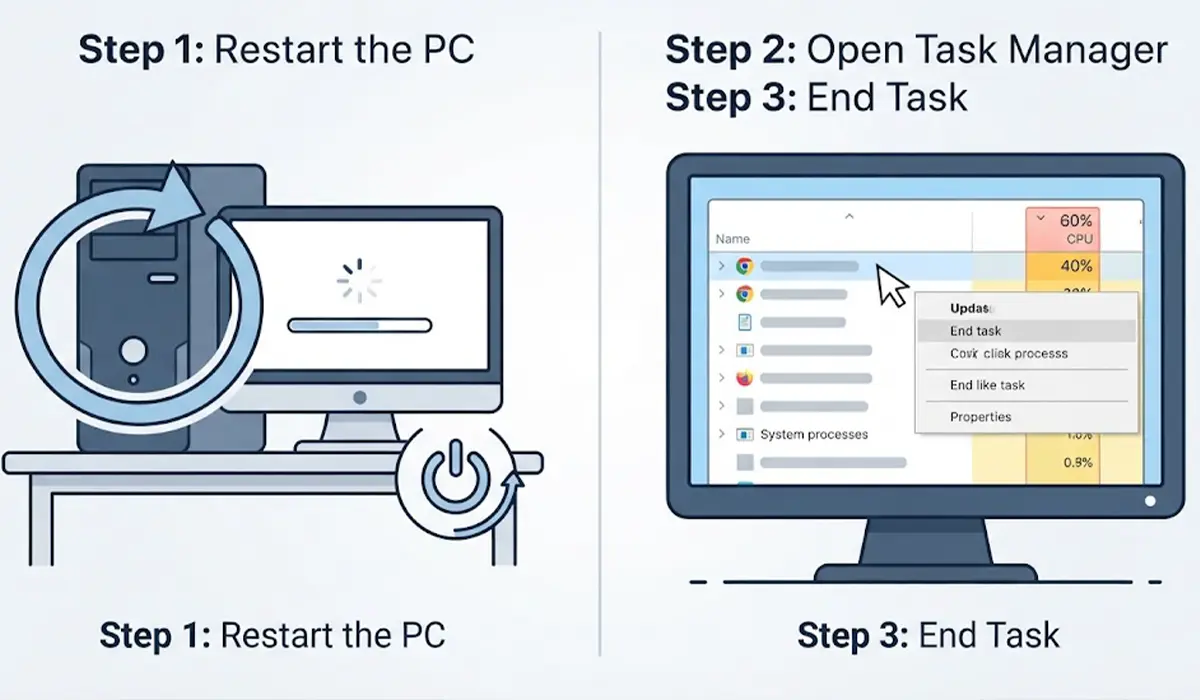
- Step 1: Restart the PC. A full restart clears stuck processes and lets pending updates finish installing. Use Restart rather than Shut down, since Fast Startup on some systems keeps part of the previous session alive.
- Step 2: Open Task Manager by pressing Ctrl + Shift + Esc, then select the Processes tab and click the CPU column header to sort from highest to lowest. The top entry is the process to investigate.
- Step 3: Right-click any non-essential app at the top of the list and choose End task. Only close programs that are clearly recognizable, such as a browser, an editing tool, or an unused launcher. Never end items like System, Registry, or Windows Session Manager.
Tip: If the culprit is a process named svchost.exe, open the Details tab, right-click it, and choose Go to service(s). Windows highlights the exact service behind it, which turns a vague name into something that can actually be fixed.
Cut Down Startup and Browser Load
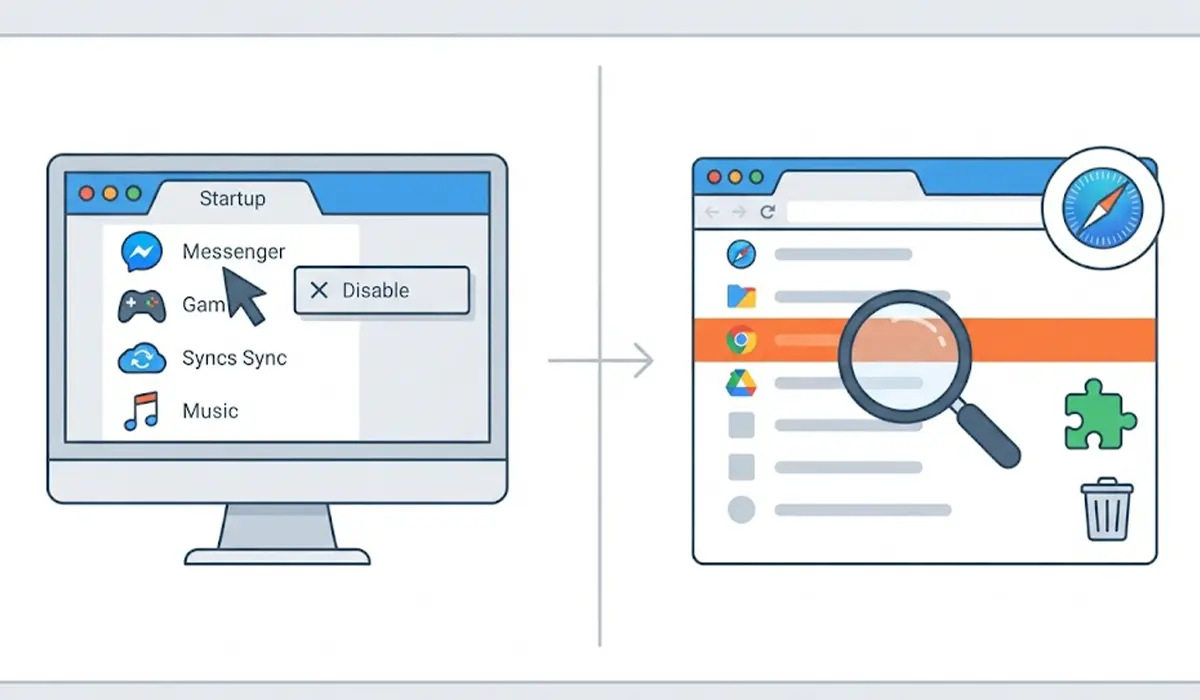
- Step 4: In Task Manager, open the Startup apps tab (called Startup on Windows 10). Right-click programs that do not need to launch with Windows and choose Disable. Chat clients, game launchers, and updaters are common candidates.
- Step 5: If a browser is near the top of the CPU list, open the browser’s own task manager by pressing Shift + Esc in Chrome or Edge. End the heaviest tab or extension, then remove any extension that keeps returning to the top.
Let Windows Finish Its Own Work
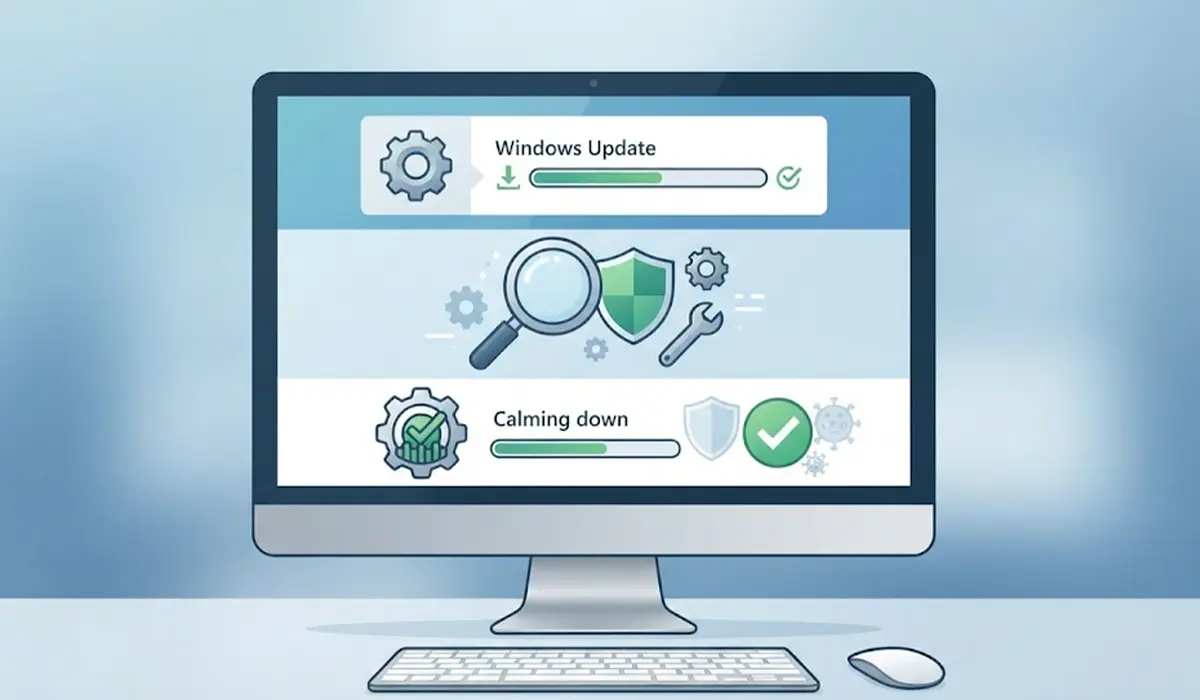
- Step 6: Open Settings, go to Windows Update, and install everything that is pending, including optional driver updates under Advanced options. Then restart. TiWorker.exe and related update processes usually settle once the update cycle completes.
- Step 7: If updates seem stuck, run the built-in troubleshooter. On Windows 11, go to Settings, then System, then Troubleshoot, then Other troubleshooters, and run the Windows Update troubleshooter. On Windows 10, it sits under Update and Security, then Troubleshoot, then Additional troubleshooters.
- Step 8: If Antimalware Service Executable is the top process, give an active scan time to finish rather than disabling protection. Scans are heaviest right after installs and updates, and they normally calm down afterward.
Scan for Malware
- Step 9: Open Windows Security, select Virus and threat protection, then Scan options. Choose Microsoft Defender Antivirus (offline scan) and select Scan now. The PC restarts and scans before Windows fully loads, which catches threats that hide while the system is running.
Update Drivers and Repair System Files
- Step 10: Update the chipset, graphics, and storage drivers. The most reliable source is the PC or motherboard manufacturer’s support page for the exact model, with the graphics driver coming from the GPU maker. Restart after each install.
- Step 11: Open Terminal or Command Prompt as administrator and run ‘DISM /Online /Cleanup-Image /RestoreHealth’, wait for it to finish, then run ‘sfc /scannow’. These two tools repair damaged Windows components that can keep a service stuck in a loop.
- Step 12: Set the power plan to Balanced in Control Panel under Power Options. Custom or modified plans can force the processor into unusual behavior, and Balanced is the safe baseline to test against.
Tip: Make one change at a time and recheck Task Manager after each. That way it is clear which step actually solved the problem, which saves time if it ever returns.
Isolate the Problem With a Clean Boot
- Step 13: Press Windows + R, type msconfig, and press Enter. On the Services tab, tick Hide all Microsoft services, then click Disable all. On the Startup tab, open Task Manager and disable all startup items. Restart and check CPU usage.
- Step 14: If usage is normal in the clean boot, turn services and startup items back on in small groups, restarting each time, until the problem returns. The last group enabled contains the culprit.
Rule Out Overheating
- Step 15: If the fan runs loudly, the case feels very hot, and performance drops while usage stays pinned, the CPU may be throttling from heat. Power off and unplug the device, let it cool, and clear dust from the vents with compressed air, holding the fan still so it does not spin. If the problem continues, the cooler or thermal paste may need attention. Opening a device can affect its warranty, so a qualified technician is the better choice when the case is sealed or the work feels uncertain.
Last Resort: Reset Windows
- Step 16: If nothing else works, back up important files first, then use Reset this PC under Settings, System, Recovery on Windows 11 (Update and Security, Recovery on Windows 10). The Keep my files option reinstalls Windows while preserving personal data, and it clears deep software conflicts that other steps miss.
Common Problems and Fixes
CPU Is Still at 100% After a Restart With Nothing Open
Start with the offline Microsoft Defender scan, then run DISM and sfc. If usage stays high, a clean boot usually reveals whether a third-party service is responsible.
Antimalware Service Executable Stays High for Hours
This is normally a scan that has not finished. Leave the PC on and plugged in, idle, so the scan can complete. If it keeps returning, run the offline scan and confirm no other security program is installed alongside Defender, since two scanners can compete.
Windows Modules Installer Worker (TiWorker.exe) Will Not Settle
Let Windows Update finish, restart, and run the Windows Update troubleshooter. A stuck update is the usual reason this process keeps working.
CPU Hits 100% Only While Gaming or Editing
Heavy use during demanding tasks is expected and is not a fault. Check for background apps, update the graphics driver, and confirm the cooling is clean if performance drops partway through a session.
Task Manager Is Slow to Open or Freezes
This can mean the system is severely overloaded or infected. Restart, boot into Safe Mode if needed, and run a full malware scan before continuing with the other fixes.
Usage Returns After Every Fix
A problem that keeps coming back points to a driver issue, hidden malware, or a hardware cause such as overheating. Revisit the driver updates, run another offline scan, and check the cooling.
Frequently Asked Questions
Is 100% CPU usage bad?
Short bursts at 100% during demanding tasks like gaming, rendering, or installing updates are normal. Constant 100% usage while the PC is idle or doing light work is a problem that needs investigating.
Why is my CPU at 100% when nothing is running?
Hidden background activity is the usual reason. Windows Update, a Defender scan, a stuck service, outdated drivers, or malware can all use the processor without any visible app open.
Is a high System Idle Process percentage a problem?
No. System Idle Process shows the share of CPU capacity that is unused, so a high number means the processor is mostly free, not busy.
Can malware cause 100% CPU usage?
Yes. Cryptocurrency miners and other unwanted programs often run quietly in the background and use the CPU constantly. An offline Microsoft Defender scan is the best first check.
Can overheating cause 100% CPU usage?
Overheating does not create the load, but it can make the CPU throttle, which slows everything down and makes usage look stuck high. Clean vents and healthy thermal paste help prevent it.
Is it safe to end processes in Task Manager?
Ending ordinary apps like browsers and launchers is safe. Avoid ending core Windows processes such as System, Registry, or Windows Session Manager, since that can crash or destabilize the PC.
Should Antimalware Service Executable be disabled?
No. It is the engine behind Microsoft Defender, and turning it off leaves the PC unprotected. Letting scans finish, or running an offline scan, is the better approach.
Will upgrading the CPU fix constant 100% usage?
Usually not. When usage is pinned by a software fault, a faster processor simply gets pinned too. Fix the process, driver, or malware causing the load first.
When should a reset of Windows be considered?
A reset makes sense after drivers, system file repairs, malware scans, and a clean boot have all failed. Back up files first and choose the Keep my files option when possible.
