
Seeing ‘Wi-Fi connected but no internet access’ on a Windows PC is one of the most common network frustrations out there, and it almost always comes down to a handful of predictable causes. The good news is that most cases can be fixed in a few minutes without calling an internet provider. This guide walks through why it happens and exactly how to fix it, step by step.
Key Takeaways
- A yellow triangle or ‘no internet’ label next to the Wi-Fi icon usually points to a DNS, IP address, or router issue rather than a hardware failure.
- Restarting the router and modem resolves this problem more often than any other fix.
- Releasing and renewing the IP address, along with flushing DNS, clears up a large share of remaining cases.
- Resetting the TCP/IP stack and Winsock catalog fixes issues that survive a basic restart.
- Outdated or corrupted network adapter drivers are a frequent, often overlooked culprit.
Common Causes of Wi-Fi Connected But No Internet Access
Before jumping into fixes, it helps to understand what typically triggers this. A device can hold a valid Wi-Fi connection to a router while still having no actual path to the wider internet. Some of the most frequent causes include:
- A temporary outage or slowdown from the internet service provider.
- The router or modem stuck in a bad state after a firmware hiccup or long uptime.
- An incorrect or expired IP address, often showing up as an APIPA address starting with 169.254.
- DNS servers that are unreachable or misconfigured.
- A corrupted TCP/IP stack or Winsock catalog on the PC itself.
- An outdated, corrupted, or mismatched Wi-Fi adapter driver.
- A VPN or proxy setting silently blocking the connection.
Most people find that the problem sits somewhere between the router and the PC’s network stack, not with the internet service itself. The steps below move from the simplest checks to the deeper fixes.
How to Fix Wi-Fi Connected But No Internet Access
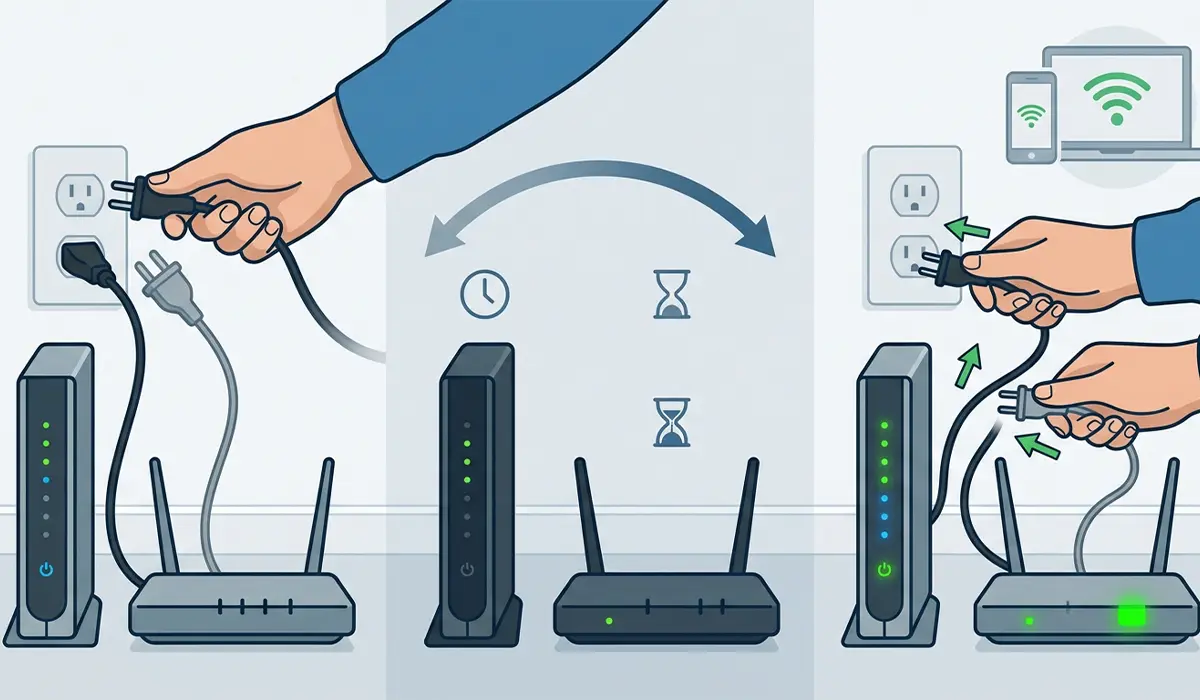
Restart the Router and Modem
This works best when it is the very first thing tried, since it clears out temporary glitches in the router’s memory.
- Step 1: Unplug both the modem and the router from power.
- Step 2: Wait about 30 seconds so the internal memory fully clears.
- Step 3: Plug the modem back in first and wait for its lights to stabilize.
- Step 4: Plug the router back in and wait for the internet light to turn solid.
- Step 5: Reconnect the PC to Wi-Fi and check if internet access has returned.
Run the Windows Network Troubleshooter
- Step 1: Right-click the Wi-Fi icon in the taskbar and select ‘Diagnose network problems’.
- Step 2: Let the troubleshooter scan the connection automatically.
- Step 3: Apply any fix it suggests, then check the connection again.
Tip: This built-in tool catches a surprising number of adapter and configuration issues on its own, so it is worth running before touching any manual settings.
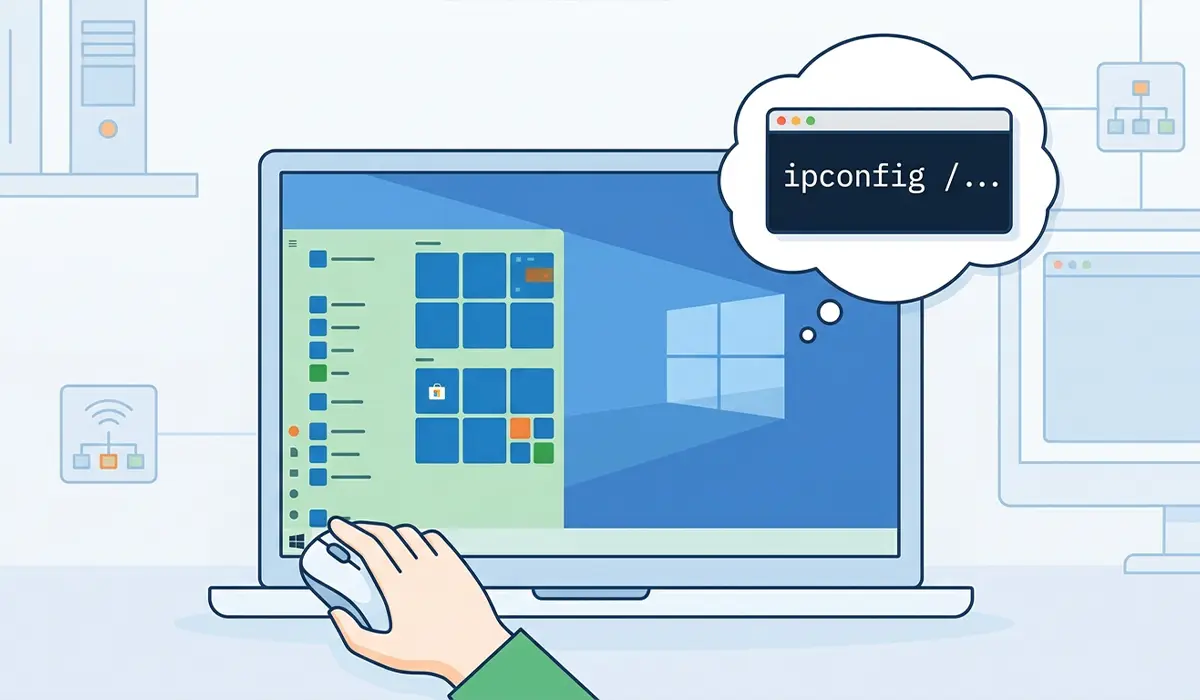
Release and Renew the IP Address
- Step 1: Open the Start menu, type ‘cmd’, right-click Command Prompt, and choose ‘Run as administrator’.
- Step 2: Type ipconfig /release and press Enter.
- Step 3: Type ipconfig /renew and press Enter to request a fresh IP address.
- Step 4: Type ipconfig /all and confirm the IPv4 address no longer starts with 169.254.
Flush and Reset DNS
- Step 1: In the same administrator Command Prompt, type ipconfig /flushdns and press Enter.
- Step 2: Type netsh int ip reset and press Enter to reset the TCP/IP stack.
- Step 3: Type netsh winsock reset and press Enter to rebuild the Winsock catalog.
- Step 4: Restart the PC so the changes take effect.
Tip: If the connection still fails after this, switching the DNS servers manually to a public provider such as 8.8.8.8 or 1.1.1.1 in the network adapter settings often resolves stubborn DNS-related cases.
Update or Reinstall the Wi-Fi Adapter Driver
- Step 1: Right-click the Start button and open Device Manager.
- Step 2: Expand ‘Network adapters’ and locate the Wi-Fi adapter.
- Step 3: Right-click it and select ‘Update driver’, then choose ‘Search automatically for drivers’.
- Step 4: If that does not help, right-click the adapter again and select ‘Uninstall device’, then restart the PC so Windows reinstalls it fresh.
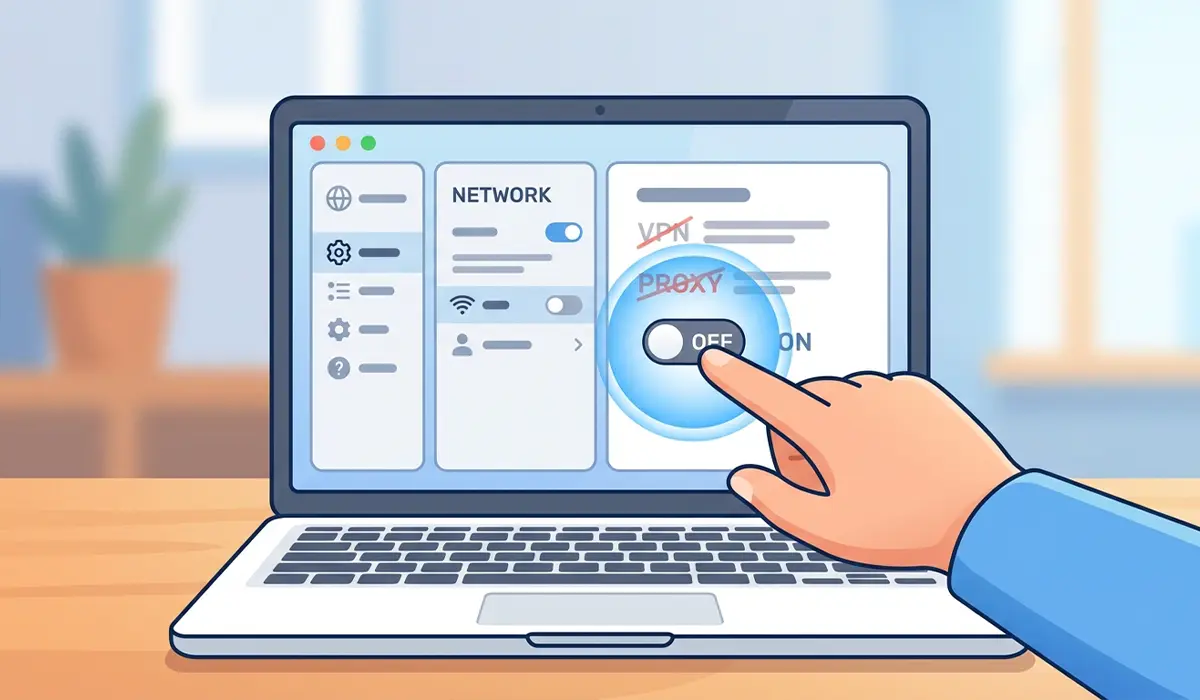
Disable VPN or Proxy Temporarily
- Step 1: Disconnect from any active VPN client.
- Step 2: Go to Settings, then Network and Internet, then Proxy.
- Step 3: Turn off ‘Automatically detect settings’ and any manual proxy entry if one is not intentionally in use.
- Step 4: Reconnect to Wi-Fi and test the connection again.
Common Problems and Fixes
Internet Returns Then Drops Again After a Few Minutes
This pattern usually points to a router overheating or struggling under too many connected devices. Moving the router to a more open, ventilated spot and checking for a firmware update in the router’s admin page often stabilizes the connection.
Only One Device Loses Internet While Others Stay Connected
When every other device on the network is fine, the issue is almost always local to that one PC’s network stack or driver. Repeating the DNS flush and Winsock reset steps, along with a driver reinstall, typically clears it.
Connection Still Fails After a Full Router Reset
If a factory reset of the router does not help, the router’s firmware may be outdated or the ISP itself may be experiencing an outage. Checking the provider’s status page or contacting support is the next reasonable step.
IP Address Keeps Reverting to an APIPA Address
An IP address that keeps starting with 169.254 after renewal often means the router’s DHCP server is misbehaving. Restarting the router again or manually assigning a static IP within the router’s range can work around it.
Frequently Asked Questions
Why does Wi-Fi show connected but no internet access?
It usually means the PC has a valid link to the router but cannot reach the wider internet, most often due to a DNS problem, an incorrect IP address, or a temporary router issue.
Does restarting the router actually fix this?
Yes, in a large share of cases a simple restart clears whatever temporary glitch was blocking the connection.
Is this problem caused by the internet provider or the PC?
It can be either. Checking whether other devices on the same network also lack internet access is the fastest way to tell the two apart.
What does ipconfig /flushdns actually do?
It clears the local DNS cache on the PC, forcing it to look up website addresses fresh instead of relying on possibly outdated cached entries.
Can an outdated network driver cause this issue?
Yes, a corrupted or outdated Wi-Fi adapter driver is a common and often overlooked cause of a connected-but-no-internet state.
Should a VPN be disabled while troubleshooting this?
Temporarily disconnecting any active VPN is a good troubleshooting step, since some VPN configurations can block normal internet routing.
Why does only one device on the network lose internet access?
When only one device is affected, the cause is typically local to that device’s network settings or driver rather than the router itself.
Is it safe to reset the TCP/IP stack?
Yes, netsh int ip reset and netsh winsock reset are standard, safe Windows commands used specifically for resolving connectivity issues.
When should a router be factory reset?
A factory reset is worth trying only after basic restarts and PC-side fixes have failed, since it clears all custom router settings.
When is it time to contact the internet service provider?
If every device on the network loses internet access and a full router restart does not help, the issue is likely on the provider’s end.
