
Setting up a Gmail account in Outlook for Mac takes just a few minutes once the right menu is in view. This guide walks through the exact steps, from opening account settings to confirming the sync is working, so mail, contacts, and calendar events show up right away.
Key Takeaways
- Outlook for Mac connects to Gmail through Google’s sign-in window, so no app-specific password is required in most cases.
- The whole process happens inside the Outlook Settings menu under Accounts.
- Two-factor verification on the Google account may prompt an extra approval step during sign-in.
- Mail, calendar, and contacts sync automatically after the account is added.
- Existing Gmail folders and labels appear as regular mail folders inside Outlook.
How to Add a Gmail Account in Outlook for Mac
The steps below apply to the current version of Outlook for Mac, including both the classic and New Outlook interfaces.
- Step 1: Open Outlook for Mac and click the ‘Outlook’ menu at the top left of the screen.
- Step 2: Select ‘Settings’ (or ‘Preferences’ in the classic layout), then choose ‘Accounts’.
- Step 3: Click the plus (+) button in the lower-left corner of the Accounts window and select ‘New Account’.
- Step 4: Type the full Gmail address into the email field and click ‘Continue’.
- Step 5: A Google sign-in window opens. Enter the Gmail password and complete any two-factor verification if it appears.
- Step 6: Review the permissions Google lists, such as access to mail, contacts, and calendar, then click ‘Allow’ or ‘Continue’ to grant them.
- Step 7: Outlook confirms the account was added successfully. Click ‘Done’ to close the setup window.
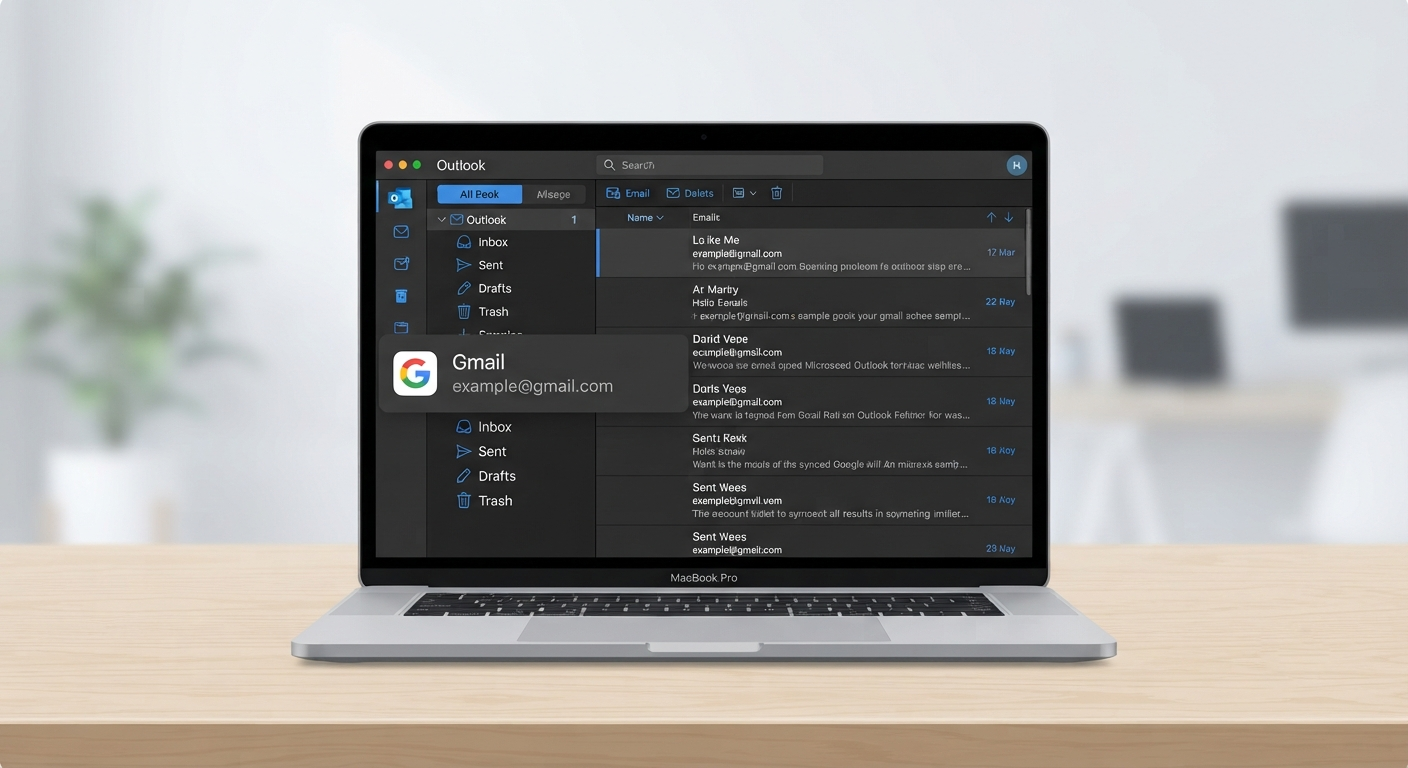
- Step 8: Wait a moment while Outlook performs its first sync. The Gmail inbox and folders appear in the left-hand navigation pane once syncing finishes.
Tip: If more than one Google account needs approval prompts, check the phone linked to that account. Google often sends a tap-to-approve notification instead of a text code, and missing that step is the most common reason sign-in seems to hang.
Adjusting Sync Settings After Setup
Once the Gmail account appears in the account list, click on it and look for sync options covering mail, contacts, and calendars. Turning off calendar or contact syncing here is useful for anyone who only wants Gmail messages inside Outlook without merging Google Calendar events into an existing Outlook calendar.
Common Problems and Fixes
- The Google sign-in window never appears: Close Outlook completely and reopen it, then repeat Step 3. A background process sometimes blocks the pop-up window on the first attempt.
- Outlook shows an ‘incorrect password’ error despite the right password: This usually means two-factor verification is enabled and the approval prompt was missed. Check for a notification on the linked phone and try signing in again.
- Gmail folders or labels are missing after setup: Give the sync a few extra minutes, especially for accounts with a large inbox. If folders still do not appear, remove the account from Settings > Accounts and repeat the setup steps.
- Emails are not sending: Confirm the account still shows as ‘Connected’ under Accounts. A revoked permission on the Google side will disconnect the account and require signing in again.
- Duplicate contacts appear after adding the account: This happens when contact syncing is enabled on an account that already had those contacts entered manually in Outlook. Turning off contact sync for the Gmail account resolves it.
Frequently Asked Questions
Does adding a Gmail account in Outlook for Mac require an app password?
No. Outlook for Mac uses Google’s standard sign-in window, so the regular Gmail password works as long as two-factor verification prompts are approved when they appear.
Can more than one Gmail account be added to Outlook for Mac?
Yes. Repeating the same steps from the Accounts window adds additional Gmail accounts, and each one appears as a separate section in the left-hand navigation pane.
Will existing Gmail labels show up as folders in Outlook?
Yes. Gmail labels convert directly into mail folders inside Outlook once the initial sync completes.
Is IMAP setup needed for Gmail in Outlook for Mac?
No manual IMAP configuration is required. Outlook detects Gmail’s server settings automatically during the sign-in process.
Why does Outlook ask for permission to access Google Contacts and Calendar?
Google lists these permissions so mail, contacts, and calendar can sync together. Any of these can be limited afterward through the account’s sync settings in Outlook.
How long does the first sync take after adding a Gmail account?
Smaller inboxes usually sync within a minute or two. Larger inboxes with years of mail history can take longer to fully populate.
What happens if the Gmail password changes later?
Outlook will prompt for a new sign-in the next time it tries to sync. Signing in again with the updated password restores the connection.
Can a Gmail account be removed from Outlook for Mac later?
Yes. Opening Settings, selecting Accounts, choosing the Gmail account, and clicking the minus (-) button removes it from Outlook without deleting anything from the actual Gmail account.
Does this process work the same way in New Outlook for Mac?
Yes. New Outlook uses the same Settings > Accounts path and the same Google sign-in window, so the steps apply either way.
