
Learning how to fix Outlook error 0x800CCC7D usually comes down to one thing: Outlook and the outgoing mail server disagree about encryption. The message typically reads that the outgoing (SMTP) server does not support SSL-secured connections, and emails get stuck in the Outbox. The good news is that the repair happens in a single settings screen and takes only a few minutes.
Key Takeaways
- Error 0x800CCC7D is a mismatch between the SMTP port and the encryption type selected in Outlook.
- The fix lives in File > Account Settings > Change > More Settings > Advanced.
- Port 587 normally pairs with STARTTLS, and port 465 normally pairs with SSL/TLS.
- Outgoing server authentication must be switched on for most providers.
- Security software and very old Outlook versions can trigger the same error.
How to Fix Outlook Error 0x800CCC7D Step by Step
This works best when the mail provider’s official SMTP settings are open in another window, so each value can be compared directly. Think of it like dialing a phone number: the right digits on the wrong line still go nowhere.
Correct the SMTP Port and Encryption
- Step 1: Look up the outgoing (SMTP) server name, port number, and encryption type on the email provider’s help page. Write down the port and the encryption type, because both must match.
- Step 2: Open Outlook and click File, then Account Settings, then Account Settings again from the drop-down menu.
- Step 3: On the Email tab, select the account that shows the error and click Change.
- Step 4: Confirm that the Outgoing mail server (SMTP) name matches the provider’s value exactly, with no typos or extra spaces.
- Step 5: Click More Settings and open the Advanced tab.
- Step 6: Next to Outgoing server (SMTP), enter the port from the provider’s settings. Then, in the box labeled ‘Use the following type of encrypted connection’, choose the matching encryption. The usual pairs are port 587 with STARTTLS and port 465 with SSL/TLS.
- Step 7: Switch to the Outgoing Server tab and tick ‘My outgoing server (SMTP) requires authentication’. Select ‘Use same settings as my incoming mail server’ unless the provider specifies different credentials.
- Step 8: Click OK, then Next. Outlook runs a test of the account settings. Once it reports success, click Finish and close the dialog.
- Step 9: Restart Outlook and send a short test message to confirm that the Outbox clears.

Tip: A common trap is changing only the port and leaving the encryption on its old value. Always change the two together, since the error appears whenever Outlook tries SSL on a port that expects STARTTLS, or the other way around.
Check the Result
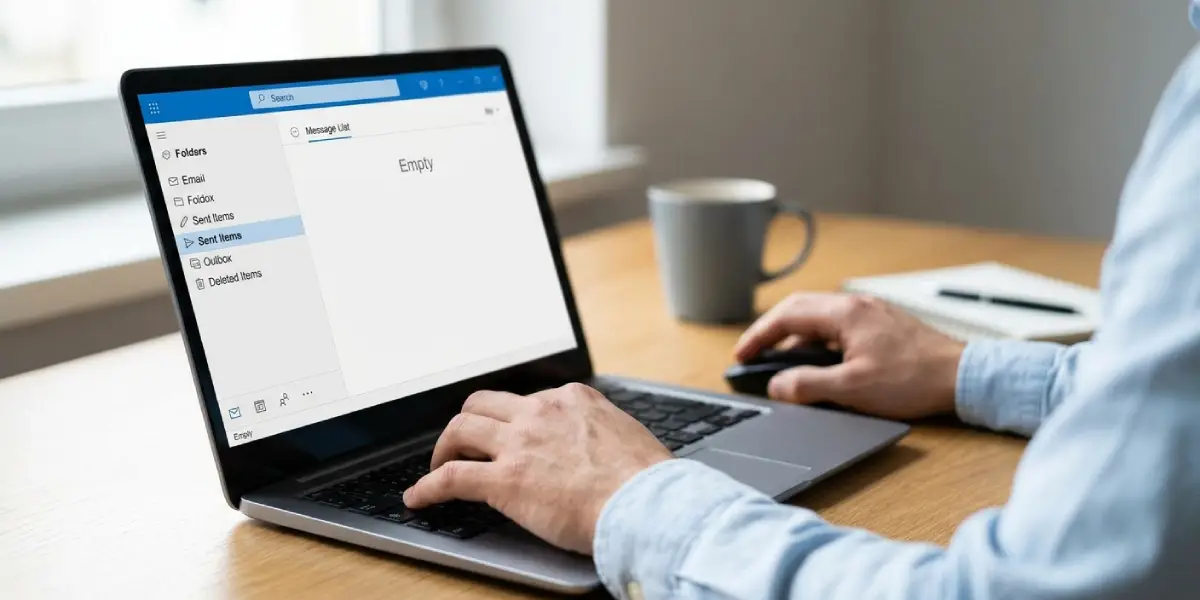
- Step 1: Open the Outbox folder and confirm that no messages remain.
- Step 2: Open the Sent Items folder and look for the test message.
- Step 3: If the error returns, repeat the steps above and compare each value against the provider’s settings once more.
Common Problems and Fixes
The Test Succeeds but Sending Still Fails
This happens when the account test and the actual send use different connection details. Reopen More Settings, check the Advanced tab again, and confirm that the encryption type was saved. Then restart Outlook completely so the new values load.
Antivirus or Firewall Software Interferes
Some security programs scan outgoing email by intercepting the encrypted connection, which can break the handshake with the server. Open the security software’s email protection settings and turn off email scanning for Outlook, or add Outlook as an exception. Test sending again before deciding whether to leave the feature disabled.
The Port Is Right but the Error Remains
Try the other standard pair. If port 587 with STARTTLS fails, switch to port 465 with SSL/TLS, or the reverse. Only one pairing is accepted by a given provider, so the provider’s documentation decides which one to keep.
An Older Outlook Version Cannot Connect
Very old releases such as Outlook 2003 do not handle modern encryption methods well, and the same error text shows up in reports from those versions. Updating to a supported version of Outlook removes this limitation.
Tip: After a Windows reinstall or a move to a new computer, the account details are often re-entered by hand. Mistyped ports are the most frequent cause of this error in that situation, so double-check the numbers first.
Frequently Asked Questions
What does Outlook error 0x800CCC7D mean?
It means Outlook tried to connect to the outgoing SMTP server using SSL, but the server did not accept that type of connection on the port being used. The cause is usually a mismatch between the port number and the encryption type.
Which port should be used for SMTP in Outlook?
The right port depends on the provider. Port 587 with STARTTLS and port 465 with SSL/TLS are the two most common combinations, and the provider’s help page states which one applies.
Does error 0x800CCC7D stop incoming email too?
Usually not. The message refers to the outgoing SMTP server, so receiving mail typically continues to work while sending fails.
Why does the account test pass while sending still fails?
The saved encryption or port value may not have been applied before the test, or Outlook may still be running with the old values. Restarting Outlook after saving the changes lets the new settings take effect.
Where can the correct SMTP settings be found?
The email provider publishes them on its official help or support pages, usually under the heading for POP, IMAP, or SMTP settings. Copy the server name, port, and encryption type exactly as listed.
Can antivirus software cause error 0x800CCC7D?
Yes. Email scanning features that intercept encrypted connections can disrupt the connection to the SMTP server. Disabling email scanning for Outlook, or adding an exception, is the standard way to test this.
Is the SMTP authentication setting important for this error?
Yes. Most providers require authentication on the outgoing server, so the option ‘My outgoing server (SMTP) requires authentication’ should be ticked on the Outgoing Server tab.
Does an outdated Outlook version cause this error?
It can. Very old versions, such as Outlook 2003, struggle with current encryption standards, so upgrading to a supported version is the lasting solution.
Is it necessary to delete and re-add the account?
Not in most cases. Correcting the port and encryption in the account’s More Settings screen resolves the error without removing the account.
