
Learning how to fix Outlook error 0x80072F17 usually comes down to repairing the secure connection between Outlook and Microsoft’s servers. The error appears when Windows cannot validate a security certificate, which often traces back to a wrong clock, disabled TLS settings, or a stale SSL cache. The steps below go from the quickest fixes to the more thorough ones.
Key Takeaways
- Error 0x80072F17 is a secure connection and certificate validation problem, not a damaged mailbox.
- A wrong system date, time, or time zone is the most common trigger and takes under a minute to fix.
- Enabling TLS 1.2 and clearing the SSL state resolves most remaining cases.
- Updating Windows and Office, then repairing Office or creating a new profile, covers stubborn cases.
Step-by-Step: How to Fix Outlook Error 0x80072F17
Close Outlook completely before starting, then reopen it after each fix to test whether the error is gone. Most people find that the first two or three fixes are enough.
Correct the Date, Time, and Time Zone
Certificates are only valid within a specific window of time. If the PC clock is off by even a day, the certificate looks expired or not yet valid, much like a concert ticket that gets rejected at the gate because the date does not match.
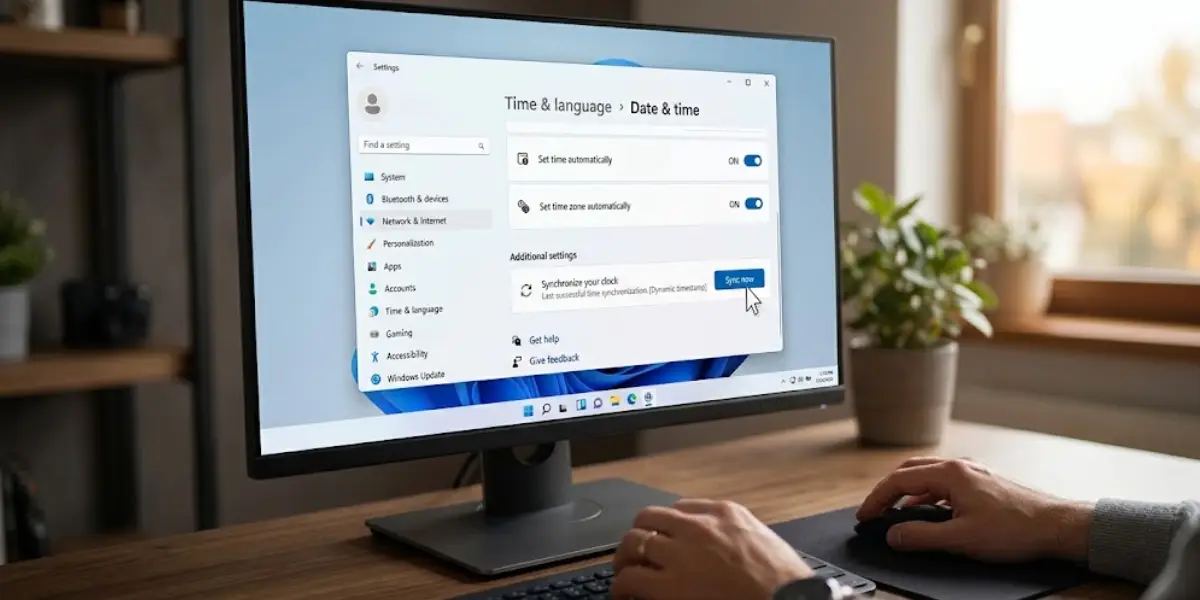
- Step 1: Right-click the clock on the taskbar and select Adjust date and time.
- Step 2: Turn on Set time automatically and Set time zone automatically.
- Step 3: Under Additional settings, click Sync now.
- Step 4: Restart Outlook and check whether the error returns.
Tip: A PC whose clock keeps drifting after a restart often has a weak CMOS battery. Fixing the software setting will only be a temporary cure in that case.
Enable TLS 1.2 in Internet Options
Outlook relies on the same secure connection settings that Windows uses for Internet Options. When TLS 1.2 is switched off, the handshake with the server can fail.
- Step 5: Press the Windows key, type Internet Options, and open it.
- Step 6: Select the Advanced tab and scroll down to the Security section.
- Step 7: Tick Use TLS 1.2. If Use TLS 1.3 is listed, tick that as well.
- Step 8: Click Apply, then OK, and restart the PC.

Clear the SSL State
Windows caches certificate information, and a corrupted entry can keep triggering the error even after other settings are fixed.
- Step 9: Open Internet Options again and go to the Content tab.
- Step 10: Click Clear SSL state and wait for the confirmation message.
- Step 11: Click OK, then reopen Outlook.
Check VPN, Proxy, and Security Software
Some VPNs, proxies, and antivirus programs inspect encrypted traffic and replace the original certificate with their own. Outlook may then refuse the connection.
- Step 12: Disconnect any active VPN and test Outlook again.
- Step 13: Open the antivirus or firewall settings and temporarily turn off HTTPS or SSL scanning, then test Outlook.
- Step 14: If the error disappears, add Outlook to the exclusion list of that security tool and turn the protection back on.
Tip: Never leave antivirus protection switched off after testing. Switch off only the HTTPS scanning feature, or add an exclusion instead.
Update Windows and Microsoft Office
Outdated root certificates and old Office builds can both cause certificate errors.
- Step 15: Open Settings, go to Windows Update, and click Check for updates. Install everything offered and restart.
- Step 16: Open Outlook and go to File, then Office Account.
- Step 17: Click Update Options, then Update Now.
- Step 18: Restart Outlook once the update finishes.
Repair Microsoft Office
If the error persists, damaged Office program files may be the cause. A repair replaces them without touching emails or accounts.
- Step 19: Close all Office apps, then open Settings and go to Apps, then Installed apps.
- Step 20: Find Microsoft 365 or Microsoft Office in the list, click the three dots, and select Modify.
- Step 21: Choose Quick Repair and click Repair. Test Outlook afterward.
- Step 22: If the error remains, run the same process again and choose Online Repair instead.
Create a New Outlook Profile
A corrupted profile can keep storing a bad connection setting. A fresh profile starts clean, and the mailbox data stays safe on the server for most account types.
- Step 23: Close Outlook, open Control Panel, and select Mail (Microsoft Outlook).
- Step 24: Click Show Profiles, then Add, and enter a new profile name.
- Step 25: Sign in with the email account and complete the setup wizard.
- Step 26: Under Always use this profile, select the new profile and click OK.
- Step 27: Launch Outlook and confirm that mail syncs without the error.
Common Problems and Fixes
The Error Returns After Every Restart
This usually points to a clock that resets itself. Confirm that automatic time and time zone are enabled, then click Sync now again. If the time resets after a shutdown, the motherboard battery may need replacing.
The TLS 1.2 Option Is Missing or Greyed Out
A greyed-out option often means a company policy controls the setting. In that case, the IT administrator needs to change it. On a personal PC, update Windows first, as older versions may not list the option.
Clear SSL State Says the Cache Was Cleared but Nothing Changes
The cache clear only helps when the cause is a stale certificate entry. Move on to checking VPN and security software, as an interfering program is the likelier cause.
Quick Repair Finishes but the Error Stays
Run Online Repair next. It reinstalls the Office files from Microsoft instead of fixing them locally, and it needs a working internet connection.
The New Profile Shows the Same Error
This suggests the problem sits at the Windows level rather than inside Outlook. Revisit the date and time, TLS settings, and VPN or antivirus checks, since those apply to every profile.
Frequently Asked Questions
What does Outlook error 0x80072F17 mean?
It is a secure connection error that indicates Windows found a problem with a certificate while Outlook was connecting to the server. The cause is typically on the PC, such as a wrong clock or disabled TLS, rather than in the mailbox.
Will fixing this error delete my emails?
No. None of the steps above remove messages. Emails for Microsoft 365, Outlook.com, and Exchange accounts are stored on the server and reappear after a profile is recreated.
Can a wrong date and time really cause this error?
Yes. Certificates carry start and end dates, so an incorrect system clock makes valid certificates look invalid. It is the first thing to check.
How do I enable TLS 1.2 for Outlook?
Open Internet Options, go to the Advanced tab, and tick Use TLS 1.2 under the Security section. Click Apply, then OK, and restart the PC.
Does a VPN cause error 0x80072F17?
It can. Some VPNs and proxy tools alter the certificate that Outlook receives. Disconnecting the VPN is a quick way to test whether it is the cause.
What does Clear SSL state do?
It removes cached certificate information stored by Windows. Outlook then requests fresh certificate data on the next connection, which clears out corrupted entries.
Should I reinstall Outlook if the error will not go away?
A reinstall is rarely needed. Running Quick Repair, then Online Repair, and creating a new profile cover almost every case before reinstalling becomes necessary.
Is it safe to turn off antivirus to test this error?
Only for a short test, and preferably by turning off just the HTTPS or SSL scanning feature. Turn full protection back on immediately and add an exclusion for Outlook if that fixes the error.
Why does the error only appear on one computer?
Because the cause is usually a setting on that specific PC, such as its clock, TLS configuration, or security software. The same account working on another device confirms that the mailbox itself is fine.
