
Scheduling across borders gets messy fast, and the easy way to add a second time zone to the Outlook calendar takes less than a minute. Once it is switched on, the Day and Week views show two time columns side by side, so there is no more mental math before booking a call. These steps apply to classic Outlook for Windows.
Key Takeaways
- The second time zone is turned on in File > Options > Calendar, under the Time zones section.
- Each time zone can be given a short label, such as the city name, so the columns are easy to tell apart.
- The Swap Time Zones button flips which zone is primary without retyping anything.
- The second column appears in Day, Work Week, and Week views.
- Adding a second time zone only changes the display. Existing meetings keep their real times.
Step-by-Step Guide to Add a Second Time Zone to the Outlook Calendar
Before starting, open Outlook on the desktop. Most people find that the whole process takes about thirty seconds once the right settings page is open.
- Step 1: Click the File tab in the top-left corner of Outlook.
- Step 2: Select Options at the bottom of the left-hand list. The Outlook Options window opens.
- Step 3: Click Calendar in the left pane of the Outlook Options window.
- Step 4: Scroll down to the section named Time zones.
- Step 5: In the Label box under the first time zone, type a short name for the home location, for example Manila. This label appears above the first time column.
- Step 6: Check the box named Show a second time zone. The second set of fields becomes active.
- Step 7: In the second Label box, type a name for the other location, for example London.
- Step 8: Open the Time zone drop-down list next to that label and choose the target time zone.
- Step 9: Leave Adjust for daylight saving time checked for the second zone if that region observes it. Clear it only if the region does not.
- Step 10: Click OK to close the window and save the change.
- Step 11: Open the Calendar and switch to Day, Work Week, or Week view. Two time columns now run down the left side, each with its label.
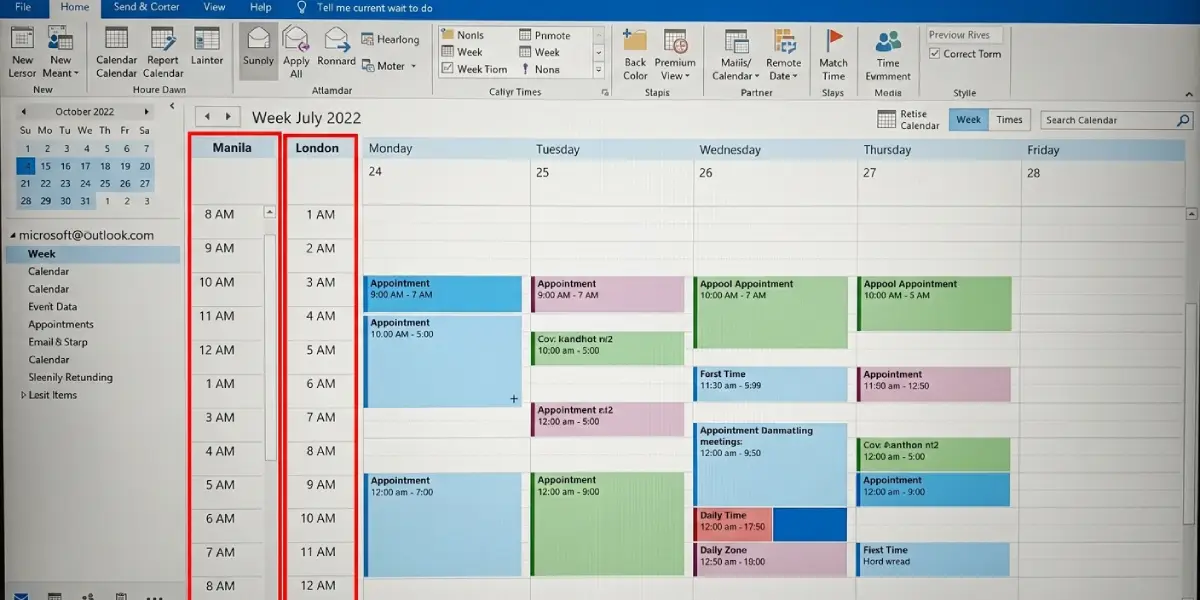
Tip: Use city names instead of long labels like Eastern Standard Time. A short label stays readable on a narrow time scale and prevents any confusion about which column is which.
Swap the Primary and Second Time Zones
Sometimes the second zone is the one that matters most, for example after relocating or while working a project for a client in another region. Instead of retyping everything, go back to File > Options > Calendar and click the Swap Time Zones button in the Time zones section. The two zones trade places immediately. Click OK to apply it.
Turn Off the Second Time Zone
When the extra column is no longer needed, return to File > Options > Calendar, clear the Show a second time zone checkbox, and click OK. The calendar goes back to a single time scale.
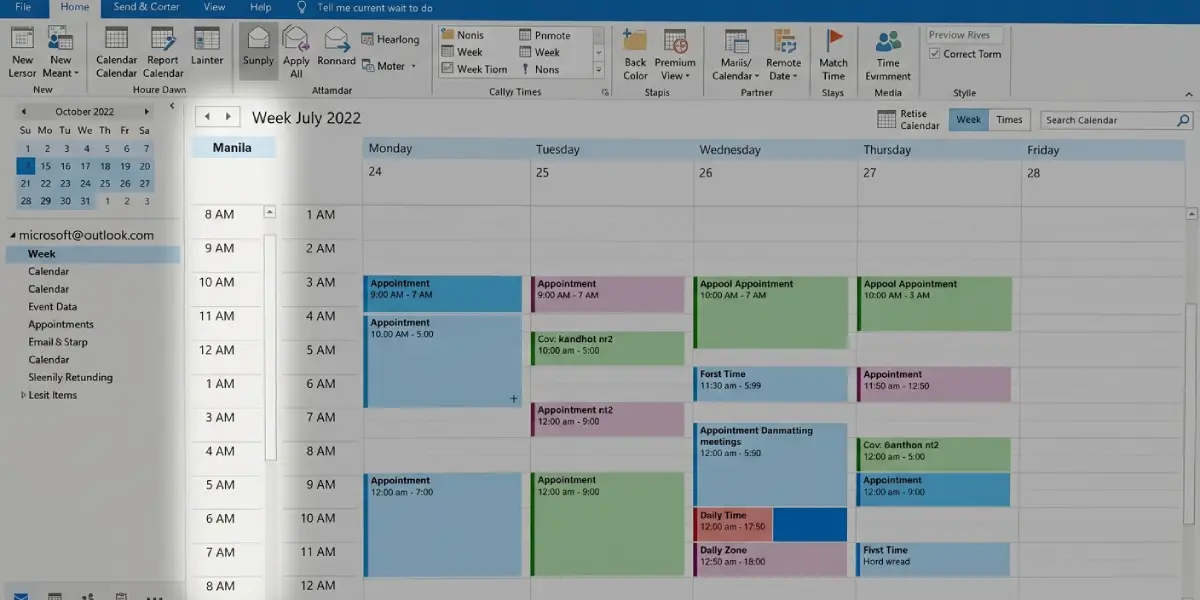
Tip: Try the swap before removing the second zone. Often a quick swap is all that is needed when work shifts between two regions.
Common Problems and Fixes
The Second Time Column Does Not Appear
The extra column only shows in Day, Work Week, and Week views. Month view does not display a time scale at all, so switch to one of the other views from the View tab. Also confirm that the Show a second time zone box is still checked in File > Options > Calendar.
File > Options Is Missing or Looks Different
The steps above are for classic Outlook for Windows. If the window looks different and there is no Options entry under File, the New Outlook toggle in the top-right corner switches back to the classic version.
The Second Time Zone Shows the Wrong Hour
An hour of difference usually points to the daylight saving setting. Reopen the Time zones section and check whether Adjust for daylight saving time matches the region selected. Then confirm the correct time zone is chosen in the drop-down, since several zones have similar names.
Labels Are Cut Off or Hard to Read
Long labels get truncated above the time columns. Replace them with short names, such as a city or three-letter code, and click OK to refresh the view.
Frequently Asked Questions
Where is the second time zone setting in Outlook?
It is in File > Options > Calendar, in the Time zones section. The checkbox is named Show a second time zone.
Does the second time zone change the time of existing meetings?
No. The setting only changes how the calendar displays time. Meetings keep their actual scheduled times, and the second column simply shows what that moment is in the other zone.
Which calendar views show the second time zone?
The second time column appears in Day, Work Week, and Week views. Month view has no time scale, so it does not show the extra column.
Can the second time zone be given a custom name?
Yes. Each time zone has its own Label box in the Time zones section. A short city name works best.
How can the two time zones be swapped?
Open File > Options > Calendar and click the Swap Time Zones button in the Time zones section, then click OK. The primary and second zones exchange places.
How is the second time zone removed?
Return to File > Options > Calendar, clear the Show a second time zone checkbox, and click OK. The calendar goes back to showing a single time column.
Does the second time zone adjust for daylight saving time automatically?
It does when the Adjust for daylight saving time box is checked for that zone. Leave it checked for regions that observe daylight saving time and clear it for regions that do not.
Does adding a second time zone change the Windows system clock?
No. The setting only affects the Outlook calendar display. The computer’s date and time settings stay exactly as they were.
Can a third time zone be added with the same setting?
The Time zones section offers a primary zone and one second zone only, so this setting supports two time columns.
