
Knowing how to remove adware from Windows browser sessions is the fastest way to stop endless pop-ups, hijacked search results, and mystery toolbars. Adware usually arrives bundled with free software or disguised as a harmless extension, and it keeps coming back until every piece is gone. This guide walks through the full cleanup in the right order, using only built-in Windows tools and the browser’s own settings.
Key Takeaways
- Adware lives in three places: installed programs, browser extensions, and browser settings. All three need to be checked.
- Removing the extension alone rarely works if the program that installed it is still on the PC.
- Revoking notification permissions and checking the browser shortcut closes two loopholes people often miss.
- A full Microsoft Defender scan confirms nothing is left running in the background.
- Resetting the browser to default settings is the reliable last resort when stubborn ads remain.
Before You Start
Adware cleanup does not involve opening the PC, so there is no need for tools or static precautions. A few quick preparations still make the process smoother and safer.
- Sign in with an administrator account so programs can be uninstalled.
- Disconnect from any pop-up that claims the PC is infected. Close the tab instead of clicking anything inside it.
- Export bookmarks from the browser if they are important, since a reset can affect other data.
- Keep Windows Security (Microsoft Defender) turned on, as it is the main scanner used in this guide.
- Do not call any phone number shown in a pop-up. Those are scam prompts, not real warnings.
How to Remove Adware from Windows Browser: Step-by-Step
The steps below work for Google Chrome, Microsoft Edge, and Mozilla Firefox. Menu names differ slightly between browsers, and the differences are noted where they matter.
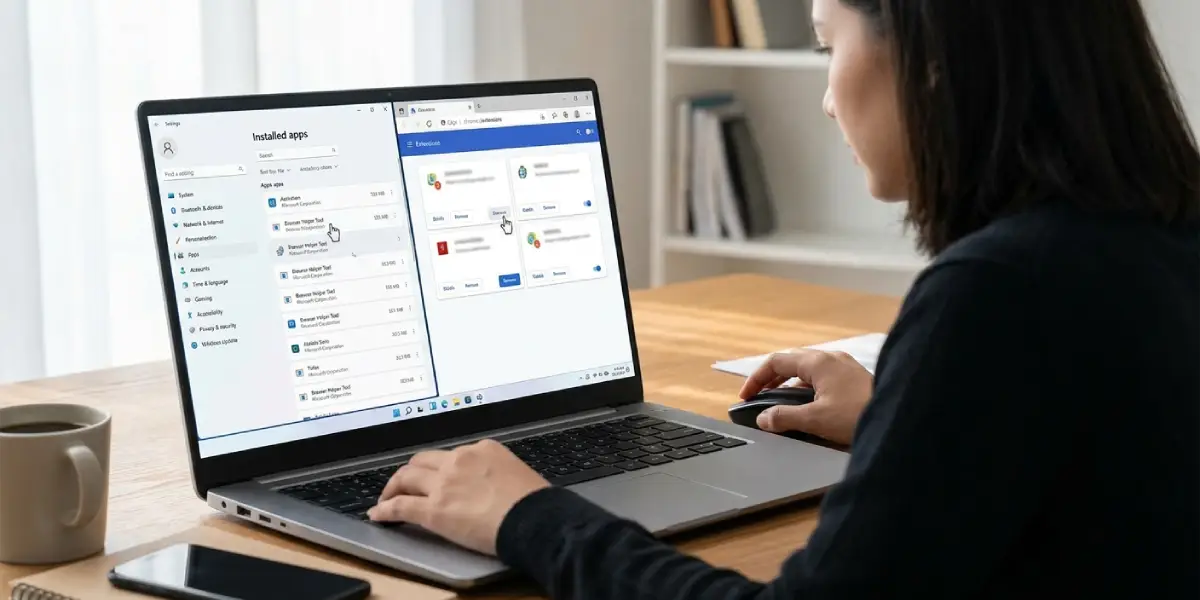
- Step 1: Close the browser completely, then open Windows Settings and go to Apps, then Installed apps. Sort the list by install date and look for anything unfamiliar that appeared around the time the ads started. Common offenders carry names like ‘PDF converter’, ‘search helper’, ‘coupon’, or ‘system optimizer’. Select the three-dot menu next to the program and choose Uninstall.
- Step 2: Reopen the browser and check the extensions page. In Chrome, type chrome://extensions in the address bar. In Edge, type edge://extensions. In Firefox, type about:addons. Remove any extension that was not installed on purpose, and remove any that look useful but are unknown. Genuine extensions are easy to add back later.
- Step 3: Fix the homepage, startup pages, and search engine. In the browser settings, open the section for ‘On startup’ (Chrome and Edge) or ‘Home’ (Firefox) and delete any unfamiliar addresses. Then open the search engine setting and set it back to a trusted default. Adware often swaps the default search for a lookalike that floods results with sponsored links.
- Step 4: Revoke notification permissions. In Chrome or Edge, open Settings, then Privacy and security (Cookies and site permissions in Edge), then Site settings, then Notifications. Remove every site that should not be sending alerts. In Firefox, open Settings, then Privacy and Security, then the Settings button beside Notifications. Many ‘Windows virus alert’ pop-ups come from a site that was granted permission by a single careless click.
- Step 5: Check the browser shortcut. Right-click the browser icon on the desktop or taskbar, choose Properties, and look at the Target box. It should end with the browser’s .exe file name and nothing after it. If a web address or extra text follows, delete it, then select Apply. Do the same for every shortcut to that browser.
- Step 6: Check the Windows proxy settings. Open Settings, then Network and internet, then Proxy. Unless a proxy is used for work or school, ‘Use a proxy server’ should be switched off. Adware sometimes routes traffic through a proxy to inject ads.
- Step 7: Run a full malware scan. Open Windows Security, go to Virus and threat protection, select Scan options, choose Full scan, and start the scan. For stubborn cases, choose Microsoft Defender Offline scan instead, which restarts the PC and scans before Windows fully loads. Allow Defender to quarantine or remove anything it finds.
- Step 8: Clear browsing data. Open the browser’s clear browsing data page (Ctrl + Shift + Delete works in all three browsers), select cached images and files plus cookies, and clear them. This removes leftover tracking data that adware tends to rely on.
- Step 9: Reset the browser if ads still appear. In Chrome, open Settings, then Reset settings, then Restore settings to their original defaults. In Edge, open Settings, then Reset settings, then Restore settings to their default values. In Firefox, open about:support and select Refresh Firefox. This disables extensions and restores default settings in one pass.
Tip: Work through the steps in order. Resetting the browser first, before removing the installed program behind the problem, often lets the adware quietly reinstall its extension.
How to Tell the Cleanup Worked
Restart the PC, open the browser, and visit a few familiar sites. The homepage should load as set, search results should come from the chosen search engine, and no unexpected tabs should open on their own. Most people find that if the browser stays clean for a full day of normal use, the infection is gone.
Common Problems and Fixes
The Extension Keeps Coming Back After Removal
This points to a program still installed on the PC that re-adds it. Go back to Installed apps and look again for recently installed software, then run the Microsoft Defender Offline scan from Step 7.
The Homepage or Search Engine Changes Again
Check the browser shortcut Target box from Step 5 and the proxy setting from Step 6. If both are clean, reset the browser and confirm no unknown extension is re-enabled afterward.
Pop-Up Notifications Appear Even With the Browser Closed
These come from a site that was allowed to send notifications, and Windows displays them in the corner of the screen. Remove the site from the notification list in Step 4. Also open Windows Settings, then System, then Notifications, and turn off alerts from the browser if they are not wanted.
Windows Security Is Turned Off or Will Not Scan
This is a serious sign, since some malware disables protection. Restart the PC and try the Microsoft Defender Offline scan. If Windows Security still will not run, back up important files and consider a professional repair or a Windows reset. Stopping here is safer than continuing to browse on an unprotected system.
The Browser Is Slow After the Cleanup
Leftover cache can slow the browser until it is rebuilt. Clear browsing data again, restart the browser, and reinstall only the extensions that are actually needed.
How to Avoid Getting Adware Again
Most adware gets in through bundled installers, so the habit that helps most is choosing Custom or Advanced install and unticking extra offers. Download software only from the developer’s own website or the Microsoft Store. Install extensions only from the browser’s official store, and check the developer name and review count first. Keep Windows and the browser updated, and leave Microsoft Defender running.
Tip: Skim the extensions page once a month. An extension that was never installed on purpose is the clearest early warning sign.
Frequently Asked Questions
What is adware in a Windows browser?
Adware is software that forces unwanted advertising onto the browser. It can add pop-ups, redirect searches, inject banners into web pages, or change the homepage without permission.
Is adware the same as a virus?
No. A virus is built to damage or spread through files, while adware mainly displays ads and tracks browsing. Adware can still slow the PC, expose browsing habits, and open the door to more harmful software.
How can I tell if my browser has adware?
Common signs include constant pop-ups, new tabs opening by themselves, a changed homepage or search engine, unfamiliar toolbars or extensions, and ads appearing on sites that normally have none.
Can adware be removed without installing extra software?
Yes. Uninstalling suspicious programs, removing bad extensions, fixing browser settings, and running a full Microsoft Defender scan solves most cases without any extra downloads.
Is resetting the browser safe?
Yes. A reset restores default settings, disables extensions, and clears temporary data. Bookmarks, history, and saved passwords are generally kept, but exporting bookmarks beforehand is a smart precaution.
Why do I get virus warning pop-ups from my browser?
Those are usually scam notifications from a website that was allowed to send alerts, or ads injected by adware. They do not come from Windows. Remove the site’s notification permission and close the tab without clicking.
Will uninstalling the browser remove adware?
Not by itself. Adware often lives in separate installed programs or in system settings, so it can return when the browser is reinstalled. Remove the unwanted program and run a full scan first.
Do I need to change my passwords after removing adware?
It is a sensible precaution if the adware came from a suspicious download or the browser behaved strangely for a long time. Change important passwords from a clean device or after the cleanup is finished, and turn on two-step verification where possible.
How often should I check my browser for adware?
A quick look at the extensions list and startup settings once a month is enough for most users. Check sooner after installing any free software or if the browser starts acting differently.
