
Learning how to use HWMonitor to track temperatures is one of the quickest ways to find out whether a PC or laptop is running cool or slowly cooking itself. The tool is free, light, and reads the sensors already built into the hardware. This guide covers installing it, reading the sensor list, and catching a heat problem before it turns into throttling or crashes.
Key Takeaways
- HWMonitor is a read-only tool from CPUID that displays temperatures, fan speeds, voltages, and power readings in a single window.
- Every sensor has three columns: Value (right now), Min (lowest since launch), and Max (highest since launch).
- The Max column is the most useful number, because it records the hottest moment even if the window was hidden at the time.
- Temperature readings only mean something when compared against the manufacturer’s rated limit for the exact CPU or GPU installed.
- HWMonitor reports heat but does not fix it, so high readings call for cleaning, airflow changes, or a cooling repair.
Before You Start
No disassembly is involved, so the prep is short. A Windows PC or laptop, an internet connection, and a few minutes are all that is needed.
- Download HWMonitor only from the official CPUID website, since lookalike download pages are common for popular utilities.
- Close heavy programs first so the idle readings are a fair baseline.
- Have the exact CPU and GPU model names ready. They are needed later to look up the manufacturer’s maximum temperature.
How to Use HWMonitor to Track Temperatures Step by Step
- Step 1: Download the HWMonitor installer or the portable ZIP version from the official CPUID website. The portable version runs without installing anything, which suits a quick check on a borrowed or client machine.
- Step 2: Install it, or extract the ZIP, then open HWMonitor. Approve the Windows permission prompt if one appears, because the tool needs it to read hardware sensors.
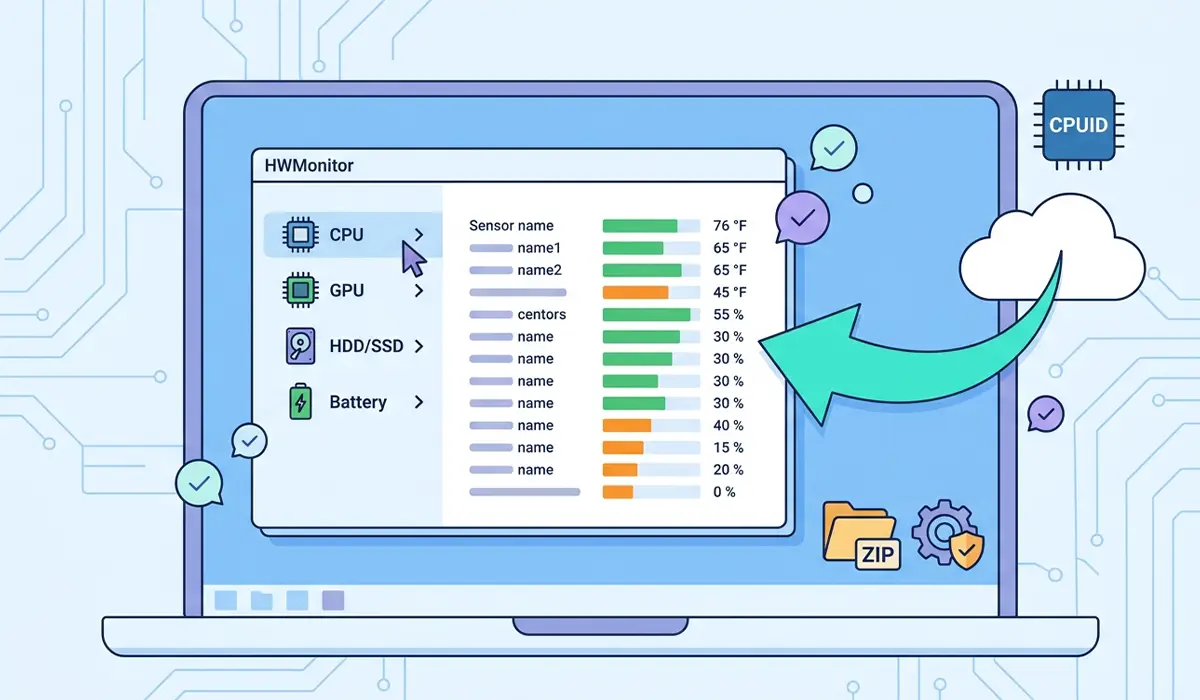
- Step 3: Wait a few seconds for the sensor list to fill in. The window shows a tree with the computer name at the top and each detected component beneath it.
- Step 4: Find the CPU entry and expand it. Look for the Temperatures group, which lists a reading for each core, and often a package value that represents the whole processor.
- Step 5: Expand the graphics card entry and look for its Temperatures group. Dedicated GPUs report their own temperature here, and integrated graphics usually share the CPU readings.
- Step 6: Expand each drive entry to check storage temperature. SSDs and NVMe drives often report a temperature of their own, and these are easy to forget until a drive starts slowing down.
- Step 7: On a laptop, expand the battery entry to see its details. This helps confirm whether the battery area is running warm during heavy use.
- Step 8: Note the idle readings, then put the system under a realistic load such as a game, a video export, or a long file conversion. Return to HWMonitor and compare the Value and Max columns against the idle baseline.
Tip: Keep HWMonitor open on a second screen or in a window beside the workload. The Max column keeps the peak anyway, but watching the Value column climb in real time shows exactly which task pushes the heat up.
How to Read the Value, Min, and Max Columns
Value
This is the live reading, refreshed every second or so. It is useful for watching how fast a component heats up when a heavy task starts, and how quickly it cools afterward.
Min
This is the lowest reading since HWMonitor was opened. It roughly reflects idle behavior and helps show the true resting temperature of the system.
Max
This is the highest reading since launch, and it is the one to check after a gaming session or render. Think of it like the high-water mark on a flood gauge: even if the water has dropped, the mark shows how bad it got. Closing and reopening the program starts the Min and Max values fresh.
Deciding Whether a Temperature Is Too High
There is no single safe number for every chip. Different processors and graphics cards have different rated limits, so the reliable method is to look up the maximum operating temperature for the exact model on the manufacturer’s official specification page, then compare it to the Max column.
Most people find that the pattern matters as much as the number. A system that sits close to its rated limit during ordinary tasks, gets loud, and then slows down is showing the classic signs of thermal throttling. A system that stays well below the limit under load generally has healthy cooling.
Tip: Take a screenshot of the idle and load readings when the system is clean and healthy. That saved baseline makes it much easier to tell later whether cooling has genuinely gotten worse.
How to Save Monitoring Data for Later
- Step 1: Run the workload that normally causes heat, such as a game session.
- Step 2: Open the File menu in HWMonitor and choose the option to save monitoring data.
- Step 3: Pick a folder and save the text file. It holds the sensor list with its Value, Min, and Max readings.
- Step 4: Repeat after any cleaning, repaste, or fan change, then compare the files side by side to confirm the change helped.
Common Problems and Fixes
A sensor shows zero or is missing
Not every component exposes every sensor, and some boards or drives report limited data. Close any other monitoring tool running at the same time, since two programs reading the same sensors can conflict, then reopen HWMonitor. If the sensor is still missing, the hardware likely does not provide it.
HWMonitor shows no CPU temperatures
Run the program again and approve the permission prompt. Make sure the latest version from the official CPUID website is installed, because older versions can miss newer processors.
Temperatures stay high even at idle
Check for background tasks eating processor time in Task Manager first. If the system is truly idle and still hot, dust buildup, a stopped fan, or dried thermal paste are the usual suspects. Cleaning vents and fans with compressed air is a safe first step. Opening the device to reapply paste may affect the warranty, so a qualified technician is the better choice when unsure.
The Max value looks alarming after one spike
A brief peak at the start of a heavy task is normal for many processors. Close and reopen HWMonitor, repeat the same workload, and watch whether the temperature settles or keeps climbing. Only sustained heat near the rated limit needs action.
HWMonitor reading differs from another monitoring tool
Different programs can label or select sensors differently, so small differences are common. Stick with one tool for comparisons so the before and after numbers stay consistent.
Frequently Asked Questions
Is HWMonitor safe to use?
Yes, when downloaded from the official CPUID website. HWMonitor reads sensor data and does not change hardware settings, so it is a monitoring tool and not a tuning tool.
Is HWMonitor free?
A free version is available, and it covers everything described in this guide, including temperatures, fan speeds, and voltages.
Where is the CPU temperature in HWMonitor?
Expand the CPU entry in the sensor tree and open its Temperatures group. The list shows a reading for each core and often an overall package value.
What do Value, Min, and Max mean in HWMonitor?
Value is the current reading, Min is the lowest since the program opened, and Max is the highest since the program opened. Max is the best number for judging how hot a heavy task made the system.
How do I know if my temperature is too high?
Look up the maximum operating temperature for the exact CPU or GPU model on the manufacturer’s official page, then compare it to the Max column. Sustained readings near that limit, along with loud fans or sudden slowdowns, point to a cooling problem.
Can HWMonitor track temperatures while gaming?
Yes. Leave it running in a window on a second screen or in the background, then check the Max column after the session to see the peak temperatures reached.
Why does a sensor show zero or not appear at all?
Some hardware does not expose every sensor, and other monitoring programs running at the same time can interfere. Close the other tools, restart HWMonitor, and update to the latest version if the problem continues.
Can HWMonitor lower my temperatures?
No. HWMonitor only reports what the sensors read. Lowering temperatures means improving airflow, cleaning dust from fans and vents, or repairing the cooling hardware, and HWMonitor then confirms whether the change worked.
