
Icons look wide and squashed, circles look like ovals, and text seems oddly fat. Learning how to fix stretched monitor aspect ratio problems is usually quick, because the cause is almost always a mismatched resolution, a scaling option, or a driver that lost its settings. This guide walks through the causes first, then the fixes in the order that solves most cases fastest.
Key Takeaways
- A stretched picture almost always means the signal resolution does not match the native resolution or aspect ratio of the panel.
- Start with the Windows display resolution, then check the graphics driver scaling mode, then the monitor’s own menu.
- Outdated drivers, wrong cables, adapters, and TV-style picture modes are common hidden causes.
- Games can look stretched even when the desktop is fine, because they use their own resolution setting.
- A stretched image is a settings issue and does not damage the monitor.
Common Causes of a Stretched Monitor Display
Knowing the cause makes the fix much faster. Think of the panel as a picture frame with a fixed shape. If a picture of a different shape is forced into it, the image gets pulled to fill the gaps. These are the usual culprits:
- The resolution is set to a non-native value, such as a 4:3 resolution on a widescreen panel.
- The graphics driver was updated, reinstalled, or replaced by a generic Microsoft driver, which resets the scaling mode.
- The GPU or the monitor is set to a full-screen scaling mode that stretches the image instead of preserving the aspect ratio.
- The monitor’s on-screen menu has an aspect ratio option set to a stretched or wrong value.
- A faulty cable, loose connector, or low-quality adapter is causing the wrong resolution to be negotiated.
- A game or app is running at a resolution that does not match the panel’s shape.
- A TV is being used as a monitor with overscan or a picture size mode that enlarges the image.
Step-by-Step: How to Fix Stretched Monitor Aspect Ratio
Fix 1: Set the Correct Resolution in Windows
- Step 1: Right-click an empty area of the desktop and choose Display settings.
- Step 2: If several screens are connected, select the stretched monitor at the top of the page so the changes apply to the right one.
- Step 3: Scroll to Display resolution and open the drop-down list.
- Step 4: Choose the option marked Recommended. This is the native resolution of the panel, and it always matches the correct aspect ratio.
- Step 5: Click Keep changes when Windows asks for confirmation.
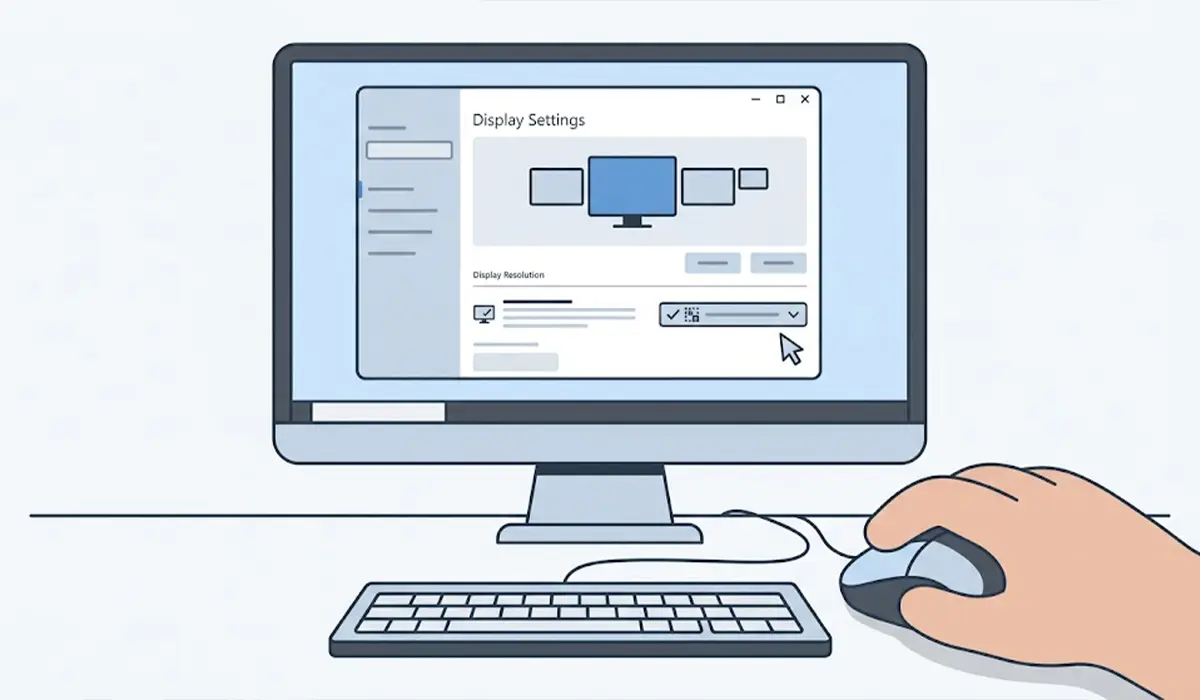
Tip: A 16:9 monitor, such as a 1920 x 1080 screen, will look stretched at a 4:3 resolution like 1024 x 768. If the picture is fine at the Recommended setting, the problem is solved and no further steps are needed.
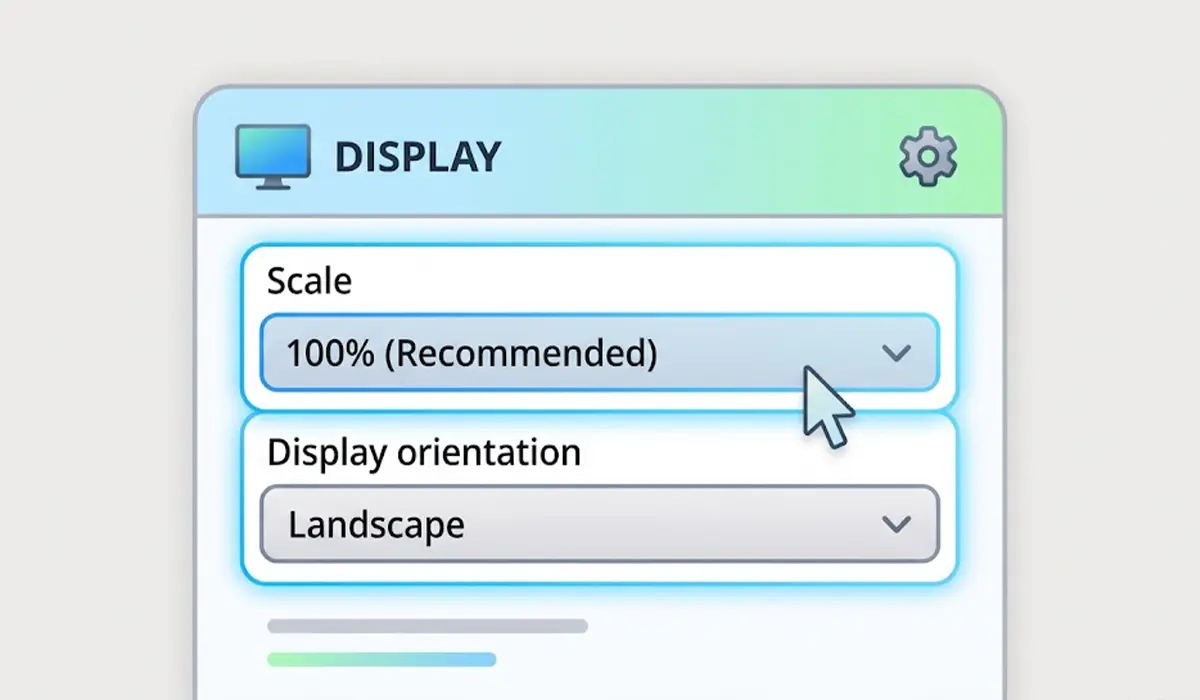
Fix 2: Check Display Scaling and Orientation
- Step 1: In the same Display settings page, find the Scale option.
- Step 2: Set it to the value marked Recommended. Scaling changes the size of text and icons, but a very odd custom value can make the interface look off.
- Step 3: Check that Display orientation is set to Landscape for a normal widescreen monitor.
Fix 3: Set the Scaling Mode in the Graphics Driver
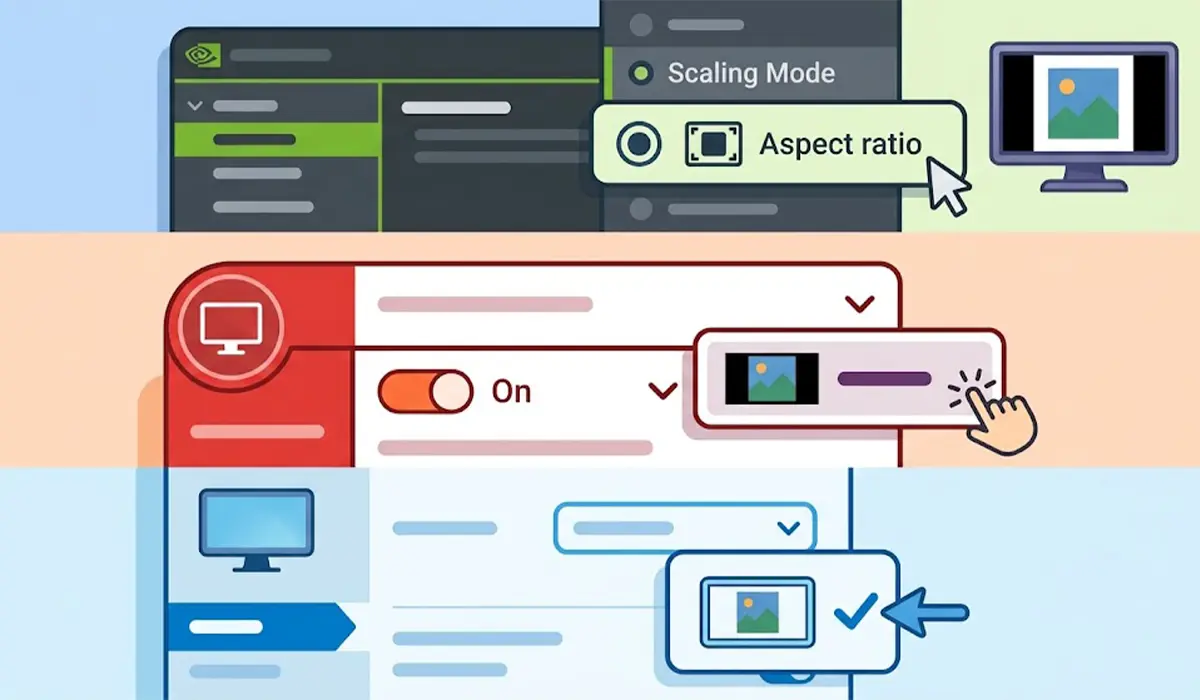
When the resolution is correct but the picture is still pulled wide, the graphics driver is often set to stretch the image. The wording differs by manufacturer, but the goal is always the same: keep the aspect ratio instead of filling the whole panel.
- Step 1: For NVIDIA, open the NVIDIA Control Panel, go to Display, then Adjust desktop size and position. Set the scaling mode to Aspect ratio, or choose No scaling if the resolution is already native.
- Step 2: For AMD, open AMD Software, go to Settings, then Display. Turn on GPU Scaling and set Scaling Mode to Preserve aspect ratio.
- Step 3: For Intel graphics, open Intel Graphics Command Center, go to Display, and choose Maintain Aspect Ratio under the scaling options.
- Step 4: Apply the change and check the desktop again.
Fix 4: Adjust the Aspect Ratio in the Monitor Menu
- Step 1: Press the menu button on the monitor to open the on-screen display.
- Step 2: Look for an option named Aspect Ratio, Picture Size, Display Mode, or Scaling. The name varies by brand.
- Step 3: Choose the option that keeps the original shape of the image, often labeled Auto, 1:1, or Native, instead of Wide or Full.
- Step 4: Exit the menu and confirm that the picture looks natural.
Tip: If the monitor has a reset option in its menu, a factory reset of the display settings can clear a wrong aspect ratio setting in seconds. Note that this also resets brightness and color choices.
Fix 5: Update or Reinstall the Graphics Driver
- Step 1: Press Windows key + X and open Device Manager.
- Step 2: Expand Display adapters and check the name. If it reads Microsoft Basic Display Adapter, the correct driver is not installed, which often limits resolution choices.
- Step 3: Download the latest driver from the website of the GPU maker, or from the laptop or PC manufacturer for laptops and branded desktops, and install it.
- Step 4: Restart the PC, then repeat Fix 1 to confirm the Recommended resolution is available and selected.
Fix 6: Check the Cable, Port, and Adapter
- Step 1: Power off the PC and monitor, then unplug the video cable from both ends.
- Step 2: Reconnect it firmly, making sure the connector is fully seated.
- Step 3: Avoid unnecessary adapters. A direct HDMI or DisplayPort connection is more reliable than a chain of converters.
- Step 4: If the problem remains, try a different cable or a different port on the graphics card or laptop.
- Step 5: Start the PC and check the resolution list again.
Fix 7: Check Multiple Monitor Settings
- Step 1: Press Windows key + P to open the projection menu.
- Step 2: If the mode is set to Duplicate and the two screens have different shapes, one of them will look stretched or letterboxed.
- Step 3: Choose Extend, or select Second screen only, so each display can run at its own native resolution.
Fixing a Stretched Image in Games and Apps
If the desktop looks perfect but a game appears wide, the game is using its own display settings. Open the in-game video options and set the resolution to match the native resolution of the monitor. Switch the display mode between Fullscreen, Windowed, and Borderless Windowed to see which one renders correctly. Some older games only support 4:3 and will stretch on widescreen panels unless the GPU scaling mode is set to preserve the aspect ratio, as covered in Fix 3.
Common Problems and Fixes
The Recommended Resolution Is Missing
This usually points to a missing driver, a poor cable connection, or an adapter that does not pass the right information. Install the correct graphics driver, reconnect the cable directly, and restart the PC. Try a different port if the list still does not show the native resolution.
The Image Is Still Stretched After Changing the Resolution
The scaling mode in the graphics driver or the monitor menu is the likely cause. Set the driver to preserve the aspect ratio, then check the monitor’s aspect ratio option and switch it to Auto or Native.
The Screen Is Stretched After a Windows or Driver Update
Updates can reset display settings. Reapply the Recommended resolution first. If the options are missing or wrong, reinstall the driver from the manufacturer. If the issue began right after a driver update, rolling back the driver from Device Manager can also restore normal behavior.
Black Bars Appear After Fixing the Stretch
Black bars on the sides mean that content with a narrower shape is being displayed correctly without distortion. This is normal for older games and 4:3 videos on a widescreen monitor, and it is better than a stretched picture.
The Picture Is Zoomed In or Cut Off on a TV Used as a Monitor
This points to overscan or a picture size mode on the TV. Open the TV picture settings and choose a mode such as Just Scan, Screen Fit, or 16:9, depending on the brand, so the image shows the full desktop at its true size.
A Custom Resolution Is Causing Distortion
If a custom resolution was created in the GPU control panel, delete it and return to the Recommended resolution. Odd custom values with the wrong ratio are a frequent source of stretching.
Frequently Asked Questions
Why does my monitor look stretched on Windows?
The most common reason is a resolution that does not match the native resolution or shape of the panel. Scaling modes in the graphics driver, a wrong aspect ratio option in the monitor menu, or a missing driver can also cause it.
What is the correct aspect ratio for a 1920 x 1080 monitor?
A 1920 x 1080 display uses a 16:9 aspect ratio. Choosing a resolution with a different ratio, such as 1024 x 768, will make the image look stretched or squeezed.
How do I change the aspect ratio of my monitor in Windows?
Windows does not have a separate aspect ratio slider. The aspect ratio follows the selected resolution, so open Display settings and pick the Recommended resolution for the panel. The scaling mode in the GPU control panel and the monitor menu can then be adjusted if the image is still stretched.
Why did my screen become stretched after a driver update?
A driver update or reinstall can reset the resolution and scaling mode to default values. Reapply the Recommended resolution and set the driver scaling option to preserve the aspect ratio.
Can a bad HDMI or DisplayPort cable make the screen look stretched?
Yes. A faulty cable, a loose connection, or a low-quality adapter can prevent the monitor from reporting its supported resolutions correctly, which leads to the wrong resolution being used. Reseat the cable, try a direct connection, or test a different cable.
Why is a game stretched when the desktop looks normal?
The game is using its own resolution or display mode. Match the in-game resolution to the native resolution of the monitor, and try Fullscreen or Borderless Windowed mode. Older games that only support 4:3 may need the GPU scaling mode set to preserve the aspect ratio.
Can a stretched display damage the monitor?
No. A stretched picture is a settings or signal mismatch and does not harm the panel. Correcting the resolution or scaling option restores normal display with no lasting effect.
How do I fix a stretched screen when a TV is used as a monitor?
Set the PC to the native resolution of the TV, then open the TV picture settings and choose a mode such as Just Scan, Screen Fit, or 16:9, depending on the brand. This stops the TV from enlarging or stretching the image.
What should be done if the Recommended resolution is not listed?
Install the correct graphics driver from the manufacturer, reconnect the video cable directly to the PC without adapters, and restart. If the option still does not appear, test another cable or port to rule out a hardware fault.
