
Knowing how to apply thermal pads to a GPU is one of the most useful skills for anyone repairing or refreshing a graphics card. Thermal pads carry heat from memory chips and power components into the cooler, and fresh, correctly sized pads can make a noticeable difference in memory temperatures. The process is simple, but the details matter, especially pad thickness and placement.
Key Takeaways
- Thermal pads go on memory chips, power delivery parts, and sometimes the backplate. The GPU core itself uses thermal paste, not pads.
- Measure the original pads before ordering or cutting replacements, because thickness is the most important factor.
- Cut each pad slightly smaller than or equal to the component it covers, and remove the protective films from both sides.
- Tighten the cooler screws gradually in a cross pattern so pressure stays even.
- Test temperatures under load afterward to confirm every pad is making proper contact.
Before You Start
Preparation takes a few minutes and prevents most of the mistakes that ruin a pad job. Power the PC off, switch off the power supply, and unplug the power cable. Press the power button once to drain leftover charge, then remove the graphics card from the motherboard. Let the card cool completely if it was running recently, and touch bare metal on the case or wear an anti-static strap before handling the board.
Tools and Materials
- Precision screwdriver set that fits the cooler screws
- Plastic pry tool or old plastic card
- Digital calipers for measuring pad thickness
- Replacement thermal pads in the correct thickness for each area
- Sharp hobby knife or fine scissors and a cutting mat
- 90 percent or higher isopropyl alcohol
- Lint-free or microfiber cloth and a soft brush
- Fresh thermal paste for the GPU core
- Tweezers and a small container for screws
Opening a graphics card may void the manufacturer warranty, particularly if there are warranty stickers over the cooler screws. If the card is still under warranty, check the policy first. Anyone who is not comfortable with fine screws and delicate ribbon cables should hand the job to a professional repair shop.
How to Apply Thermal Pads to a GPU Step by Step
Remove the Cooler and Document the Layout
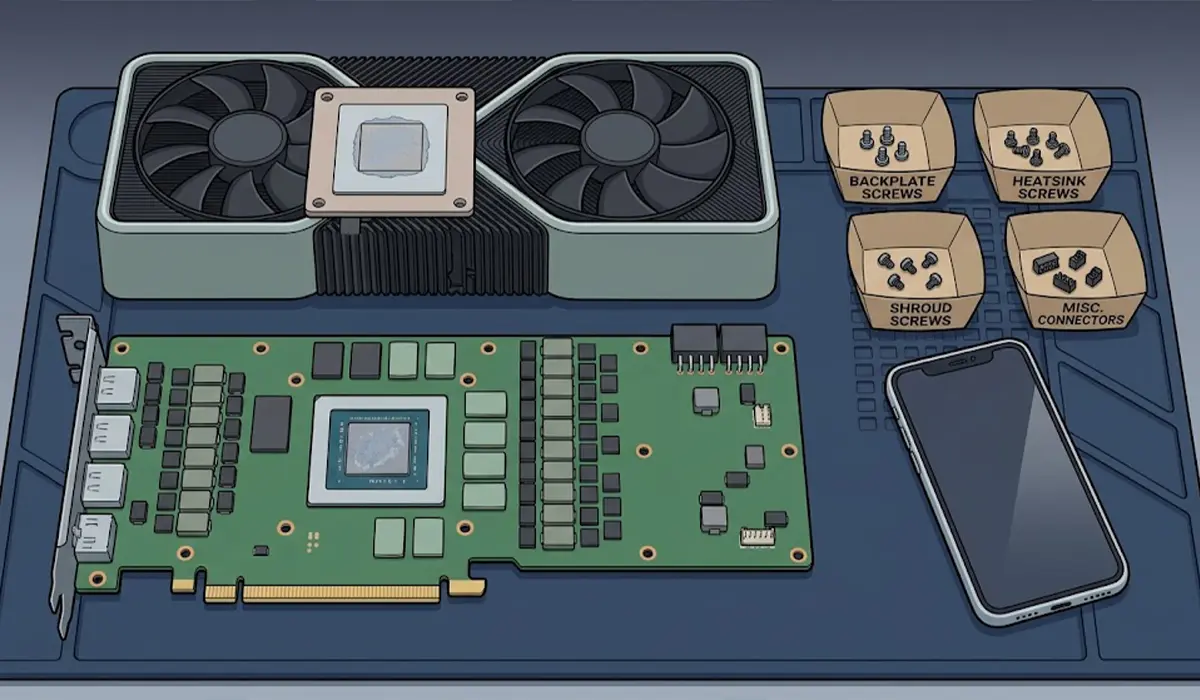
- Step 1: Place the card on a clean, flat, anti-static-safe surface with the cooler facing up. Take clear photos of the card before touching anything, since these photos become the map for pad placement and screw locations later.
- Step 2: Remove the backplate screws, then the cooler screws, keeping each group in its own labeled spot. Different screws are often different lengths, and mixing them up can damage the board.
- Step 3: Unplug the fan cables and any RGB or LED connectors. Lift the connectors straight up and never pull on the wires.
- Step 4: Lift the cooler away slowly. If it feels stuck, the old thermal paste or pads are holding on. Gently twist the cooler a few degrees to break the seal, and never pry against the circuit board.
Measure and Remove the Old Pads
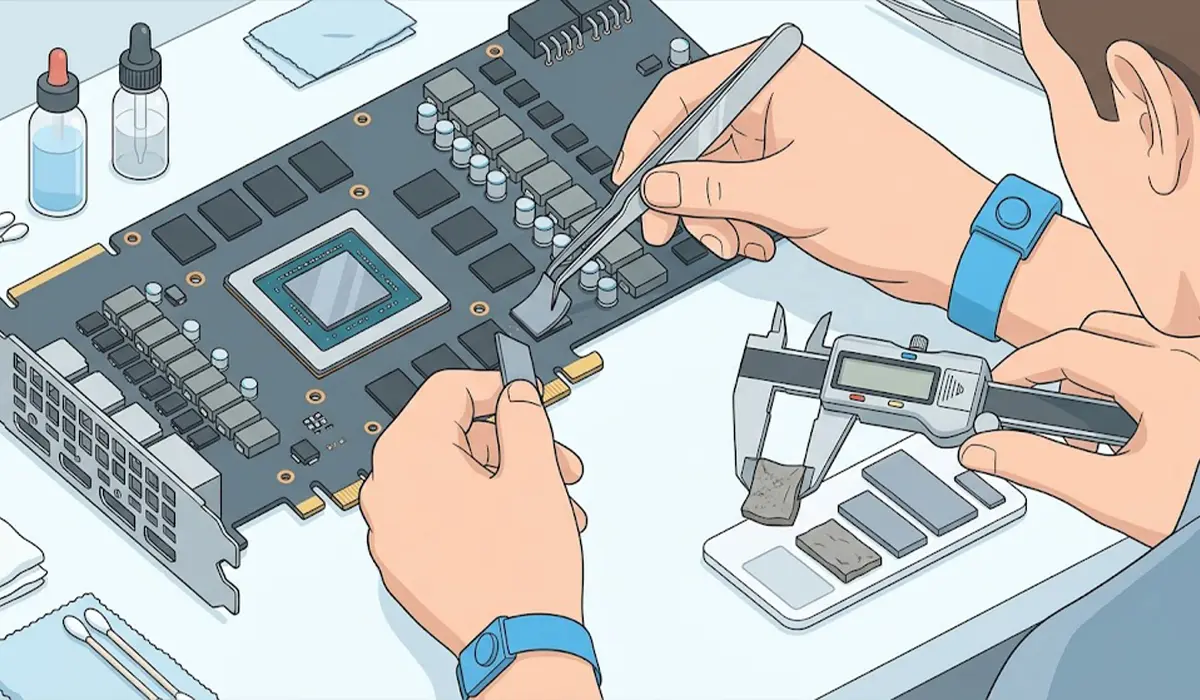
- Step 5: Note where each pad sits and how many different sizes are used. Memory chips, power stages, and the area around the core often use different thicknesses.
- Step 6: Measure each old pad with calipers. Compressed pads read a little thinner than new ones, so compare against the pad type being used and avoid guessing. Matching the original thickness is the safest approach.
- Step 7: Lift the old pads off with plastic tools or tweezers. Clean any residue from the chips and the cooler plate with isopropyl alcohol on a lint-free cloth, then let everything dry fully.
- Step 8: Wipe the old paste off the GPU core and the cooler contact plate, and clean both surfaces thoroughly.
Cut and Place the New Pads
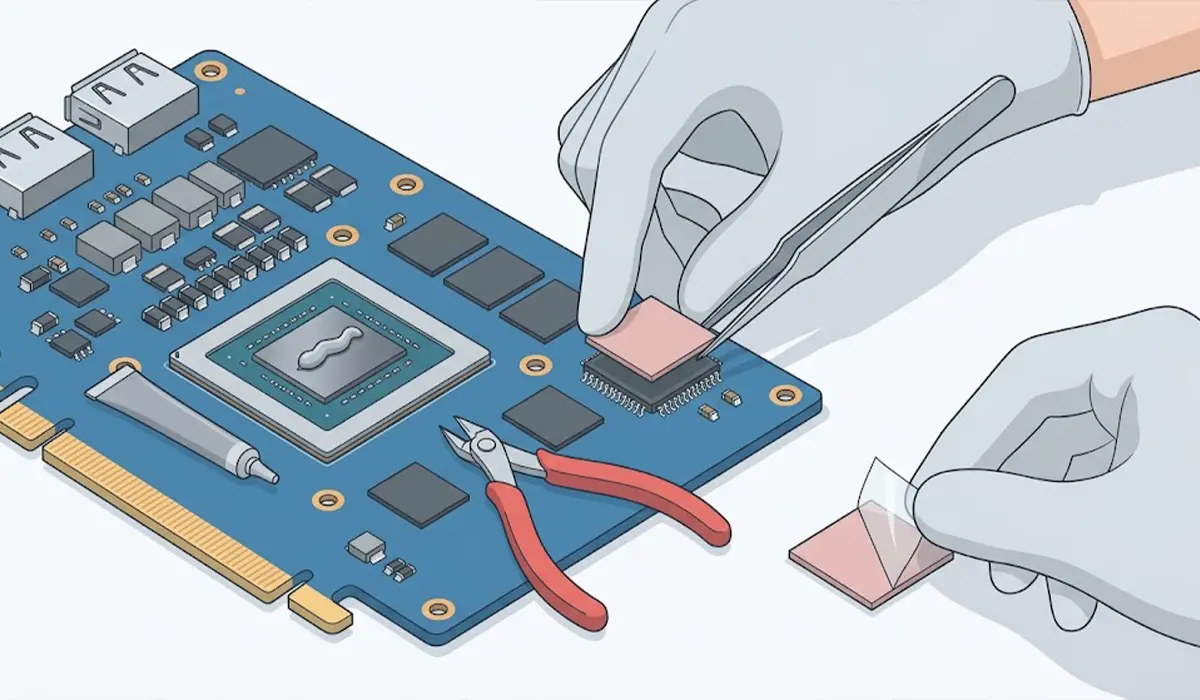
- Step 9: Cut each new pad to match the footprint of the component it covers. A pad that hangs far over the edge can touch nearby parts and prevent the cooler from sitting flat, so trim it to size.
- Step 10: Peel the protective film from both sides, handling the pad by its edges. Fingerprints and dust reduce how well a pad conducts heat.
- Step 11: Set each pad onto its chip using the photos as a guide. Press lightly so it stays put. Use a single pad per spot, because stacking pads weakens contact.
- Step 12: Apply fresh thermal paste to the GPU core following the paste manufacturer’s guidance, keeping paste well away from the pads and the surrounding components.
Tip: Think of pad thickness like a stack of books under a lid. If one stack is too tall, the lid cannot close evenly, and the GPU core ends up floating above the die. If one is too short, the memory chips never touch the cooler. This is why measuring first is so important.
Reassemble the Card
- Step 13: Lower the cooler straight down onto the board, lining up the screw holes without sliding it sideways across the pads.
- Step 14: Start every cooler screw by hand, then tighten them gradually in a cross pattern, a little at a time, until each is snug. Do not overtighten, because uneven or excessive pressure can crack a die or warp the board.
- Step 15: Reconnect the fan and LED cables, refit the backplate, and install the card back into the PC.
Testing the Results
After reassembly, run a demanding game or benchmark and watch temperatures in a monitoring tool such as GPU-Z or HWiNFO. Core temperature shows how well the paste and cooler seated, while memory or hotspot readings (where the card reports them) reveal how well the pads are working. Most people find that the first few minutes under load tell the whole story.
Tip: Run the first test while watching the temperatures closely. If anything climbs unusually fast or the screen glitches, power down immediately and recheck the pads and screws.
Common Problems and Fixes
Core temperatures are higher than before
Pads that are too thick are usually the cause, since they hold the cooler away from the GPU core. Remove the cooler, compare pad thickness against the originals, and swap in thinner pads where needed. Uneven screw pressure can also be responsible, so retighten in a cross pattern.
Memory temperatures are still high
This points to pads that are too thin, missing, or shifted. Open the card and check that every memory chip has a pad that fully covers it and touches the cooler. A pad that slid during reassembly is a common culprit.
The PC does not display an image
Check that the card is fully seated in the PCIe slot and that every power cable is connected. If the problem remains, reopen the card and look for pad pieces or loose debris resting on small components, along with any pinched cables.
Fans do not spin or lighting does not work
One of the fan or LED connectors was likely missed or not fully pressed in. Reopen the cooler and compare the connector positions to the photos taken before disassembly.
Pad material looks oily or crumbly
Old pads degrade and leak oil over time. Clean the area carefully with isopropyl alcohol and replace every affected pad. Do not reuse torn or compressed pads.
Frequently Asked Questions
Where do thermal pads go on a GPU?
Thermal pads go on the memory chips and the power delivery components such as the VRM, and some cards also use them between the board and the backplate. The GPU core uses thermal paste instead.
How do I know what thickness of thermal pad to use?
Measure the original pads with calipers and match each thickness. Some cards use several different thicknesses on the same board, so check each area separately, and look up the model-specific guidance if the original pads are damaged.
Can thermal pads be reused after removing the cooler?
Reusing them is not recommended. Pads compress and tear when removed, and a damaged pad often leaves gaps that hurt cooling. Fresh pads are inexpensive compared to the risk of overheating memory.
Should thermal paste be used with thermal pads?
Paste belongs on the GPU core, while pads belong on the memory and power components. Adding paste on top of a pad is not needed and can make a mess.
What happens if the thermal pad is too thick?
A pad that is too thick props the cooler away from the board, which reduces pressure on the GPU core and can cause higher core temperatures or throttling. It can also strain the board over time.
What happens if the thermal pad is too thin?
A pad that is too thin leaves a gap between the chip and the cooler, so the component gets little or no cooling. Memory temperatures then climb quickly under load.
Is it safe to peel the protective film off thermal pads?
Yes, and it is required. Most pads ship with a thin film on each side, and leaving it on blocks heat transfer. Remove both films just before placing the pad.
How often should GPU thermal pads be replaced?
There is no fixed schedule. Replace them when the card is opened for repair, when memory temperatures rise noticeably over time, or when the pads look dried out, oily, or damaged.
Will replacing thermal pads void the GPU warranty?
It can. Removing the cooler may break a warranty seal or violate the manufacturer’s terms, so review the warranty policy before opening the card.
