
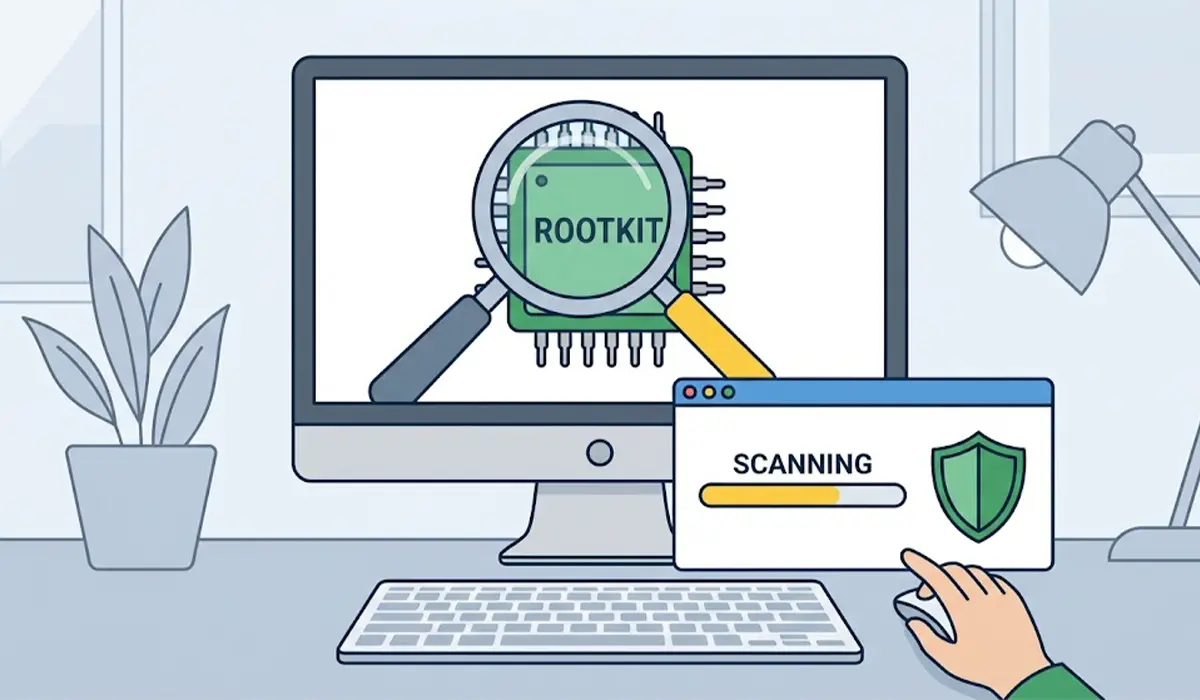
Knowing how to check for rootkits on Windows is one of the most useful security skills for any PC owner, because these threats are built to hide from ordinary scans. A rootkit buries itself deep in the system and masks its own files, processes, and drivers. The good news is that Windows includes a purpose-built offline scanner, and a few extra checks can confirm whether the system is clean.
Key Takeaways
- Microsoft Defender Offline scan is the most reliable built-in method, because it runs before Windows fully loads and the rootkit has a harder time hiding.
- A normal scan inside a running Windows session can miss a rootkit, so an offline scan and a second opinion scanner are worth the extra time.
- Secure Boot, Memory integrity, and unsigned driver checks help reveal whether the core of the system has been tampered with.
- If a rootkit is confirmed and survives cleaning, backing up personal files and reinstalling Windows is the safest fix.
Before You Start
This is a software task, so no tools or disassembly are needed. A few quick preparations make the process smoother and safer.
- Sign in with an administrator account, since most of these checks need admin rights.
- Save any open work, because the offline scan restarts the PC.
- Back up important personal files to an external drive or cloud storage. Documents and photos are safe to copy, but avoid copying program files or unknown executables.
- Keep the PC connected to a power source so a laptop battery does not run out mid-scan.
How to Check for Rootkits on Windows Step by Step
Work through the steps in order. Each one narrows down the possibilities, and the early steps are the quickest.
- Step 1: Look for warning signs. Common clues include security software that turns itself off, Windows Update failing repeatedly, unexplained network activity, settings that revert after being changed, and random blue screens. One symptom alone proves nothing, but several together justify a deeper check.
- Step 2: Update Windows and the security definitions. Open Settings, go to Windows Update, and install everything available. Then open Windows Security, choose Virus and threat protection, select Protection updates, and click Check for updates. Fresh definitions help the scanner recognize current rootkit families.
- Step 3: Run a Microsoft Defender Offline scan. Open Windows Security, choose Virus and threat protection, click Scan options, select Microsoft Defender Offline scan, and click Scan now. The PC restarts into a special recovery-style environment, scans while the main system is inactive, and then boots back into Windows. This is the step that catches rootkits a normal scan cannot see.
- Step 4: Check the offline scan results. After the PC restarts, return to Windows Security, open Virus and threat protection, and select Protection history. Any detected item is listed there with the recommended action. Choose to remove or quarantine it.
- Step 5: Run a full scan. In the same Scan options menu, select Full scan and click Scan now. This covers every file on the drive and can take a while, so it works best when the PC is left idle.
- Step 6: Confirm that Secure Boot is on. Press the Windows key, type msinfo32, and press Enter. In System Information, look for the Secure Boot State line in the System Summary. It should read On. Secure Boot blocks unsigned boot components, which is exactly where bootkit-style rootkits try to load. If it reads Off or Unsupported, the PC firmware settings may need attention.
- Step 7: Check Memory integrity. In Windows Security, open Device security, then click Core isolation details. If Memory integrity is available, turning it on blocks unsafe drivers from loading into the most protected parts of the system. If Windows reports an incompatible driver, that driver is worth investigating, since old or unsigned drivers are a common rootkit hiding place.
- Step 8: Review installed drivers. Open Command Prompt as administrator, type driverquery /si, and press Enter. The list shows whether each driver is signed. Unsigned drivers are not automatically malicious, because some older hardware uses them, but any unsigned driver that does not match a known device or program deserves a closer look.
- Step 9: Get a second opinion. Run Microsoft Safety Scanner, a free on-demand tool from Microsoft that expires after a limited time and must be downloaded fresh each use. Another option is Malwarebytes, which includes rootkit scanning in its standard scan. Using a different engine reduces the chance that a threat slips past a single product.
- Step 10: Verify system file integrity. In an administrator Command Prompt, run sfc /scannow and let it finish. Then run DISM /Online /Cleanup-Image /RestoreHealth. Rootkits often modify core system files, so repeated repairs of the same files or errors that cannot be fixed are a red flag.
Tip: Always download scanning tools directly from the developer’s official website. Fake rootkit removers are a popular way to spread real malware.
What a Clean Result Looks Like
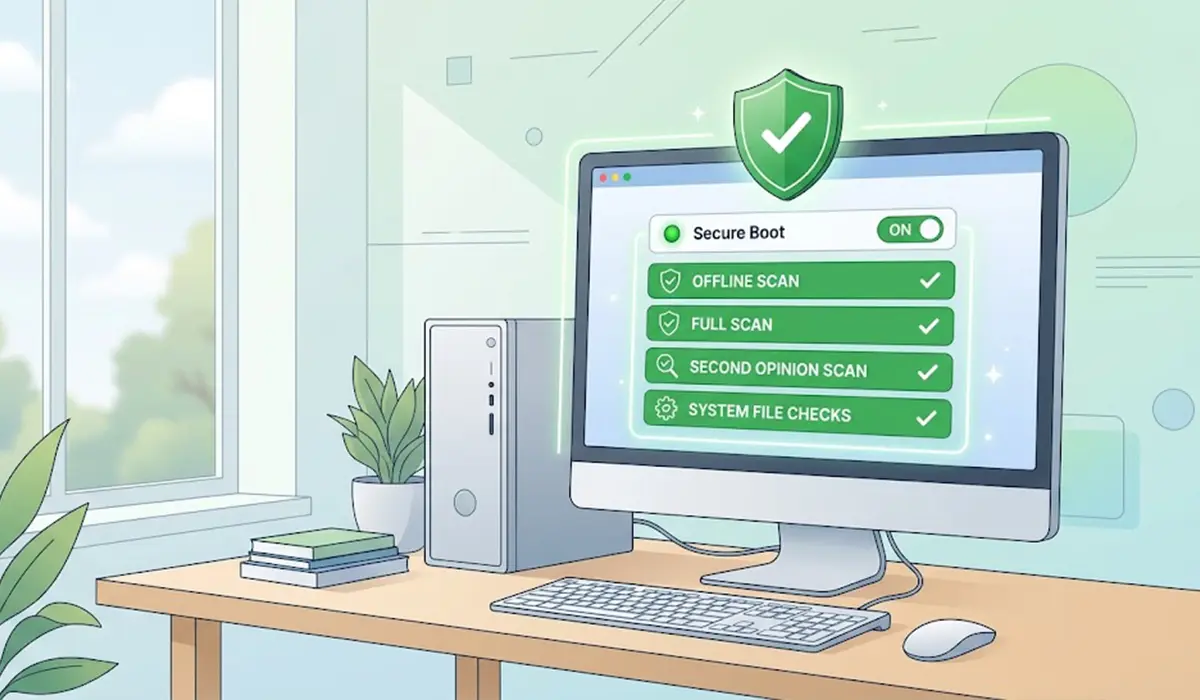
A clean result means the offline scan, full scan, and second opinion scan report nothing, Secure Boot is on, and system file checks complete without unfixable errors. No scan can offer an absolute guarantee, but consistent clean results across different tools are a strong sign that the system is healthy.
What to Do If a Rootkit Is Found
Disconnect the PC from the internet first so the threat cannot communicate with an outside server. Let the scanner remove or quarantine the detected item, restart, and scan again. If the same detection returns, or the system still behaves strangely, the safest route is to back up personal files only, then use Settings, System, Recovery, and Reset this PC with the option to remove everything. For stubborn cases, a clean install from a freshly created Windows installation USB drive is the most thorough option. Passwords for email, banking, and other important accounts should be changed afterward from a different, trusted device.

Tip: Scan the backed-up files before restoring them to a freshly reset PC, so nothing infected returns with them.
If the PC holds sensitive work data, or if rootkit symptoms continue after a full reinstall, it is time to let a professional handle it. Persistent infections after a reinstall can point to compromised firmware, which needs specialist tools.
Common Problems and Fixes
Microsoft Defender Offline Scan Does Not Start
Make sure Windows Security is active and that no other antivirus program is controlling protection. Third-party security software can disable the option. Restart the PC, install pending Windows updates, and try the scan again.
Windows Security Is Turned Off or Will Not Open
Another antivirus may have taken over, or a threat may be interfering. Check that no second security product is installed, run Microsoft Safety Scanner from a freshly downloaded copy, and then repeat the Defender Offline scan. If Windows Security still will not open, that is a strong reason to move toward a reset.
Secure Boot Shows Off or Unsupported
Older PCs and some configurations do not support it. On supported systems, Secure Boot can be enabled in the UEFI firmware settings, which are reached through Settings, System, Recovery, Advanced startup, Troubleshoot, Advanced options, and UEFI Firmware Settings. Menu names vary by manufacturer, so the PC maker’s support page is the best guide. Opening firmware settings can affect stability if the wrong option is changed, so only the Secure Boot option should be touched.
Memory Integrity Will Not Turn On
Windows lists the incompatible driver that blocks it. Updating that driver from the hardware maker’s official site often solves the problem. If no update exists, the driver may be outdated or unwanted, and removing the related device or software is worth considering.
System File Checker Cannot Fix Some Files
Run the DISM command first, restart, and then run sfc /scannow again. If the same files remain unrepairable, the Windows installation may be damaged and a repair install or reset is the next step.
Scans Come Back Clean but the Problem Continues
Rootkit-like symptoms are sometimes caused by failing drives, driver conflicts, or ordinary malware. Check the drive health, update the graphics and chipset drivers, and run a second full scan with a different engine. If the behavior persists, a clean Windows reinstall rules out software causes completely.
Frequently Asked Questions
What is a rootkit on Windows?
A rootkit is a type of malicious software designed to hide itself and other threats from the user and from security tools. It often runs at a deep level of the system, such as in drivers or the boot process, which makes it harder to detect and remove than ordinary malware.
Can Windows Security detect rootkits?
Yes, Windows Security can detect many rootkits, especially when the Microsoft Defender Offline scan is used. The offline scan runs outside the normal Windows session, which helps expose threats that hide while the system is running.
How do I run a Microsoft Defender Offline scan?
Open Windows Security, choose Virus and threat protection, click Scan options, select Microsoft Defender Offline scan, and click Scan now. The PC restarts, runs the scan, and then returns to Windows automatically.
How long does a rootkit scan take?
The Defender Offline scan usually finishes within a few minutes of restarting, while a full scan can take much longer depending on the amount of data and the speed of the drive. Leaving the PC idle helps the process finish faster.
What are the signs of a rootkit infection?
Typical signs include security software turning off by itself, repeated blue screens, Windows Update failing, strange network activity, and settings that change back after being corrected. These symptoms can also come from other problems, so a scan is needed to confirm.
Is it safe to use third-party rootkit removal tools?
It is safe when the tool comes directly from the developer’s official website and is a well-known product. Fake or cracked removal tools are a common source of infection, so unfamiliar downloads should be avoided.
Does resetting Windows remove a rootkit?
In most cases, yes. Using Reset this PC with the remove everything option, or doing a clean install from a USB drive, wipes the operating system where the rootkit lives. Rare firmware-level rootkits can survive, which is why persistent symptoms after a reinstall call for professional help.
Can a rootkit be removed without reinstalling Windows?
Often it can, especially when the Defender Offline scan or a second opinion scanner finds and removes it. If the detection keeps returning or system files stay damaged, a reinstall is the more reliable choice.
Why does Secure Boot matter for rootkit protection?
Secure Boot only allows trusted, signed software to load during startup. That makes it harder for boot-level rootkits to take control before Windows and its security features begin running.
