
Quick Answer: To check current print jobs in queue in Windows, open Settings, go to Bluetooth & devices (Windows 11) or Devices (Windows 10), select Printers & scanners, click your printer, then click Open print queue (Windows 11) or Open queue (Windows 10). Every document waiting to print shows up in that window.
You hit Print, and nothing comes out. Before sending the same document three more times, take a look at the print queue. It shows whether your file is waiting, printing, paused, or stuck on an error.
Here’s the thing: the queue only takes a few seconds to open, and it usually tells you exactly what’s going on. This guide covers the easiest ways to check current print jobs in queue in Windows 11 and Windows 10, starting with the simplest.
What Is the Print Queue?
The print queue is a waiting list for your printer. When you print something, Windows hands it to a background service called the Print Spooler, which lines up each document and sends it to the printer in order.
Each printer on your PC has its own queue. Once a job finishes sending, it drops off the list, so the queue only shows current and pending jobs, not past ones.
Method 1: Check the Print Queue in Windows Settings
This is the easiest method for most people. The steps are nearly the same on both versions of Windows.
On Windows 11
- Step 1: Press Windows key + I to open Settings.
- Step 2: Click Bluetooth & devices.
- Step 3: Click Printers & scanners.
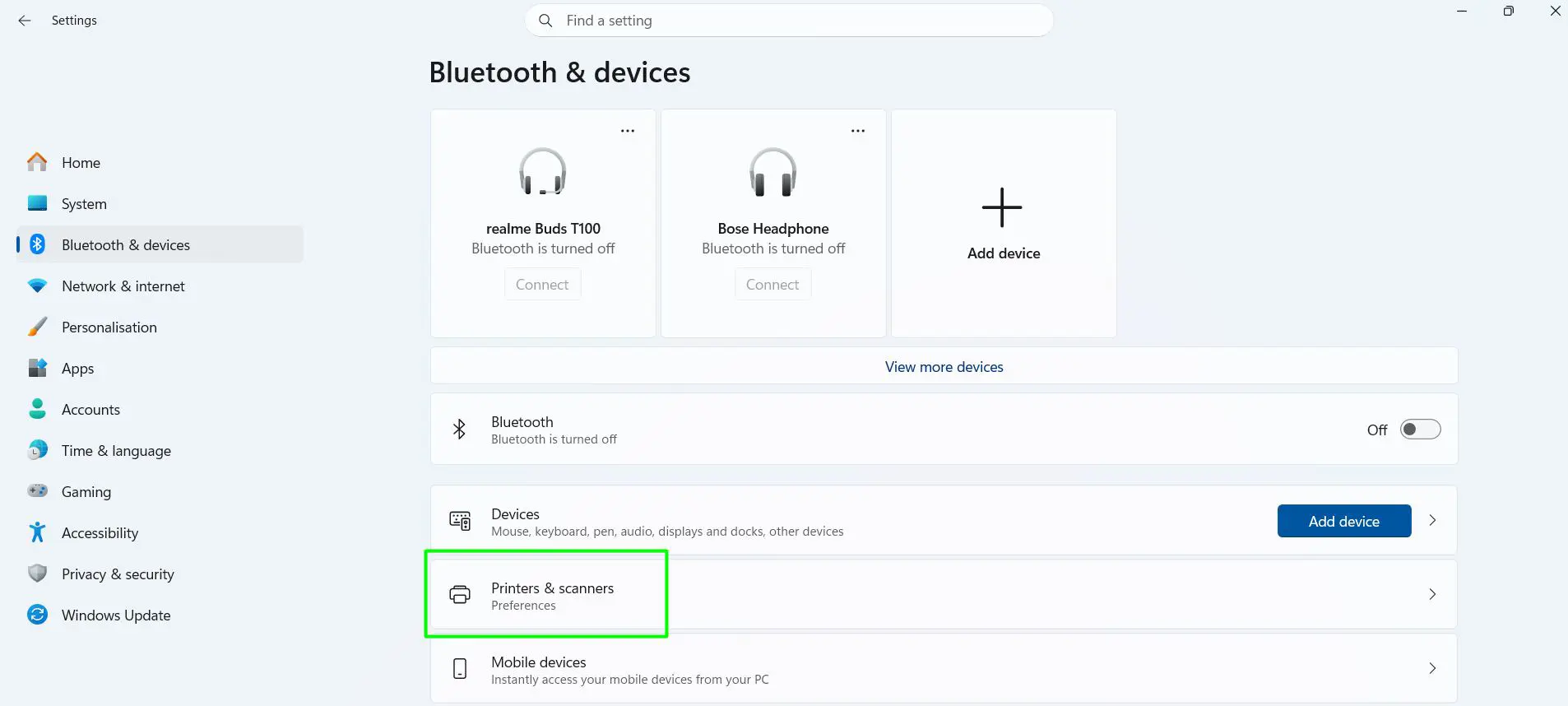
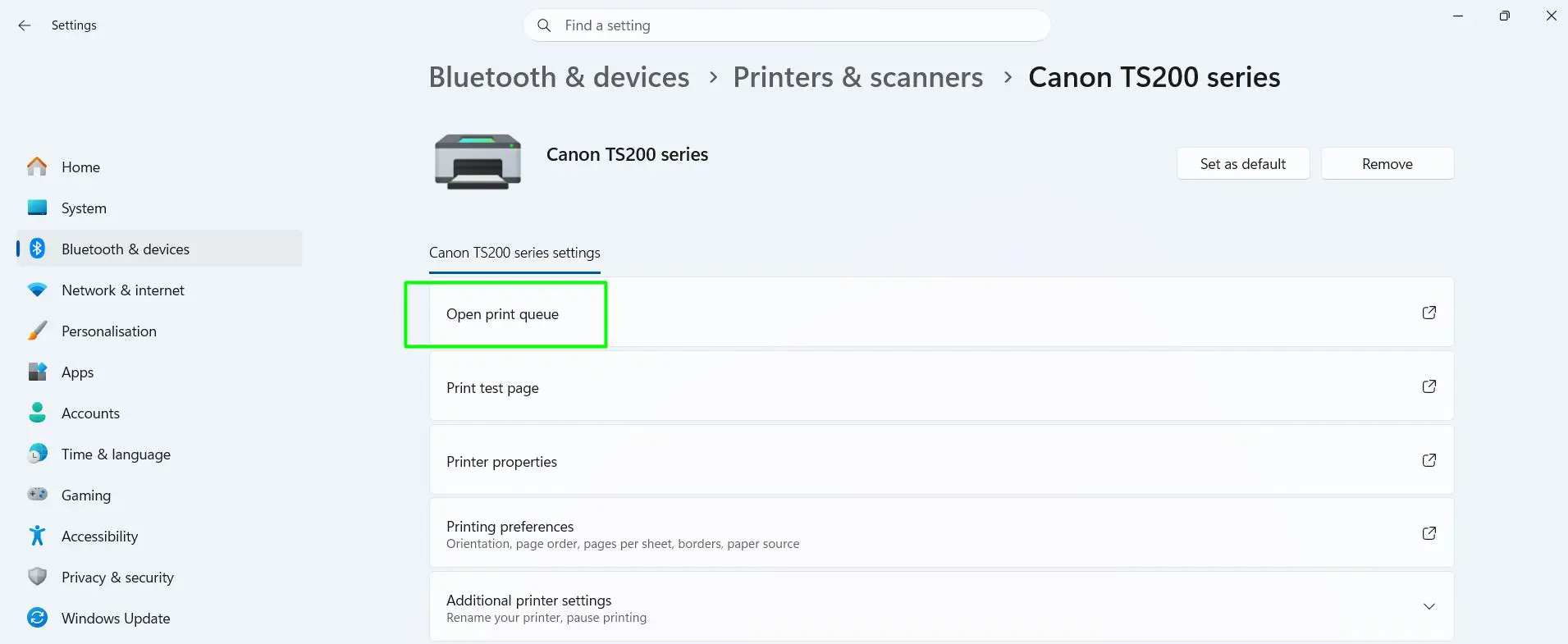
- Step 4: Click the name of your printer.
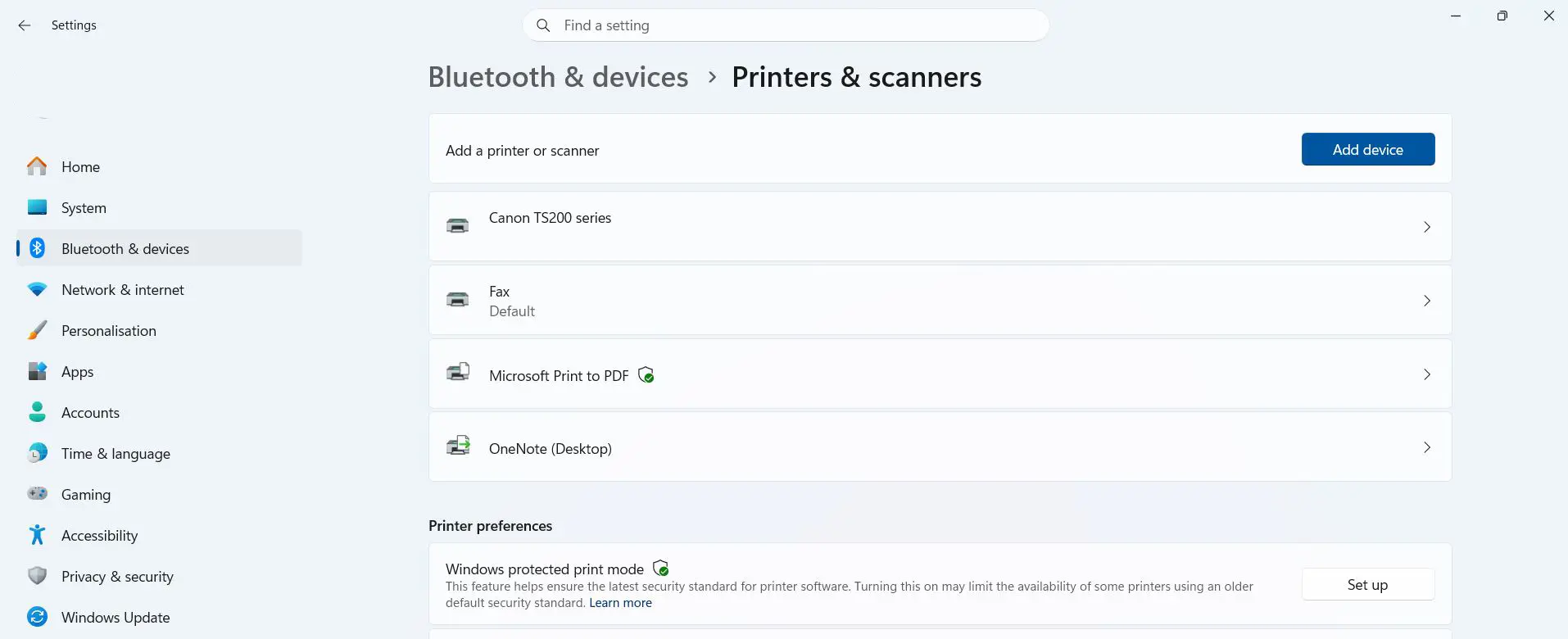
- Step 5: Click Open print queue.
On Windows 10
- Step 1: Press Windows key + I to open Settings.
- Step 2: Click Devices.
- Step 3: Click Printers & scanners.
- Step 4: Click your printer.
- Step 5: Click Open queue. On some versions, click Manage first.
The window lists every document waiting for that printer. An empty list means nothing is pending.
Shortcut: Press Windows key + R, type ms-settings:printers, and press Enter to jump straight to Printers & scanners on either version.
Method 2: Use the Printer Icon on the Taskbar
While a document is printing, a small printer icon often appears near the clock.
- Step 1: Look at the bottom-right corner of the screen near the clock.
- Step 2: Click the small up arrow to show hidden icons, if needed.
- Step 3: Double-click the printer icon to open the queue.
The icon doesn’t always show up. It depends on your printer and its software. If you don’t see it, use Method 1.
Method 3: Use the Printers Folder or Control Panel
This is the classic route, and it’s handy if several printers are installed.
- Step 1: Press Windows key + R.
- Step 2: Type
shell:PrintersFolderand press Enter. - Step 3: Right-click your printer.
- Step 4: Click See what’s printing.
You can get to the same place through Control Panel, then Hardware and Sound, then Devices and Printers. Right-click the printer and choose See what’s printing.
Method 4: Check Print Jobs With PowerShell
This one is for people comfortable with typing commands. It shows jobs across every printer at once.
- Step 1: Right-click the Start button and choose Terminal or Windows PowerShell.
- Step 2: Type
Get-Printer | Get-PrintJoband press Enter. - Step 3: Read the list of current jobs. No results means no pending jobs.
To check one printer only, type Get-PrintJob -PrinterName "Your Printer Name" and use the exact name shown in Settings.
For a shared printer hosted on another computer or print server, add the computer name: Get-PrintJob -ComputerName PRINTSRV01 -PrinterName "Office Printer". Whether this works depends on your account permissions.
Older guides mention the wmic printjob command. Current Windows 11 versions no longer include that tool, so stick with PowerShell.
What the Print Queue Shows
The queue window lists each job’s Document Name, Status, Owner, Pages, Size, and Submitted time. The Status column is the one to watch.
| Status | What it means |
|---|---|
| Printing | The job is being sent to the printer right now. |
| Spooling | Windows is still preparing the file. Big photos and PDFs take longer. |
| Paused | The job is on hold. Right-click it and choose Resume. |
| Error | Something went wrong. Check paper, ink, and the printer’s display. |
| Deleting | Windows is removing the job. If it never clears, the spooler may be stuck. |
| Offline | Windows can’t reach the printer. Check power, cable, or Wi-Fi. |
Tips for Checking Print Jobs
- Switch printers without closing the window. The Print Queue window has a Printers dropdown at the top. Pick another printer to see its jobs instantly.
- Check you’re on the right printer. Most people find that a “missing” job actually went to Microsoft Print to PDF or another virtual printer.
- An empty queue doesn’t always mean failure. Once Windows hands a job off, it can vanish from the queue while the printer is still working on it.
- Don’t keep hitting Print. The key is to check the queue first. Resending creates duplicate jobs that all print later.
- Use the Owner column on shared printers. It shows who sent each job, which helps spot your document in a busy office queue.
- Want a print history? Open Event Viewer, go to Applications and Services Logs, then Microsoft, Windows, PrintService, right-click Operational, and choose Enable Log. It only records jobs from that point on.
- Office printers may hold jobs elsewhere. Secure-release and cloud printing systems often keep jobs on a server, so your local queue may look empty.
- Windows 10 still prints fine. Microsoft ended standard Windows 10 support in October 2025, but the print queue works exactly the same.
Frequently Asked Questions
How do I check current print jobs in queue in Windows 11?
Open Settings, go to Bluetooth & devices, then Printers & scanners. Click your printer and select Open print queue. Every pending job for that printer appears in the window.
What is the fastest way to open the print queue?
Press Windows key + R, type shell:PrintersFolder, press Enter, then right-click your printer and choose See what’s printing. If a document is actively printing, double-clicking the printer icon near the clock also works.
How do I see print jobs for all printers at once?
Open PowerShell and run Get-Printer | Get-PrintJob. It lists the current jobs on every installed printer in one go.
Why is my print queue empty when nothing printed?
The document may have gone to a different printer, already been sent to the printer, or failed before reaching the queue. Check the Printers dropdown in the queue window to make sure the right printer is selected.
Why does my print job say Error in the queue?
The printer usually has a problem it can’t get past, like no paper, low ink, a paper jam, or a lost connection. Fix the issue on the printer, then right-click the job and choose Restart.
Can I see documents that were already printed?
Not in the print queue. It only shows current jobs. Turning on the PrintService Operational log in Event Viewer records future print activity, but it can’t recover older jobs.
How do I cancel a print job in the queue?
Open the print queue, right-click the document, and select Cancel. To remove everything, click the menu at the top of the window and choose Cancel all documents.
Can I check print jobs on a shared office printer?
Yes, if it’s installed on your PC, open its queue from Printers & scanners like any other printer. Seeing other people’s jobs depends on your permissions, and some office systems keep jobs on a central server instead.
