
Knowing how to reseat a GPU in a desktop PC is one of the quickest fixes for a blank screen, a missing graphics card, or random visual glitches. Reseating simply means removing the card and installing it again so the contacts and power connectors make a clean, firm connection. The whole job takes about 15 minutes and needs nothing more than a screwdriver.
Key Takeaways
- Reseating a GPU fixes poor contact in the PCIe slot or loose power connectors, which are common causes of no display and crashes.
- Always shut down, switch off the power supply, unplug the PC, and discharge static before touching any component.
- Pull the card straight out and press it straight back in until the slot latch clicks – never rock or force it.
- Reconnect every PCIe power cable fully, and plug the monitor into the graphics card, not the motherboard.
Before You Start
This job is simple, but a few precautions protect the card and the motherboard. Shut the PC down completely, flip the switch on the back of the power supply to off, and unplug the power cable from the wall. Press and hold the case power button for about five seconds to drain leftover charge. If the PC was just running, give the graphics card a few minutes to cool, since the heatsink can stay hot for a while.
Tools and Materials
- A Phillips screwdriver (usually a #2 size) for the bracket screws
- An anti-static wrist strap, or the habit of touching bare unpainted metal on the case before handling parts
- Compressed air and a soft brush for dust in the slot and on the fans
- Optional: 90 percent or higher isopropyl alcohol and a lint-free or microfiber cloth for dirty gold contacts
- A small container for screws
Reseating does not involve removing the cooler or touching thermal paste, so the job is low risk. Still, if a PCIe slot looks cracked, burnt, or has bent pins, or a power connector shows melted plastic, stop and let a professional handle it. Opening a case is not normally a warranty issue, but policies vary, so check the manufacturer’s terms if the PC is a prebuilt.
How to Reseat a GPU in a Desktop PC: Step-by-Step
Removing the Graphics Card
- Step 1: Remove the side panel on the motherboard side of the case. Most cases use thumbscrews or a latch. Lay the PC on its side or keep it upright, whichever gives a clear view of the card.
- Step 2: Ground yourself by touching bare metal on the case, or put on the anti-static strap and clip it to an unpainted metal surface.
- Step 3: Take a quick photo of how the cables sit around the card. This makes reassembly much easier, especially if the monitor cables are numerous.
- Step 4: Disconnect the monitor cables from the back of the card, then unplug the PCIe power cables from the top or side edge of the card. Press the small clip on each connector and pull straight out. Avoid yanking on the wires themselves.
- Step 5: Unscrew the screws that hold the card’s metal bracket to the case. Two or three screws is typical, and large cards can occupy up to three slots. Keep the screws in the container.
- Step 6: Release the retention latch at the end of the PCIe slot. On most boards this is a small plastic tab that pushes down or sideways. Some boards use a release button instead, so look closely before pressing anything.
- Step 7: Hold the card by its frame or bracket edges, then pull it straight back out of the slot while supporting the weight. Avoid touching the gold contacts and the circuit board components.
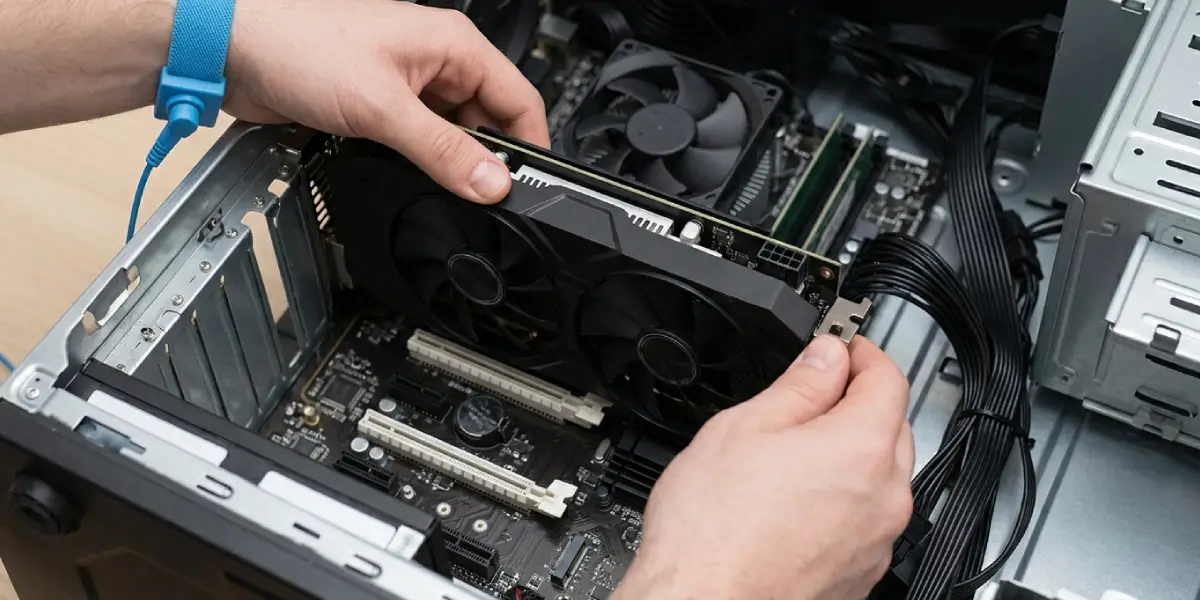
Tip: A heavy card can flex when the latch lets go. Cup one hand under the card as it comes free so it does not swing and hit the motherboard or the case.
Inspecting and Cleaning
- Step 8: Look at the gold contacts on the card. Discoloration or a fingerprint film is common. If they look dirty, wipe them lightly with a lint-free cloth dampened with 90 percent or higher isopropyl alcohol and let them dry fully before continuing.
- Step 9: Check the PCIe slot for dust or debris. Short bursts of compressed air work well, and a soft brush can lift stubborn lint. Keep the can upright and hold the fans still so they do not spin freely and overspeed.
- Step 10: Look over the power connectors on the card and the cable ends. Everything should be free of melted plastic, burn marks, and bent or pushed-back pins.
Reinstalling the Graphics Card
- Step 11: Line the card’s contact edge up with the top PCIe x16 slot, usually the one closest to the CPU. Remove the matching expansion slot covers on the back of the case first if they are in the way.
- Step 12: Press the card straight down into the slot with firm, even pressure. The retention latch should click into place. If the card seems to stop halfway, lift it out and check that nothing is blocking the slot or the bracket.
- Step 13: Fasten the bracket screws to the case so the card cannot sag or shift. Snug is enough, since overtightening can bend the bracket.
- Step 14: Reconnect each PCIe power cable until the clip clicks. The newer 12-pin style connectors must be pushed in all the way and should not be bent sharply right at the plug. If the card uses several plugs, use separate cables from the power supply where possible.
- Step 15: Plug the monitor cable into a port on the graphics card, not the motherboard video outputs. This is the most common mistake after reseating.
- Step 16: Refit the side panel, reconnect the power cable, switch the power supply back on, and boot the PC. Confirm the card shows up in Device Manager on Windows, and the display works normally.
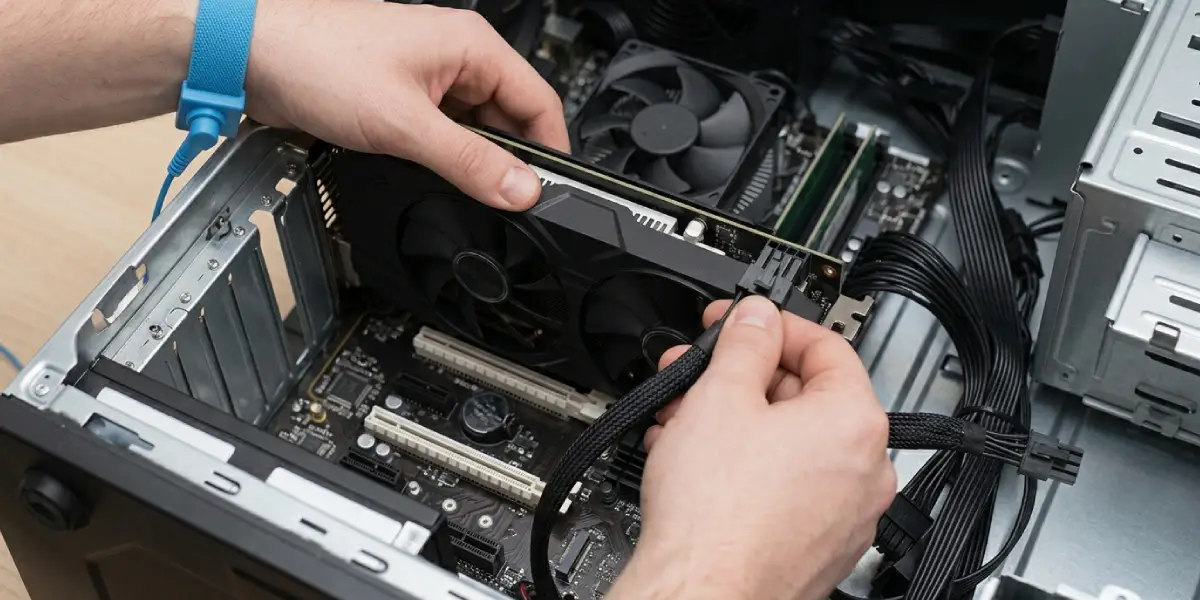
Tip: Run a short game or a stress test for a few minutes after the job. If the PC crashes or the screen shows artifacts under load, power down and recheck the power connectors first.
Common Problems and Fixes
No Display After Reseating
Check that the monitor cable is plugged into the graphics card and the monitor is set to the right input. Then power down and confirm the card is fully seated, the latch has clicked, and every PCIe power connector is pushed in completely.
PC Powers On but the Fans on the Card Do Not Spin
This usually points to a loose or missing power cable. Reconnect each power plug firmly. Some cards also keep their fans off at idle by design, so check again once the system is under load.
The Card Is Not Detected in Windows
Reseat the card again and try a different PCIe power cable from the power supply. If the card is still missing, try a different PCIe x16 slot if the motherboard has one, and update the graphics driver after the card appears.
The Card Will Not Come Out of the Slot
The latch is likely still engaged, or a screw is still holding the bracket. Look for a release button on the motherboard, push the latch fully, and use a small plastic tool if the tab is hard to reach. Never pry with metal.
Card Sags or Tilts After Installation
Make sure the bracket screws are tight, then consider a GPU support bracket for heavy cards. Sag can slowly loosen the connection and cause intermittent faults.
Visual Glitches or Crashes Continue
Reseating only fixes connection problems. If glitches continue, test the card in another PC if possible, or try a different power supply cable. A card that fails everywhere may be faulty and need warranty service.
Frequently Asked Questions
How often should a GPU be reseated?
There is no set schedule. Reseating is a troubleshooting step or a part of a cleaning session, so it is only needed when the card shows signs of a poor connection or when the PC is moved or transported.
Can reseating a GPU fix a no display problem?
Yes, if the cause is a loose card or an unseated power connector. Also check that the monitor cable is plugged into the card and not the motherboard, since that mistake produces the same symptom.
Is it safe to reseat a GPU without an anti-static strap?
It is generally safe if the PC is unplugged and bare metal on the case is touched before handling parts. A wrist strap is cheap and adds extra protection, so it is a good habit.
Do I need to reapply thermal paste when reseating a GPU?
No. Reseating only removes the card from the slot and does not involve taking off the cooler. Thermal paste is a separate task that is only needed if the cooler is removed.
Why will my graphics card not come out of the slot?
The retention latch is the usual cause, along with bracket screws that are still in place. Some motherboards use a release button, and on others the latch is tucked behind the card, so a small plastic tool can help.
How can the card be confirmed as seated correctly?
The card should sit level with no gap at the slot, the latch should click, and the bracket should line up with the case. After boot, the card should appear in Device Manager and the display should work.
Should the gold contacts be cleaned every time?
No. Clean them only when they look dirty or discolored. Use a lint-free cloth lightly dampened with 90 percent or higher isopropyl alcohol and allow them to dry fully before installing.
Which port should the monitor be plugged into after reseating?
Use a video output on the graphics card itself. The ports on the motherboard are tied to the processor’s integrated graphics and will not use the card.
What should be done if the problem remains after reseating?
Try different PCIe power cables, test another PCIe x16 slot, and update the graphics driver. If the issue follows the card into another PC, it is likely faulty and worth sending for warranty service or professional repair.
Does reseating a GPU void the warranty?
Opening the case and reseating a card does not involve the cooler, so it usually does not affect warranty terms. Policies vary by manufacturer, so check the terms for a prebuilt PC or a card with warranty seals.
