
Learning how to fix USB-C Thunderbolt 4 speed issues usually comes down to one question: which link in the chain is slowing everything down? A weak cable, a port that is not truly Thunderbolt, outdated firmware, or a crowded bus can all pull a 40 Gbps connection down to a fraction of its potential. This guide walks through each cause and fix in a logical order.
Key Takeaways
- Thunderbolt 4 is rated for 40 Gbps, but every part of the chain (port, cable, hub, and device) must support it, or speed drops to the weakest link.
- A plain USB-C charging cable is the most common culprit, since many of them only carry USB 2.0 data speeds.
- Displays, docks, and daisy-chained devices all share the same bandwidth, so heavy use of one can slow another.
- Updated BIOS, Thunderbolt firmware, and drivers fix a surprising number of slow or unstable connections.
- Real-world file transfer speeds are always lower than the headline 40 Gbps figure, so a proper test matters before assuming something is broken.
Common Causes of Slow Thunderbolt 4 Speeds
Thunderbolt 4 behaves like a highway: it is only as fast as its narrowest stretch. Most slowdowns trace back to a short list of causes.
- A USB-C port that looks identical to a Thunderbolt 4 port but only supports basic USB or lower-speed data.
- A cable that is not certified for Thunderbolt 4, is too long, or is built for charging only.
- A hub, dock, or adapter in the middle of the connection that limits bandwidth.
- Several high-demand devices, such as external displays and a fast SSD, sharing one controller.
- Outdated BIOS, Thunderbolt firmware, or drivers.
- Power-saving settings that restrict USB or PCIe activity, especially on battery.
- An external SSD or enclosure that overheats and slows itself down to protect the drive.
- Dust, lint, or a worn connector that causes the link to negotiate a lower speed.
Before You Start
This process is mostly software and cable checks, so very little preparation is needed. Having a few items ready makes testing far easier.
- A cable clearly labeled as Thunderbolt 4 (the original cable that came with the device is a good first choice).
- A storage benchmark tool, such as CrystalDiskMark on Windows or the Blackmagic Disk Speed Test on Mac, to measure speed accurately.
- A soft brush, a wooden or plastic toothpick, and a can of compressed air for checking the port.
- The laptop charger, since many systems limit performance on battery power.
Always eject external drives safely before unplugging them. If a port feels loose, bent, or damaged, stop and let a qualified repair technician handle it. Opening a laptop to repair a port may also affect the warranty.
How to Fix USB-C Thunderbolt 4 Speed Issues Step by Step
- Step 1: Confirm the port is genuinely Thunderbolt 4. Look for a small lightning bolt icon beside the port, and check the laptop or motherboard specifications. Many computers have a mix of Thunderbolt and plain USB-C ports side by side, and only the Thunderbolt ports reach full speed.
- Step 2: Check the cable. A cable that charges a phone may only carry USB 2.0 data, which is a tiny fraction of Thunderbolt speed. Use a cable marked for Thunderbolt 4, keep it as short as practical, and avoid cheap extension adapters.
- Step 3: Connect the device directly to the computer. Remove any hub, dock, or adapter from the chain for a moment and test again. If speed jumps, the middle device is the bottleneck.
- Step 4: Confirm the device itself supports Thunderbolt or USB4 speeds. A drive or enclosure built for a slower USB standard will never exceed its own limit, no matter how good the port and cable are.
- Step 5: Reduce the load on the connection. Unplug external displays and any daisy-chained devices, then test the drive alone. Bandwidth is shared across everything on the same port, so a high-resolution display can take a large share.
- Step 6: Update the BIOS or UEFI, the Thunderbolt firmware, and the Thunderbolt and chipset drivers. Get these from the laptop or motherboard manufacturer first, then run Windows Update for anything remaining. On a Mac, install the latest macOS update.
- Step 7: Review Thunderbolt security and approval settings. On Windows, open the Thunderbolt Control Center app if it is installed, confirm the device is approved and connected, and remove and re-approve it if it behaves oddly. On a Mac, open System Information and check the Thunderbolt section to see the reported link speed.
- Step 8: Adjust power settings. Plug in the charger, switch Windows to a balanced or best performance power mode, and turn off USB selective suspend in the advanced power plan options. Battery saver modes can limit port performance.
- Step 9: Inspect and gently clean the port. Shine a light inside and look for lint or debris. Use short bursts of compressed air, then carefully loosen stubborn lint with a wooden or plastic toothpick. Never use metal tools, liquids, or force inside a port.
- Step 10: Run a clean test. Restart the computer, connect the device directly with the known-good cable, and copy one large file or run a sequential benchmark. Many small files transfer far slower than one big file, so small-file tests can look like a problem when none exists.

Tip: Change only one thing at a time and retest after each change. That is the quickest way to identify which fix actually solved the problem.
Why Real-World Speed Is Lower Than 40 Gbps
The 40 Gbps rating describes the maximum link capacity, not the speed of a file copy. The drive controller, the SSD inside the enclosure, the file system, and the type of files being copied all set the practical ceiling. A drive that is noticeably slower than the link but still performs as its specification suggests is working normally.

Check the Drive for Heat
Fast external SSDs generate heat, and many slow themselves down once they get warm. If a transfer starts quickly and then drops sharply after a minute or two, let the drive cool, place it somewhere with open airflow, and test again. A metal enclosure with some airflow around it usually holds speed better than a drive buried under papers or sitting in a bag.
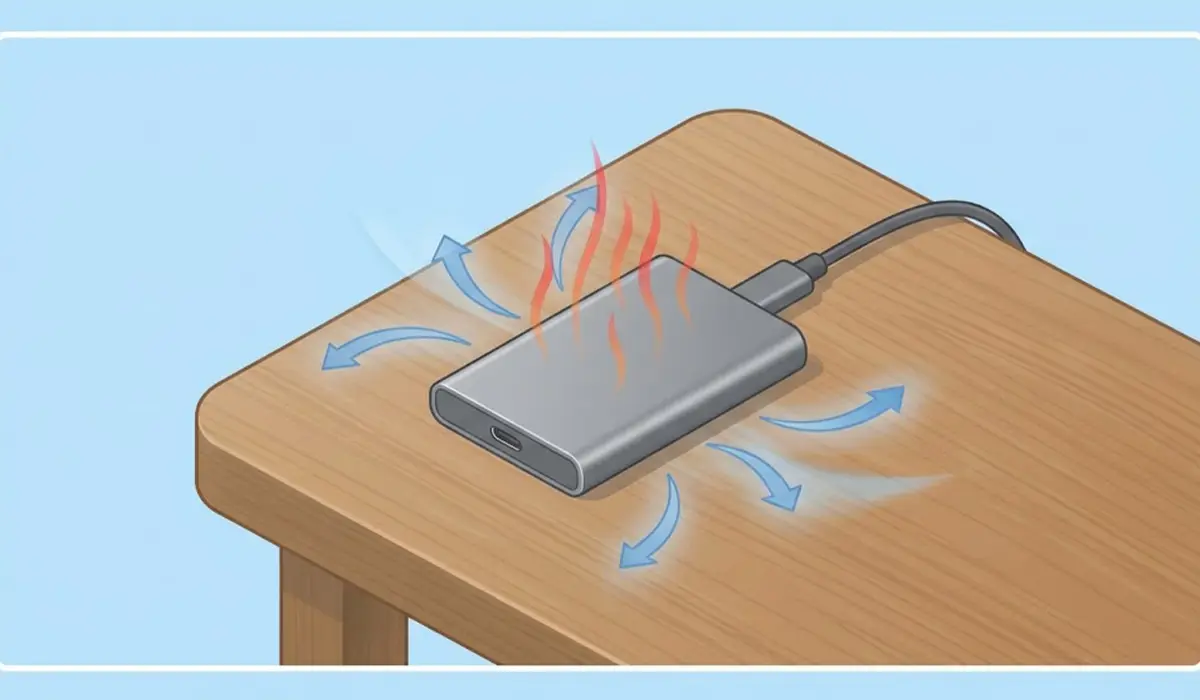
Tip: A drive that is hot to the touch is a strong sign that heat, not the cable or the port, is limiting speed.
Common Problems and Fixes
Speed Is Still Only About USB 3 Level
The connection is likely negotiating a lower standard. Try a different Thunderbolt 4 cable, move to another Thunderbolt port on the computer, and confirm the device supports Thunderbolt or USB4.
Speed Drops After a Few Minutes
This points to heat in the enclosure or SSD. Allow the drive to cool, improve airflow around it, and avoid running long transfers while the drive is wrapped in a case or covered.
Display Flickers or Drive Slows When a Monitor Is Connected
The display and storage are competing for the same bandwidth. Connect the monitor to a different port or controller if the computer has one, or disconnect the display during large file transfers.
Device Is Not Recognized or Keeps Disconnecting
Update the firmware and drivers, re-approve the device in the Thunderbolt settings, and swap the cable. If the connection still drops when the cable is gently moved, the port may be worn and needs professional inspection.
Speeds Are Good on One Computer but Slow on Another
Compare the port types and cable on both machines. One computer may have a true Thunderbolt 4 port while the other has a port with lower capabilities, or it may simply need a BIOS and driver update.
Speed Is Slow Only on Battery
The power mode is restricting performance. Connect the charger and choose a balanced or performance power mode.
Frequently Asked Questions
Why is my Thunderbolt 4 connection slower than 40 Gbps?
The 40 Gbps figure is the maximum link capacity, not the real file transfer speed. The drive, the controller, the cable, shared bandwidth, and heat all reduce what is seen in practice.
Can a regular USB-C cable work with Thunderbolt 4?
It will connect, but it will usually run at much lower speeds. A cable must be rated for Thunderbolt 4 to carry full 40 Gbps data.
How can a Thunderbolt 4 port be told apart from a normal USB-C port?
Look for a small lightning bolt icon next to the port and check the laptop or motherboard specifications. A port without the icon may only support basic USB speeds.
Does the length of a Thunderbolt 4 cable affect speed?
Yes. Shorter certified cables are the safest choice, and very long or low-quality cables can cause the connection to negotiate a lower speed or become unstable.
Do hubs and docks slow down Thunderbolt 4?
They can. Every device connected through a hub or dock shares the same bandwidth, so running displays, storage, and other devices at once can reduce the speed of each one.
Do BIOS and driver updates really improve Thunderbolt 4 speed?
Often they do. Updates can fix link negotiation, stability, and compatibility problems that cause a connection to run slower than it should.
Why does my external SSD start fast and then slow down?
Most likely the drive is heating up and reducing its own speed to protect itself. Letting it cool and improving airflow around the enclosure usually restores performance.
Can a dirty or damaged USB-C port reduce speed?
Yes. Lint or a worn connector can prevent a solid connection, which may cause the link to run at a lower speed or disconnect. Gentle cleaning helps with debris, but a damaged port needs professional repair.
