
The display driver stopped responding error usually shows up as a brief black screen followed by a message saying the video driver has crashed and recovered. It happens when the graphics driver stops communicating with Windows for a moment, often during gaming, video playback, or heavy GPU use. The good news is that most cases can be fixed without reinstalling Windows or replacing hardware.
Key Takeaways
- The error is triggered by Windows’ Timeout Detection and Recovery feature when the GPU driver freezes or stalls.
- Outdated, corrupted, or conflicting graphics drivers are the most common cause.
- Overheating, aggressive overclocking, and outdated Windows updates can all trigger the same crash.
- A clean driver reinstall using dedicated uninstaller software resolves the issue in most cases.
- Persistent crashes after a clean driver install often point to a hardware or power supply problem.
Common Causes of the Display Driver Stopped Responding Error
Before jumping into fixes, it helps to understand what typically causes this crash. Most people find that one of the following is behind it.
- An outdated or corrupted graphics driver that struggles to keep up with a game or application.
- Leftover files from a previous driver installation conflicting with the current one.
- A GPU running hotter than it should, causing it to stall under load.
- An unstable overclock on the graphics card or CPU.
- Background software, especially overlay tools or recording apps, interfering with the GPU.
- A Windows update that is out of sync with the installed driver version.
Fixing the Display Driver Stopped Responding Error
Step 1: Update the Graphics Driver
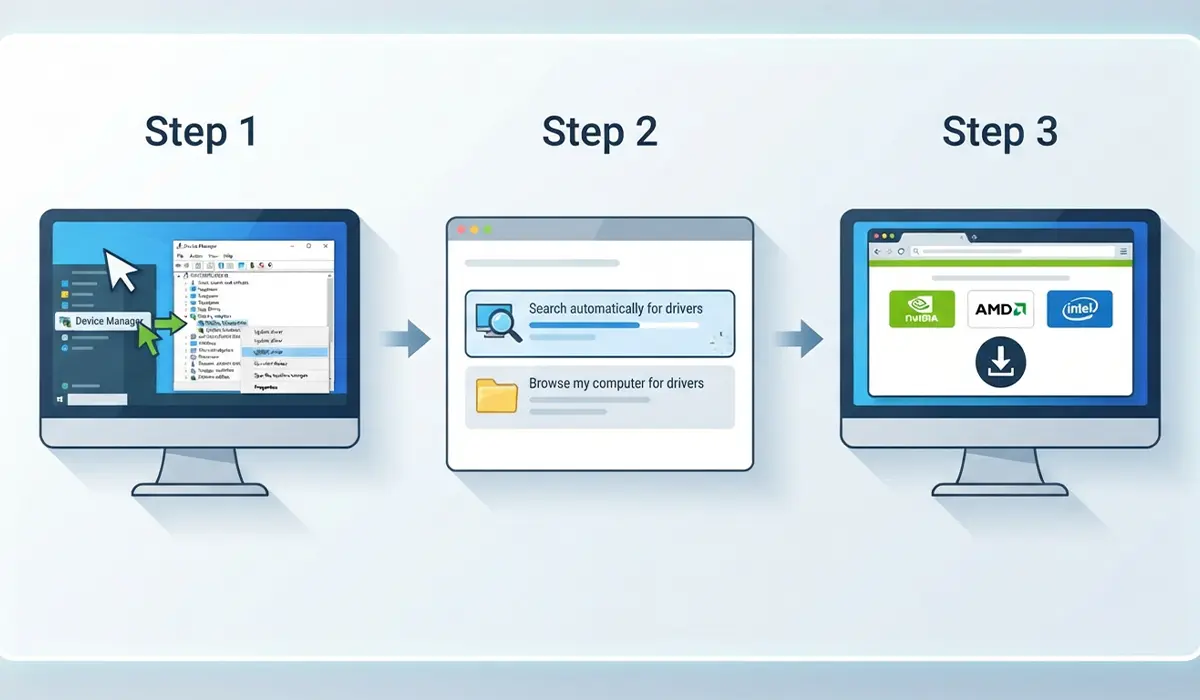
- Step 1: Open Device Manager, expand ‘Display adapters’, right-click the graphics card, and select ‘Update driver’.
- Step 2: Choose ‘Search automatically for drivers’ and let Windows check for an update.
- Step 3: If Windows does not find a newer version, visit the graphics card manufacturer’s official site and download the latest driver for the exact model and operating system.
Tip: Restart the computer after any driver update, even if Windows does not prompt for it, since some driver components only load fully after a fresh boot.
Step 2: Perform a Clean Driver Reinstall
A regular update sometimes leaves old files behind that continue to cause conflicts. A clean install clears that out completely.
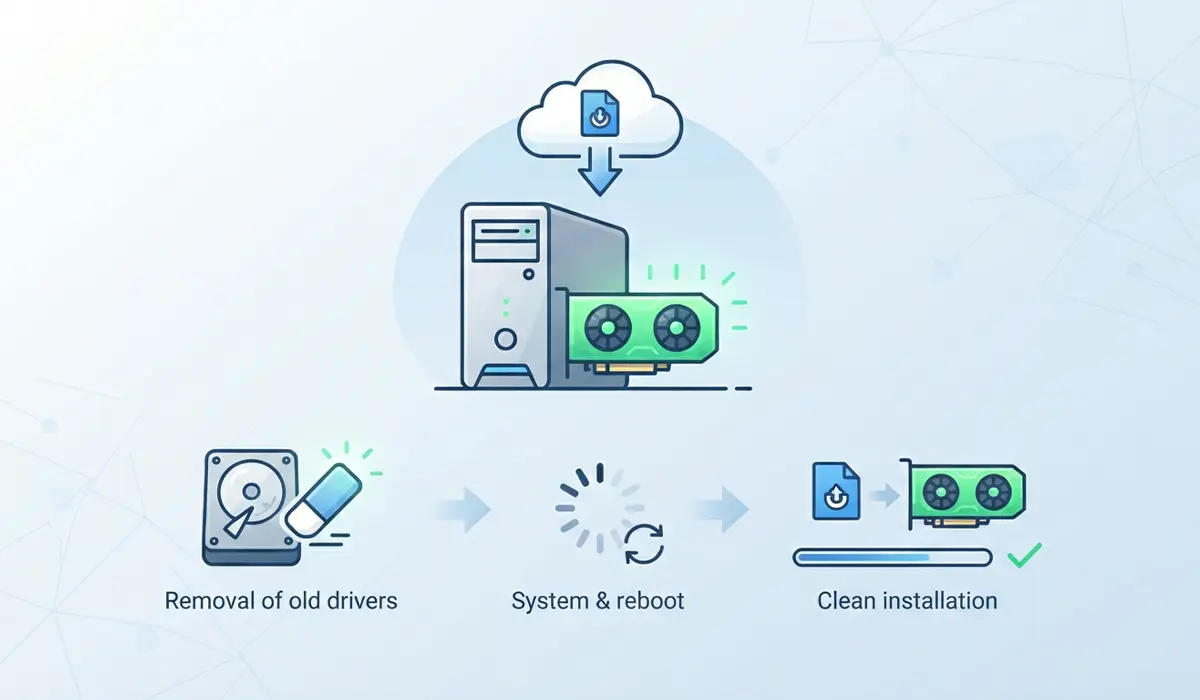
- Step 1: Download a dedicated driver removal utility built for graphics drivers, such as one recommended by the GPU manufacturer, and run it in Safe Mode to fully strip the current driver.
- Step 2: Restart the computer normally.
- Step 3: Install the latest driver downloaded in Step 1, choosing the ‘clean install’ option if the installer offers one.
- Step 4: Restart again before testing the graphics-heavy task that triggered the crash.
Step 3: Check GPU Temperatures and Cooling
- Step 1: Open a hardware monitoring tool and watch the GPU temperature while running a demanding task.
- Step 2: If temperatures climb steadily and do not level off, shut the PC down and check that case fans and the GPU cooler are free of dust buildup.
- Step 3: Improve airflow by adjusting fan curves or adding case fans if the interior consistently runs hot.
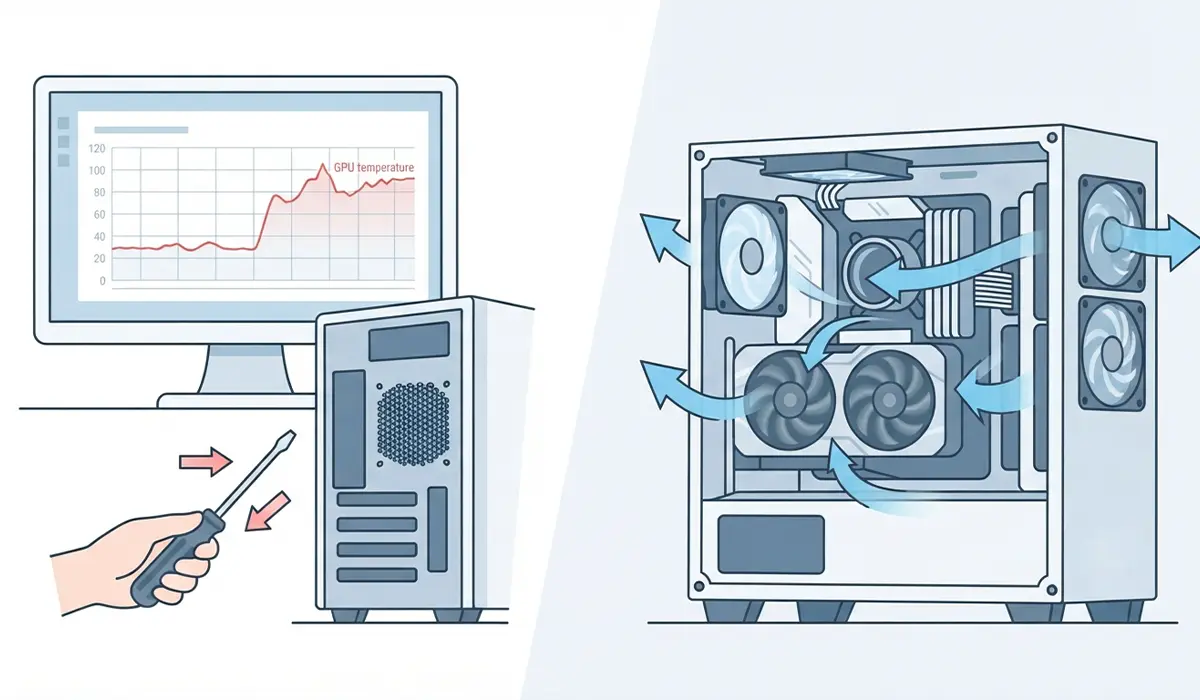
This works best when combined with a quick visual check of the GPU fans while the system is under load. A fan that has stopped spinning or is spinning unevenly is often the real culprit behind heat-related crashes.
Step 4: Remove Any Overclocks
- Step 1: Open the overclocking or tuning software used on the GPU or CPU.
- Step 2: Reset all clock speeds, voltages, and fan curves back to their default, factory-set values.
- Step 3: Retest the task that previously caused the driver crash before reapplying any overclock more conservatively.
Step 5: Close Conflicting Background Software
- Step 1: Close overlay tools, screen recording software, and third-party performance monitors one at a time.
- Step 2: Retest after closing each program to identify which one, if any, is triggering the crash.
- Step 3: Update or disable the offending program’s overlay feature specifically, rather than uninstalling it entirely, if it is otherwise needed.
Step 6: Adjust the Timeout Detection and Recovery (TDR) Delay
This step is a temporary workaround rather than a fix, and it is best reserved for situations where a task legitimately needs more processing time before Windows steps in.
- Step 1: Open the Registry Editor and navigate to the GraphicsDrivers key under the Control folder in the system settings.
- Step 2: Create a new DWORD value named TdrDelay and set it to a higher number of seconds than the default.
- Step 3: Restart the computer for the change to take effect.
Editing the registry carries some risk if done incorrectly, so back up the registry key first and stop here to consult a professional if unfamiliar with registry editing.
Common Problems and Fixes
- The crash still happens right after a clean driver install: this usually points to a hardware issue rather than software. Test the GPU in another PC if possible, or try a different GPU in the same system to isolate the fault.
- The screen goes black and never recovers: hold the power button to force a shutdown, then boot into Safe Mode and roll back to a previous driver version before trying a clean install again.
- The error only happens with one specific game or app: check that app’s own settings for a compatibility mode or a lower graphics preset, since the issue may be app-specific rather than system-wide.
- Multiple GPU driver crashes happen even at idle: this often signals a failing power supply or a loose power connector to the graphics card rather than a driver problem.
Frequently Asked Questions
What does display driver stopped responding actually mean?
It means Windows detected that the graphics driver stopped communicating within an expected timeframe, so it reset the driver instead of letting the whole system freeze or crash.
Is display driver stopped responding a hardware problem or a software problem?
Most cases trace back to a software issue, particularly an outdated or corrupted driver. Persistent crashes after a clean driver install point more toward a hardware or cooling issue.
Can overheating cause the display driver stopped responding error?
Yes. When a GPU runs too hot under sustained load, it can stall momentarily, which Windows interprets the same way it interprets a frozen driver.
Does overclocking cause this error?
An unstable overclock, whether on the GPU or the CPU, is a common trigger. Resetting clocks to default values is one of the fastest ways to rule this out.
Will reinstalling Windows fix display driver stopped responding?
A full reinstall can fix it if the cause is deep software corruption, but a clean driver reinstall solves the same problem in the vast majority of cases without needing to reset the entire system.
Why does this error happen more often during gaming?
Gaming pushes the GPU harder than most everyday tasks, so any weakness in the driver, cooling, or power delivery is far more likely to surface under that kind of sustained load.
Is it safe to keep using a PC that shows this error occasionally?
Occasional crashes that recover on their own are generally safe short-term, but frequent occurrences should be addressed quickly, since they can point to a developing hardware issue.
Does increasing the TDR delay actually fix the underlying issue?
No, it only gives the driver more time before Windows intervenes. It can mask a problem temporarily but does not address whatever is causing the driver to stall in the first place.
Can a laptop get this error too, or is it only for desktops?
Laptops get this error just as often as desktops. Overheating from dust buildup in a laptop’s cooling system is a particularly common cause on portable machines.
What is the very first thing to try when this error appears?
Updating the graphics driver to the latest version from the manufacturer’s official site resolves the issue often enough that it is worth trying before any other step.
