
Knowing how to request read and delivery receipts in Outlook takes the guesswork out of important emails. A delivery receipt confirms the message reached the recipient’s mail server, while a read receipt asks to be notified once the message is opened. The setup takes less than a minute, either for a single message or for everything you send.
Key Takeaways
- Receipts can be requested for one message from the Options tab, or for all outgoing messages from File > Options > Mail.
- A delivery receipt confirms arrival at the server, not that the message was seen.
- A read receipt is only a request, and the recipient can decline to send it.
- Returned receipts arrive in the Inbox as separate messages.
How to Request Read and Delivery Receipts in Outlook for a Single Message
This method works best when only a few emails need tracking, such as a quote, an invoice, or a deadline reminder. The steps below apply to classic Outlook for Windows.
- Step 1: Open Outlook and select New Email to start a message.
- Step 2: Fill in the recipient, subject, and body as usual.
- Step 3: In the message window, select the Options tab.
- Step 4: In the Tracking group, check Request a Delivery Receipt, Request a Read Receipt, or both.
- Step 5: Select Send.
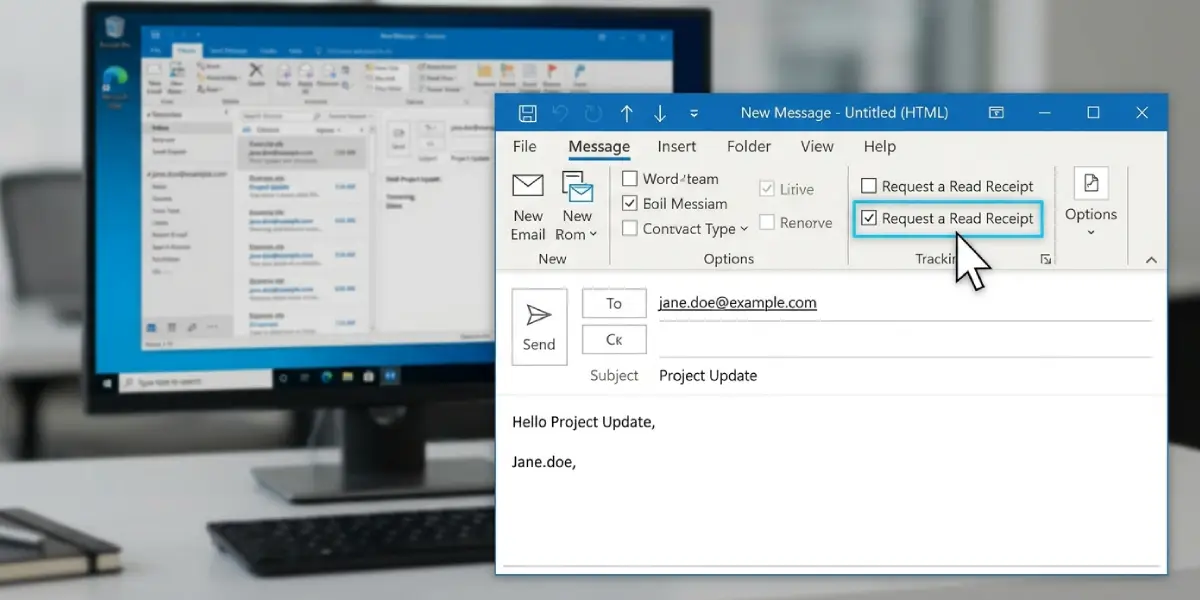
Tip: Request both receipts together on time-sensitive emails. The delivery receipt arrives almost immediately, so a missing one is an early sign that something went wrong with delivery.
Request Receipts in the New Outlook and Outlook on the Web
The layout is slightly different here, but the idea is the same.
- Step 1: Start a new message and write it as usual.
- Step 2: In the compose toolbar, select the three-dot More options menu.
- Step 3: Choose Show message options.
- Step 4: Check Request a read receipt, Request a delivery receipt, or both.
- Step 5: Select OK, then Send.
How to Request Read and Delivery Receipts for All Outgoing Messages
Anyone who sends contracts, orders, or formal notices all day may prefer to switch receipts on permanently. The key is to set it once and let Outlook handle every message afterward.
- Step 1: In classic Outlook for Windows, select File, then Options.
- Step 2: Select Mail in the left pane.
- Step 3: Scroll down to the Tracking section.
- Step 4: Check Delivery receipt confirming the message was delivered to the recipient’s e-mail server.
- Step 5: Check Read receipt confirming the recipient viewed the message.
- Step 6: Select OK to save the settings.
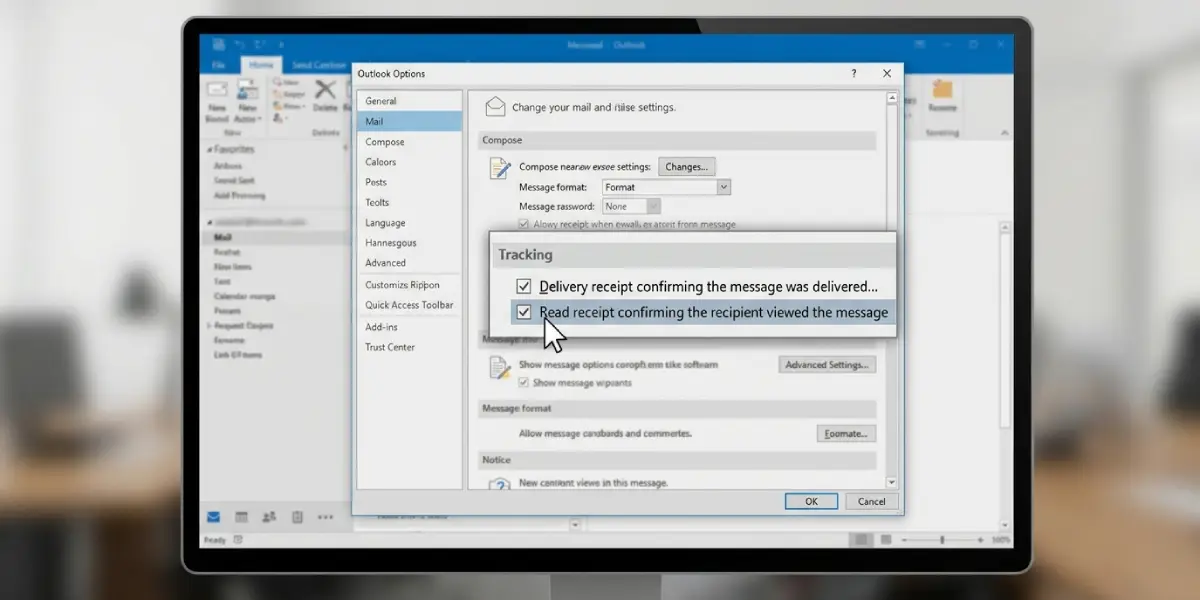
Tip: Turning on read receipts for every message can flood the Inbox with confirmation emails. Most people find that using the per-message method for important mail keeps things far tidier.
How to Check Whether a Receipt Came Back
Receipts show up as new messages in the Inbox, usually with a subject that starts with Delivered or Read followed by the original subject line. In classic Outlook, there is also a quicker view.
- Step 1: Open the Sent Items folder.
- Step 2: Double-click the message to open it in its own window.
- Step 3: On the Message tab, select Tracking to see which receipts have been returned and when.
Common Problems and Fixes
No Read Receipt Arrives
A read receipt is a request, not a guarantee. The recipient’s mail program may be set to ask before sending one, to always decline, or to ignore receipt requests entirely. A message previewed in the Reading Pane without being fully opened may also not trigger a receipt. The fix is to follow up directly if confirmation is essential.
The Delivery Receipt Never Appears
Some mail servers do not return delivery receipts, so a missing one does not always mean the message failed. Check the Inbox for a bounce-back message and confirm the recipient’s address is spelled correctly. If no error appears, the message was most likely delivered.
Receipts Are Requested on Every Email When Not Needed
This happens when the Tracking options under File > Options > Mail were turned on at some point. Return to that section, uncheck both receipt options, and select OK. Receipts can still be requested for individual messages from the Options tab.
The Tracking Button Shows Nothing
The Tracking button only lists responses for messages sent with receipts requested, and only after a receipt has actually returned. Open the message from Sent Items rather than the Reading Pane, and allow a few minutes for the receipt to arrive.
Frequently Asked Questions
What is the difference between a read receipt and a delivery receipt in Outlook?
A delivery receipt confirms the message reached the recipient’s mail server. A read receipt asks to be notified when the recipient opens the message. Delivery does not mean the message was seen.
Can the recipient refuse to send a read receipt?
Yes. When a read receipt is requested, the recipient’s email program can prompt them to send it or not, or be set to always or never respond. Delivery receipts are generally handled by the mail server and do not require action from the recipient.
Where do I find the option to request a read receipt in Outlook?
In a new message in classic Outlook for Windows, open the Options tab and look in the Tracking group. In the new Outlook and Outlook on the web, use the three-dot menu and choose Show message options.
How do I request receipts for every email I send?
Go to File > Options > Mail, scroll to the Tracking section, and check the delivery receipt and read receipt boxes. Select OK to apply the change to all outgoing messages.
Will the recipient know a read receipt was requested?
Yes. Depending on their email program and settings, they may see a prompt asking whether to send a receipt, or the receipt may be sent automatically without any prompt.
How can I see which receipts I have received?
Check the Inbox for messages beginning with Delivered or Read. In classic Outlook, open the sent message from Sent Items and select Tracking on the Message tab for a summary.
Does a read receipt prove the person actually read the email?
No. It only shows that the message was opened in the recipient’s email program and that they allowed a receipt to be sent. It cannot confirm that the content was actually read.
Can I turn off receipt requests after enabling them for all messages?
Yes. Return to File > Options > Mail, uncheck the options in the Tracking section, and select OK. New messages will then be sent without receipt requests unless they are added individually.
