
Knowing how to fix display scaling issues with GPU settings can save a lot of frustration when text looks blurry, icons are oversized, or the picture refuses to fill the screen. Most of these problems come from a mismatch between the resolution, the scaling mode, and the driver, not from failing hardware. The fixes below start with the quickest checks and move toward deeper driver and cable troubleshooting.
Key Takeaways
- Set the monitor to its native resolution first, since a non-native resolution causes most blurry or stretched pictures.
- Windows scaling, the GPU control panel scaling mode, and the monitor’s own aspect setting can all conflict, so each one needs checking.
- A clean driver install resolves scaling options that are missing, greyed out, or stuck.
- Cables, adapters, and docks can force a wrong resolution, so a different cable is a fast test.
- Blurry text in a single app is usually a per-app DPI setting, not a GPU fault.
Common Causes of Display Scaling Problems
Scaling trouble rarely has a single source. Several layers sit between the desktop and the panel, and a mistake in any one of them shows up on screen.
- A resolution that does not match the native resolution of the monitor or laptop panel.
- An unsuitable Windows scale percentage, especially custom values that make some apps blurry.
- A GPU scaling mode set to stretch, center, or scale in a way that distorts the image.
- Outdated, corrupted, or generic driver files, such as the Microsoft Basic Display Adapter being active.
- A low-quality cable, an old HDMI version, or a cheap adapter limiting the signal.
- Overscan or picture-size settings on a TV or monitor cropping the edges of the desktop.
- Mixed monitors with different pixel densities, where Windows scales each one differently.
Step-by-Step Fixes for Display Scaling Issues With GPU
Work through these in order. Each step is quick to test, and many problems disappear after the first two or three.
- Step 1: Restart the PC. A stuck driver state or a half-applied display change often clears after a full restart, and it costs nothing to try.
- Step 2: Set the native resolution. Open Settings, then System, then Display, and pick the resolution marked Recommended under Display resolution. A 1080p signal stretched across a 1440p or 4K panel looks soft because the screen has to guess the missing pixels.
- Step 3: Choose a sensible Windows scale. Under Scale in the same Display page, use the recommended percentage, or a standard step such as 100, 125, 150, or 175 percent. Avoid the Custom scaling option unless there is a clear reason, because custom values are a common cause of fuzzy text in older apps.
- Step 4: Turn on the blurry app fix. In the Scale section, open Advanced scaling settings and switch on the option that lets Windows try to fix apps so they are not blurry. Sign out and back in afterward so the change applies.
- Step 5: Correct the scaling mode in the GPU control panel. The wording differs by brand, and the exact options are covered in the next section. The goal is to avoid stretched or cropped output, so choose a mode that preserves the aspect ratio or uses no scaling.
- Step 6: Check the monitor’s own menu. Press the buttons on the monitor to open its on-screen menu and look for aspect ratio, picture size, or screen fit. On TVs, look for options named Just Scan, Screen Fit, or Full Pixel, and turn off any zoom or overscan mode.
- Step 7: Update or reinstall the graphics driver. Download the latest driver from the NVIDIA, AMD, or Intel website, or use the laptop maker’s driver page when the laptop has custom display firmware. If problems remain, a clean install using a tool such as Display Driver Uninstaller in Safe Mode removes leftover settings that a normal install keeps.
- Step 8: Test a different cable or port. Power the PC off, then swap in a known-good DisplayPort or HDMI cable, or use another port on the graphics card. High resolutions and refresh rates need a cable rated for them, and for 4K at 60 Hz over HDMI, a cable and port supporting HDMI 2.0 or newer is the safe choice.
- Step 9: Remove adapters and docks as a test. Connect the monitor directly to the GPU or laptop port. Adapters, splitters, and docking stations can report the wrong resolution or limit the signal.
- Step 10: Fix individual blurry apps. Right-click the app’s shortcut or executable, choose Properties, open the Compatibility tab, and select Change high DPI settings. Tick the override option and try Application first, then System (Enhanced) if the text is still soft.
Tip: Change only one setting at a time and look at the screen after each change. Stacking several changes makes it impossible to tell which one actually fixed the problem.
GPU Control Panel Scaling Settings by Brand
The scaling mode decides whether the GPU or the monitor stretches a lower resolution to fit the screen. Setting it badly can cause stretched circles, black borders, or a picture that spills past the edges.
NVIDIA
- Open NVIDIA Control Panel and go to Display, then Adjust desktop size and position.
- Choose a scaling mode such as Aspect ratio for non-native resolutions, or No scaling when the native resolution is in use.
- Use the Perform scaling on dropdown to pick GPU or Display. GPU scaling is useful when the monitor stretches poorly, while Display scaling hands the job to the monitor.
- Select the option that overrides the scaling mode set by games and programs if a game keeps changing the picture size.
AMD
- Open AMD Software and go to Settings, then Display.
- Turn GPU Scaling on or off to test both behaviors.
- Set Scaling Mode to Preserve aspect ratio to avoid stretching, or Center to show a lower resolution without enlarging it.
- On TVs, use the HDTV support or overscan slider, where available, to bring cropped edges back into view.
Intel
- Open Intel Graphics Command Center and go to Display, then General.
- Under Scaling, choose Maintain aspect ratio or Maintain display scaling, depending on whether the image is being stretched or left small.
- Avoid Scale full screen if circles look like ovals, since it stretches the image to fill the panel.
Tip: On laptops with both integrated and dedicated graphics, the built-in panel is often driven by the integrated GPU. In that case, scaling options may appear in the Intel or AMD integrated panel rather than the NVIDIA one.
Fixing Scaling With Multiple Monitors
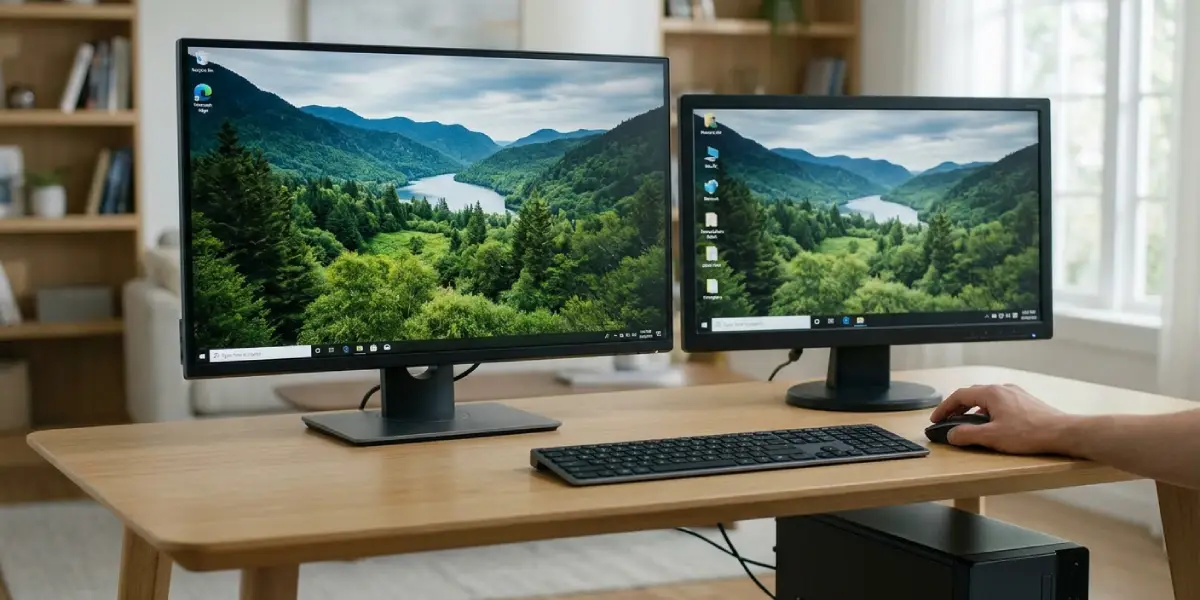
Two screens with different pixel densities, such as a 1080p monitor beside a 4K one, are a classic source of trouble. Windows stores a separate scale for each screen, and windows can look huge or tiny as they are dragged across.
- Step 1: Open Settings, then System, then Display, and click each monitor in turn at the top of the page.
- Step 2: Set the native resolution and a suitable scale for each screen separately.
- Step 3: Make the screen used most often the Main display so apps open on it first.
- Step 4: Sign out and back in. Some apps only read the scale at launch and need a restart to match.
Common Problems and Fixes
Scaling options are greyed out or missing
This usually means the Microsoft Basic Display Adapter is active instead of the real GPU driver. Check Device Manager under Display adapters, then install the proper driver from the GPU or laptop maker and restart.
Black borders around the screen
Black bars mean the picture is not being scaled to the panel. Set the GPU scaling mode to Full panel or Scale full screen, confirm the resolution is native, and check the monitor’s aspect ratio setting.
Desktop edges are cut off on a TV
This is overscan. Turn off the overscan or zoom option in the TV’s picture menu, or switch it to Just Scan, Screen Fit, or a similar setting. If the edges are still cropped, adjust the underscan or HDTV scaling slider in the GPU software.
Text is blurry after changing the scale
Sign out and back in first. If specific apps remain soft, use the high DPI override in the app’s Compatibility properties, and avoid custom scale percentages.
Resolution resets after a reboot or after waking from sleep
A poor cable, a loose connection, or a dock that renegotiates the signal can cause this. Reseat or replace the cable, plug the monitor directly into the GPU, and update the driver.
Games stretch or shrink the picture
Set the in-game resolution to the native resolution and try borderless windowed mode. In the GPU control panel, make sure the scaling mode is not overriding the game with an unwanted setting.
Scaling problems return after a driver update
A driver update can reset display settings to defaults. Reapply the scaling mode and resolution, or perform a clean install of the driver if the settings do not stay saved.
Frequently Asked Questions
Why does my screen look blurry after connecting it to my GPU?
The most common reason is a resolution that does not match the native resolution of the monitor. When a lower resolution is stretched over the panel, text and icons lose sharpness. Setting the recommended resolution in Windows display settings fixes this in most cases.
Should GPU scaling be turned on or off?
It depends on the result. GPU scaling is helpful when the monitor stretches images badly or when running a non-native resolution, since it keeps the aspect ratio correct. At the native resolution, scaling makes little difference, so either setting works. Test both and keep the one that looks cleaner.
What Windows scale percentage is best?
The percentage marked Recommended in Windows is the best starting point, because it is chosen to match the screen size and resolution. Standard steps such as 100, 125, 150, and 175 percent tend to look sharper than custom values.
Can a bad cable cause display scaling problems?
Yes. A damaged or low-grade cable, or one that does not support the resolution and refresh rate in use, can make the GPU select a lower resolution that then gets stretched. Trying a different certified DisplayPort or HDMI cable is a quick and cheap test.
Why do the edges of my screen look cut off on a TV?
That is overscan, which makes the TV zoom in slightly and crop the picture. Switching the TV to a mode such as Just Scan or Screen Fit, or using the overscan or HDTV scaling control in the GPU software, restores the full desktop.
Do graphics drivers really affect display scaling?
They do. The driver controls the available resolutions and the scaling options. Corrupted or outdated drivers can hide options, reset settings, or pick the wrong resolution, so a clean driver reinstall often solves stubborn cases.
Why are scaling settings missing from my NVIDIA or AMD control panel?
The option is often missing when the generic Microsoft Basic Display Adapter is in use, or when the monitor is connected to a port driven by a different GPU. Installing the correct driver and connecting the monitor to the right port usually brings the options back.
How can scaling be fixed on a laptop with two GPUs?
Check both the integrated GPU panel and the dedicated GPU panel, since the built-in screen is often driven by the integrated graphics. Update both drivers, then set the resolution and scaling mode in the control panel that actually manages the screen in question.
Why is only one app blurry while everything else looks fine?
That points to how the app handles high DPI screens, not to the GPU. Opening the app’s Compatibility properties, choosing Change high DPI settings, and overriding the scaling behavior usually makes the text sharp again.
