
Learning how to fix HDMI not detected by NVIDIA GPU usually takes less time than expected, because the cause is often a loose connection, the wrong port, or a confused driver rather than a dead graphics card. The screen stays black or Windows reports no display, yet the GPU fans spin and the PC seems healthy. This guide walks through the causes and the fixes in the order that saves the most time.
Key Takeaways
- Most cases come from the cable being plugged into the motherboard instead of the graphics card, a wrong input source on the display, or a driver glitch.
- Testing with a different cable, port, and display quickly shows whether the fault is the GPU, the cable, or the screen.
- A clean driver reinstall with Display Driver Uninstaller (DDU) fixes most software-side detection problems.
- On laptops, the HDMI port may be wired to the integrated GPU or the NVIDIA GPU, which changes which settings matter.
- A physically damaged HDMI port on the card is rare, and is a job for a repair professional.
Common Causes of an HDMI Display Not Being Detected
Knowing the likely culprit prevents wasted effort. Think of the HDMI link as a handshake: the GPU asks the display what it can show, and the display answers. If either side cannot complete that exchange, nothing appears on screen.
- The cable is plugged into the motherboard video output instead of the graphics card, so the signal never reaches the NVIDIA GPU.
- The display is set to the wrong input source.
- A worn, bent, or low-quality HDMI cable fails the handshake.
- The graphics driver is corrupted or outdated after a Windows update.
- The display is not set to extend or duplicate in Windows, so the second screen never turns on.
- The refresh rate or resolution requested is more than the cable or display supports.
- The BIOS or UEFI is set to use integrated graphics as the primary display.
- On laptops, the HDMI port is routed through the integrated GPU while a power-saving mode is active.
- Dust or debris inside the HDMI port, or a graphics card that is not fully seated in its slot.
Before You Start
Most of the fixes below happen in software, but a few involve cables and the inside of the PC. Shut the computer down, switch off the power supply, and unplug it before touching any internal part. Touch bare metal on the case to discharge static, or wear an anti-static strap. Let the graphics card cool if the PC was just running.
- A second, known-good HDMI cable (ideally a certified high speed or ultra high speed cable)
- A second display or TV for testing, if available
- A DisplayPort cable, if the card and display both support it
- Compressed air and a soft brush for dusty ports
- Display Driver Uninstaller (DDU) and the latest NVIDIA driver, downloaded from another working PC or screen if needed
Opening the case may affect the warranty on some prebuilt systems and laptops. If the card needs to be reseated and that feels risky, stop and let a technician handle it.
How to Fix HDMI Not Detected by NVIDIA GPU: Ordered Fixes
Work through these in order. The early steps are the fastest and the most likely to solve the problem.
Check the Basics First
- Step 1: Confirm the HDMI cable is connected to the graphics card, not the motherboard. On a desktop, the graphics card outputs sit on the expansion bracket low on the back of the case, usually below the motherboard ports. This mistake is surprisingly common after a new GPU install.
- Step 2: Reseat both ends of the cable firmly. Power off the display, unplug the cable, wait about ten seconds, plug it back in, then turn the display on.
- Step 3: Use the display’s input or source button and select the correct HDMI input. Many TVs and monitors have several HDMI ports and do not always switch automatically.
- Step 4: Swap in a different HDMI cable. Cables fail more often than people expect, particularly older or bent ones.
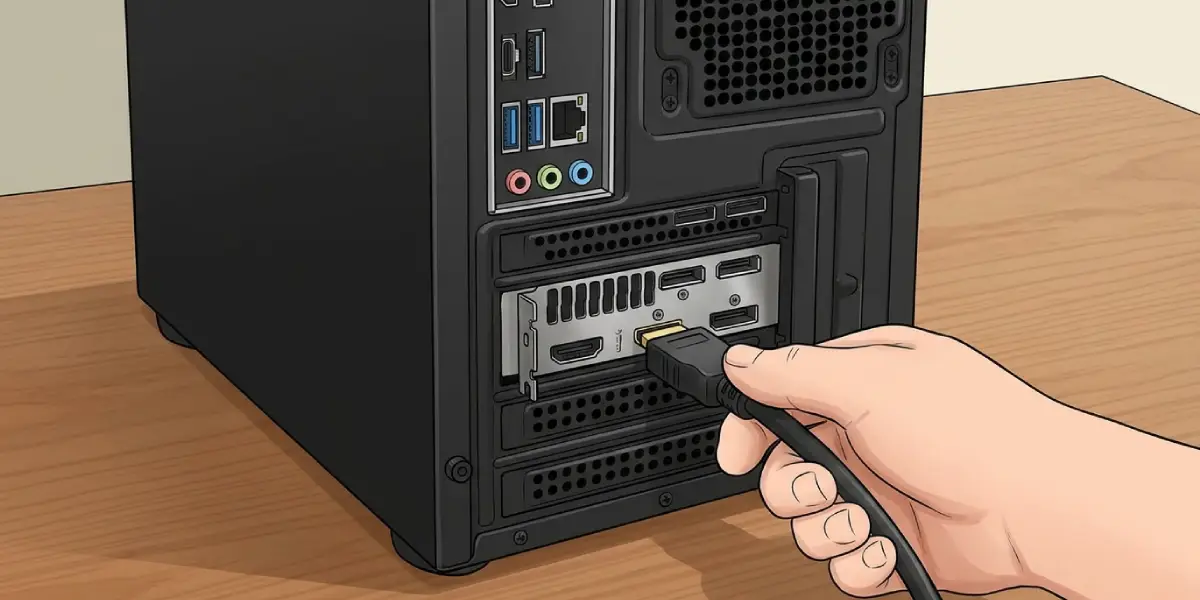
Tip: Test with a second HDMI port on the display, a different cable, and if possible another display. Changing one thing at a time shows whether the cable, the screen, or the GPU is the weak link.
Power Cycle the Display and the PC
- Step 5: Turn off the PC and the display, and unplug the display’s power cable. Wait about a minute. Reconnect the power, plug the HDMI cable in, turn on the display first, then boot the PC. This clears a stuck handshake.
Force Windows to Look for the Display
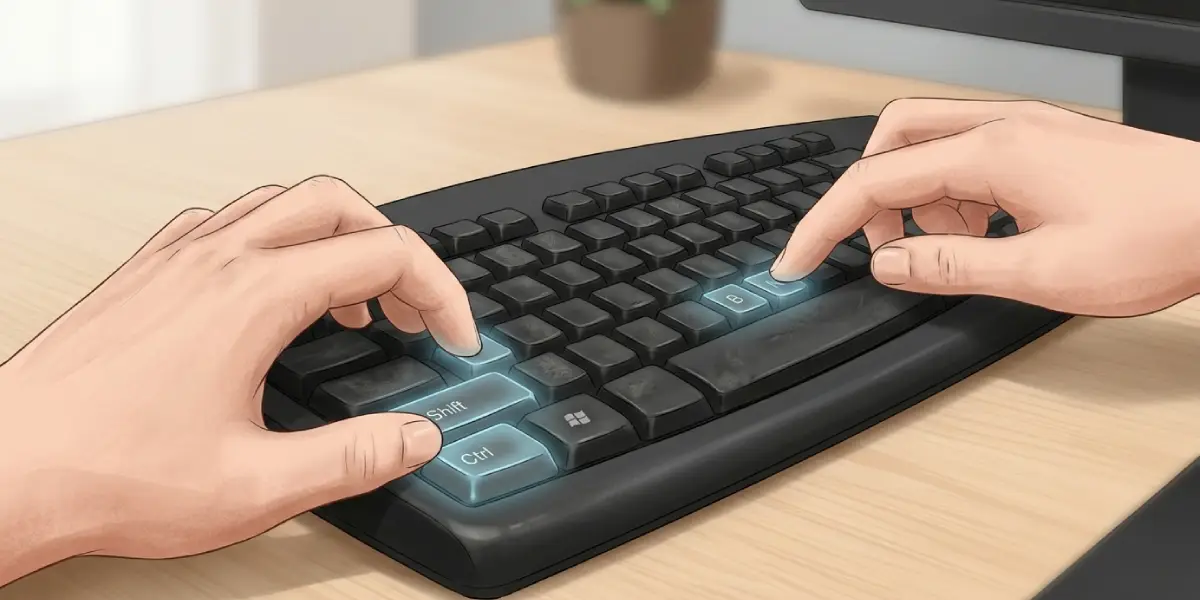
- Step 6: Press Win + Ctrl + Shift + B on the keyboard. This restarts the graphics driver, and the screen may flicker briefly.
- Step 7: Press Win + P and choose Extend or Duplicate. If the mode is set to PC screen only, a second screen stays dark.
- Step 8: Open Settings, go to System, then Display, and select Detect under Multiple displays if the button appears. In the NVIDIA Control Panel, the Set up multiple displays page can also show which screens are recognized.
Lower the Resolution and Refresh Rate
- Step 9: If a display connects but shows no picture, or flickers on and off, boot with another display and set a lower resolution and refresh rate under Settings, then System, then Display, then Advanced display. A cable that cannot carry 4K at a high refresh rate may work fine at 1080p or 60 Hz.
Reinstall the NVIDIA Driver Cleanly
- Step 10: Download the latest driver for the exact GPU model from NVIDIA’s official website, and download DDU.
- Step 11: Boot Windows into Safe Mode, run DDU, and choose to clean and restart for the NVIDIA GPU option.
- Step 12: After Windows restarts, install the freshly downloaded NVIDIA driver and choose a custom or clean installation if the installer offers it.
- Step 13: Restart the PC again and reconnect the HDMI display.
Tip: Disconnect from the internet while running DDU, so Windows Update does not install a generic driver in the middle of the process.
Check the BIOS and Integrated Graphics Settings
- Step 14: Enter the BIOS or UEFI and look for a setting named Primary Display, Initial Display Output, or similar. Set it to PCIe or PEG so the NVIDIA card is the primary output. Settings differ by motherboard brand, so check the board manual for the exact name.
Check Laptops With Hybrid Graphics
- Step 15: On a laptop, open the NVIDIA Control Panel and check 3D Settings for the preferred graphics processor. Some laptops route the HDMI port through the NVIDIA GPU, and others through the integrated GPU.
- Step 16: Check the laptop maker’s utility or the BIOS for a graphics mode option such as Discrete, Hybrid, or Optimus. Switching modes can restore the HDMI output on models where the port is tied to one GPU.
Inspect the Port and Reseat the Card
- Step 17: With the PC off and unplugged, shine a light into the HDMI port on the graphics card. Look for bent contacts, lint, or dust, and clean it gently with compressed air. Never push metal tools into the port.
- Step 18: On a desktop, release the PCIe slot latch, remove the card, and seat it firmly back in. Make sure the PCIe power cables are fully clicked in, since a card missing power can behave oddly.
If the port is physically damaged or the card is still not detected in the BIOS, stop here. A damaged HDMI port needs a repair professional or a warranty claim.
Common Problems and Fixes
The display works on DisplayPort but not on HDMI
This points toward the HDMI cable, the HDMI port on the display, or a handshake problem. Try another cable and another HDMI port on the display first. If the DisplayPort output keeps working, it is a reasonable workaround while the HDMI side is sorted out.
The screen works at boot but goes black in Windows
This usually means a driver or resolution problem. Boot into Safe Mode or use another display, lower the refresh rate, and perform the clean DDU driver reinstall described above.
The monitor flickers or drops signal every few minutes
A worn cable or a refresh rate beyond what the cable can handle is the usual cause. Use a higher quality HDMI cable, keep the cable length reasonable, and lower the refresh rate to test.
The TV is detected but the picture is cut off or the wrong size
Change the TV picture mode to Game, PC, or Just Scan so overscan is off. In the NVIDIA Control Panel, the desktop size and position settings can also correct scaling.
No picture after a new GPU install
Check that the cable is in the new card rather than the motherboard, that the PCIe power cables are connected, and that the card is fully seated. If the motherboard BIOS is very old for the new card, a BIOS update may be needed.
Still no signal after every step
Test the card in another PC, or test another GPU or display in the same PC. If the card fails on every display, the card or its HDMI port is likely faulty and needs professional service or a warranty replacement.
Frequently Asked Questions
Why is my HDMI not detected by my NVIDIA GPU?
The most frequent reasons are the cable plugged into the motherboard instead of the graphics card, the wrong input source on the display, a faulty cable, a driver problem, or Windows display mode settings. Checking these in order resolves most cases.
Can a bad HDMI cable cause no signal even when everything else works?
Yes. A damaged or low-quality cable can fail the handshake between the GPU and the display, so the screen is never detected. Swapping in a known-good cable is one of the quickest tests.
How do I restart the NVIDIA graphics driver without rebooting?
Press Win + Ctrl + Shift + B on a Windows keyboard. The screen may flicker or go black for a moment while the graphics driver resets, which can bring a missed display back.
Should I plug HDMI into the motherboard or the graphics card?
On a desktop with a dedicated NVIDIA GPU, the cable should go into the graphics card. The motherboard ports use the integrated graphics, which are normally inactive when a dedicated card is used.
Will reinstalling the NVIDIA driver fix an undetected HDMI display?
It often does when the cause is software. A clean reinstall using Display Driver Uninstaller removes corrupted files that a normal update leaves behind, which gives the driver a fresh start.
Why does my laptop not detect an HDMI monitor when the NVIDIA GPU is installed?
Many laptops route the HDMI port through either the integrated GPU or the NVIDIA GPU, depending on the model and the graphics mode. Checking the graphics mode in the BIOS or the manufacturer’s utility, and updating drivers, usually helps.
Can the wrong refresh rate or resolution stop HDMI from being detected?
It can cause a black screen or flickering when the cable or display cannot handle the requested settings. Lowering the resolution or refresh rate temporarily is a good test.
Is my GPU broken if HDMI is not detected?
Not necessarily. Cables, input settings, and drivers fail far more often than the card itself. If the card fails on every cable and display, and in another PC, the HDMI port or the card is likely at fault and should be checked by a professional.
