
Need a quick answer from a group without a flood of reply messages? You can add voting buttons to an Outlook email so recipients respond with a single click, and the results are tallied for you. The whole process takes less than two minutes once the right menu is located.
Key Takeaways
- Voting buttons are added from the Options tab of a new message in classic Outlook for Windows.
- Three presets are available (Approve;Reject, Yes;No, and Yes;No;Maybe), and custom button labels can be typed in manually.
- Custom labels are separated with semicolons, such as Option A;Option B;Option C.
- Votes are tallied in the sent message through the Tracking button.
- Voting works most reliably when recipients are on the same Exchange or Microsoft 365 organization.
Step-by-Step Guide to Add Voting Buttons to an Outlook Email
The steps below use classic Outlook for Windows (Microsoft 365, Outlook 2021, 2019, and 2016). The voting feature lives in the message window, not in the main ribbon, so it is easy to miss.
Add a Preset Voting Button Set
- Step 1: Open Outlook and select New Email on the Home tab.
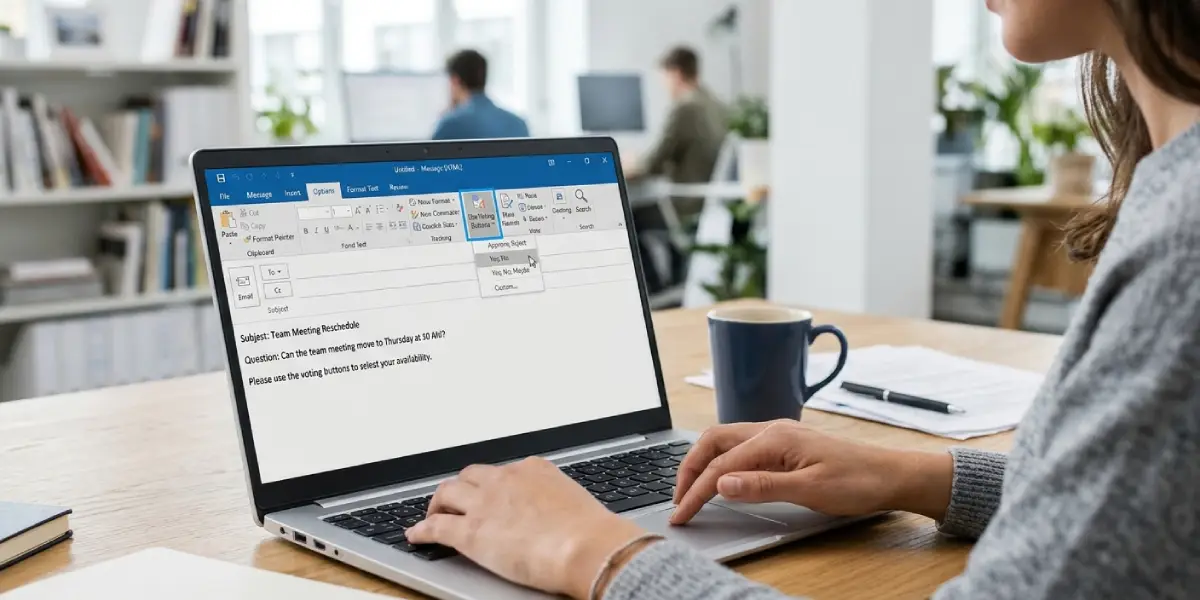
- Step 2: Add the recipients, a clear subject line, and the question in the message body. Phrase the question so the buttons answer it directly, for example ‘Can the team meeting move to Thursday at 10 AM?’
- Step 3: In the message window, select the Options tab.
- Step 4: In the Tracking group, select Use Voting Buttons.
- Step 5: Pick one of the presets: Approve;Reject, Yes;No, or Yes;No;Maybe.
- Step 6: Select Send. The message goes out with the voting buttons attached.
Tip: Pick the preset that matches the type of decision. Approve;Reject suits sign-offs such as expense approvals, while Yes;No;Maybe works well for casual headcount questions.
Create Custom Voting Buttons
Presets cover simple decisions, but real life is rarely that tidy. When choosing between lunch venues or meeting times, custom labels make the email far more useful.
- Step 1: Start a new email and write the message as usual.
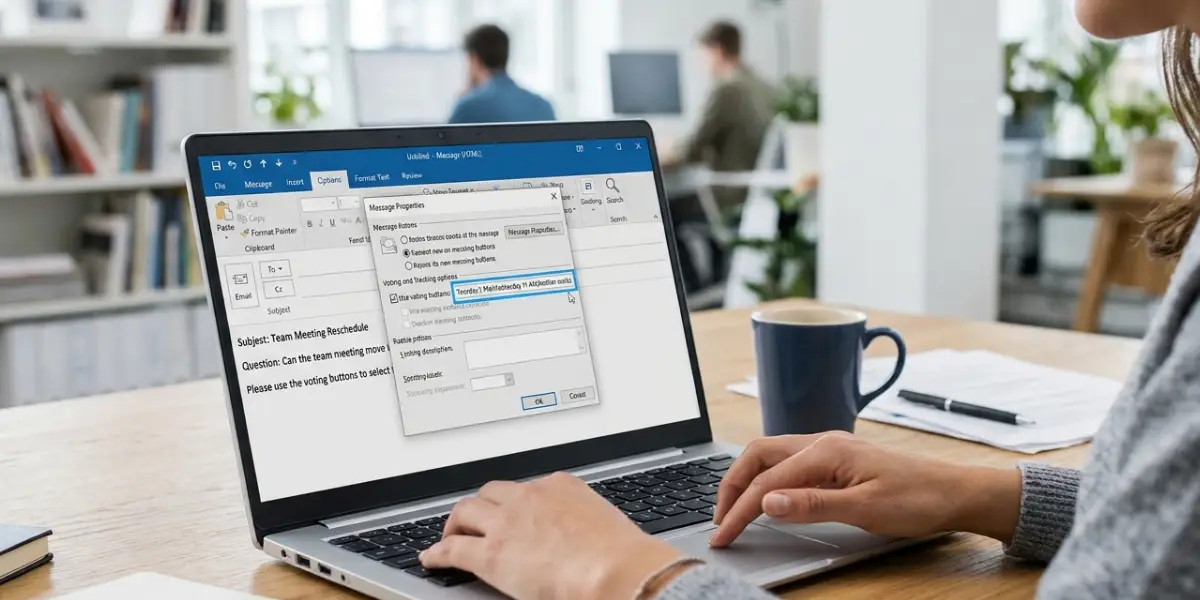
- Step 2: Select Options, then Use Voting Buttons, then Custom.
- Step 3: In the Properties window, find the Voting and Tracking options section and make sure Use voting buttons is ticked.
- Step 4: Replace the text in the box next to it with the labels needed, separated by semicolons. For example: Tuesday 2 PM;Wednesday 11 AM;Neither works.
- Step 5: Select Close, then Send.
Tip: Keep each label short. Long labels make the voting buttons wrap awkwardly in the recipient’s message, and brief wording is faster to read at a glance.
Check the Voting Results
- Step 1: Open the Sent Items folder and double-click the message to open it in its own window.
- Step 2: On the Message tab, select Tracking in the Show group.
- Step 3: Review the list of recipients and the response each person chose. A running tally also appears in the information bar at the top of the opened message.
The Tracking view is only available from the sent copy of the message, so open the item from Sent Items rather than from a reply.
How Recipients Vote
Recipients using Outlook for Windows see a bar reading ‘Click here to vote’ at the top of the message. Selecting it shows the available choices. Recipients can also open the message and select Vote on the Message tab. Outlook then offers to send the response immediately or let them edit it first, and either way the choice is recorded.
Common Problems and Fixes
The Use Voting Buttons Option Is Missing
This feature is available in classic Outlook for Windows. If the Options tab does not show Use Voting Buttons, the message is probably being written in the new Outlook for Windows or in Outlook on the web. Switch to classic Outlook (the toggle is usually in the top right corner of the window) and create the message again.
Custom Buttons Appear as One Long Button
The labels were not separated correctly. Reopen the Properties window and confirm every label is divided by a semicolon with no commas or line breaks between them.
The Tracking Button Is Not Visible
Tracking appears only when a sent message that included voting buttons is opened from the Sent Items folder. Open the original sent copy, then check the Message tab again.
Votes Are Not Being Counted
Tallying depends on responses reaching the sender’s mailbox. Recipients outside the organization, or on non-Exchange accounts, may not have their votes counted in Tracking. Responses sometimes arrive as separate emails instead, so check the Inbox for messages starting with the chosen label.
Recipients Cannot See the Voting Buttons
Voting buttons display properly in Outlook for Windows. Some mobile and web mail apps do not show the voting bar, so recipients using those apps may need to open the message on a desktop with classic Outlook, or reply with their answer in plain text.
Frequently Asked Questions
Where are voting buttons in Outlook?
Voting buttons are on the Options tab of a new message window in classic Outlook for Windows. Select Use Voting Buttons in the Tracking group to see the available choices.
Can voting buttons be added to an email in the new Outlook or Outlook on the web?
The Use Voting Buttons command is found in classic Outlook for Windows. If the command is not available in the version being used, switch to classic Outlook and compose the message there.
How do custom voting buttons work?
Choose Use Voting Buttons, then Custom, and type the button labels in the Voting and Tracking options box. Separate each label with a semicolon, such as Option A;Option B;Option C, and Outlook turns each one into its own button.
How many voting buttons can be added to one email?
Presets include two or three buttons, and custom sets can include as many labels as needed. For readability, keeping the list to a handful of short choices works best.
How do the results of a vote get viewed?
Open the sent message from the Sent Items folder and select Tracking on the Message tab. The list shows each recipient and the choice they made, and the tally also appears in the information bar of the message.
Can a vote be changed after it is sent?
A recipient can usually vote again from the original message, and the most recent response is the one recorded. If the earlier vote still shows, ask the recipient to resend the response.
Do voting buttons work for people outside the organization?
Voting works most reliably between people on the same Exchange or Microsoft 365 organization. External recipients may not see the buttons, and their responses may arrive as ordinary emails instead of tallied votes.
Why are the voting buttons not showing for the recipient?
The recipient may be using a mail app that does not support voting buttons. Outlook for Windows displays them reliably, so asking the recipient to open the message there, or to reply with a written answer, solves the issue.
