
Watching a laptop drop from 60 percent to 30 percent in a minute, or climb back up for no reason, is both confusing and annoying. Knowing how to fix battery percentage jumping erratically starts with understanding that the number on screen is an estimate, not a direct measurement. This guide covers the real causes and the fixes in the order that makes sense to try them.
Key Takeaways
- The battery percentage is calculated by a fuel gauge chip, and it can drift out of sync with the real charge until it is recalibrated.
- Outdated BIOS, a corrupted battery driver, or a failing battery are the most common causes of sudden jumps.
- A full calibration cycle and a driver reinstall fix most cases without any tools.
- A swollen battery or one that keeps jumping after every fix needs replacement, not more troubleshooting.
Common Causes of Erratic Battery Percentage
Think of the fuel gauge like a car’s fuel estimate on a long trip. It guesses the remaining range from recent behavior, and a few bad assumptions throw the whole number off. Here is what usually upsets it.
- Drifted calibration: After months of partial charges, the gauge loses track of what full and empty really mean.
- Worn battery cells: An aging battery cannot hold voltage under load, so the reading drops sharply when the processor or graphics chip suddenly demands power.
- Corrupted battery driver: Windows relies on the Microsoft ACPI-Compliant Control Method Battery driver to read the battery. A glitch there produces strange numbers.
- Outdated BIOS or embedded controller firmware: Manufacturers release updates that correct how the laptop reports battery data.
- Extreme temperatures: Very cold or very hot batteries report unstable voltage, which confuses the estimate.
- Faulty or underpowered charger: Unstable input power makes the percentage rise and fall while plugged in.
- Loose or damaged battery connection: This applies mostly to removable or internal batteries that have been bumped or serviced.
Before You Start
Most fixes below are software-based, so no tools are needed. Only the optional hardware step involves opening the laptop, and that is where a few precautions matter.
- Save open work, since several steps involve restarts or a full drain.
- Keep the original charger on hand for testing.
- For the hardware step, power off, unplug the charger, and touch bare metal to discharge static before handling anything. A small precision screwdriver set and a plastic pry tool are enough.
- Opening the case may affect the warranty. If the battery looks swollen, bulging, or the case is lifting, stop and let a professional handle it.
How to Fix Battery Percentage Jumping Erratically Step by Step
Work through these in order. Each one costs little effort, and many laptops are fixed by the first three.
Check the Battery Health First
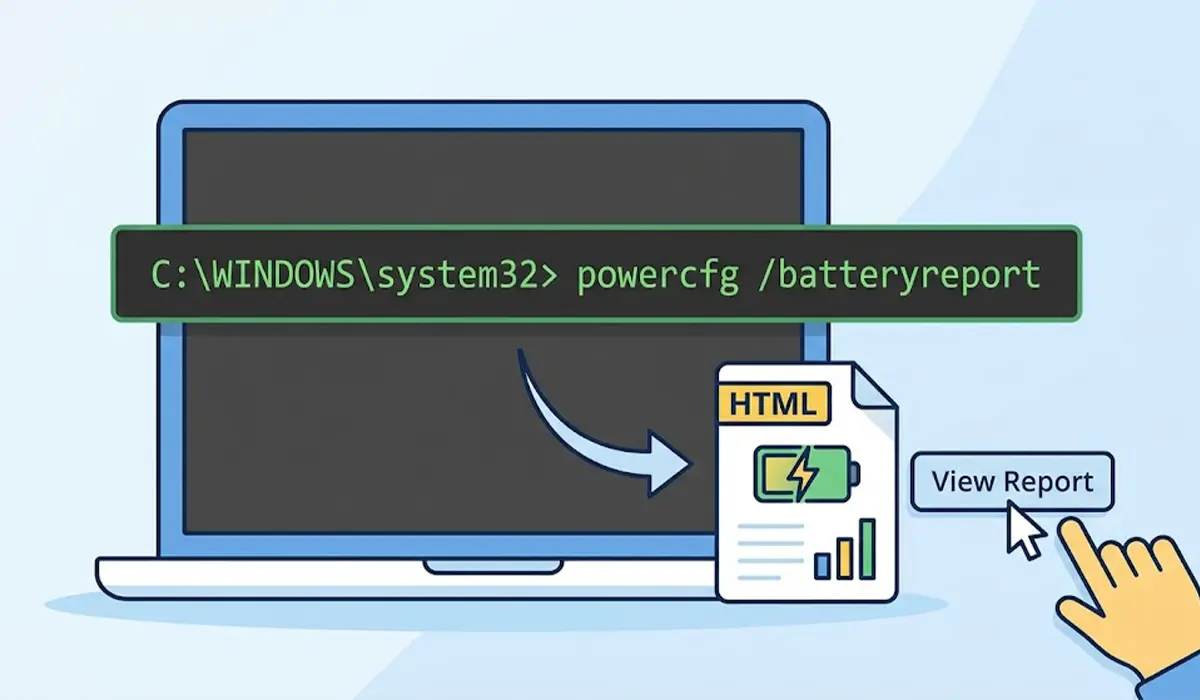
- Step 1: Open Command Prompt or Windows Terminal as administrator and run powercfg /batteryreport. Windows saves an HTML report and shows where it was stored.
- Step 2: Open the report and compare the design capacity with the full charge capacity. A large gap means the battery is worn, and calibration will only help a little.
Tip: A battery that reports a normal capacity but still jumps is usually a calibration or driver problem, which makes the next steps worth doing.
Calibrate the Battery
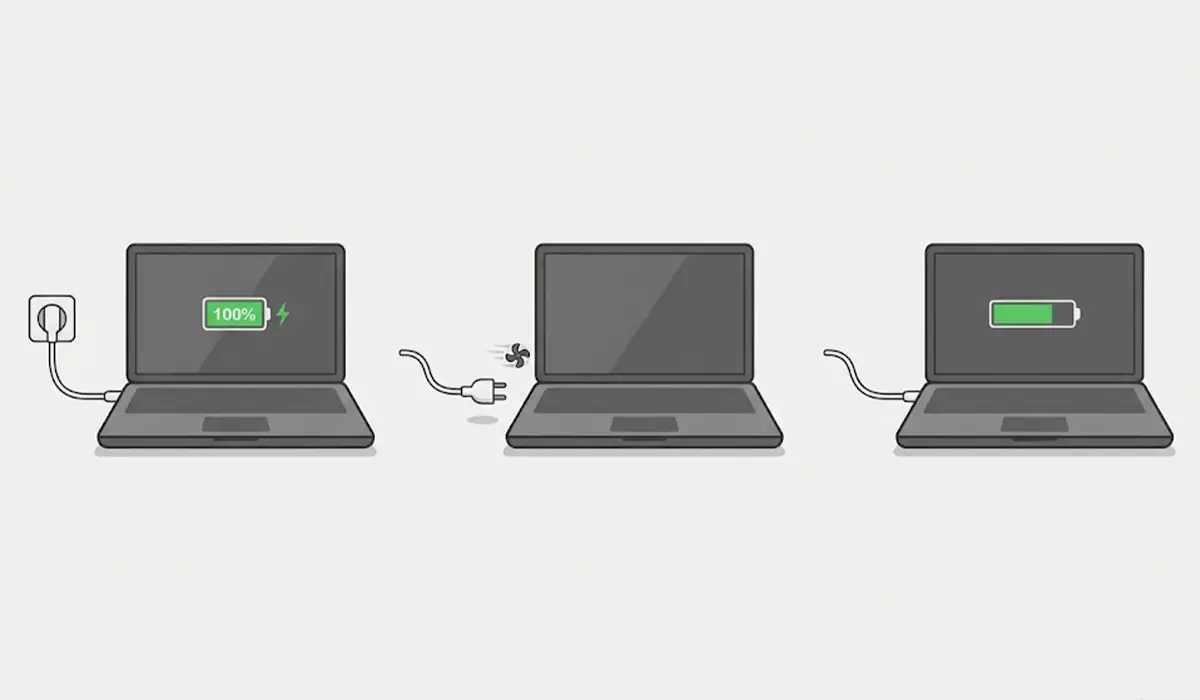
- Step 3: Charge the laptop to 100 percent and leave it plugged in for an additional hour or two so the battery fully tops off.
- Step 4: Unplug the charger and use the laptop normally until it shuts down on its own from low battery. Avoid heavy tasks in a hot room during this step.
- Step 5: Leave the laptop powered off for a few hours, then charge it back to 100 percent without interruption.
Many manufacturers also include a battery calibration or battery health tool in their support app or BIOS. If one is available, it is often the cleaner way to do the same job.
Reinstall the Battery Driver
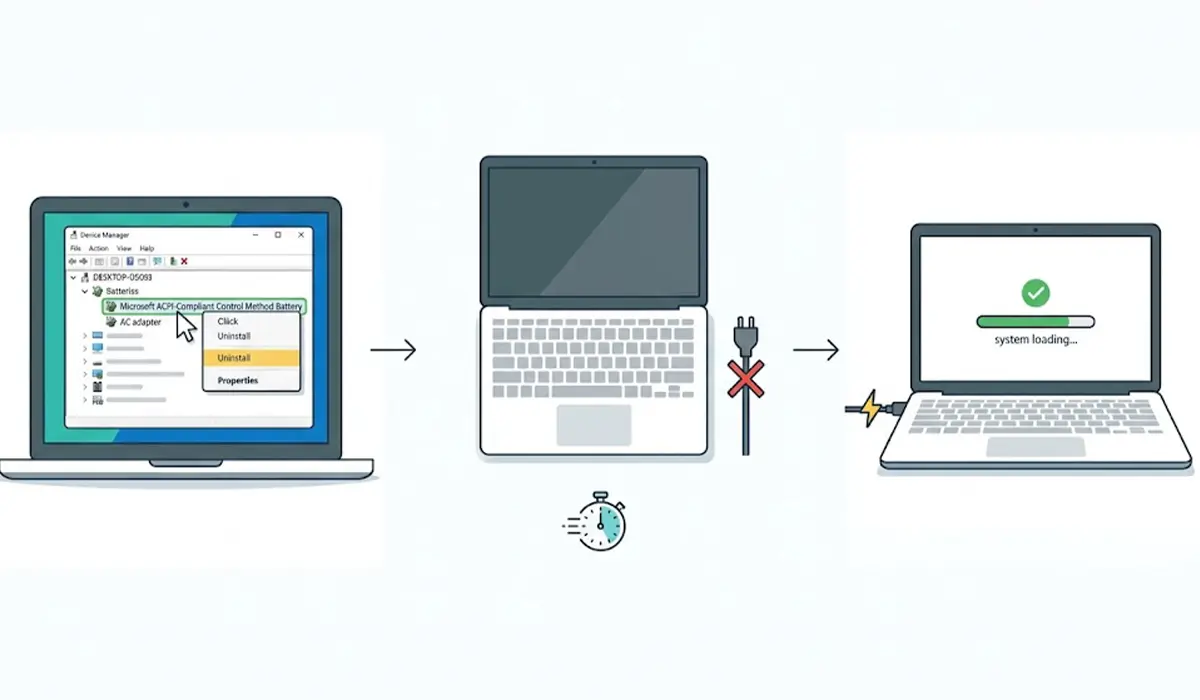
- Step 6: Right-click the Start button and open Device Manager, then expand the Batteries category.
- Step 7: Right-click Microsoft ACPI-Compliant Control Method Battery and choose Uninstall device. Repeat for the AC adapter entry if it is listed.
- Step 8: Shut down completely, unplug the charger, wait about a minute, then plug in and start up. Windows reinstalls the driver automatically.
Update Windows, BIOS, and Chipset Drivers
- Step 9: Run Windows Update and install pending driver and system updates.
- Step 10: Visit the laptop manufacturer’s support page, enter the exact model, and install the latest BIOS and chipset updates. Keep the charger connected throughout a BIOS update and never interrupt it.
Reset the Embedded Controller
- Step 11: Shut the laptop down and unplug the charger. If the battery is removable, take it out.
- Step 12: Hold the power button for about 30 seconds to drain residual power, then reconnect the battery and charger and start up.
Tip: Laptops with sealed batteries usually have a manufacturer-specific reset method, so check the support page for the exact model before trying anything with a screwdriver.
Test the Charger and Reseat the Battery
- Step 13: Try a known-good charger with the same rating as the original, and inspect the cable and tip for fraying or bent pins.
- Step 14: On a laptop with a removable battery, clean the contacts gently with a dry microfiber cloth and reseat the battery firmly.
- Step 15: If the battery is internal and the symptoms continue, have a technician check the connector and the cells.
Common Problems and Fixes
The Percentage Still Jumps After Calibration
This usually points to worn cells. The battery report from Step 1 will often show reduced full charge capacity. A replacement battery is the lasting fix.
The Laptop Shuts Down at 20 or 30 Percent
The gauge believes there is more charge than the cells can actually deliver under load. Calibration can help briefly, but repeated early shutdowns are a sign the battery is aging out.
The Percentage Changes Only While Plugged In
Suspect the charger or the charging port. Test with a known-good charger and check the DC jack for looseness or debris.
The Battery Icon Shows a Plugged In but Not Charging Message
Reinstall the battery driver and update the BIOS. If the message returns, the battery or charging circuit may be failing.
The Problem Returned After a Few Weeks
A returning issue means the underlying cause was never solved. Check battery health again, and consider limiting charge to a lower maximum through the manufacturer’s battery settings if the feature exists.
Frequently Asked Questions
Why does a laptop battery percentage jump suddenly?
The percentage is an estimate calculated by a fuel gauge chip from voltage and current. When the gauge drifts out of calibration or the cells are worn, the estimate can change in large, sudden steps.
Is a jumping battery percentage dangerous?
The jumping itself is not dangerous, but a swollen, hot, or bulging battery is. If the case is lifting or the trackpad is pushing upward, stop using the laptop and have the battery replaced by a professional.
Does calibrating the battery really fix the problem?
It often does when the cause is a drifted gauge. Calibration will not repair worn cells, so a battery with low health may still jump afterward.
Can a Windows update cause battery percentage errors?
Occasionally, a driver or firmware mismatch after an update can cause odd readings. Reinstalling the battery driver and installing the manufacturer’s latest BIOS update usually resolves it.
Can a bad charger make the battery percentage jump?
Yes. A charger with unstable output or a damaged cable can cause the percentage to rise and fall while plugged in. Testing with a known-good charger of the correct rating confirms it quickly.
How can a worn-out battery be identified?
Run powercfg /batteryreport in an administrator terminal and compare design capacity with full charge capacity. A big gap, along with short runtime and early shutdowns, indicates a worn battery.
Does heat or cold affect the battery percentage reading?
Yes. Extreme temperatures change the battery voltage, which makes the estimate less accurate. Letting the laptop return to room temperature before checking the reading gives a more reliable number.
When should the battery be replaced?
Replacement makes sense when the percentage keeps jumping after calibration and driver fixes, the full charge capacity is far below design capacity, or the battery shows any sign of swelling.
